Table of Contents
This guide provides a clear overview of figma, including 1. Mesh Gradient, 2. Figma to Webflow. Use it to understand the topic, compare the available options, and make a more informed decision.
Here are some of the most useful free Figma plugins available today!
1. Mesh Gradient

The Gautham Plugin Mesh Gradient provides a quick and easy way to add custom gradients to your Figma designs. Run the plugin and create a gradient square. You can customize the colors yourself, or press Randomize to automatically create a gradient design.
This plugin creates an image from your gradient, so it cannot be edited after creation. However, you can edit the old gradient or create a new gradient in the plugin.
2. Figma to Webflow

Webflow Labs offers a great way to turn your Figma designs into Webflow-ready HTML or CSS and create websites. You can integrate Webflow interactions into your Figma designs for seamless integration with Webflow Labs. This plugin is great if you are a Webflow Labs user or work with a web developer team.
It includes responsive components, retains all your styles, fonts and images, and even allows you to edit HTML tags right within Figma. You can create major types of templates in Figma and use Figma to Webflow to export them for future website projects.
3. Unsplash
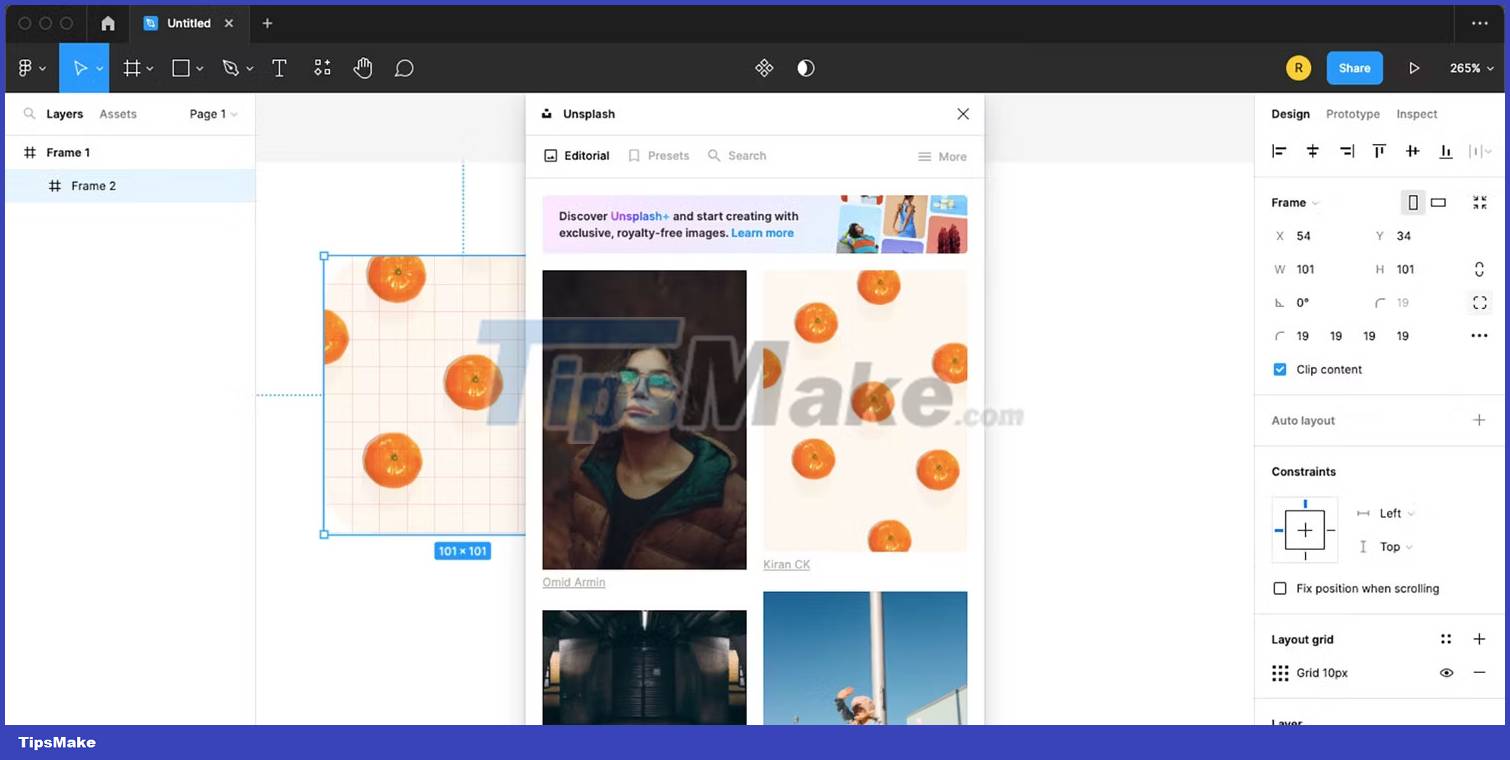
The official Figma plugin Unsplash makes it possible to insert images directly into your designs without leaving the Figma window. With this plugin, you will save time and clicks when adding images to your work.
4. Lorem Ipsum
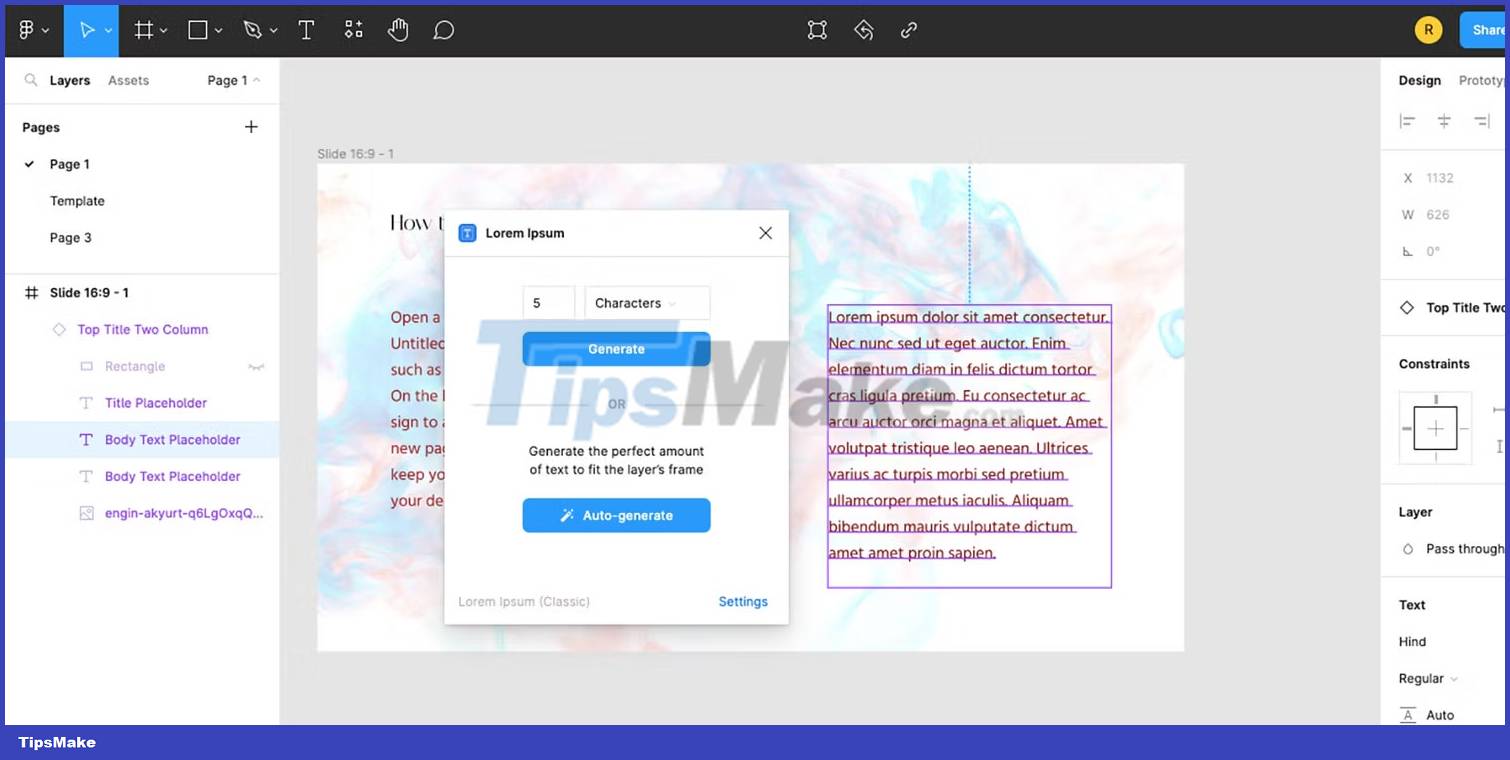
If you work as a visual designer, you may find it difficult to find placeholder text for the space in your design. Lorem Ipsum placeholder plugin does it all for you. With traditional Latin text, simply hand your design over to the copywriter to turn the placeholder text into actual content, so all you have to do is focus on the image.
5. Text Porter
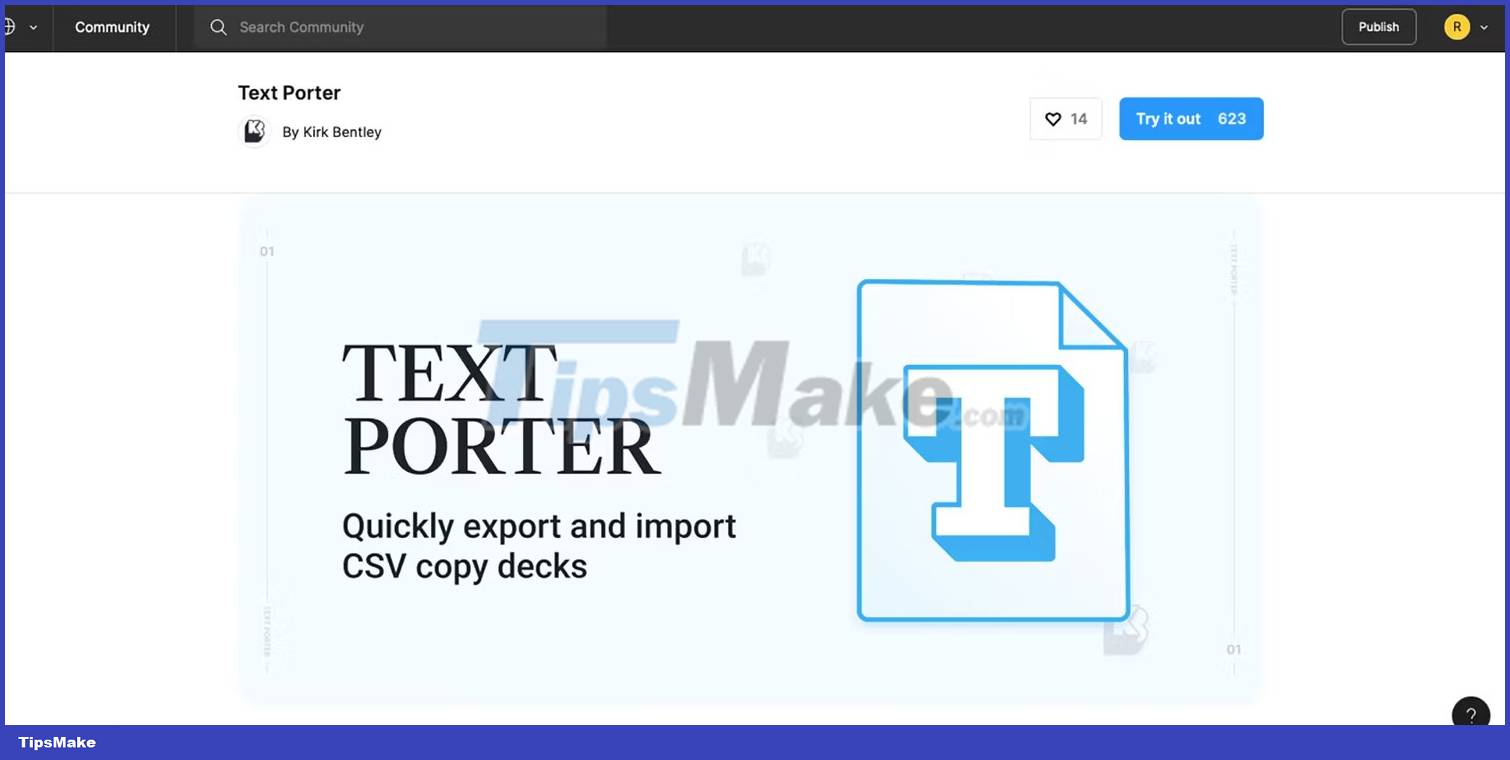
If you have a stock of copywriting content you need for your designs, Text Porter makes moving them from Excel to Figma a breeze. Just run the Text Porter plugin and move your text. Then edit the text directly in the Excel file to update your Figma designs in the future. This is useful if your copywriter doesn't have access or knowledge of Figma.
For a smoother workflow along with using plugins, you can also use Figma shortcuts for a faster workflow.
6. Icons8 Background Remover
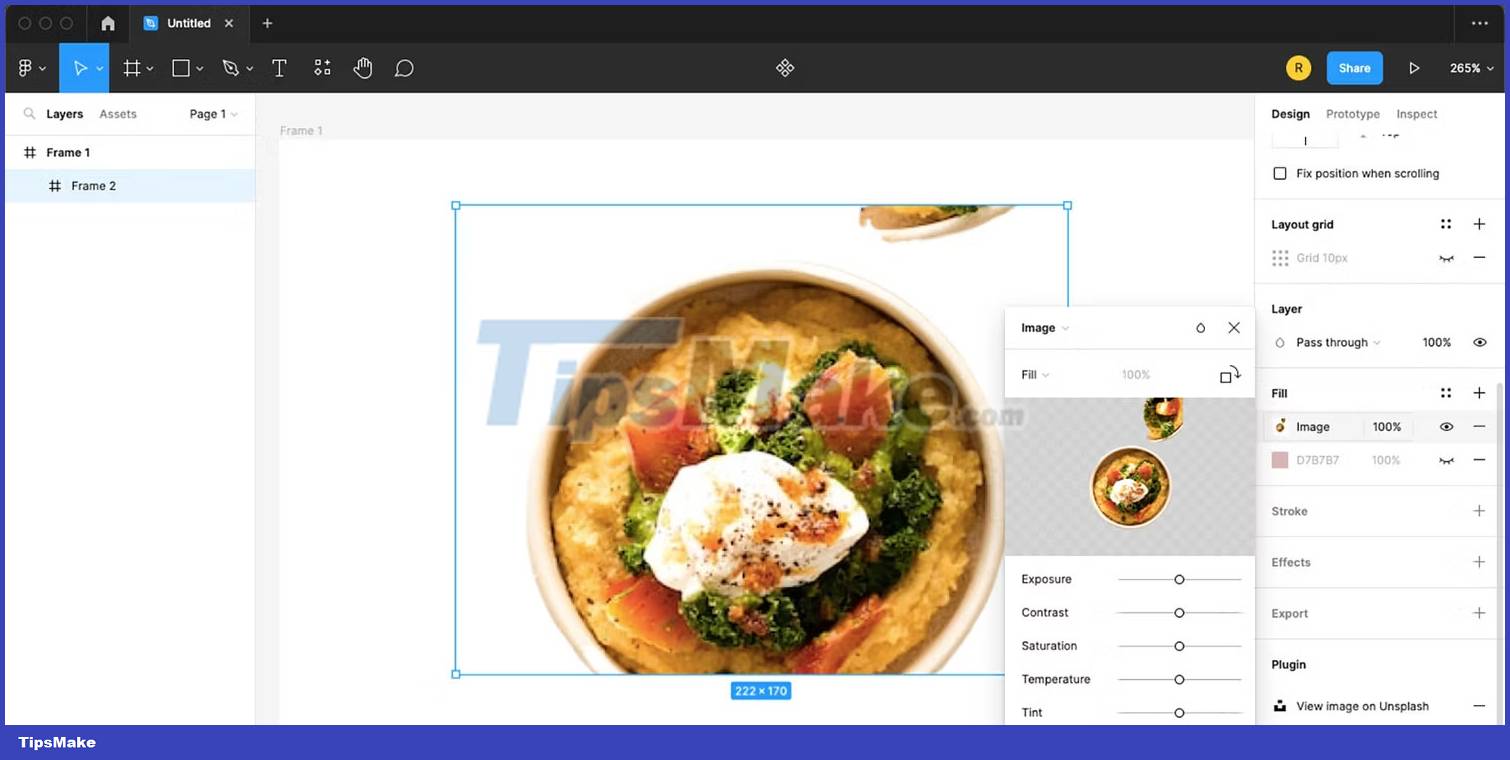
Background removal is a common practice when using images in many design aspects. Instead of depending on Photoshop, Canva or other editing programs, using the Icons8 Background Remover plugin will speed up the process and save you from having to leave Figma in the process.
The background remover can be applied to multiple images at once, speeding up your workflow at the touch of a button.
7. Image Tracer
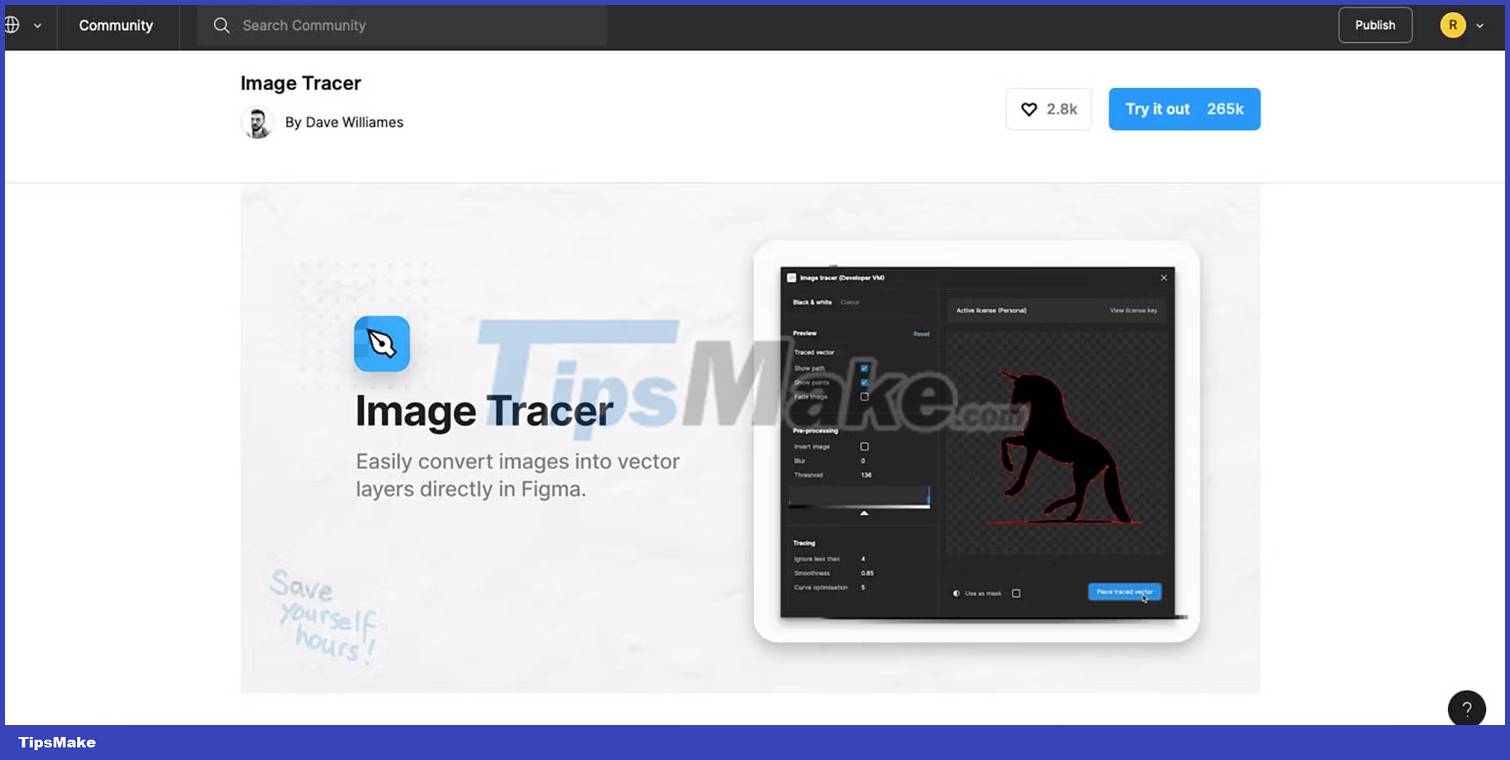
The Image Tracer plugin creates a vector image from any image and the image layer you choose to apply it to. A scalable vector is extremely useful for digital design work, and this plugin makes it easy to turn any image into a vector.
8. Html.to.design
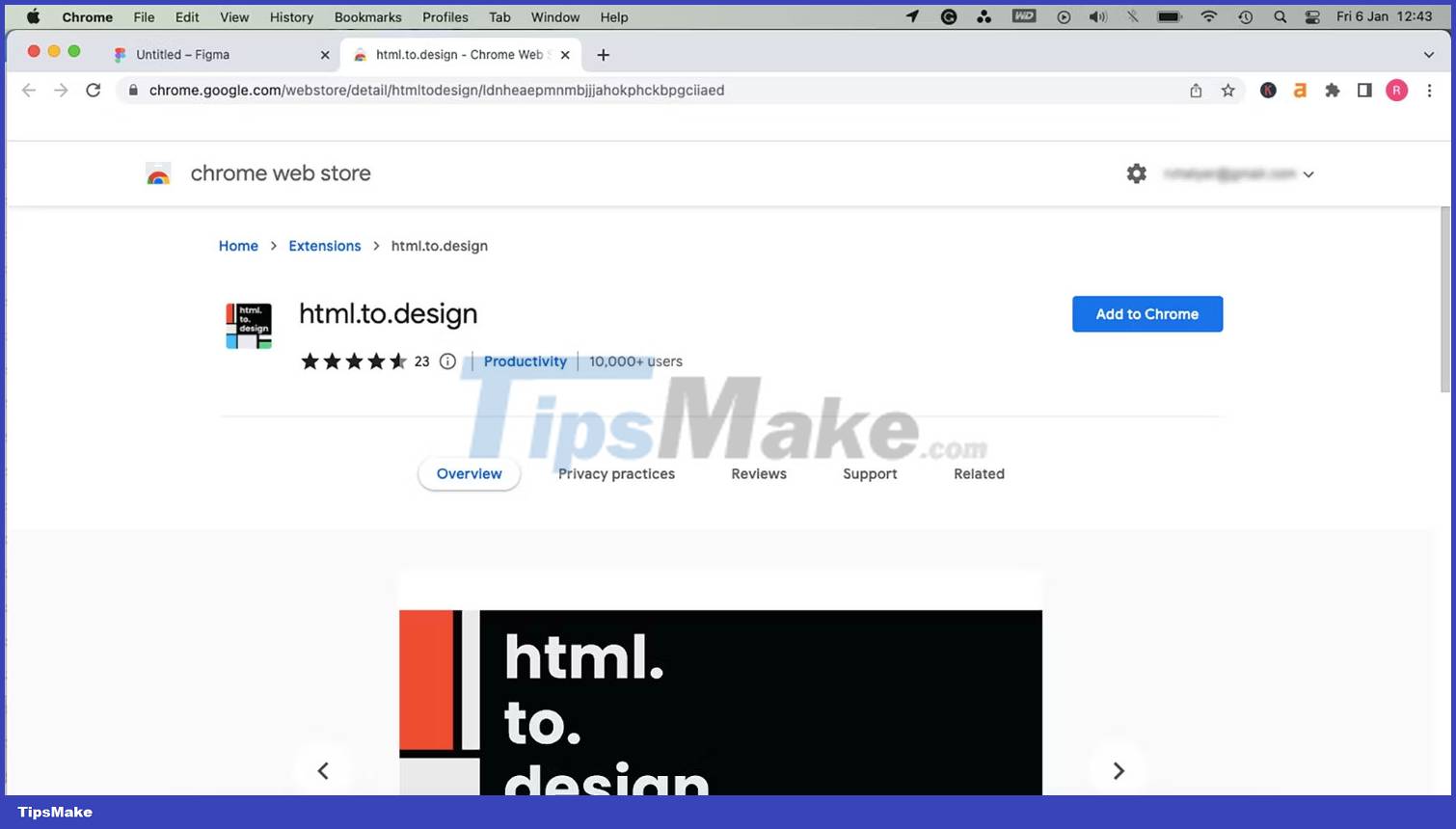
The Html.to.design plugin can help you recreate existing website designs into Figma designs. This serves many purposes such as helping you practice website design or for you to restore old websites that you designed and lost access to.
9. Vectorize
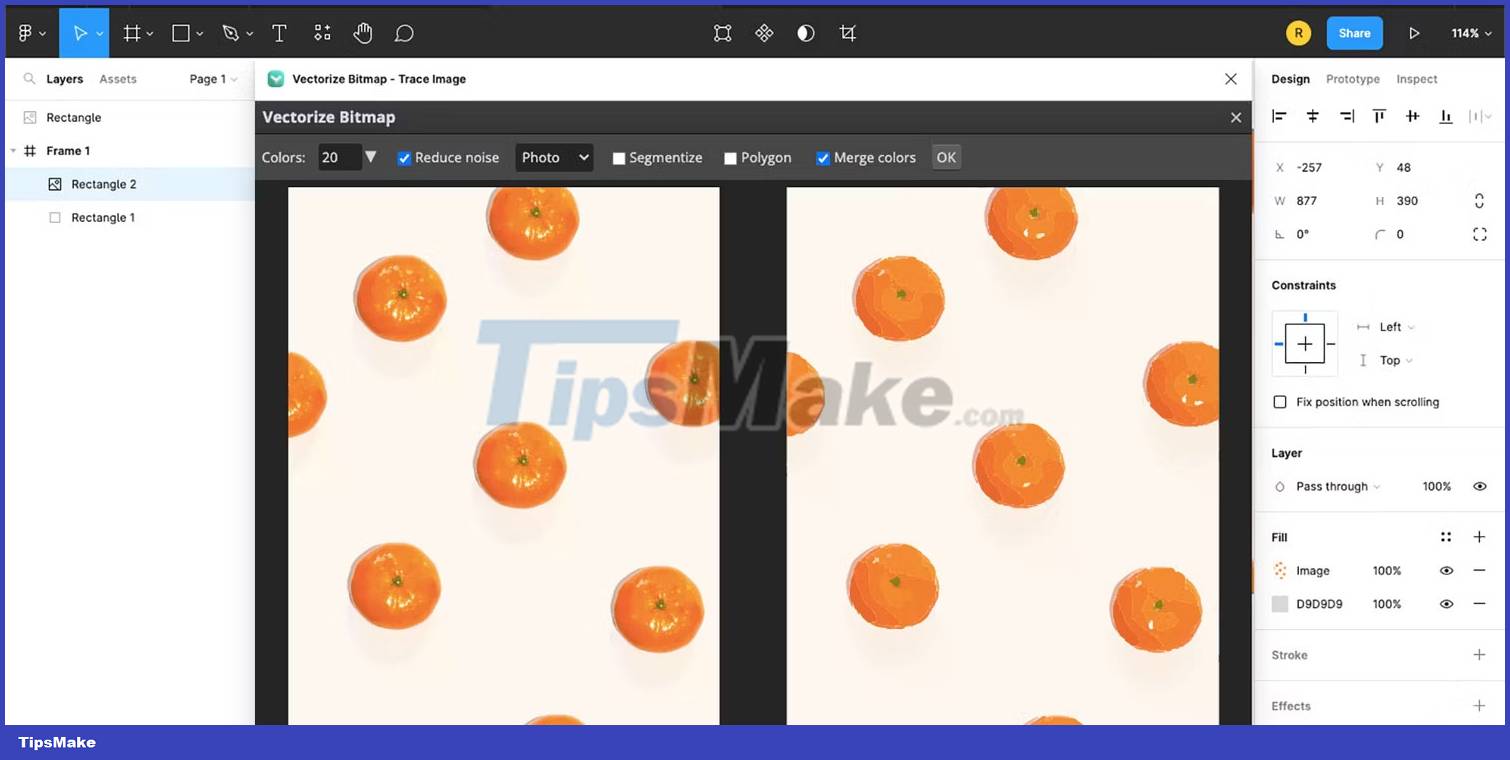
The Vectorize plugin works similar to Image Tracer, but it's better if you only have one image and one color to vectorize. Converting bitmap images to vector is very easy using this plugin.
The new vectors will be a vector line, easy to edit and use for all your design needs. Especially good if a client sends you their logo as a pixelated image copied from a Word document. You can easily revive logos and other single-color icons in Figma.
10. Aspects
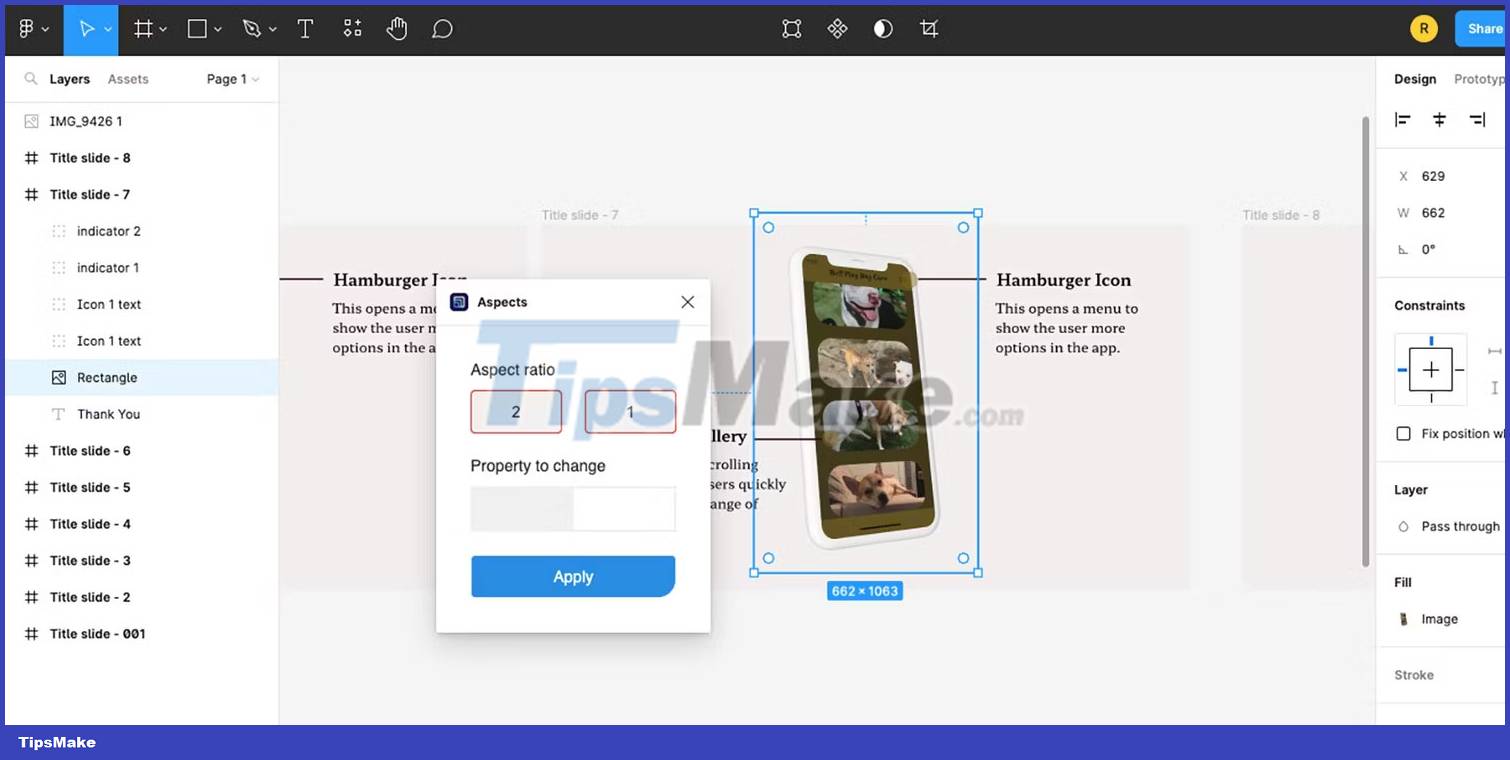
Want to design for a specific aspect ratio? Need to scale up or down? Use the Aspects plugin. This plugin allows you to quickly change the look of different layers in your design, especially images. Aspects is a useful tool for any design scale that you need to do quickly.
11. Button Buddy
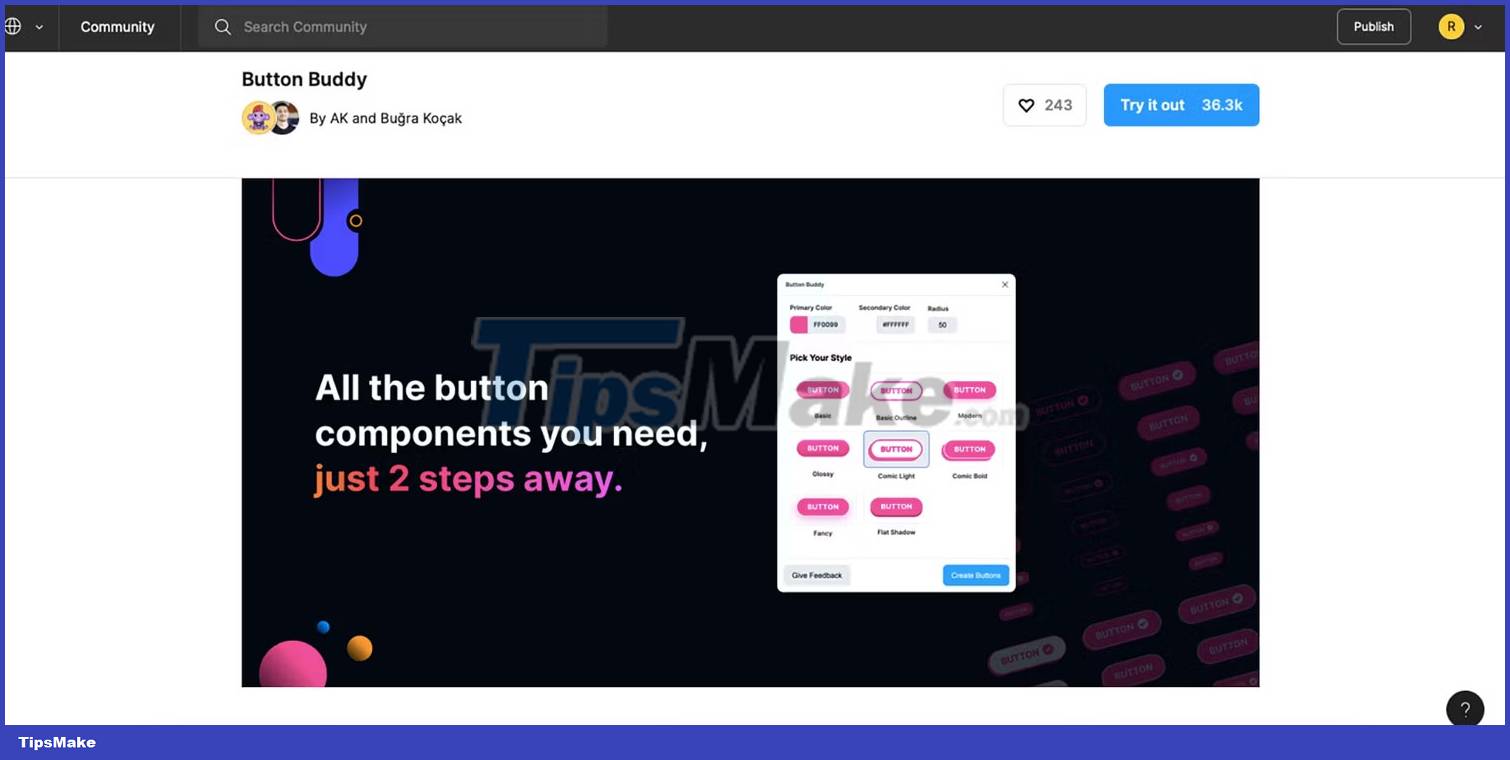
If you're doing UX/UI design, you'll probably need to add buttons to your design. Button Buddy is a great plugin that offers a variety of button element designs, saving you design time, so you can focus on great layout designs.
12. Handy Components
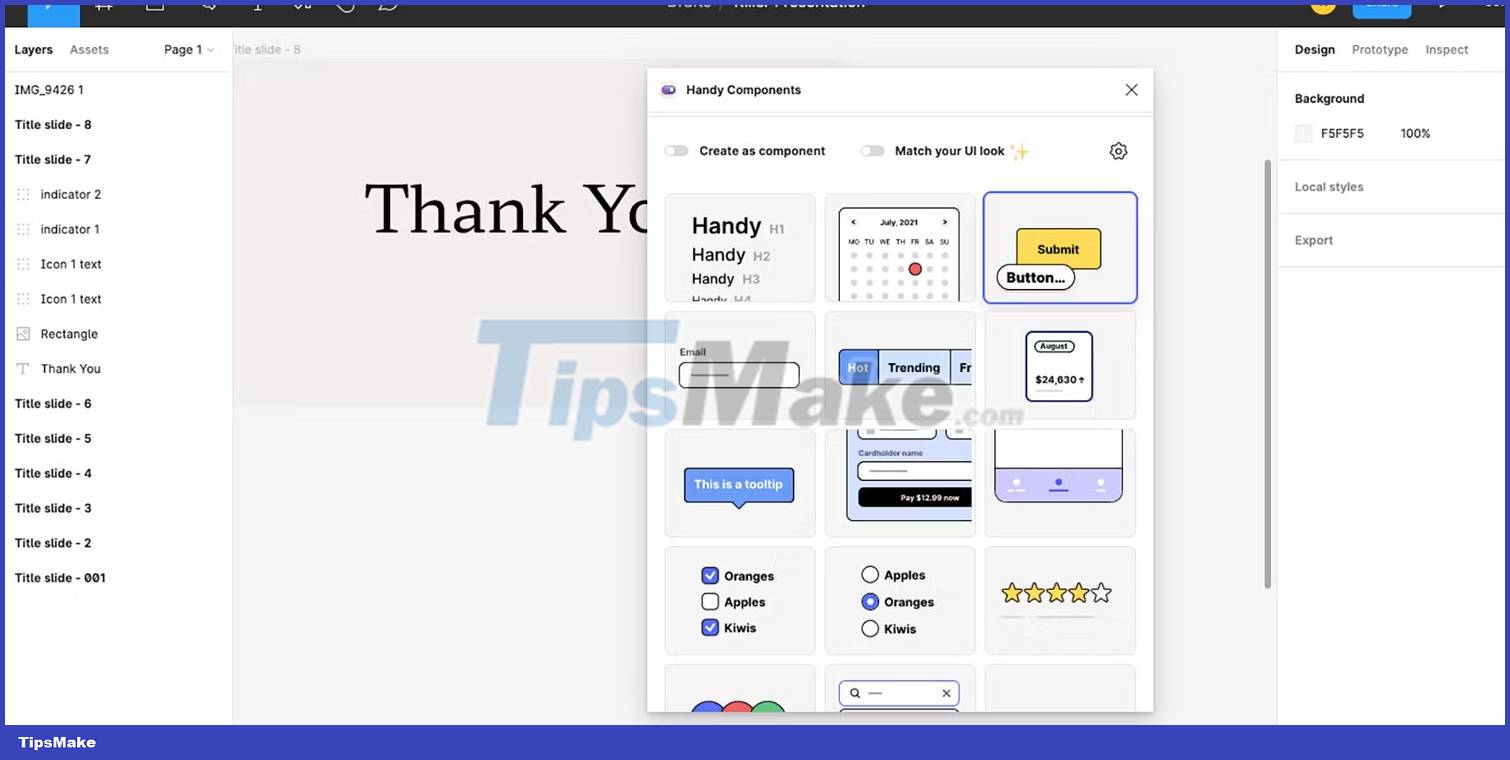
To add more components than buttons, use the Handy Components plugin. This plugin provides more than 60 different UX/UI design elements. Handy Components also uses design intelligence to duplicate the styles included in your design and apply them directly to the plugin's added components. You don't have to edit to fit your style.
The available components are buttons, feature cards, list items, panels, progress bars, alert stickers, calendars, and many other useful components.
13. Map Maker
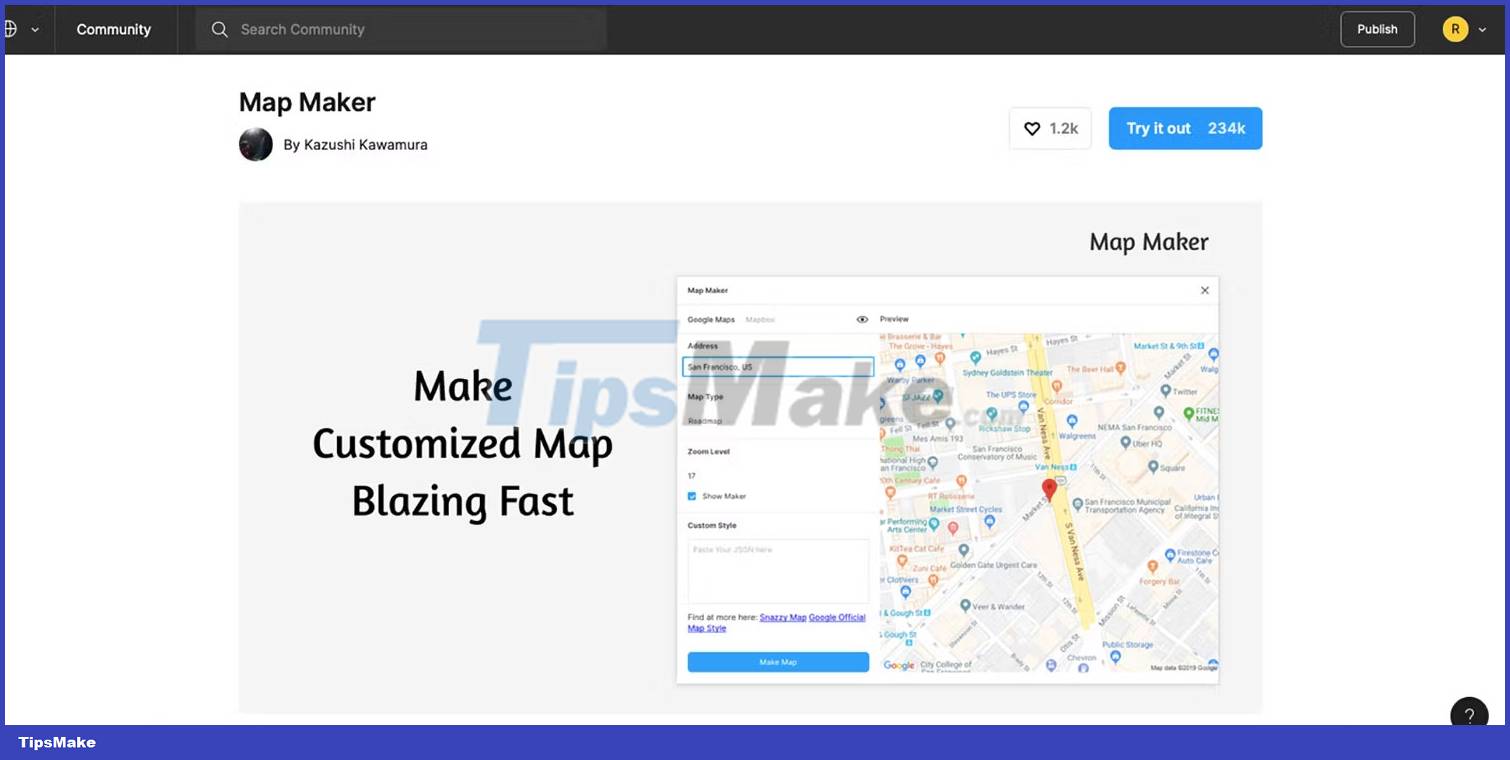
If you need a map on your web design, you can easily incorporate an option with the Map Maker plugin. This plugin allows you to add a custom map to be inserted into a shape.
Just select the desired shape - rectangle, ellipse or polygon - and run Map Maker. Then type the address you want to share. It's easy to add maps to your web design.
14. Iconify
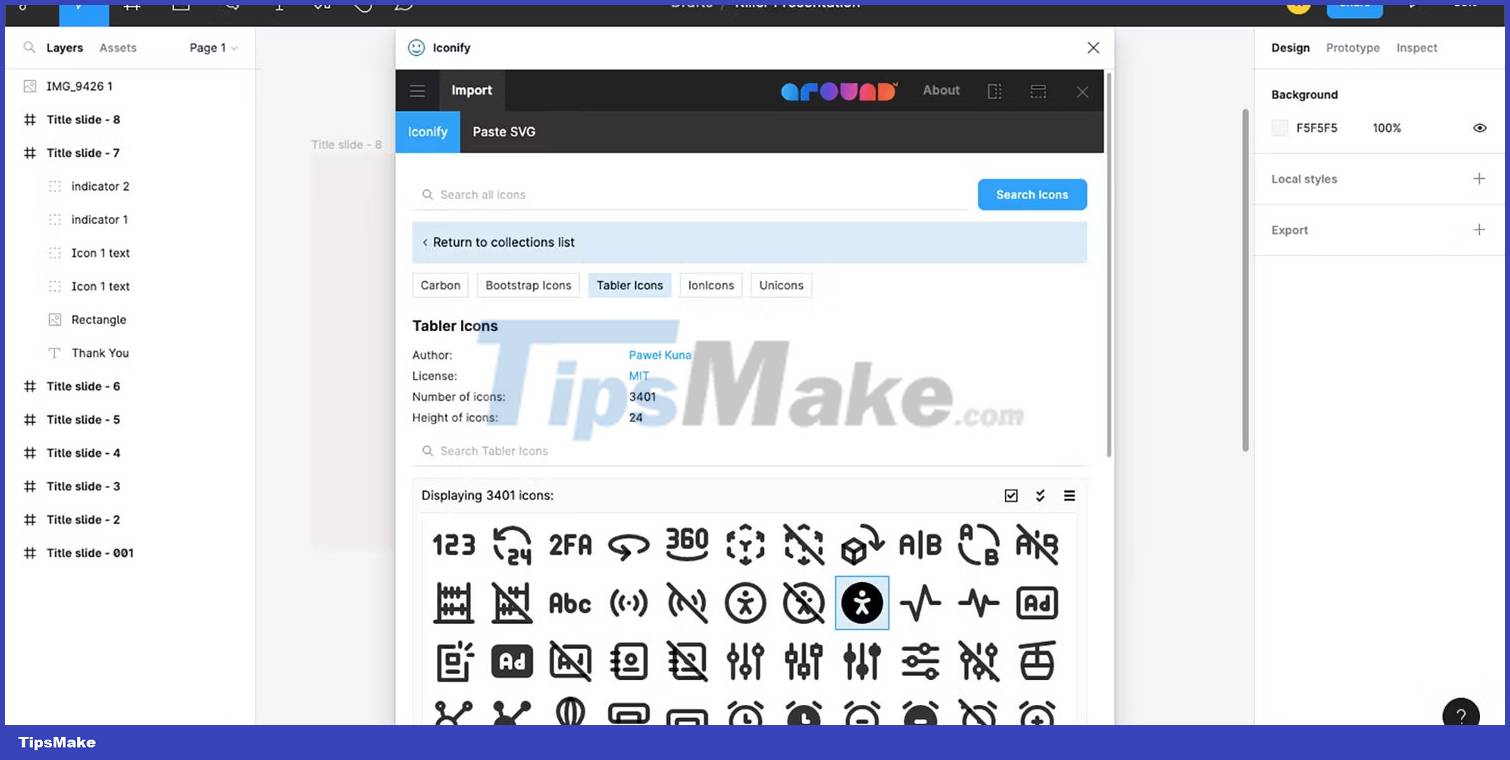
Icons make UX/UI designs universal and accessible. The Iconify plugin hosts a library of over 100,000 icons for almost any use. Iconify's open source SVG icons can be used in a variety of development software to easily transition your Figma designs from prototype to live product.
15. Clay Mockups 3D

Adding a model to a Figma design helps you incorporate reality into potential product ideas. Whether you're adding models to your Figma presentation design or incorporating them into a website, they're useful things to have.
Clay Mockups 3D is one of many great simulation plugins. You can insert models for phones, computers and other devices as well as the hand to hold them.
16. Super Tidy
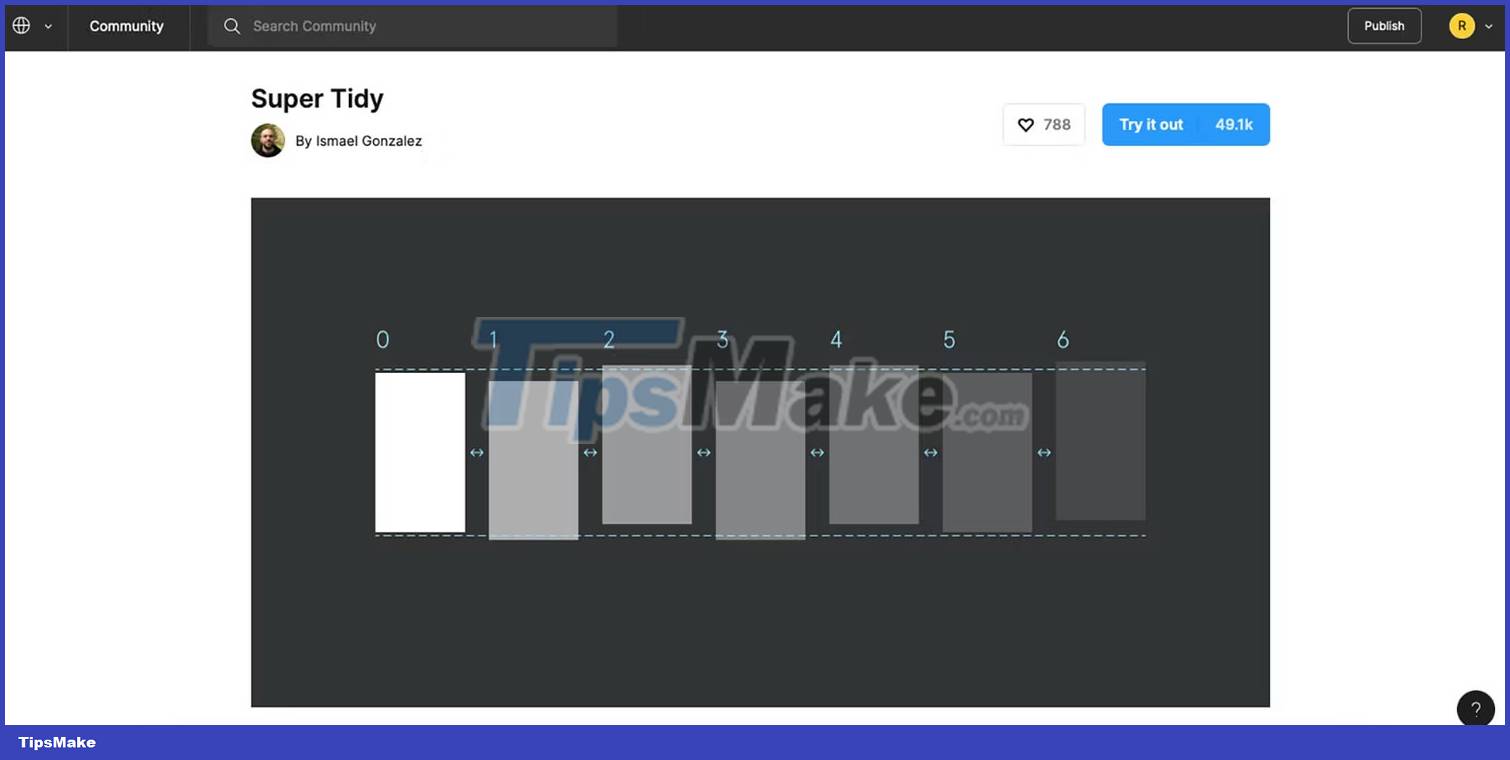
This simple plugin allows you to frame, clean, and organize your artwork. Just select the components, run the plugin and your Figma window will be super clean.
Not only does it sort a messy artboard, but it even renumbers the frames if the order is changed. No more searching for frame 5 once it's moved, you'll find it next to frames 4 and 6.
Conclusion
Understanding Figma makes it easier to compare options, avoid common mistakes, and apply the information in this guide more effectively. Review the relevant requirements before making changes or choosing a solution.
FAQ
What is Figma?
Here are some of the most useful free Figma plugins available today.
Why is Figma important?
Understanding Figma helps you evaluate features, compatibility, performance, and potential limitations before you choose a product or follow a procedure.
What should you consider when using or choosing Figma?
Consider your specific goal, compatibility requirements, available features, cost, security, and the practical recommendations described in this guide.
Related Articles
 The Most Useful Free Figma Plugins2 minutes read
 Figma - Free Multimedia Design Tool8 minutes read
 9 Top Free Figma Courses: Best Options Compared13 minutes read
 What Is Figma? Benefits and Advantages of Figma10 minutes read
 11 Useful Figma Shortcuts to Work Faster7 minutes read
 How to Convert Any Website into a Figma Design6 minutes read
Reader Comments 0
Sign in with email or Google to join the discussion.