Table of Contents
Trick to Take Screenshots Using iPhone's Action Button is easier to approach with a clear overview and reliable steps. This guide organizes the essential information, highlights practical details, and explains what to check along the way.
Key Takeaways
- Learn how to create screenshot shortcut for action button.
- Learn how to add shortcut to action button.
- Follow the recommended steps in order to avoid common mistakes with trick to take screenshots using iPhone's action button.
Create Screenshot Shortcut for Action Button
There are a number of ways to use the Action button on your iPhone. However, if you want to take a quick screenshot, instead of relying on the awkward default button combination, you'll need to create a shortcut. You can then add that shortcut to the Action button from your phone's settings menu.
To create a shortcut on iPhone:
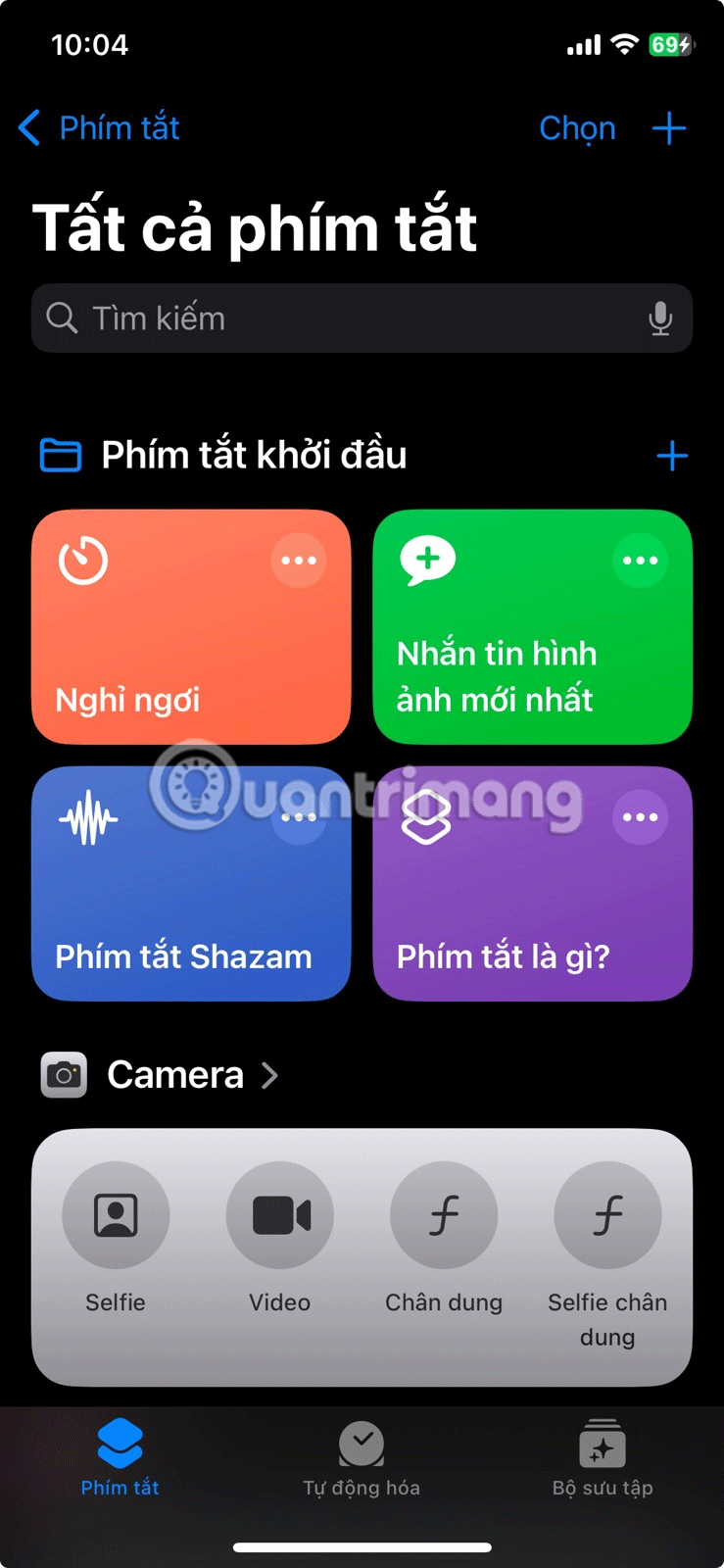
- Open the Shortcuts app.
- Tap the + icon in the upper right corner of the screen.
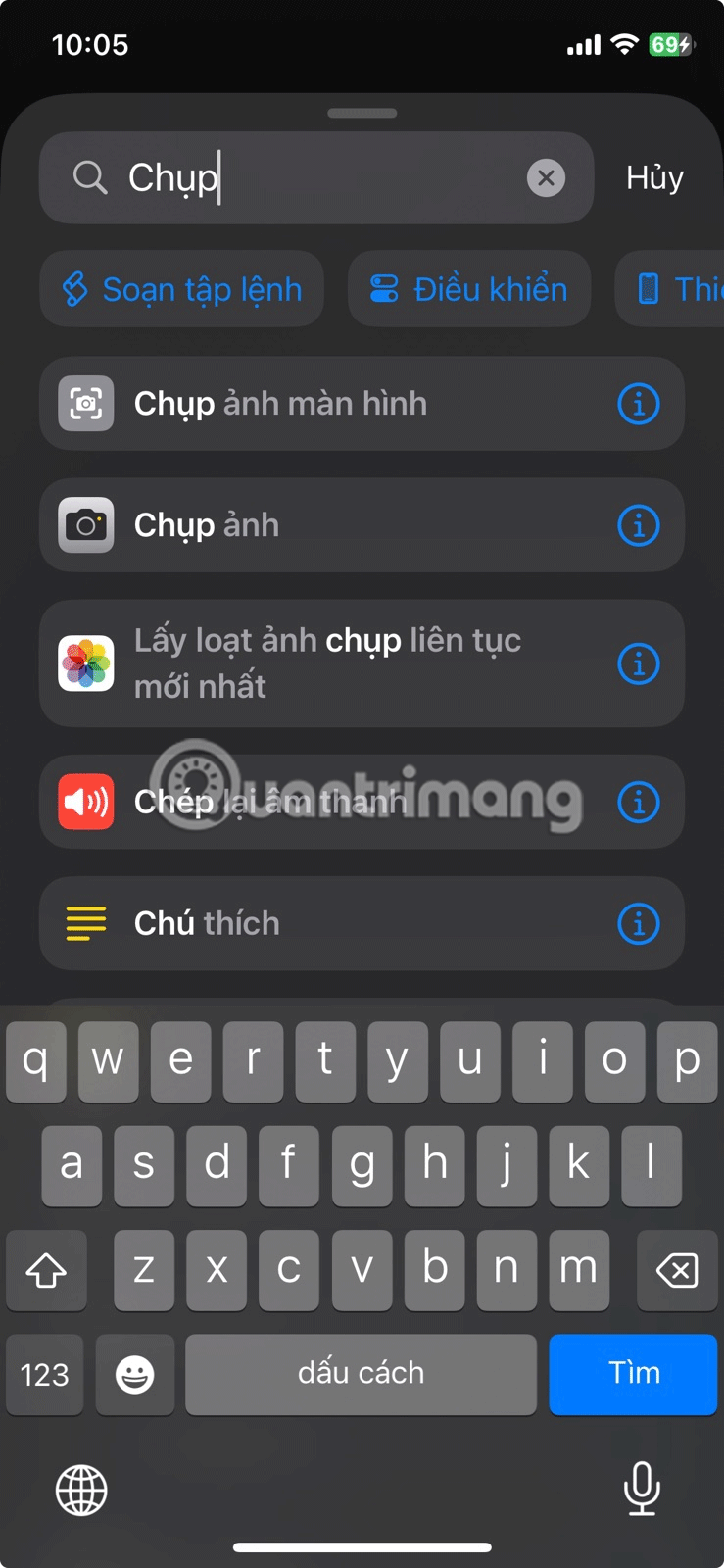
- Type "Take a screenshot" into the search bar.
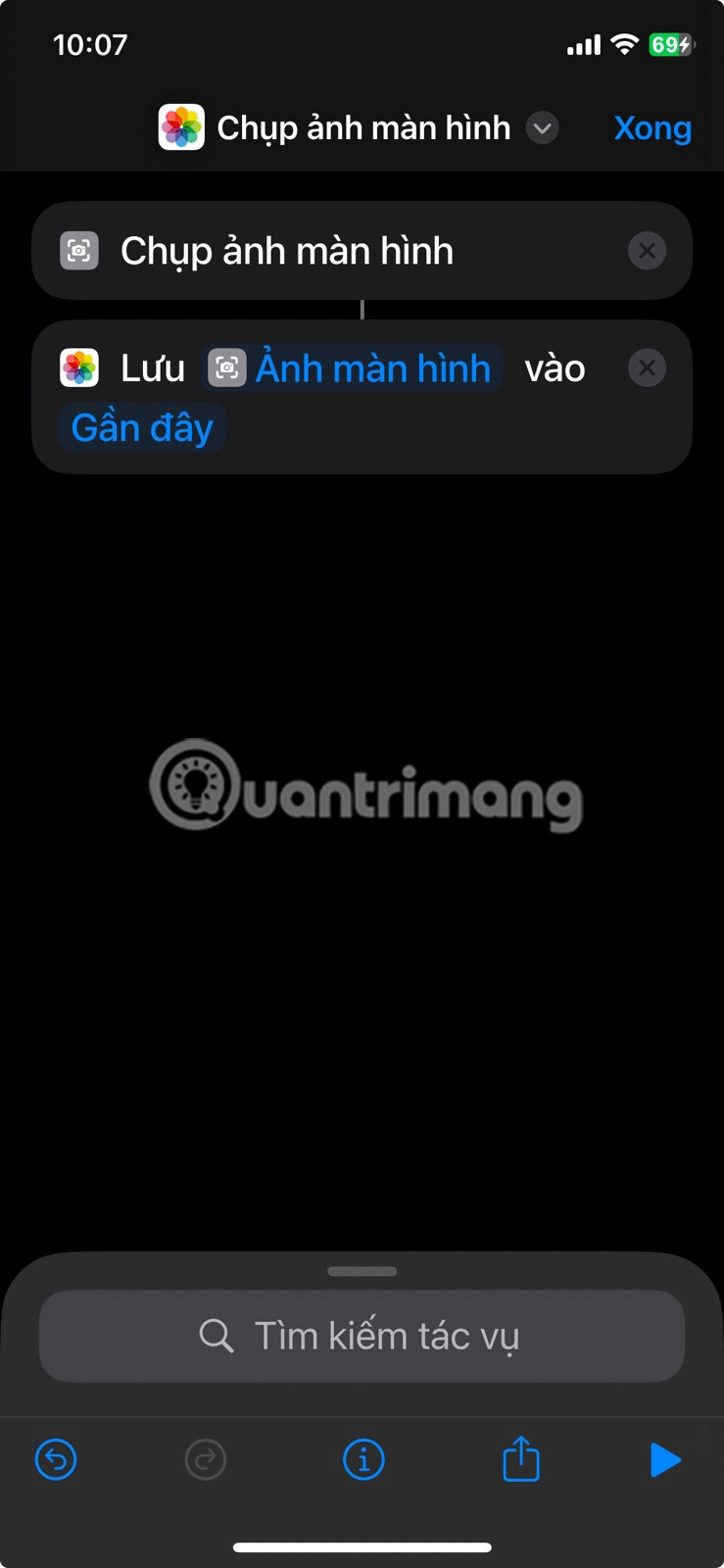
- Once added, type "Save to Photos" into the search bar and select Done.
Add Shortcut to Action Button
Now that you have created the shortcut, you need to assign it to an Action button for easier access.
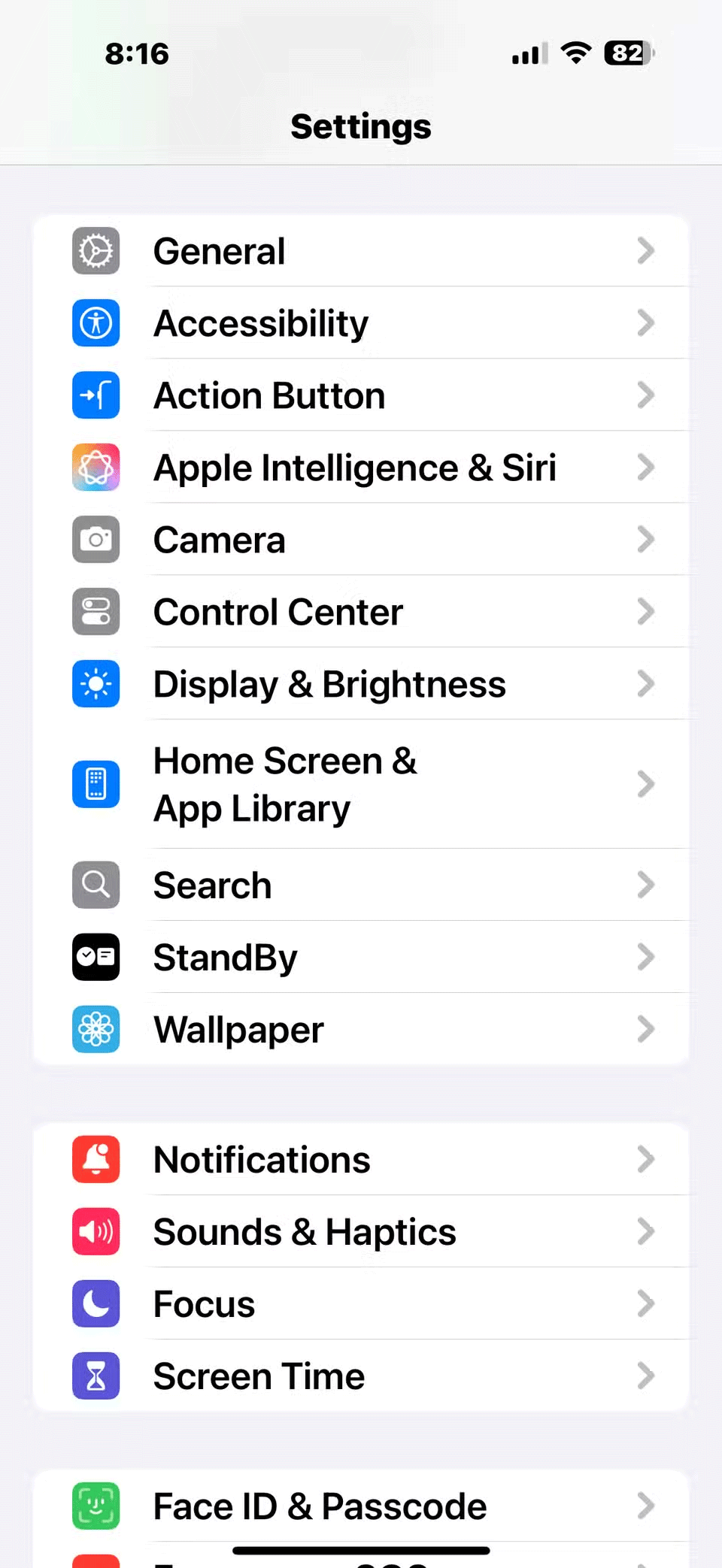
- Open the Settings app on your iPhone.
- Select the Action button.
- Scroll until you find the shortcut, then tap Select Shortcut on the next page.
- Select the Screenshot shortcut you just created.
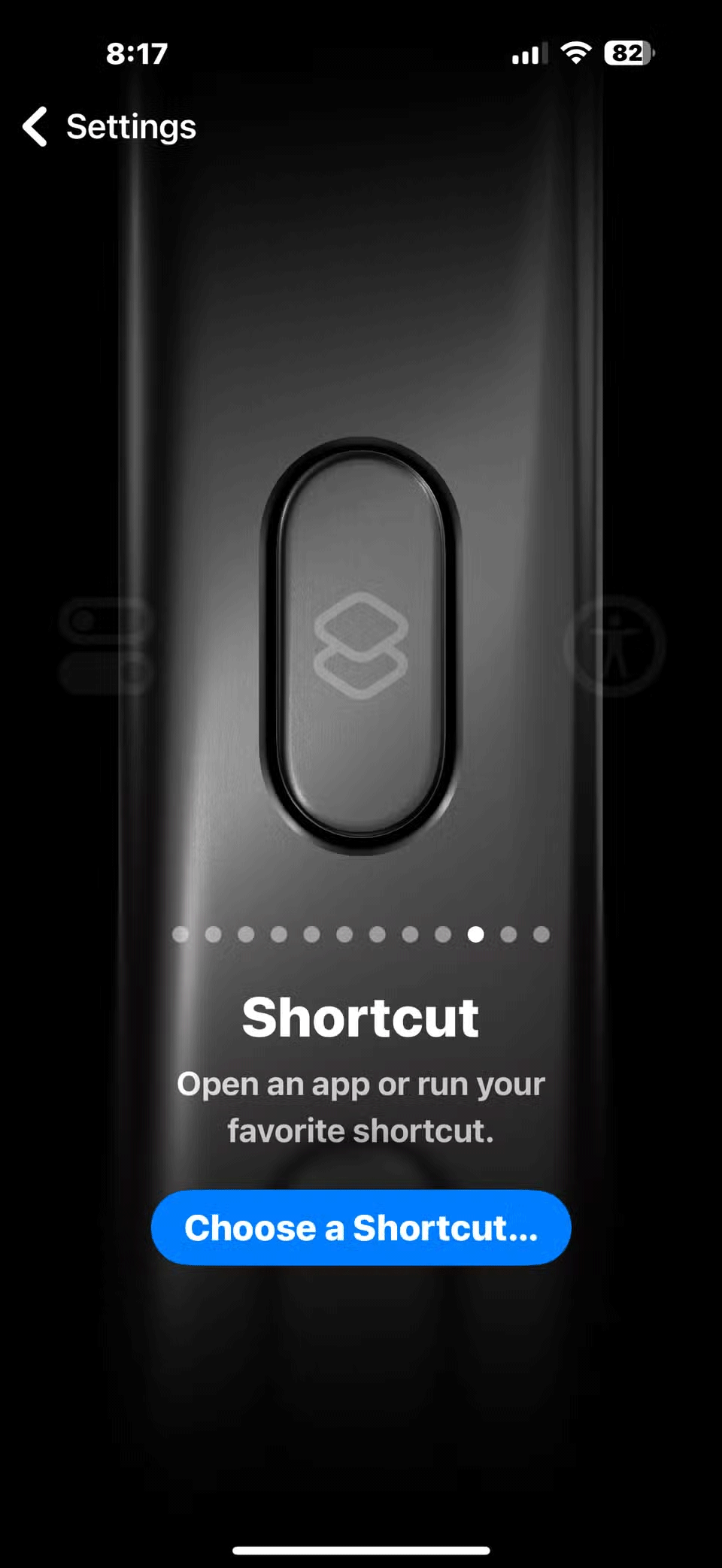
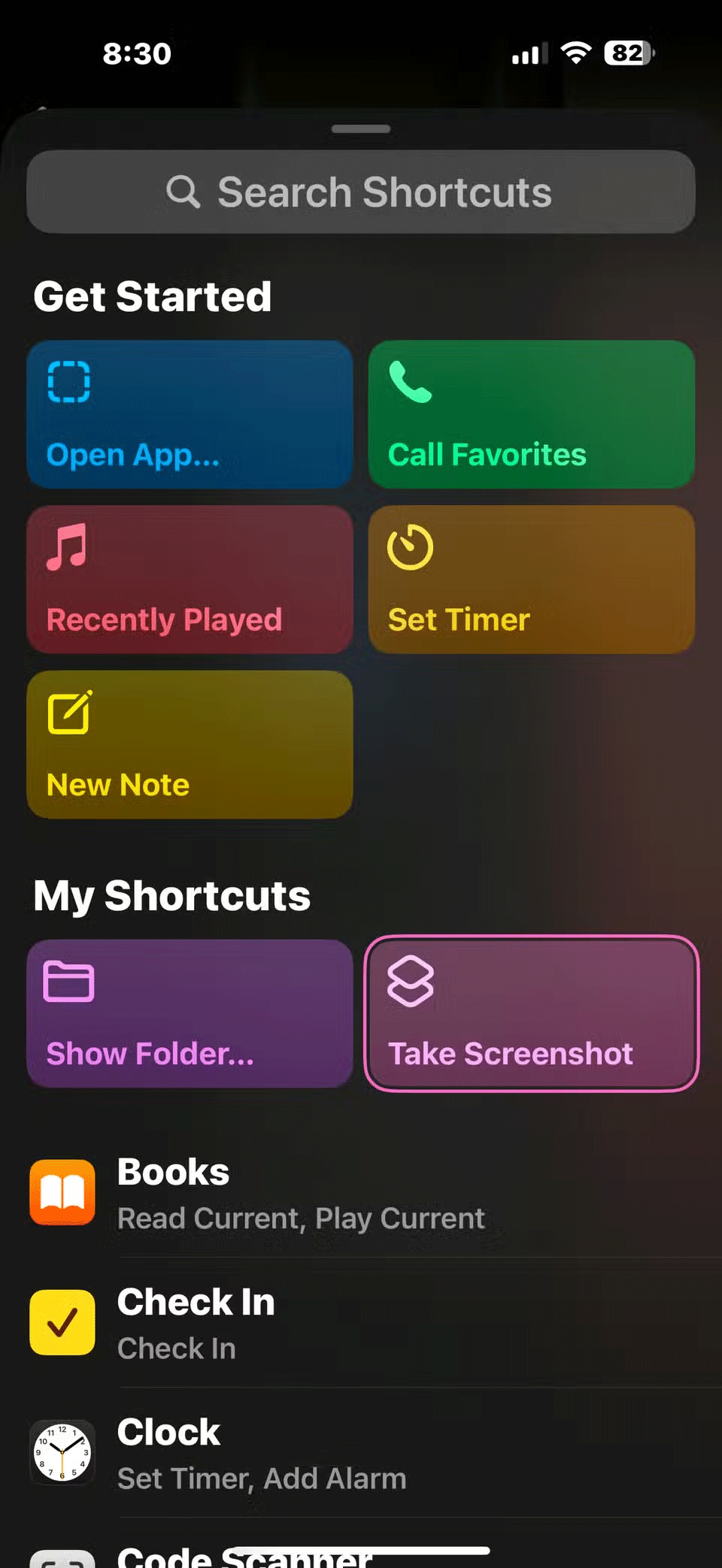
Now, whenever you press the Action button, the screenshot shortcut will run and it will capture everything on your screen. You should also create a shortcut to easily delete screenshots from your iPhone.
If you have an iPhone 15 or earlier, there are plenty of options while it's easy to customize the Action button to take a quick screenshot with just a tap. From asking Siri to take a screenshot to using Assistive Touch, there are plenty of other ways to take an iPhone screenshot without using the Home or Power button.
Final Thoughts
The most reliable way to handle trick to take screenshots using iPhone's action button is to follow the process in order, verify each important setting, and test the result before moving on. Use the guidance above as a practical reference, then adjust the details for your device, software version, or specific goal.
FAQ
What should I know first about Trick to Take Screenshots Using iPhone's Action Button?
Pressing two buttons to take a screenshot on your iPhone can be annoying.
How do I get the best results with Trick to Take Screenshots Using iPhone's Action Button?
Use current software or equipment, follow the steps in order, review the recommended settings, and test one change at a time so you can identify what improves the result.
What should I do if Trick to Take Screenshots Using iPhone's Action Button doesn't work as expected?
Check compatibility, permissions, connectivity, and version-specific settings. Restart the relevant device or app, then repeat the process carefully before trying a more advanced fix.
Related Articles
 iPhone 15 Pro Has a New Action Button3 minutes read
 How Does the Action Button on iPhone 15 Pro Work: What to Know7 minutes read
 Steps to Fix Missing Bluetooth Button in Windows 10 Action9 minutes read
 How to Edit the Action Center Button in Windows 104 minutes read
 Action Buttons in PowerPoint 20165 minutes read
 How to Edit the Action Center Quick Button on Windows 10 19h12 minutes read
Reader Comments 0
Sign in with email or Google to join the discussion.