Table of Contents
This guide provides a clear, practical overview of "Tips for Sharing Hotel Wi-Fi with All Your Devices". It organizes the most useful details, explains important considerations, and highlights the steps or choices that matter most.
Use a travel router to create a secure network
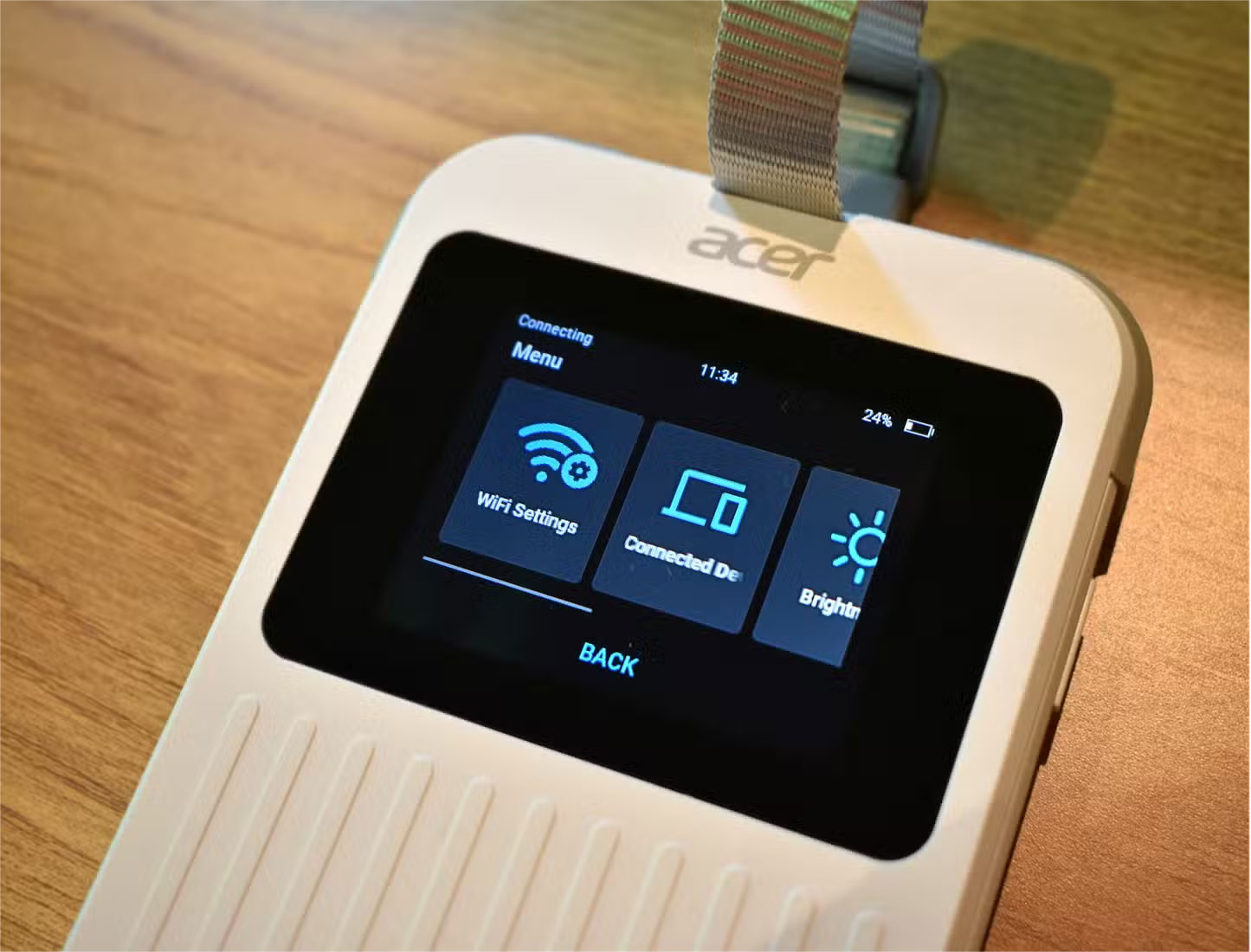
A travel router should be on every traveler's packing list, as it's one of the easiest and most reliable ways to share a hotel's Wi-Fi connection. These are miniature routers that connect to the hotel's network and broadcast their own signal so you can connect all your devices. Setting it up is easy and only takes a few steps:
- Connect your travel router to a power outlet or laptop via USB.
- Connect the travel router to the hotel network (using an Ethernet cable or wireless connection).
- Configure the router using the router's web interface or native app.
- Connect your devices to your new private network using your unique password login.
Once set up, there are several benefits to using a travel router when connecting to public Wi-Fi networks, including:
- Hotel Wi-Fi network can be accessed with just one login.
- All devices share the same secure connection.
- Create an extra layer of security and privacy between you and the public network.
- Streamline work and play with consistent connectivity.
You may consider upgrading to a router that supports both 2.4GHz and 5GHz for better compatibility and faster connections in the near future.
Turn your laptop into a Wi-Fi hotspot
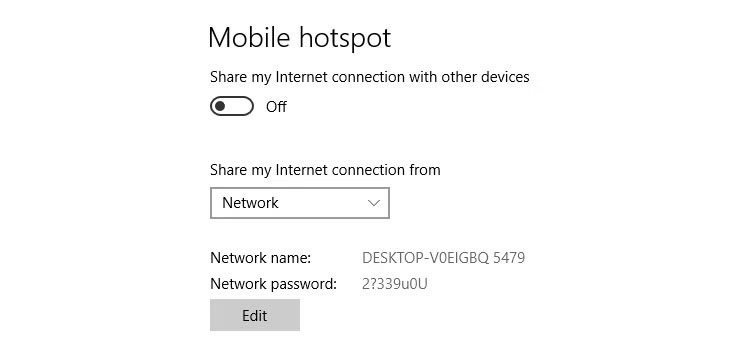
If you don't travel often or don't want to buy a travel router, you can use your laptop as a temporary Wi-Fi hotspot as an alternative. Both Windows and macOS offer this functionality through their settings menus.
Windows
- Connect your laptop to the hotel's Wi-Fi network.
- Go to Settings > Network & Internet > Mobile Hotspot .
- Turn on Share my internet connection .
- Name your Wi-Fi network and create a secure password for the hotspot.
macOS
- Connect your laptop to the hotel's Wi-Fi network.
- Open System Settings > General > Sharing .
- Select Internet Sharing .
- Select the Wi-Fi option as the sharing method.
- Enable Internet Sharing and create a secure password for your hotspot.
Using your laptop as a mobile hotspot is convenient compared to using a travel router, especially for short unplanned trips. However, Keep in mind that your laptop must always be on and connected when in hotspot mode, and performance is often slower than with a dedicated travel router.
Tip : Online security should be a top priority when using public networks. Both travel routers and laptop hotspots add an extra layer of security when browsing, and some travel routers offer built-in firewalls and VPN support for added convenience and peace of mind.
How to Troubleshoot Hotel Wi-Fi Sharing Problems
There are many problems when sharing hotel Wi-Fi. Here are some common problems you may encounter and their respective solutions.
|
Problem |
Solution |
|
|
Login portal issues |
Most hotels today use Captive Portals, where the Wi-Fi network is accessed through a website login. As someone who travels with multiple devices, including a TV streaming stick, smart speaker, laptop, tablet, and smartphone, this is frustrating and limiting. |
Connect your laptop and complete the login process, then share the connection via a hotspot or travel router. Some travel routers support MAC address cloning, allowing you to simulate your laptop's login session on other devices. |
|
Limited device access |
There are increasingly limits on the number of devices that can be used at once as hotels try to conserve bandwidth for guests. |
Use a travel router or your laptop's Wi-Fi hotspot to connect the gadgets and make them appear as a single device. |
|
Slow and unstable connection |
Hotel Wi-Fi reception is rarely effective across the entire facility and always depends on the strength of the signal in the room. |
Always look for a 5GHz option in the list of available networks, as they tend to have less interference and support higher data speeds. Additionally, a travel router can act as a signal amplifier between your devices and the hotel's Wi-Fi. This is especially useful if the hotel's access point is located in the hallway or in another room. |
As work and leisure often require a strong Wi-Fi connection, the list of essential utilities grows with each trip. However, the number of devices that can connect is increasingly limited.
Fortunately, with a little preparation, you can easily share hotel Wi-Fi with all your devices. Whether you choose to use a travel router or a laptop hotspot solution, you can enjoy a more stable and secure connection for all your work, entertainment, and social needs.
FAQ
What should you know about use a travel router to create a secure network?
A travel router should be on every traveler's packing list, as it's one of the easiest and most reliable ways to share a hotel's Wi-Fi connection. These are miniature routers that connect to the hotel's network and broadcast their own signal so you can connect all your devices. Setting it up is easy and only takes a few steps:
What should you know about turn your laptop into a Wi-Fi hotspot?
If you don't travel often or don't want to buy a travel router, you can use your laptop as a temporary Wi-Fi hotspot as an alternative. Both Windows and macOS offer this functionality through their settings menus.
What should you know about windows?
Connect your laptop to the hotel's Wi-Fi network.
What should you know about macOS?
Connect your laptop to the hotel's Wi-Fi network.
Related Articles
 Top 10 Best Hotel Booking Apps on Android6 minutes read
 How to Connect a PS4 to Hotel Wi-Fi8 minutes read
 What Should I Do When Entering a Hotel Room: Explained4 minutes read
 Hidden Wi-Fi Settings That Make Hotel Internet Much Faster8 minutes read
 The Dirtiest Places in a Hotel Room6 minutes read
 5 Star Hotel in Hanoi: Top 5 Luxury 5-star Hotels in Hanoi6 minutes read
Reader Comments 0
Sign in with email or Google to join the discussion.