Table of Contents
This guide covers sony updated vaio s, z, added vaio e series model with practical context and easy-to-follow details. Use it to understand the subject and apply the information confidently.
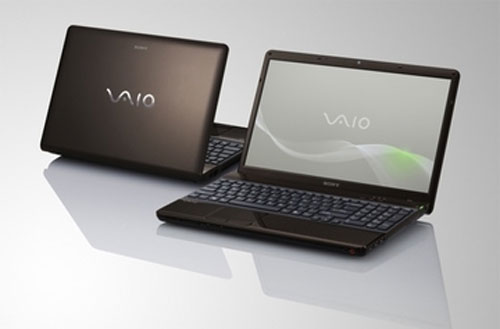 Vaio E 15. 5 inches.
Sony today launched two large screen versions in The Vaio E Series "family" With a size of 15. 5 inches (resolution of 1366 x 768 pixels) and 17. 7 inches (resolution of 1, 600 x 900 pixels). However, this new product line does not come with Ivy Bridge processor upgrades but instead of a more powerful graphics card configuration, optional Blu-ray optical drive for premium entertainment.
Vaio E 17. 7 inches.
Both Vaio E 15 and 17 are equipped with Intel Core i5-2450M processor, AMD Radeon 7650M graphics card with 1 GB or 2 GB VRAM, 750 GB hard drive, integrated webcam, USB 3. 0 for charging feature The device is turned off, HDMI, Blutooth and Wi-Fi.
Vaio S 15 inches.
Meanwhile, Sony continues to insist on the two lines for the business as Vaio S with the latest processor options in the screen sizes of 13. 3 and 15. 5 inches. Both have backlit keyboards, slim design with aluminum, magnesium or carbon fiber covers. The 15. 5-inch screen will have a IPS resolution panel with Full HD 1080p standard while the 13. 3-inch screen is not yet publicly available.
Vaio S 13 inches.
Vaio S 13 will come with Intel Core i5 or i7 options while Vaio S 15 will run Intel Core i7-3612QM, up to 8 GB RAM and VIDIA GT640M LE graphics card (with an integrated Intel HD 4000 chip). Vaio S 15 also has a hard drive capacity of 1 TB while both have SSD options. Sony will also provide additional battery options for up to 14 hours.
FAQ
What should I check before following these steps?
Confirm device and software compatibility, save important data, and make sure you have the required permissions, files, and account access.
Why might the process not work?
Common causes include outdated software, missing permissions, incompatible hardware, an unstable connection, or completing a step in the wrong order.
Can I undo the changes if necessary?
That depends on the tool or setting. Use built-in restore options when available, keep a backup, and record the original configuration first.
Related Articles
 Sony Added a Range of Options for Vaio F, L and E Series3 minutes read
 Sony Introduced the New Vaio Y and S Series5 minutes read
 Sony Added Red for 3 Vaio Series Laptops3 minutes read
 Sony's Ultra-light Ultrabook Comes in Red4 minutes read
 Review the Sony VAIO Y-series Notebooks15 minutes read
 14 and 17 Inch Vaio E Series Photos4 minutes read
Reader Comments 0
Sign in with email or Google to join the discussion.