Table of Contents
A mini PC can replace a tower for web browsing, office work, video calls and light editing. For demanding games, complex 3D work or frequent hardware upgrades, a desktop with a dedicated GPU and accessible components is usually the better fit. Start with the hardest task your current PC does regularly.
Office work, coding and light editing
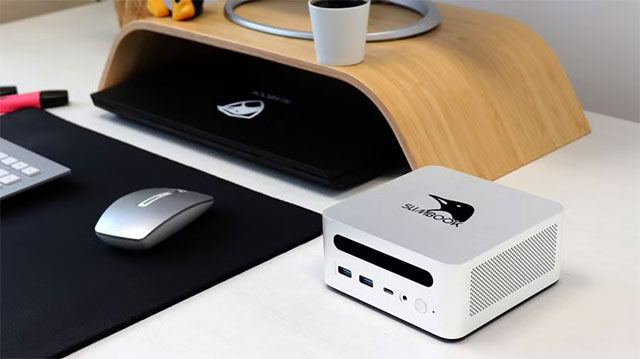
For browser tabs, spreadsheets and video calls, an entry-level mini PC with an SSD and 16 GB of RAM is a reasonable starting point. For large development projects, virtual machines or editing layered photos, check how much memory your current workload uses and choose a system with room to grow. Some mini PCs have replaceable RAM and SSDs. Others have soldered memory, so confirm the exact configuration before buying.
Gaming and GPU-heavy work
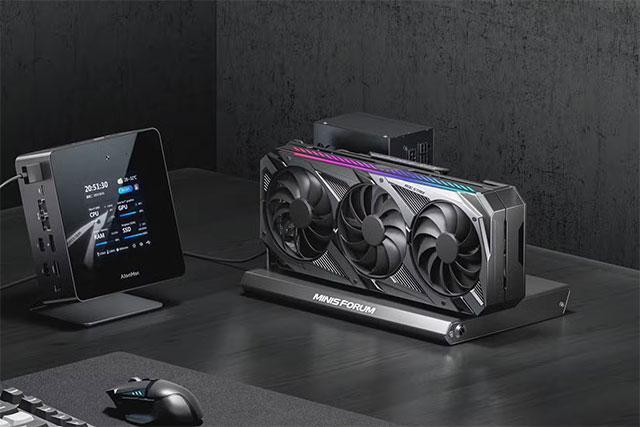
Integrated graphics can handle lighter games. For a particular game, look up benchmarks for the exact mini PC at your monitor’s resolution and target settings. Two systems with the same processor can perform differently under sustained load because of cooling and power limits. A compact tower with a dedicated GPU is easier to upgrade, especially if you want higher frame rates or run GPU-heavy rendering software.
An external GPU adds a dock, a graphics card and usually a power supply. Check compatibility before buying and compare the total cost and space with a compact desktop. See which gaming PC specifications matter most for your setup.
Check what has to plug in
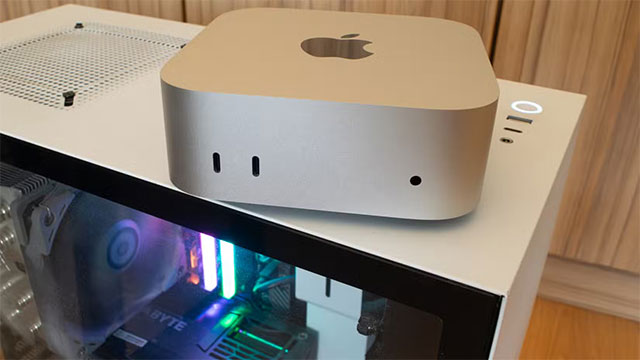
- Verify the number of displays the PC can run at your required resolution and refresh rate. Check the functions of each USB-C port in the manufacturer’s specs.
- Count room for peripherals such as a webcam, external drives, an audio interface and Ethernet.
- Compare the full cost of barebones models after adding RAM, storage and an operating system where needed.
- Check that your apps, plug-ins and peripherals run on the operating system you plan to use, especially if switching from Windows to a compact Mac.
If you need a replaceable graphics card and several drives in a smaller case, compare Mini-ITX and other motherboard sizes before deciding how small to go.



Reader Comments 0
Sign in with email or Google to join the discussion.