Table of Contents
Universal Print anywhere adds pull printing to Microsoft’s cloud print service: a user submits a job to an organization-managed queue, then releases it at an eligible member printer. The user does not need to choose the final physical printer when submitting the document.
“Anywhere” refers to the printers and access your organization has configured. It does not mean a job can be collected from any printer on the internet.
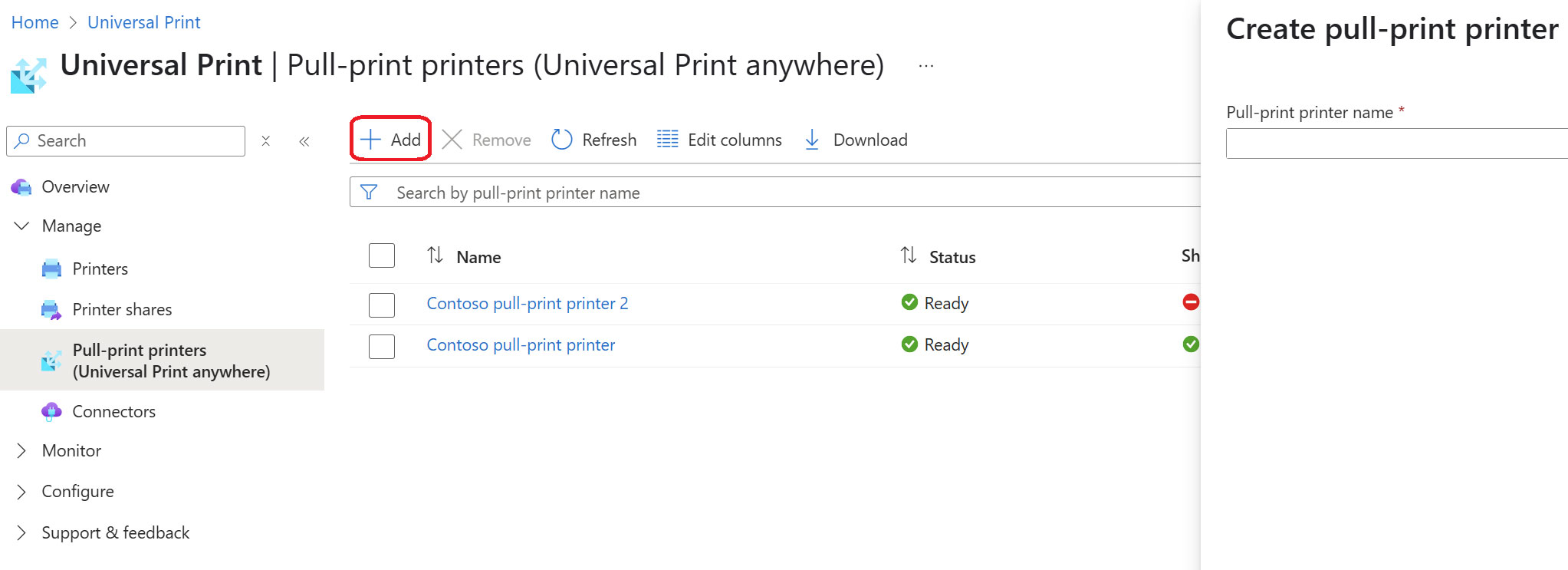
How pull printing works
- The administrator configures a Universal Print anywhere queue and its member printers.
- The user prints to that queue from a supported setup.
- At an authorized printer, the user follows the configured authentication and release process.
- The selected device prints the released job.
The supported release method depends on the organization’s configuration and printer integration. Follow the instructions at the device rather than assuming every printer offers the same badge, app or QR-code workflow.
Why it can be useful
- Less unattended output: a held job does not immediately sit in an open tray while the user is elsewhere.
- More choice at collection: an eligible alternative can be used if the intended device is busy.
- Fewer unwanted printouts: jobs can remain unprinted when the user no longer needs them.
These are potential workflow benefits, not measured savings or a guarantee that a document cannot be exposed. Correct permissions, authentication and printer placement still matter.
What administrators need to check
Confirm licensing, supported client systems, printer registration and the queue’s member list before rolling out the feature. Universal Print-ready devices and devices using a connector can have different setup requirements.
Review default print options and test whether the member printers support the requested paper size, color mode and finishing. A queue shared across different models should not be assumed to provide every physical device’s special features.
Use Microsoft’s Universal Print anywhere overview and print-option management guidance for deployment details.
Availability and cost need separate checks
Microsoft announced the general availability of pull printing in 2025. Organizations should check their current Universal Print entitlement, print allowance and any printer or partner requirements. A feature included with an eligible license is not the same as an unlimited, cost-free printing service.
If a job cannot be released
Check that the physical printer belongs to the intended queue and that the user has the required access. Record the queue, device and error message before resubmitting repeatedly, which can create duplicate jobs. Microsoft’s troubleshooting guide covers the relevant checks.
Related Articles
 Microsoft launches Universal Print, a completely new cloud-based print server solution
 How to print Excel, print Excel spreadsheets fast, standard
 Install Universal Key on laptop
 How does the Universal Control feature on macOS Monterey work?
 How to print a selection in Microsoft Excel
 Relax with 3 ways to print in this simple reverse order
Reader Comments 0
Sign in with email or Google to join the discussion.