Table of Contents
Compatibility note: This tutorial uses Photoshop CS6. The core tools remain familiar in newer releases, although panel locations and some options may differ.
While learning about Photoshop, you'll likely encounter the word "layer" frequently. So, what are layers and what are their uses in Photoshop? This article will help you understand how to use layers effectively in Photoshop CS6.
The concept of Layers in Photoshop
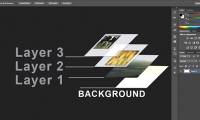
Layers are a key component in Photoshop. They are used to describe the different levels of arrangement of objects in a design.
In Photoshop, you can generally layer multiple objects, partially obscuring or subtly displaying them within another image. Layers are used to combine two or more images to create a new image.
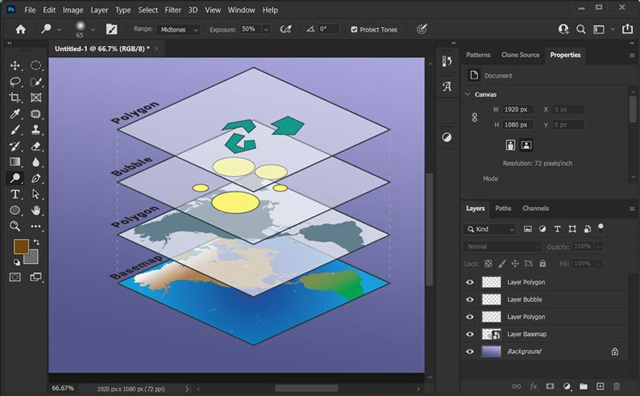
Through layers, one can easily edit, add, delete, etc., elements within the same layer without affecting other layers.
Basic operations with Layers in Photoshop CS6
In Photoshop in general, and CS6 in particular, you need to understand how to work with layers to make the design and editing process smoother. Basic layer operations include: selecting layers, creating new layers, arranging layers, etc.
How to create a new layer
Step 1: To create a new layer, you first need to open the image you want to create a layer for.
You can refer to THIS article to learn how to open the image you want.
Step 2: In the Layers panel in the upper right corner of the Photoshop interface, left-click on the icon to create a new layer, as shown in the illustration below.
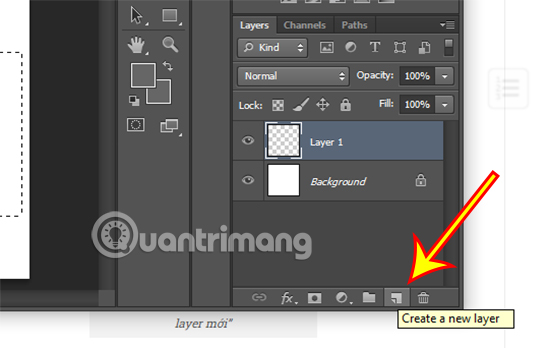
So you have now completed the process of creating a new layer for your design file.
How to select a layer
During the design process, when you want to manipulate an object, you need to select the layer containing that object. Specifically:
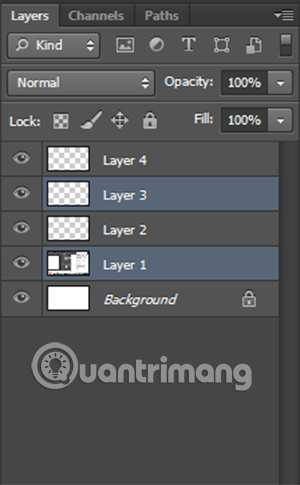
- Select any layer: Simply click on the layer name in the Layers panel. When the layer turns blue, it means it's selected.
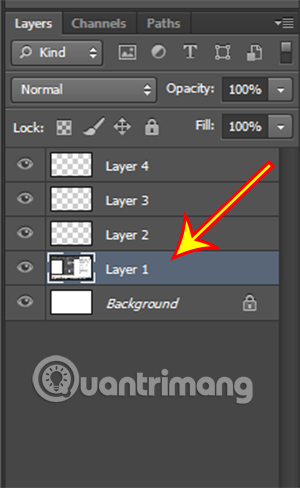
- Select multiple layers at once: Click on the first layer you want to select, then hold down the Shift key and select the last layer. This will select all layers between the first and last layers.
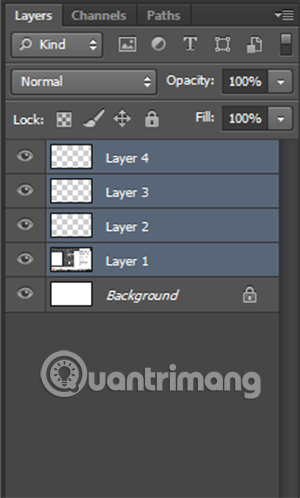
- Select multiple layers selectively: To select specific layers at the same time, the user needs to hold down Ctrl and click on the layers they want.
How to hide layers in Photoshop CS6
If you want to focus on certain layers to make editing easier, you can temporarily hide unnecessary layers. To do this, simply click the eye icon next to the layer you want to hide. This layer will then be temporarily invisible in your design file.
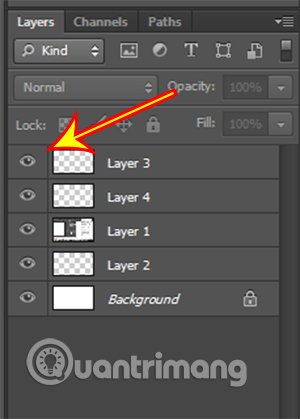
If you want the layer to reappear, you need to click the eye icon again to unhide it.
How to change the order of layers
The order in which layers are arranged will make a difference to the composition of the photo, determining which objects stand out and which are obscured. Therefore, you need to know how to arrange layers appropriately. To move a layer, you can do the following.
Method 1:
Hold down the left mouse button on the layer you want to move and release it at the new location.
Method 2:
Move layers using keyboard shortcuts:
- Move the layer above the previous layer: Ctrl + ]
- Move the layer below the layer after it: Ctrl + [
- Move the layer to the top: Ctrl + Shift + ]
- Move the layer to the bottom: Ctrl + Shift + [
Additionally, you can also find other useful keyboard shortcuts in Photoshop CS6 through THIS article.
Searching for layers in Photoshop CS6
When working with Photoshop designs, users sometimes encounter a large number of layers, so controlling the layers panel for convenient and error-free design manipulation is essential.
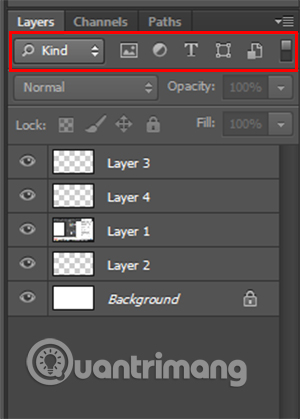
The simplest way to quickly find the layer you want is through the Search Dropdown menu. It allows you to search for layers based on criteria such as type, name, effect, mode, color, attributes, etc. After selecting your search method, use the options on the right side of the Search Dropdown to choose additional attributes to return the layer search results.
How to create groups for layers
In addition to searching for layers, users can also manage and use layers more easily by grouping them into specific folders.
To create a layer group, select the layers you want to group and press Ctrl + G.
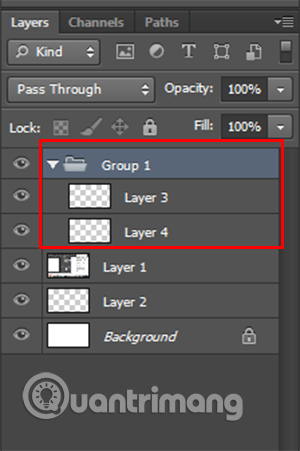
Alternatively, you can create groups by clicking the "Create a new group" folder icon at the bottom of the layers panel and then dragging the layers you want to group into it.
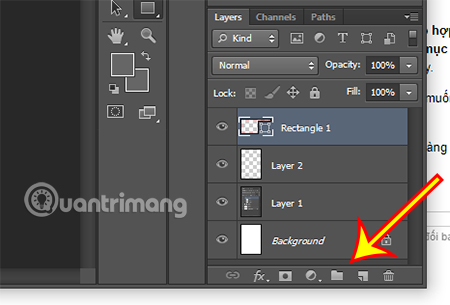
If you want to cancel the group creation, click on the folder you want to cancel and press Ctrl + Shift + G.
Additionally, double-clicking on the group name will allow you to easily edit the folder name.
Locking and unlocking layers
The final basic operation that TipsMake.com wants to introduce to you is how to lock and unlock layers. Locking layers helps protect completed layers, preventing them from being affected by other operations during the editing process.
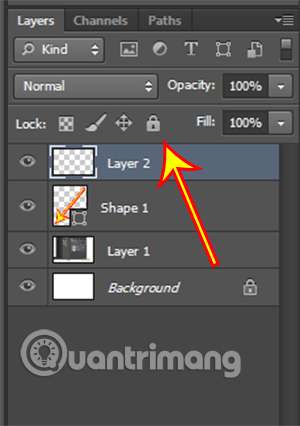
You can lock a layer by clicking on the layer you want to lock, then clicking the padlock icon in the layers panel. Similarly, you can unlock it by clicking the padlock again.
Hopefully, through this article, readers can better understand layers and the basic operations when working with layers, thereby making it easier to learn and practice Photoshop.
Related Articles
 Basic Operations on Layers in Photoshop3 minutes read
 How to Use Photoshop CS5 - Part 3: Introducing Layers8 minutes read
 What Is a Layer? Learn About Layers in Photoshop5 minutes read
 5 Ways to Copy Layers Extremely Fast in Photoshop for Users7 minutes read
 3 Tips to Manage Layers in Photoshop5 minutes read
 How to Deselect an Area, Layer in Adobe Photoshop4 minutes read
Reader Comments 0
Sign in with email or Google to join the discussion.