Table of Contents
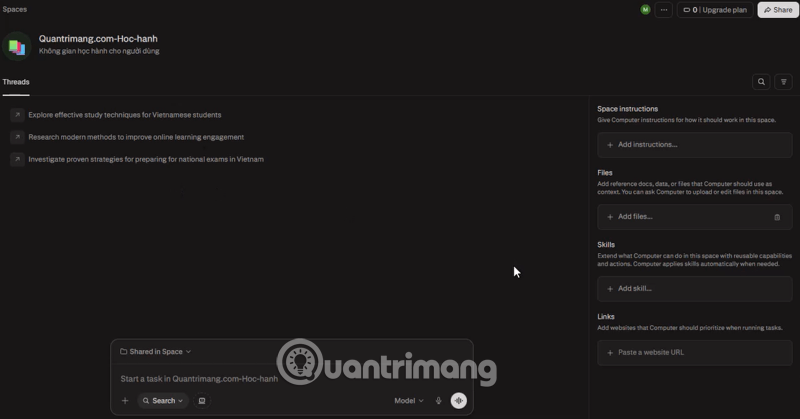
Perplexity has renamed Spaces to Projects. A Project keeps related sessions, files, instructions, preferred web sources, collaborators, and optional memory in one workspace. Older screenshots and accounts may still use the Spaces label, but the setup principles are the same.
1. Open Projects and create one
In the left sidebar, select Projects (or Spaces in an older interface), then choose New Project. Give it a specific name and description, such as Q4 customer research rather than Project 1.
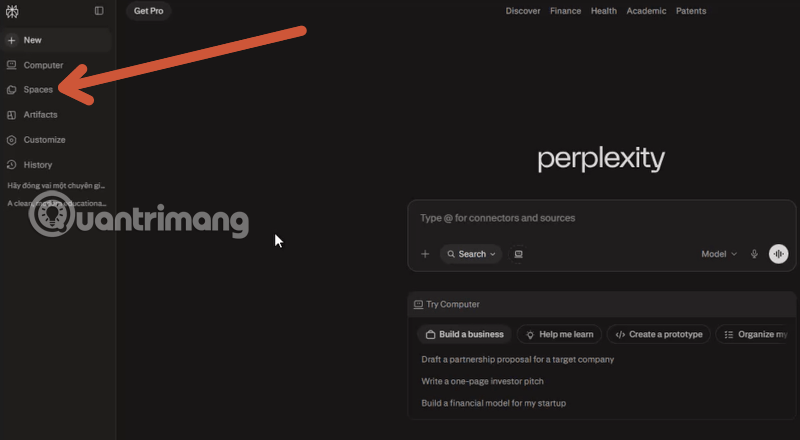

The name helps people identify the workspace; it does not automatically make the AI understand the business. Put behavior and source rules in the instructions.
2. Add concise project instructions
In Project settings, add instructions applied to queries in that Project. Define the audience, preferred terminology, output style, and uncertainty rule:
Write for the product support team.
Prioritize attached policy documents and the domains listed below.
Use a comparison table when evaluating alternatives.
If sources conflict or do not answer the question, say so.
Do not invent dates, prices, or customer claims.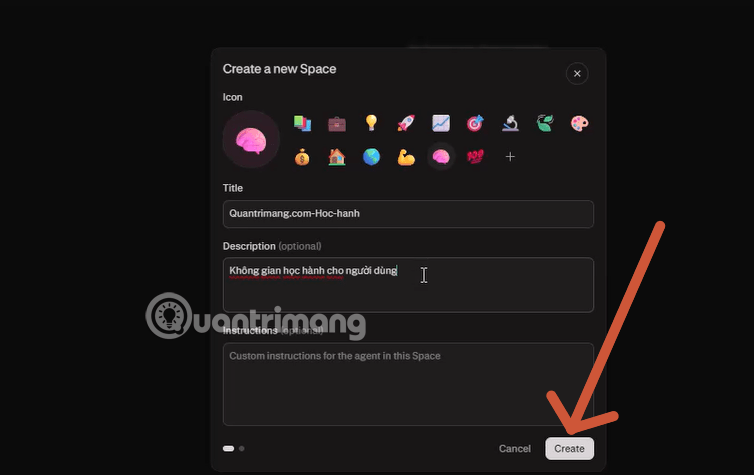
Instructions guide responses; they do not “train” a private model. Test them with a few representative queries and revise vague or conflicting rules.
3. Add files and folders
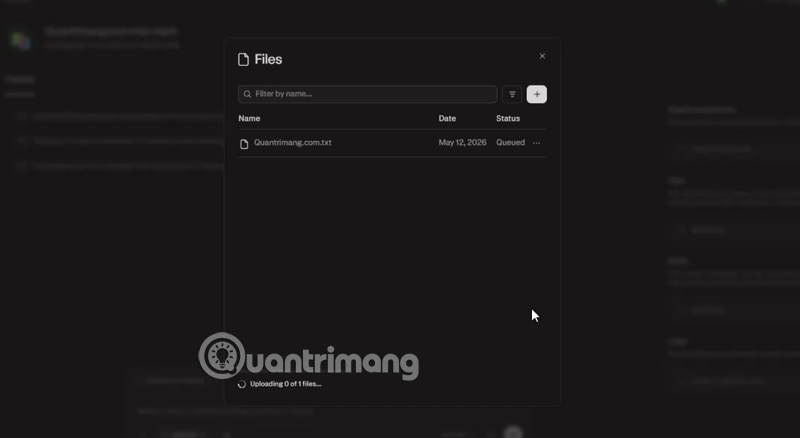
Projects support persistent files uploaded individually, as folders, or from available connected sources. Perplexity can use those files as context for Project work. Long files may be selectively extracted rather than read word-for-word, so request page or section citations and verify important passages yourself.
Project files remain until deleted, unlike ordinary session attachments, which have plan-specific retention periods. Everyone with the appropriate Project permission can access or use shared files. Remove obsolete versions to avoid answers grounded in conflicting documents.
4. Add preferred web sources
Under Settings > Context, add web links or domains that should be prioritized. Prefer authoritative sources such as official product documentation, regulators, or a maintained internal site. A preferred domain is not automatically correct, and Perplexity may still use other sources depending on the query and selected mode.
If the answer must use only supplied material, say so in the prompt and turn off web sources where the interface allows it. Then verify that every claim cites a Project file or approved source.
5. Configure Project memory
Current Projects can include Brain, an optional, evolving knowledge layer based on Project activity, plus a running Project summary. Owners can control automatic or manual Brain runs in the Memory settings and decide whether queries may use individual memory.
Memory is helpful for ongoing work, but it can preserve an outdated decision or mistaken assumption. Review the Brain content periodically, correct errors at the source, and do not treat remembered context as evidence.
6. Share with the minimum necessary access
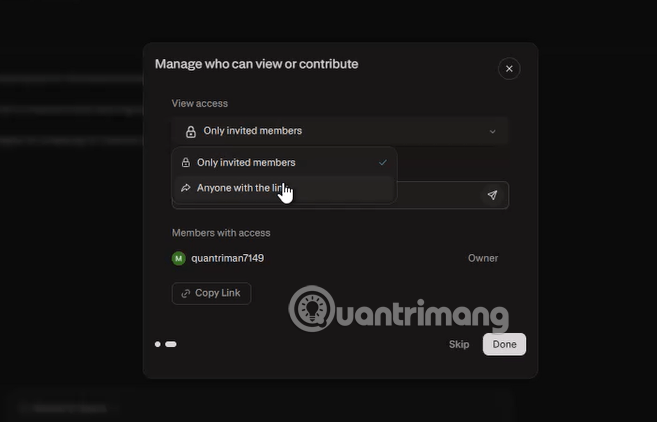
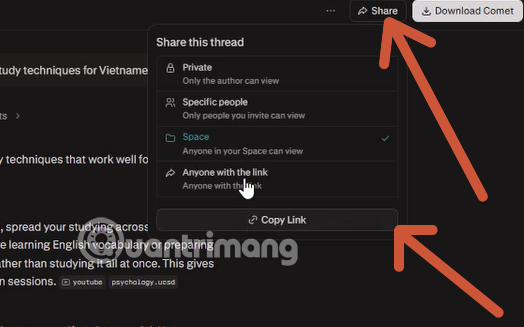
Open Share or select the member portraits. Current roles include:
- Owner: full control.
- Can edit: can manage context, files, connectors, skills, people, defaults, and channels.
- Can view: can read the Project and shared sessions or files.
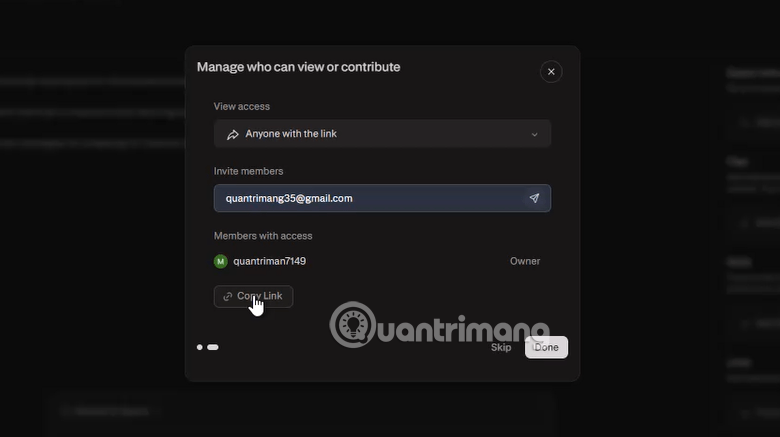
Projects are restricted to invited people by default. Other scopes can include organization-wide view or edit, and—if the organization permits it—anyone with the link can view. Public links are inappropriate for confidential files.
Privacy and retention checks
- Do not upload secrets, personal data, regulated records, or confidential documents unless your plan and organizational policy allow it.
- Review whether consumer AI-training data collection is disabled where applicable. Enterprise protections differ from consumer plans.
- Check third-party model, connector, retention, and organization-admin settings.
- Remember that shared Project members may be able to search uploaded files even when they cannot access the original cloud source directly.
- Delete files and Projects that are no longer needed, and verify any immediate-deletion requirement with Perplexity.
Perplexity's current Projects guide documents roles, Brain, context, and sharing. Its file security and retention page explains how uploaded files are retained and deleted.
Related Articles
 5 Often Overlooked Perplexity Features That Make It Smarter: Practical Guide6 minutes read
 How to Create API Key Perplexity8 minutes read
 What Makes Chatgpt's Search Feature Superior to Perplexity?6 minutes read
 How to Manage Storage in Perplexity AI: Step-by-Step Guide2 minutes read
 How to Use Learn Step by Step in Perplexity11 minutes read
 Why Is a Perplexity Pro Subscription Worth It: Causes and Fixes6 minutes read
Reader Comments 0
Sign in with email or Google to join the discussion.