Table of Contents
The old built-in connection that automatically published Facebook posts to Twitter, or tweets to Facebook, is no longer available. The legacy Facebook/Twitter authorization pages shown in older guides should not be used. To publish the same idea on Facebook and X now, post manually on each platform or use a reputable social media management service that currently supports both.
Option 1: Cross-post manually
Manual posting gives you the most control and does not require a third party to access both accounts.
- Prepare the core message and media.
- Publish the Facebook version with the audience, link preview, tags, and image format that suit Facebook.
- Adapt the wording and media for X's current post and attachment limits.
- Publish the X version and verify the link, crop, mentions, and alt text.
- Record both URLs in your content calendar if you need to track replies or results.
Do not copy Facebook-specific phrases such as “share this post” or tag syntax that does not work on X. Confirm that the same person or organization uses the same handle before tagging across platforms.
Option 2: Share a public post link
If the full Facebook post is public and useful outside Facebook, copy its public link and paste it into a post on X. Add a short explanation so people know what the link contains. A private or audience-limited Facebook post will not become viewable simply because its link is shared on X.
You can also share an X post link on Facebook. Preview cards can vary, and some media or conversation context may require viewers to open X.
Option 3: Use a social media management tool
A scheduler can publish to multiple profiles from one calendar, but platform support and permissions change. Before connecting a service:
- confirm that it officially supports Facebook Pages or eligible profiles and X accounts;
- check whether media, threads, links, mentions, alt text, and first comments are supported;
- review pricing and publishing limits;
- use the official Facebook and X authorization screens;
- grant only the permissions required for publishing; and
- verify that access can be revoked from both platforms.
Never give a scheduler the raw password for either account. X recommends using its authorization flow and reviewing connected apps; see the official X connected-app guidance.
Adapt the post instead of publishing an identical copy
- Length: Put the main point first and adjust to each platform's current limit.
- Media: Preview image and video crops separately.
- Mentions: Verify the correct handle on each network.
- Links: Test the destination and remove tracking parameters you do not need.
- Audience: A personal Facebook audience may not match a public X account.
- Replies: Monitor both places; comments do not synchronize.
- Accessibility: Add accurate alt text on each platform where supported.
Can an automation copy every new post?
Some automation services can trigger an X post when a Facebook Page publishes, or the reverse, if both platforms and account types permit the connection. Treat this as a publishing integration, not a permanent link between the accounts.
Test with one non-sensitive post. Confirm how the automation handles deleted posts, multiple images, video, link previews, duplicate triggers, and authentication failures. Add a review step for business-critical or regulated content.
Why the old instructions no longer work
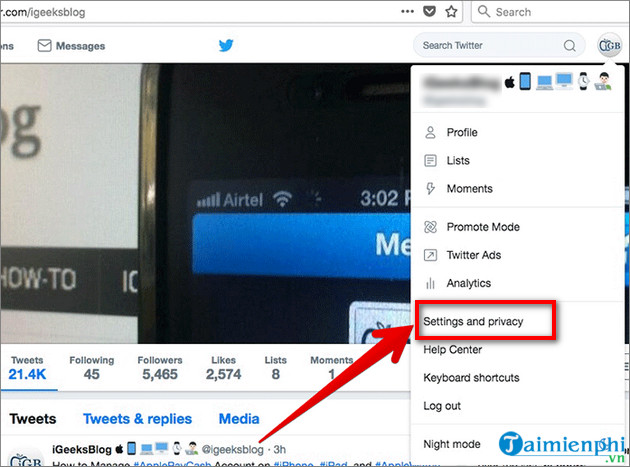
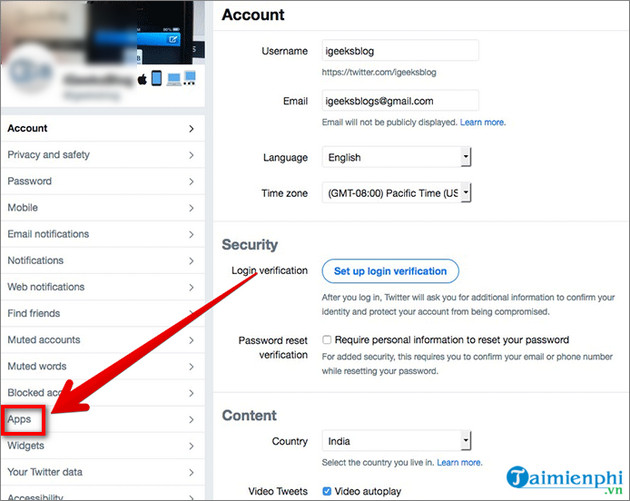
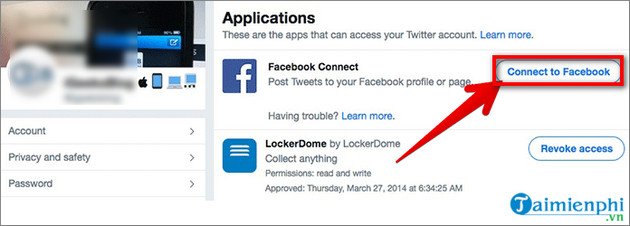
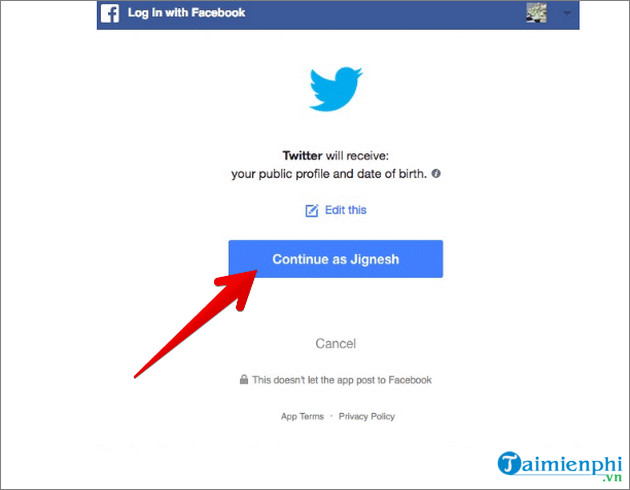
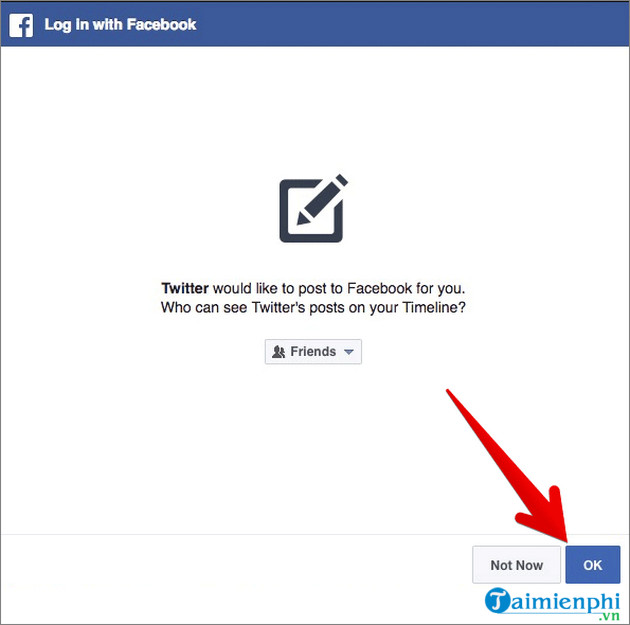
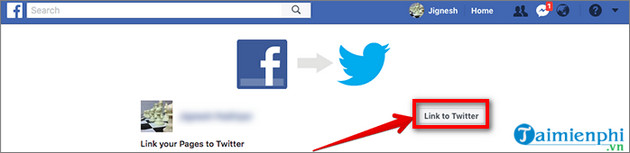
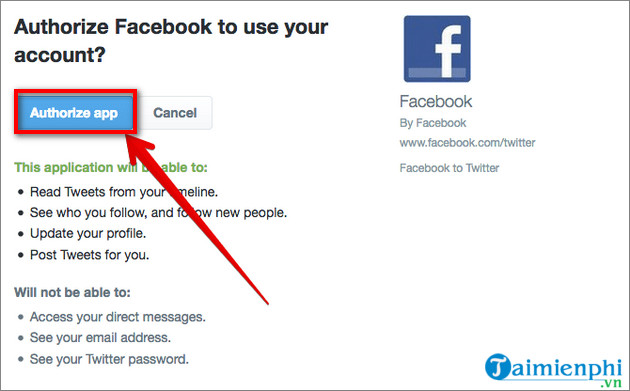
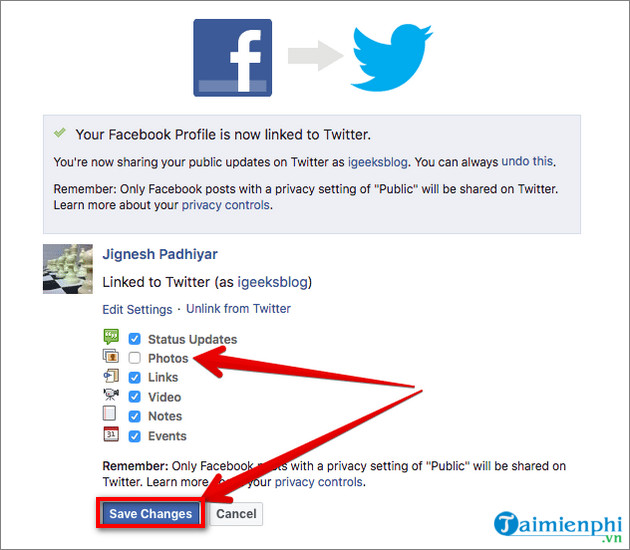
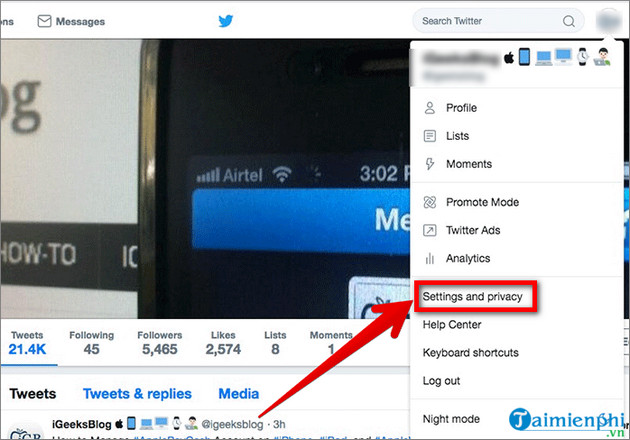
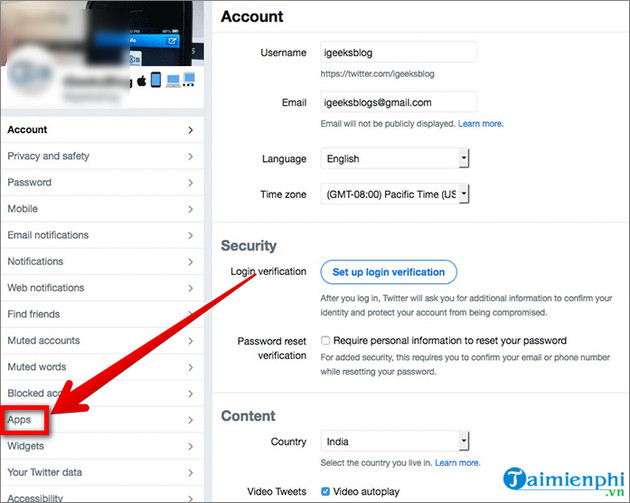
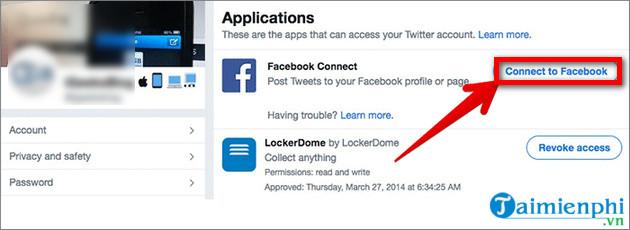
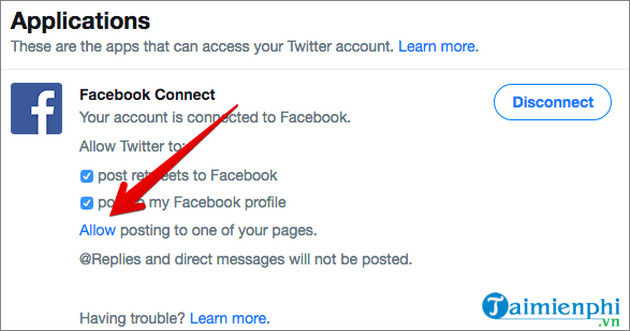
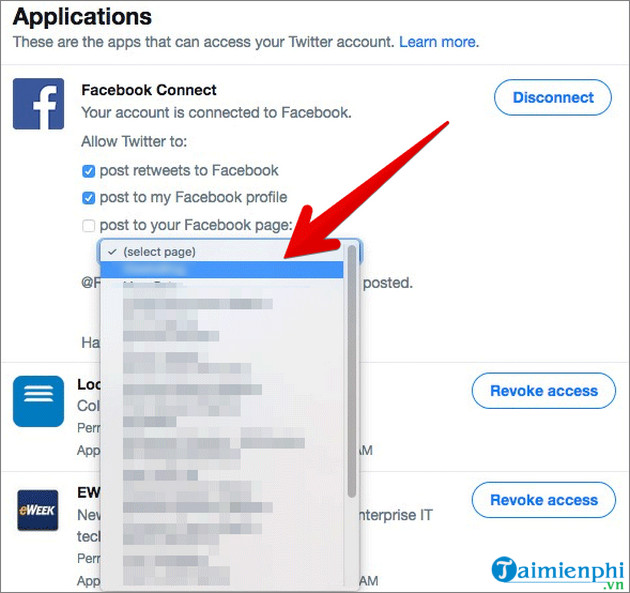
Older versions of Twitter and Facebook exposed settings such as Connect to Facebook, Facebook.com/Twitter, and automatic publishing permissions. Those integrations were retired. The screenshots below document the former workflow and should not be treated as current controls.
Legacy Facebook and Twitter linking screenshots
Remove an old or unused connection
Even though the original Facebook/Twitter link is retired, review connected apps on both services. On X, open Settings and privacy, then Security and account access, followed by Apps and sessions. Revoke services you no longer use. On Facebook, review Apps and websites and remove old publishing tools.
Removing an app stops future access according to the platform's rules; it does not necessarily delete posts that the app already published. Delete unwanted posts separately after confirming the exact targets.
Safe workflow for a business or team
- Create one source brief with the approved facts, link, and media.
- Write a Facebook version and an X version.
- Have the appropriate reviewer approve both.
- Schedule them with a supported tool or publish manually.
- Verify each live post and monitor both inboxes.
- Revoke tool access when the contract or team ownership changes.
For more platform tutorials and account settings, browse TipsMake's social-network guides. TipsMake's overview of popular social networks can also help when deciding where a message belongs.
Related Articles
 How to Link Facebook to Twitter and Vice Versa5 minutes read
 Tricks or Certain Twitter Users Should Not Be Ignored6 minutes read
 Instructions to Post Animated Gif Images to Twitter3 minutes read
 Instructions for Using Twitter for New Users14 minutes read
 Facebook Has Stolen the Best Feature of Twitter Without Anyone Knowing5 minutes read
 13 Useful Shortcuts That Twitter Users Need to Know4 minutes read
Reader Comments 0
Sign in with email or Google to join the discussion.