Table of Contents
Overview
This guide explains how to connect a macbook to a projector with a cable in clear, practical terms. It covers the key concepts, recommended steps, common limitations, and useful checks so you can make a better-informed decision.
You want to project from your computer to a projector for your study or work presentation. You do not know how to use the cable to convert from macbook to projector? This guide explains how to use the cable to connect MacBook to projector easily and quickly.
What Is a headphone port adapter cable?
The converter cable is a device that helps convert computer and phone ports. This device helps convert from Lighting port to 3.5mm jack.
The wire of this device is quite short, so when you plug it into your phone or Macbook, it will work immediately. However, with devices with lower operating systems, it will notify that the device is not supported.

Structure of the conversion cable
The conversion cable is designed to help transfer connections with fast data transmission speeds. From there, it can support you in work, study and entertainment in the easiest way.
The cable consists of a plastic shell and three shielding layers. The plastic shell protects against electromagnetic interference and radio frequency interference. This cable is made of gold plating and Oxygen Free Copper. This material can increase the contact ability to help the signal transmission process take place better. The cable connector has a latch design to help the connection be safe and effective.
The cable is 1.5m long, the input signal is HDMI, the output signal is DVI. The cable has a digital signal connection standard, supporting high-speed data transmission with fast transmission and high resolution with sharp images. Therefore, the conversion cable is often used in banks, schools,. places that require data transmission with extremely good quality.
Cable to convert from macbook to projector
Prepare
Equipment needed: Macbook, projector, conversion cable
To connect the projector to Macbook, you need to prepare a Mini Displayport to VGA or Mini Displayport to HDMI cable or a VGA or HDMI to USB-C converter cable.
The price of the genuine Apple VGA to USB-C converter accessory is quite high, 69 USD equivalent to more than 1.5 million VND. You can also use the Benfei VGA to USB-C converter accessory which only costs about 13-14 USD equivalent to about 300,000 VND if you cannot afford to buy genuine products.
Steps to use the converter cable from macbook to projector
Step 1: Start Macbook and Turn on the projector.
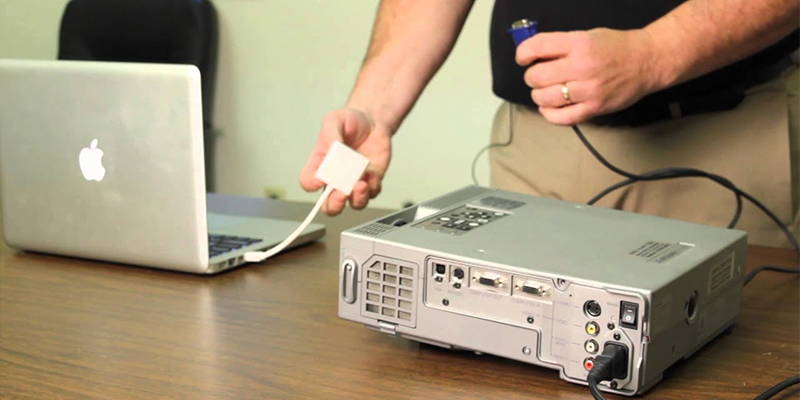
Step 2: Connect the projector's video cable (VGA or HDMI) to your Macbook.
Step 3: Go to Apple Menu > Select System Preferences > Select Display.
Step 4: In the Display tab, select Show All to start displaying content. Then, you can select display options and screen brightness.
How to customize the presentation screen from MacBook
Step 1: Select Apple menu > Click System Preference > Next click Displays.
Step 2: Then, you adjust the parameters such as:
- Optimize For: Change the resolution of the MacBook and the projected image.
- Rotation: Change the orientation of both the MacBook and the projection.
- Refresh Rate: Adjust the delay on the projection screen.
- Underscan: Adjust the size of the display. To shrink the screen, drag this slider to the right.
Step 3: Click Arrangement > Click on Mirror Displays to use the projector as a second screen
Some errors when connecting MacBook to projector
Projected image is blurry
Blurry projected images occur because you have not adjusted the focus on the projector correctly. You should turn the Focus adjustment knob on the projector until the image is clear.
Projector not receiving signal from MacBook
This error may be caused by a broken or loose cable. You can check the cable again or try connecting your Macbook to another projector to see if it works properly.
Projector has no sound
When connected to the projector and no sound is emitted in the video on the Macbook, the cause may come from the audio jack connected from the Macbook to the projector. The Mini Displayport port does not support audio transmission and the USB-C port supports image, audio and charging transmission. If it still does not work, check the volume mode on the Macbook and then restart the computer to check the sound.
This guide provides genuine conversion cables at the most reasonable prices on the market today. To provide the best service experience for customers and help customers feel secure in using them, this guide offers a 24/7 warranty. For advice on ordering, please call the hotline 19001903.
Key Takeaways
Use the guidance above as a practical reference for for using the cable to connect macbook to. Check compatibility, follow the steps carefully, and verify important details with official documentation when software, security, accounts, health, or purchases are involved.
FAQ
How do I connect a macbook to a projector with a cable?
Follow the steps in this guide in order, confirm each setting before continuing, and save, restart, or reconnect the device when the instructions require it.
What should I check before I begin?
Confirm the correct device, account access, software version, compatibility, and a current backup whenever the process could affect files, settings, or security.
What should I do if the process does not work?
Repeat the steps carefully, check for model or version differences, install available updates, and consult the manufacturer's official support documentation.
Related Articles
 How to Connect a Mac to a Projector4 minutes read
 How to Connect Macbook to Projector7 minutes read
 How to Connect the Projector to a Computer, Laptop7 minutes read
 3 Ways to Connect MacBook to TV: Recommended Choices6 minutes read
 How to Connect a Phone to a Projector7 minutes read
 5 Popular Wireless Projectors to Connect to Laptops, Phones5 minutes read
Reader Comments 0
Sign in with email or Google to join the discussion.