Table of Contents
A Raspberry Pi can run a small language model locally, but expectations matter. It will not match a desktop GPU or a cloud service, and larger models may be unusably slow or fail to load. The practical goal is an offline assistant for experimentation, simple automation, or learning how local inference works.
This guide uses Ollama for model management and TinyLlama as a lightweight first test. Start with the command line; add Open WebUI only after the model works reliably.
What you need
- A Raspberry Pi 5 is preferable; a Pi 4 can work with a sufficiently small model.
- A 64-bit Raspberry Pi OS installation.
- At least 4GB RAM; 8GB gives more room for the operating system and interface.
- Reliable power and active cooling for sustained workloads.
- Ample free storage. A USB 3 SSD is preferable to a small or low-endurance microSD card.

Check the architecture and available resources:
uname -m
free -h
df -h /
The architecture should report aarch64. Leave several gigabytes free for the software, model, temporary files, and updates.
1. Update Raspberry Pi OS
sudo apt update
sudo apt full-upgrade -y
sudo reboot
Reconnect after the restart. Keeping the OS current reduces the chance that an old kernel, container runtime, or library causes an unrelated failure.
2. Install and start Ollama
Use the current Linux instructions on the official Ollama documentation. Its installer command is:
curl -fsSL https://ollama.com/install.sh | sh
Then enable and check the service:
sudo systemctl enable --now ollama
systemctl status ollama --no-pager
Read an installation script before running it if that is part of your security policy. Do not expose Ollama’s network port to the internet.
3. Download a small model
Begin with TinyLlama rather than a multi-billion-parameter model:
ollama pull tinyllama
ollama run tinyllama
At the prompt, ask a short factual or formatting question. Enter /bye when finished. Responses will be slower than on a conventional AI workstation, and a small model may produce weak or inaccurate answers. The test is successful if it loads consistently without exhausting memory.
List installed models and remove one you no longer need:
ollama list
ollama rm MODEL_NAME
4. Add Open WebUI only if needed
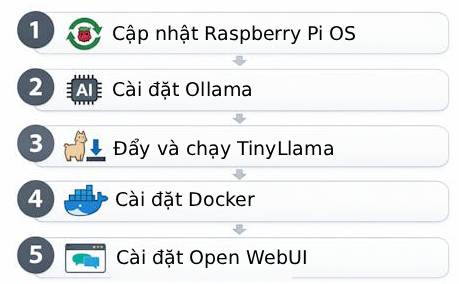
A browser interface uses additional memory. If the command-line test is stable and Docker is already installed, follow the current Open WebUI quick start. A typical container connecting to Ollama on the host looks like this:
docker run -d -p 3000:8080 --add-host=host.docker.internal:host-gateway -e OLLAMA_BASE_URL=http://host.docker.internal:11434 -v open-webui:/app/backend/data --name open-webui --restart unless-stopped ghcr.io/open-webui/open-webui:main
Open http://PI_ADDRESS:3000 from a device on the same trusted network. Create the first administrator account and restrict access with your firewall or router. Do not forward port 3000 from the public internet.
Monitor temperature, memory, and errors
watch -n 2 free -h
vcgencmd measure_temp
journalctl -u ollama -n 100 --no-pager
dmesg -T | grep -i -E 'out of memory|killed process'
If a model loads and then the process disappears, look for an out-of-memory event. Choose a smaller or more heavily quantized model before adding swap. Heavy swap on a microSD card is slow and can increase writes; if swap is unavoidable, use conservative settings and preferably an SSD.
If speed falls during a long response, check temperature and throttling:
vcgencmd get_throttled
A result other than 0x0 can indicate current or previous undervoltage or throttling. Confirm that the power supply and cooling solution are appropriate for the Pi model.
Common problems
The model exits or the board freezes
Close the desktop and other services, stop Open WebUI, and try a smaller model. Confirm available RAM and check the kernel log for a killed process.
The download fails
Check free disk space, DNS, and the system clock. Partially downloaded model data can consume significant storage.
Open WebUI cannot reach Ollama
Confirm that the Ollama service is running and that the container has the correct OLLAMA_BASE_URL. Review its log with docker logs open-webui.
The Pi becomes very slow
Check temperature, power warnings, memory pressure, and storage activity. Running the graphical desktop, a container interface, and inference together may exceed a low-memory Pi’s practical limits.
What this setup is good for
A Pi-based model can support private experiments, a local text interface, or a small application that tolerates slow replies. It is not a dependable source of facts and should not control safety-critical devices without separate validation and safeguards.
Once the small model is stable, change one variable at a time—model size, context length, interface, or storage. That makes failures easier to diagnose and shows where the Raspberry Pi’s real limit lies.
Related Articles
 Is It Possible to Run AI Models Locally on a Raspberry Pi?6 minutes read
 Raspberry Pi Zero vs Model a and B, How Are They Different?11 minutes read
 Raspberry Pi 3 Model a +: 8-core Chip, Clocked at 1.4GHz, Priced at $253 minutes read
 4 Reasons to Buy an Old Raspberry Pi Model5 minutes read
 Why Gemma 4 is the leading free local chatbot model8 minutes read
 How to Connect a Local AI Model to Obsidian Using MCP: Step-by-Step Guide9 minutes read
Reader Comments 0
Sign in with email or Google to join the discussion.