Table of Contents
The process for edit videos on your phone using adobe premiere clip is straightforward once you know where to find the right controls. The steps below explain what to do and what to check.
Today with technology development, for video recording you don't need to use expensive and cumbersome cameras that can take advantage of smartphones. The footage is recorded with the phone but the quality is not sharp but very convenient.
How Edit Videos on Your Phone Using Adobe Premiere Clip Works
However, there is a problem that we cannot edit these videos right on the phone because this high difficulty job requires many skills and takes many time. But now, editing videos on your phone is easier than you think because of the Adobe Premiere Clip application.
This is the best video editing application for iPhone and Android now. The professional editing package for the mobile version is completely free, fast, works on most devices and the editing process is simple. This guide explains how to edit videos on Android and iOS phones using Adobe Premiere Clip.
- 10 easy video editing applications on Android
- 7 best video editing apps for iPhone
Download :
- Adobe Premiere Clip for Android
- Adobe Premiere Clip for iOS
First, create a new project by clicking the + Button (plus sign) in the lower right corner on Android and on the top right on iOS. the app will have a slightly different layout depending on the device you are using, but the features are the same.

Now, choose where to store videos, you can use any video or photo on the device as well as from cloud services like Dropbox, Google Photos and Apple Photos. In addition, you can select the Camera Option and shoot or take a new photo or video. Touch each clip you want to use in the video and then touch Done .
Next, you will see the Choose Project Type Screen. One of the best features of Adobe Premiere Clip is that it can automatically create movies by editing clips synchronously and adding background music to videos.

For the app to automatically edit the video, select Automatic While when needed to manually edit, select Freeform .
It only takes a few minutes for you to get an automatically edited video. For videos created automatically, you can edit a bit by changing the video background music and changing the video layout.
You can also convert Automatic video into a video Freeform at any time by clicking the More Customization Button at the top of the screen.
After selecting Freeform , you will see the main editing screen. It has a preview window at the top, a middle cut bar and clips displayed in order at the bottom.
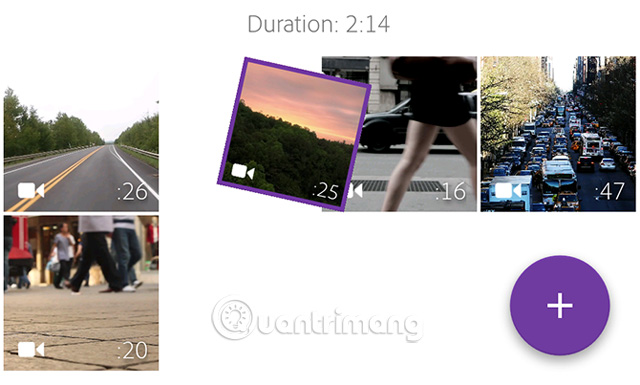
The clips will be arranged in the order you choose, so if you don't want to put the clips in this order you can rearrange them by holding your finger on one of the thumbnails and dragging it to your position. desired location.
Next, you need to cut your clips for the desired length. Touch the clip you want to cut to select it. In the middle cut bar, you will see purple bars at each end. The left bar shows the start of the video, the right bar is the end point. There is also a white vertical bar that allows you to preview content quickly.
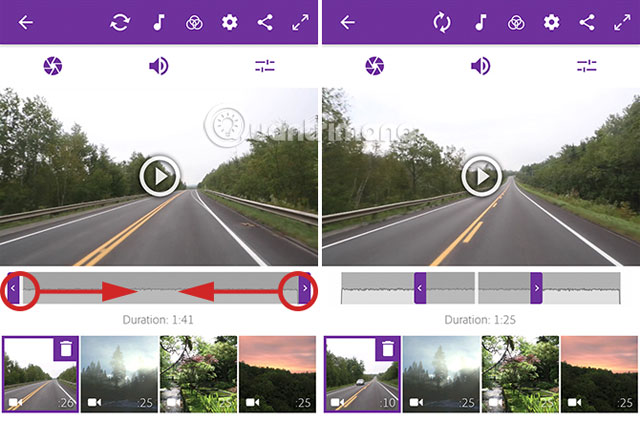
Drag the white bar until it reaches the point where the video clip starts, then drag the left bar to the same point with the white bar. Similarly drag the white bar to the location where you want the video to end, then move the bar to the right to match that white bar. Now you have a new start and end video.
Sometimes you don't want to use the whole clip, just want a piece of it, this clip can be at the beginning, end or middle. To split a clip, tap the clip to select it, then click the slider icon above the preview window to open the clip editing window.
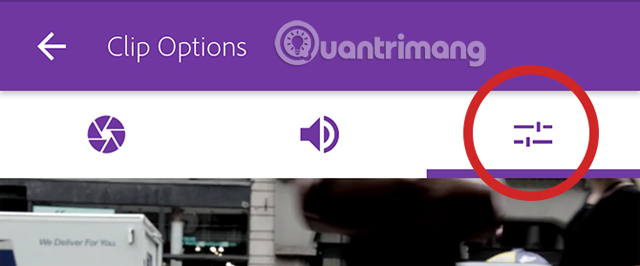
On the edit screen, drag the white vertical bar to the position you want to cut, then select Split at Playhead.
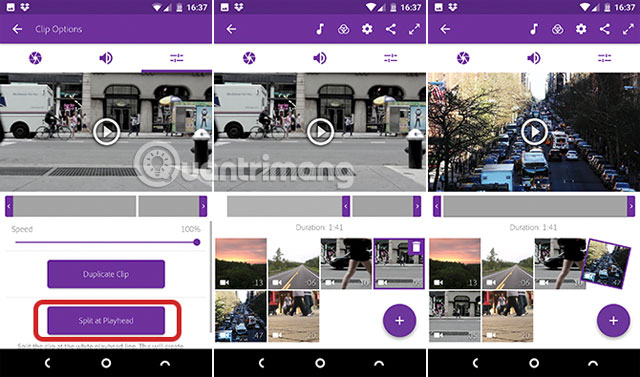
When you return to the main editing screen, you'll see the clip has been split into two parts, hold and drag them into place. Users can split a clip into multiple segments if desired.
Non-destructive editing with Adobe Premiere Clip
A few things to note here is that this clip is not actually divided into two, it has been duplicated. In the first clip, the new video endpoint is placed in the playhead position and in the second clip the new opening point is also placed in the same position. This is non-destructive editing, so you can undo any time and simply change the starting and ending points.
Editing options also include playback speed control settings, so you can add slow motion effects.
After editing the clips, you can add music to the video by clicking the Soundtrack Button at the top of the screen.
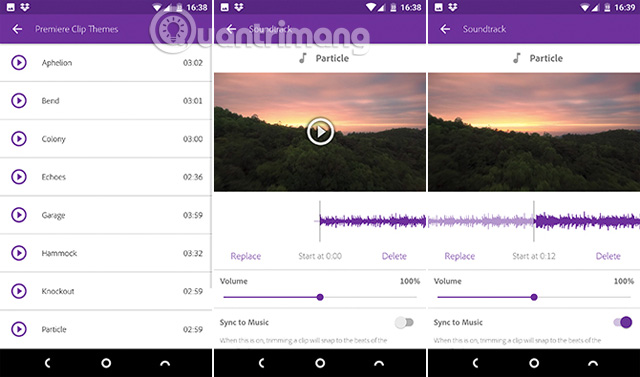
Users can use some songs available in Adobe Premiere Clip or add music from the device. After selecting the song, touch the Add Button. You can only use one track for a video and it will start when the video runs, you cannot change this.
However, there is a way to slow down a song by dragging the sound wave to the selected point and the Play Button to preview it.
Other audio options in Adobe Premiere Clip
Auto Mix Option will reduce the volume of the song when there is original sound from the video clip. This feature is enabled by default. In addition, you can set the background music video volume level so that it gradually increases when you start playing and gets smaller at the end.
Basically, your video is complete, here are some tools that make the work more complete.
Select a clip and click the aperture icon. Here, you'll find a slider to adjust the Exposure (overall brightness), Highlights (the brightest part of the video) and Shadows (the darkest part). For each video clip, users must manually adjust these levels that cannot be performed simultaneously.
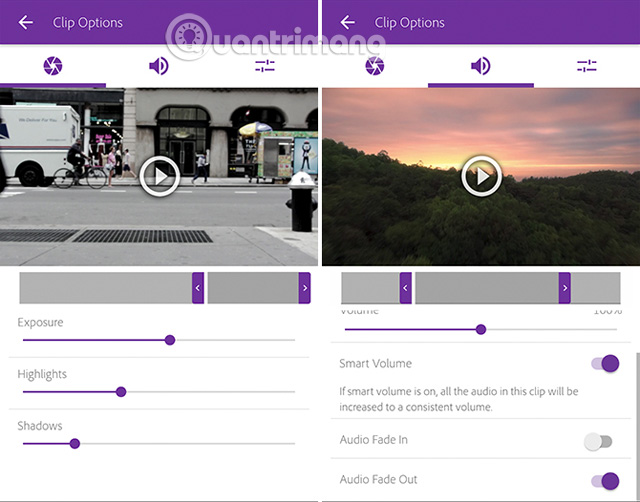
Touch the speaker icon to access clip volume settings. Smart Volume Helps to adjust large contrast in volume level. You can edit the overall sound or turn off the sound completely by turning off the Play Audio Option. Similar to color editing, you must make audio changes for each clip.
From the main editing screen, touch the Looks Icon at the top. Looks include 30 filters for users to use for videos when they want to change the color, contrast and overall tone. Just touch the thumbnail to see the effect, if you don't like it you can change it later.
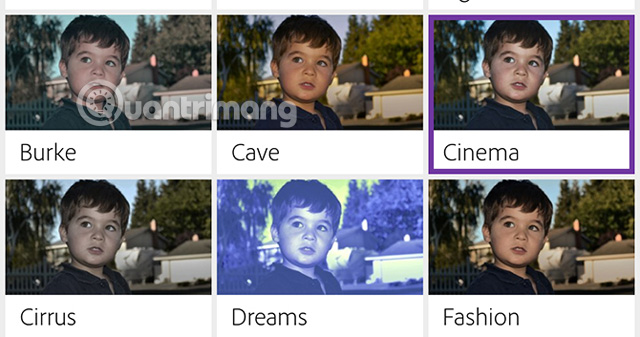
Like Instagram filters, Looks filters may be too much for users who are confused about what to choose, but this is a way to sync colors and styles to video clips.
- Instructions for properly using 16 Instagram filters
To add a title, touch the + icon (plus sign) on the main edit screen and select Text Title . Enter the text in the box, then select the color for the text and the background.
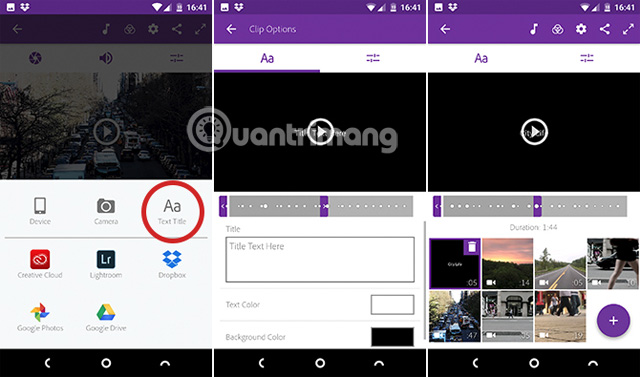
Return to the main screen and drag the title tag into the correct position. Set the start and end points to determine when the title appears on the screen. Users can add as many titles as they want, such as placing it between a function clip like the title of the chapter or at the end of the clip.
Touch the full screen icon in the upper right to preview the final video. If not, you can go back and edit. Each edit you have made can be undone. When satisfied, you can save and share your work.
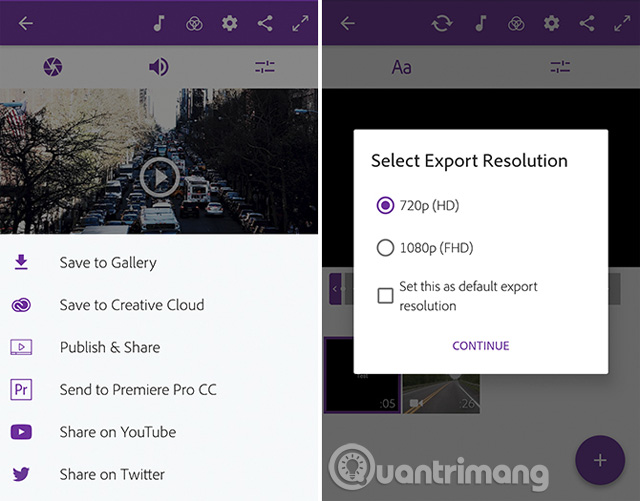
Adobe Premiere Clip saves projects automatically so you don't need to save them but when needed to share or view on other applications, there are several options after clicking the Share Button:
- Save to Gallery : Export and save video copies to your device for viewing in other applications.
- Save to Creative Cloud: Download videos to Adobe Creative Cloud cloud storage service.
- Publish & Share: This option will publish your video on Community Videos page in Premiere Clip. You can choose to make it public or private.
- Send to Premiere Pro CC: This option allows users to open video projects in Premiere Pro on the computer to be able to edit more. You need to login to the same Adobe account in both places.
- Share on YouTube : Create a video and upload it to your YouTube account.
- Share on Twitter: Create a video and post it to your Twitter account.
With all of the above options, you need to select the output resolution for the video and enter details for each account used.
I wish you all success!
- Popular Adobe Premiere shortcuts
- How to edit videos on YouTube?
- How to edit videos with Photos Windows 10 Fall Creators application
FAQ
What should I prepare before I edit videos on your phone using adobe premiere clip?
Review the requirements in the guide, confirm that your device or software is compatible, and save important work before changing settings related to edit videos on your phone using adobe premiere clip.
Why might edit videos on your phone using adobe premiere clip not work as expected?
The most common causes are incompatible versions, missing permissions, incorrect settings, or an interrupted internet connection. Recheck each step and restart the app or device when appropriate.
Can beginners follow these edit videos on your phone using adobe premiere clip steps?
Yes. Follow the steps in order, avoid skipping confirmation screens, and compare your interface with the screenshots because labels may differ slightly between versions.
Related Articles
 Keyboard Shortcuts in Adobe Premiere3 minutes read
 Popular Adobe Premiere Shortcuts: What You Need to Know4 minutes read
 He Sued Adobe for Being Cleared of More Than 100,000 Videos Due to Bugs in the Premiere Software4 minutes read
 Adobe Released the Adobe Premiere Rush Cc Video Editing2 minutes read
 Which Is Better for CapCut or Adobe Premiere Pro for Video Editing Explained11 minutes read
 Should I Choose Adobe After Effects or Premiere Pro Video10 minutes read
Reader Comments 0
Sign in with email or Google to join the discussion.