Table of Contents
You can permanently delete a Zalo account from Personal > Settings > Account and security > Delete account. Zalo schedules the deletion for 48 hours later. During that window, you can cancel the request; after deletion, account data cannot be restored.
Before deleting your Zalo account
Deletion removes the account's name, profile photo, messages, timeline content, and friends. Save any important photos, videos, files, or conversation information first.
- If you only changed SIM cards, use Zalo's Change phone number feature instead. It is designed to preserve account data.
- Make sure you control the registered phone number and know the account password.
- Tell important contacts how to reach you after deletion.
- Review connected business, group, or administrative responsibilities.
Delete a Zalo account on Android or iPhone
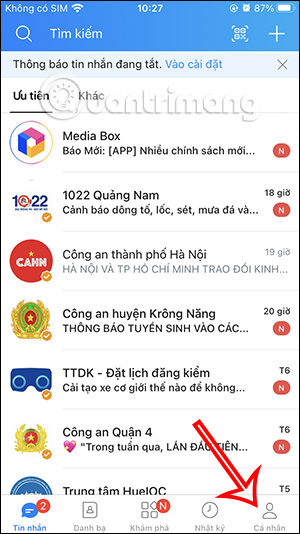
Step 1: Open Zalo, tap Personal or the profile icon, open Settings, and select Account and security.
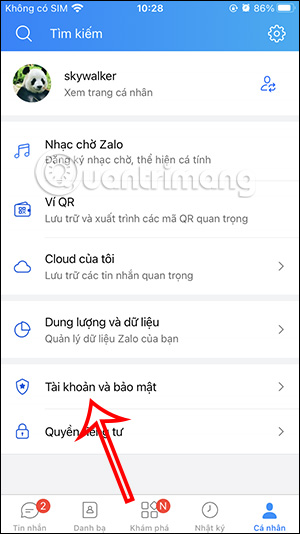
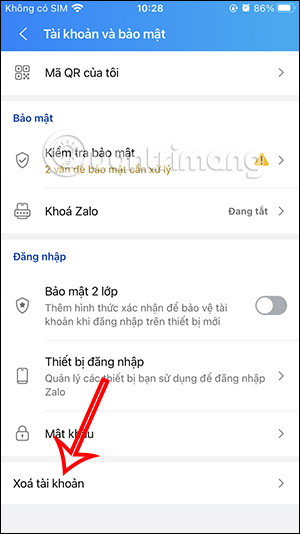
Step 2: Scroll down and select Delete account.
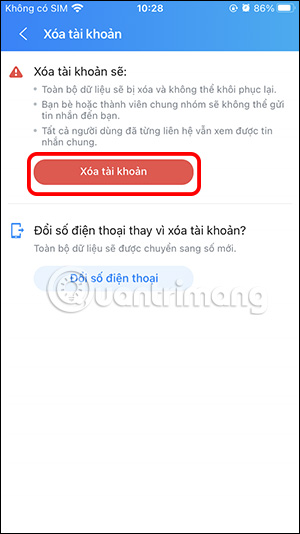
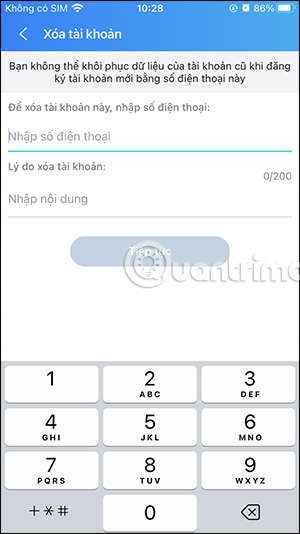
Step 3: Select Delete account again. Enter the phone number used to sign in. You can also provide a reason, then select Continue.
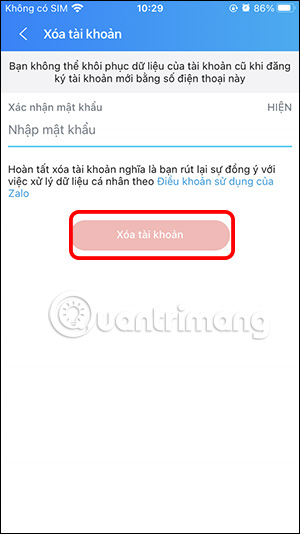
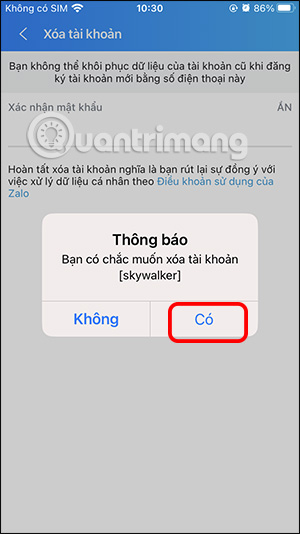
Step 4: Enter the Zalo password, select Delete account, and confirm the final warning.
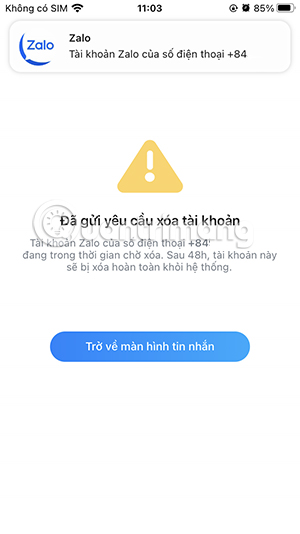
Zalo should show that the account is scheduled for deletion after 48 hours. Do not assume that uninstalling the app cancels or completes this request.
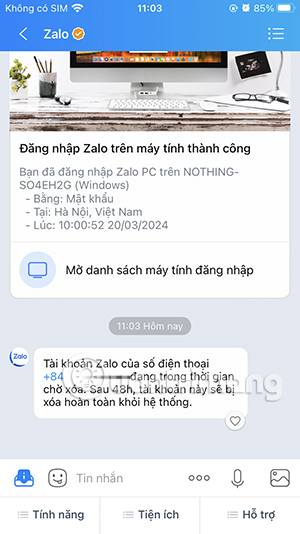
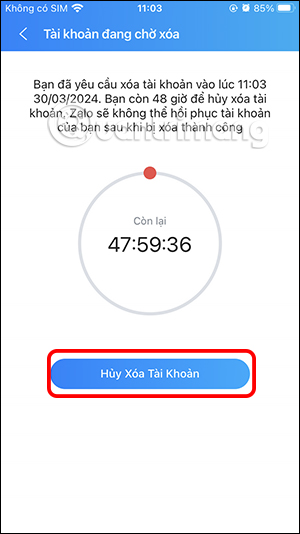
Cancel a Zalo account deletion request
You can cancel while the 48-hour countdown is still active.
- Open Zalo and go to Personal > Settings > Account and security.
- Select Delete account.
- Choose Cancel account deletion.
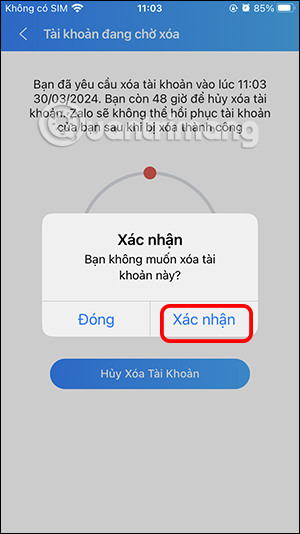
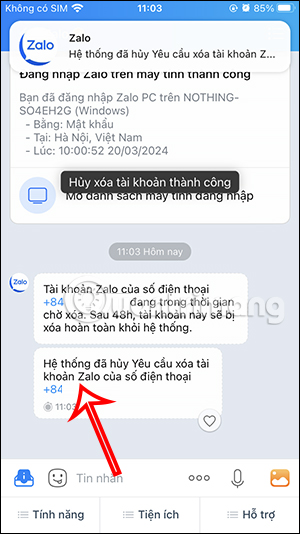
Confirm the cancellation. The deletion countdown should disappear and the account should remain active.
Deletion, logout, uninstall, and phone-number change
| Action | Account data | Best use |
|---|---|---|
| Delete account | Permanently removed after the cancellation window | You no longer want the Zalo account |
| Log out | Kept online | You want to stop using the account on one device |
| Uninstall Zalo | Account remains; local app data may be removed | You want to remove the app temporarily |
| Change phone number | Account data is designed to remain with the account | You have a new SIM or number |
If the delete or cancel option is missing
- Update the official Zalo app and reopen it.
- Confirm that you are signed in to the intended account.
- Check the connection and device date and time.
- Do not create a new account with the same number while a deletion is pending.
- Use Zalo's official help channel rather than sharing your password or verification code with another person.
For the current official steps and consequences, review Zalo's account-deletion help page.
Related Articles
 Instructions to Cancel Your Friend Zalo on Your Phone, Computer5 minutes read
 Instructions to Delete Zalo Account on the Phone4 minutes read
 Instructions to Delete Mocha Account on the Phone4 minutes read
 Can I Recover My Zalo Account?4 minutes read
 How to Create a Zalo Account on Your Phone?2 minutes read
 How to Cancel Netflix: Complete Guide9 minutes read
Reader Comments 0
Sign in with email or Google to join the discussion.