Table of Contents
This guide provides a clear, practical overview of highlights on the galaxy S21 ultra camera, with useful context, important details, and straightforward takeaways for everyday readers.
Galaxy S21 Ultra has 4 rear cameras, including the main camera with 108 MP resolution. This camera can take 16-bit HDR images, 64 times wider color gamut than the Galaxy S20 Ultra. Autofocus has also been improved thanks to the laser focus system.

Up to two telephoto cameras on the Galaxy S21 Ultra, including a 3x optical zoom camera for portraits and a 10x optical zoom camera for long distance photography, all support Dual Pixel technology. On the Galaxy S20 Ultra and Note20 Ultra, the 5x telephoto camera is not appreciated because it makes portraits difficult.
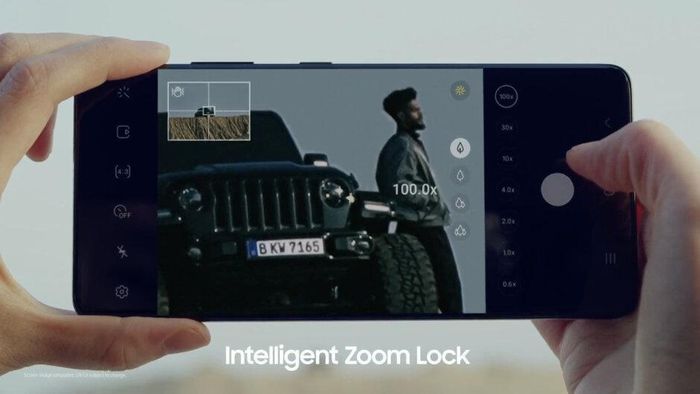
Two telephoto cameras on the Galaxy S21 Ultra are equipped with optical stabilization (OIS). Last year, many reviews showed that the zoom image from the Galaxy S20 Ultra was shaking. On the new generation, Samsung has equipped Zoom Lock, which uses artificial intelligence to reduce shake, providing a quality that is 'similar to using a tripod'.

Space Zoom 100x mode was also brought back to the Galaxy S21 Ultra by Samsung after being removed from the Note20 Ultra. Using the 10x telephoto camera, this feature allows the user to take zoomed images at a very long distance while maintaining sharpness.

The camera on Android smartphones is often complained of not working well with social networking apps. On the Galaxy S21 Ultra, Samsung has taken advantage of Google's CameraX API for programmers to take advantage of the camera hardware, making photos uploaded to social networks sharper.
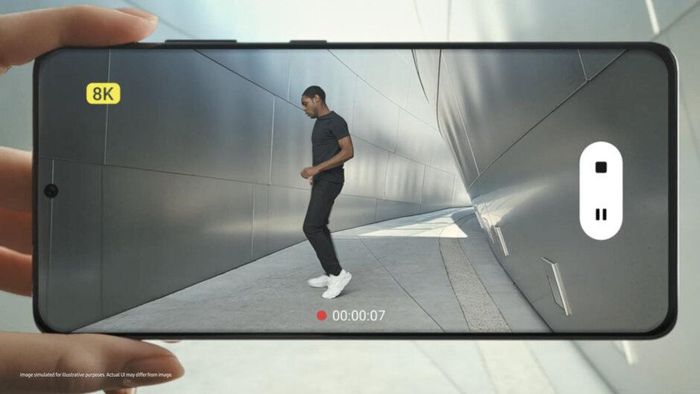
Similar to the Galaxy S20 Ultra, the S21 Ultra is equipped with the ability to record 8K videos. New when recording 8K on the device is that the user can take pictures while recording video, the resulting photo will also have 8K resolution.
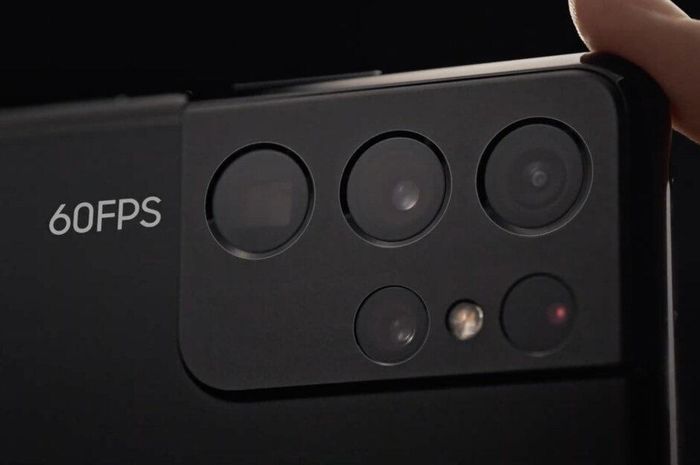
4K @ 60 fps video recording is not a new feature, but most smartphones only support recording with the main camera and selfie camera. On the Galaxy S21 Ultra, Samsung has equipped 4K @ 60 fps video recording on all 5 cameras, allowing for high quality, smooth video recording with many effects such as wide angle, long zoom .
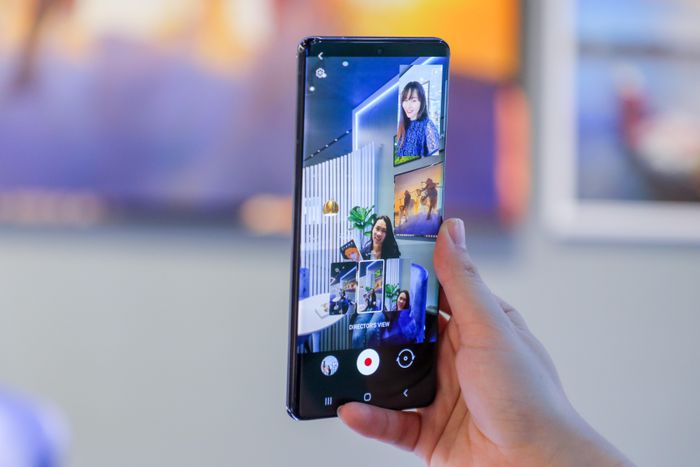
For vloggers, the Galaxy S21 Ultra supports a video recording mode called Director Mode. All images from the cameras will appear on the screen, users can choose the appropriate frame to use and quickly switch while recording video.
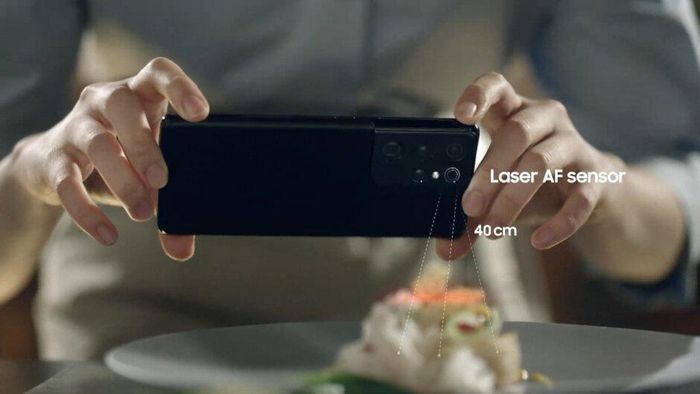
Although not equipped with a macro camera, the Galaxy S21 Ultra can take macro photos thanks to the 12 MP ultra wide-angle camera. In automatic mode, the device will recognize when brought close to the object and then switch itself to the super wide-angle camera, incorporating a laser system for better focus.
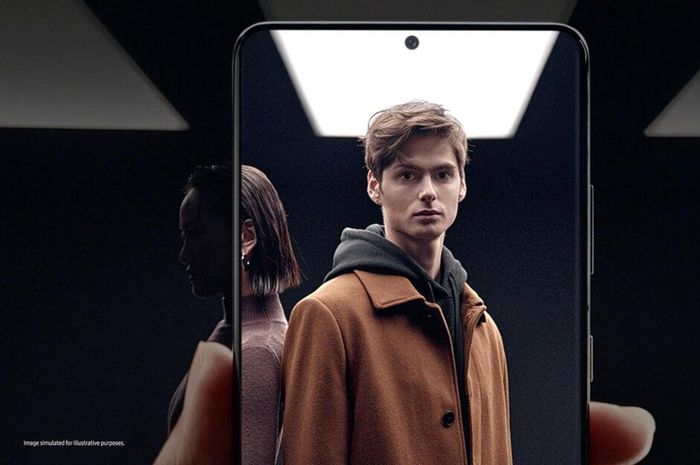
During the event, Samsung said that the low-light shooting mode on the Galaxy S21 Ultra is also improved thanks to pixel binning. When the environment is bright enough, the photo will have an original resolution of 108 MP but if the environment is too dark, this feature will produce 12 MP photos with guaranteed quality.
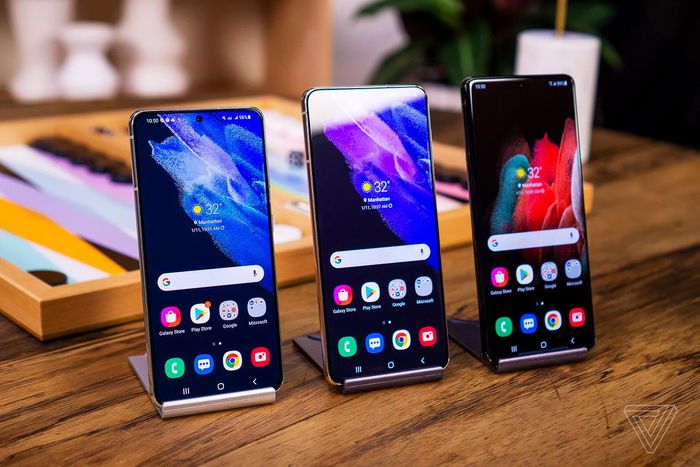
Galaxy S21 Ultra is the most advanced version of the new Galaxy S 3. The device is equipped with a 6.8 inch Quad HD + screen, 12 GB of RAM, up to 512 GB of memory, and supports S Pen to write, draw and control photography.
Key Takeaways
Use the information above as a practical reference for highlights on the galaxy S21 ultra camera. Review each step carefully, confirm any requirements, and choose the option that best fits your situation.
FAQ
What does this guide explain about Highlights on the Galaxy S21 Ultra Camera?
It explains the main concepts, practical considerations, and useful steps related to highlights on the galaxy S21 ultra camera without requiring advanced knowledge.
Who can benefit from learning about Highlights on the Galaxy S21 Ultra Camera?
This information is useful for readers who want a clear overview, practical guidance, and reliable steps related to highlights on the galaxy S21 ultra camera.
What should I check before applying this information?
Review the requirements, confirm that your device, software, or situation matches the instructions, and back up important data before making major changes.
Related Articles
 'Abdominal Surgery' Camera Cluster 'Hegemony' on Galaxy S20 Ultra4 minutes read
 First Real-life Photos of Samsung Galaxy S26 Ultra Revealed with New5 minutes read
 6 Samsung Galaxy S23 Ultra Camera Settings You Need to Change: Expert Selection9 minutes read
 Xiaomi Mi 10 Camera and Galaxy S20 Ultra Camera: Which 108MP10 minutes read
 Galaxy S20 Ultra Has Just Been Updated with a Special 'Close Zoom' Feature4 minutes read
 Compare Samsung Galaxy S20 Ultra Camera and Iphone 11 Pro Max4 minutes read
Reader Comments 0
Sign in with email or Google to join the discussion.