Table of Contents
If your computer speakers are silent, play a familiar track and open Settings > System > Sound. Under Output, select the speakers you want to hear. Windows may have switched to headphones, a Bluetooth device or an HDMI display.

Check mute and the app’s volume
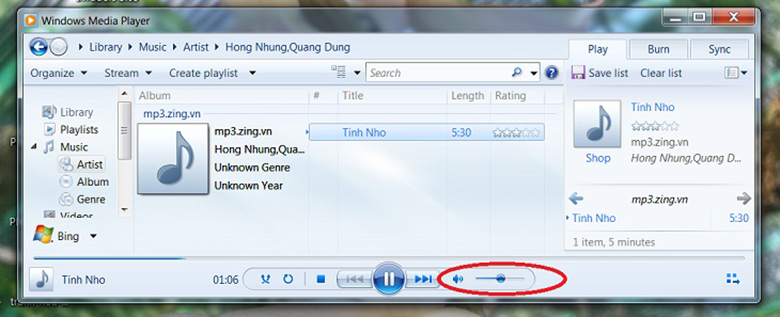
- Unmute Windows using the speaker icon, then check the speaker’s own volume and power switch if it has them.
- Play sound in a second app. If that works, check mute in the first app or browser tab and open the Windows volume mixer to check its level and output.
- If you are using a TV or monitor with speakers, select its HDMI audio output in Windows and check the display’s volume as well. If your monitor has no speakers, select a different device.
Check external speakers and cables
Plug analog powered speakers into the PC’s headphone or line-out jack. Check their power supply and try a known-good cable if it detaches. Plug USB speakers directly into another port to rule out a hub. For Bluetooth speakers, make sure they are connected for audio and are not playing from another device.
If Windows sees no usable output
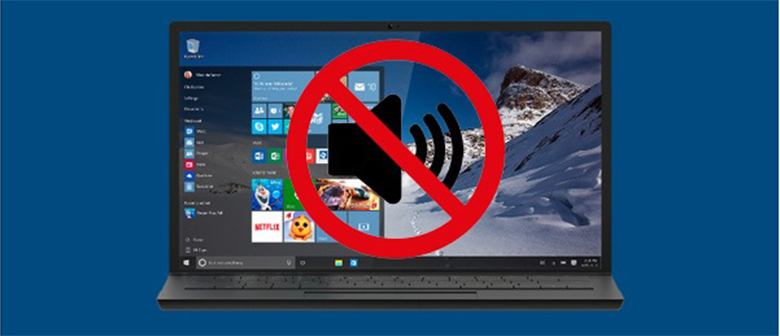
Restart Windows. If the device is still missing, look in Device Manager under Sound, video and game controllers or Audio inputs and outputs. Check Windows Update or the computer maker for the matching audio driver first. If the problem began immediately after a driver update, check whether Device Manager offers a rollback.
Test with a known-good headset. If the headset plays but the laptop speakers stay silent with the right output selected, the built-in speakers or audio routing need further checks. If the external speakers are silent on a second source too, check their power and cable before replacing the PC’s audio hardware.
Related Articles
 3 Sample 5.1 speaker for sound quality
 Soundmax AW 300: Good music speaker for less than 1.5 million VND for computers
 How to Fix Computer Speakers That Can't Be Heard or Have No Sound
 Common errors on computer speakers and how to fix them
 How to clean speakers without damaging the cabinet, grille, or drivers
 Instructions on how to fix shy computer speakers
Reader Comments 0
Sign in with email or Google to join the discussion.