Table of Contents
CarPlay is great right out of the box, and there aren't as many options to toggle as there are on iOS today. But aside from installing apps to make CarPlay more fun, there are a few ways to improve CarPlay that you should check out.
When buying a car in 2018, many people decided to choose a model that supports Apple CarPlay and Android Auto. They use CarPlay almost all the time while driving to enjoy podcasts or music, and get directions.
CarPlay is great right out of the box, and there aren't as many options to toggle as there are on iOS today. But aside from installing apps to make CarPlay more fun, there are a few ways to improve CarPlay that you should check out.
Trim and rearrange your app list
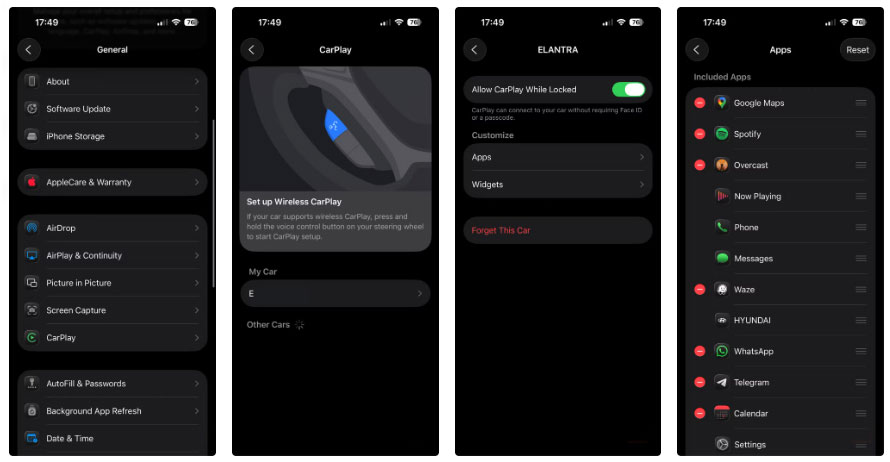
By default, the CarPlay home screen shows icons for all the CarPlay-compatible apps on your iPhone, with Apple's default apps at the forefront. Fortunately, you can rearrange these icons to put your most-used apps at the top and remove the ones you don't care about.
You can't change this option in CarPlay; it's on your iPhone. Go to Settings > General > CarPlay And select your car. If you use CarPlay with multiple cars, you'll need to customize these options for each car.
Now, tap Apps To see a list of the apps you have installed. For any apps you don't want to show up in CarPlay, tap the red minus sign to the left. They'll then appear in the More Apps Section at the bottom, where you can add them back using the green plus button.
Add CarPlay widget
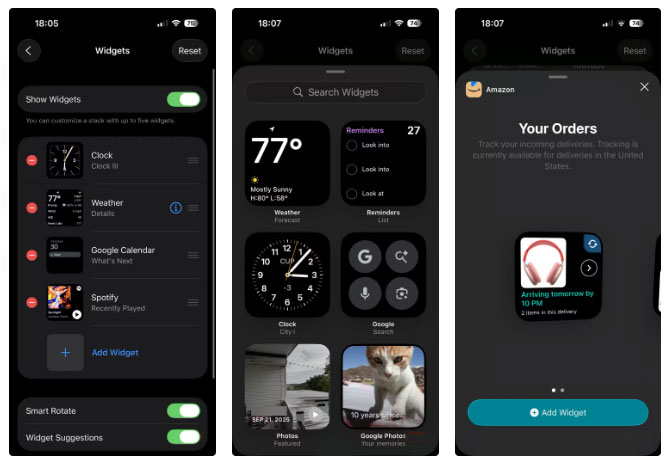
Widgets are one of the iOS 26 additions to CarPlay, giving you convenient access to information on your car's display in the same way as the iPhone's best home screen widgets. Open the same Settings page mentioned above, this time selecting Widgets .
Here, you can select up to five widgets, which will appear when you swipe left to right in CarPlay. When you tap Add Widget , the widgets at the top are CarPlay-compatible widgets. Scrolling down to the Other Section will show widgets that aren't optimized for viewing in your car.
Using Driving Focus with CarPlay
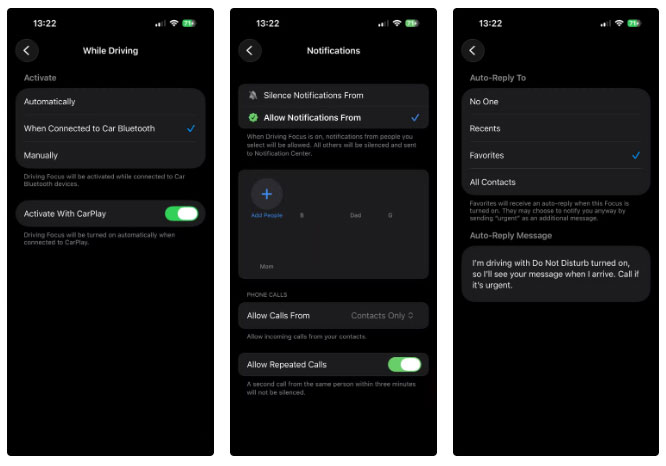
People don't want to be distracted by notifications while driving. They won't respond to them until they get there anyway, so it's best to turn them off. The easiest way to do this is to use the customizable Focus modes on your iPhone.
On your phone, go to Settings > Focus > Driving . At the bottom, tap While Driving Under Turn On Automatically , then you can turn on Activate With CarPlay .
From there, like customizing other Focus modes, the other options on the page let you control how notifications appear while driving. Tap People And select any contacts whose notifications you want to display while driving; be strict about this. For Allow Calls From , use Contacts Only , so you don't get distracted by spam calls on the road.
Make contacts easy to use with Siri
Using your voice while driving is much safer than interacting with a screen, so when you want to call or text a contact, it's important that you can speak to Siri without being distracted by any name issues.
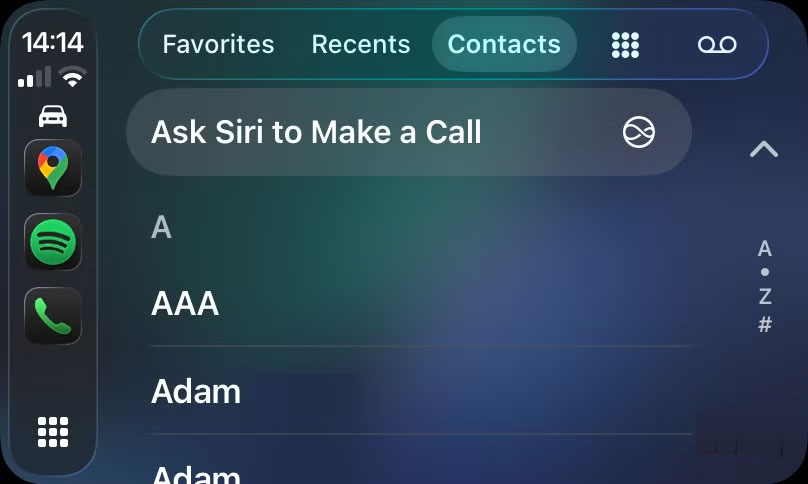
Tip : Siri will remember your relationships. For example, after saying "Maria Smith is my girlfriend," you can say "call my girlfriend" to make a call to Maria.
While you're at it, you should also check your Favorites in your contact list. As mentioned above, keeping this list up to date lets you control exactly who can contact you while you're in Focus mode.
Download music for easy shuffling
Continuing the topic of hands-free use, tapping through playlists and albums while driving is not a great idea. However, voice control is quite annoying, beyond the basics like playing a popular artist or genre. Siri has trouble with many artist names or tracks that have the same name as an album.
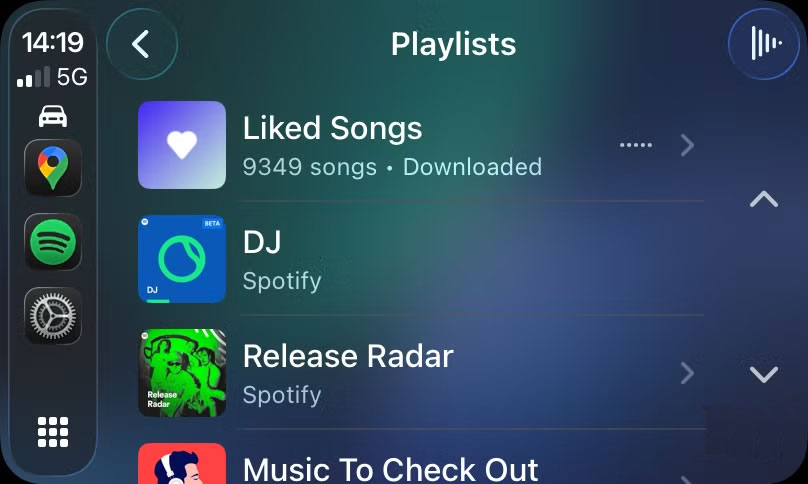
This is why many people download Spotify Liked Songs Playlists offline on their phones; it gives them thousands of tracks to listen to while driving without worrying about data usage.
Tweak your wallpaper and other visual options
We've already looked at some of the CarPlay options you can control on your iPhone, but you shouldn't overlook the Settings App in CarPlay. This app has some unique options for how widgets appear in your car.
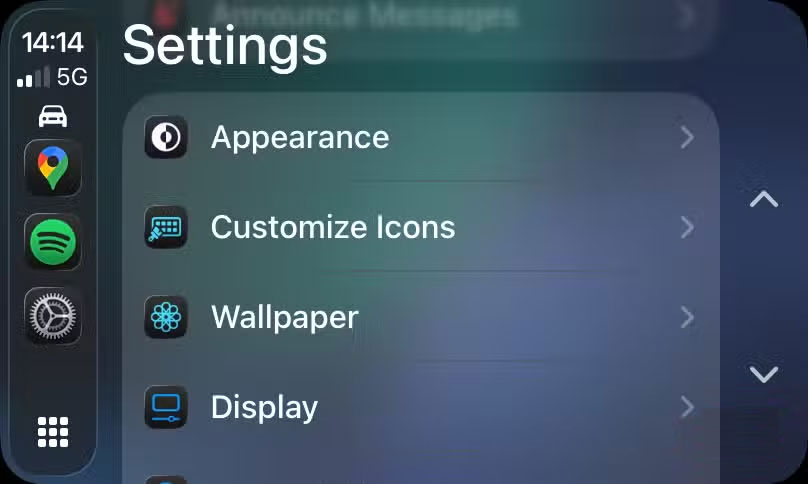
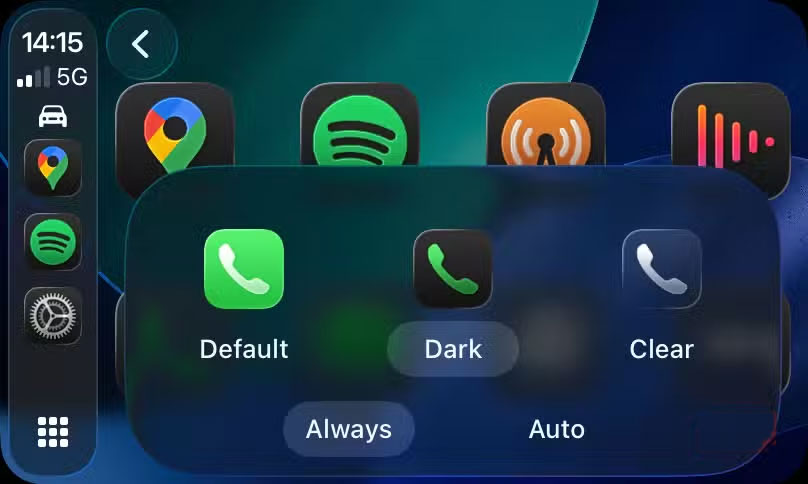
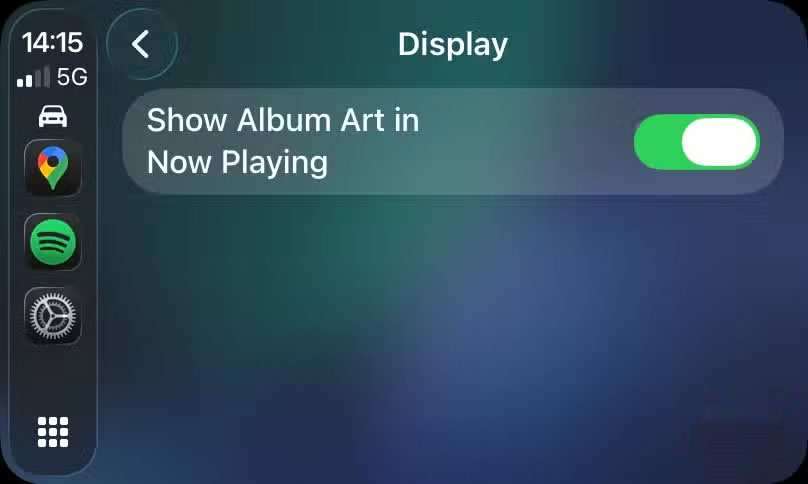
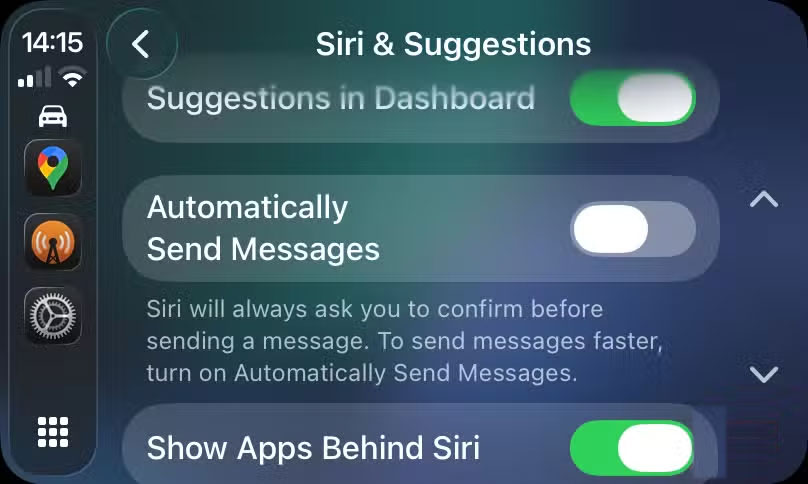
In Appearance , you can choose between light or dark mode, or have it automatically switch based on your car's light sensor. While many people prefer dark mode, dark maps are hard to see during the day, so having the map color automatically switch is a wise choice.
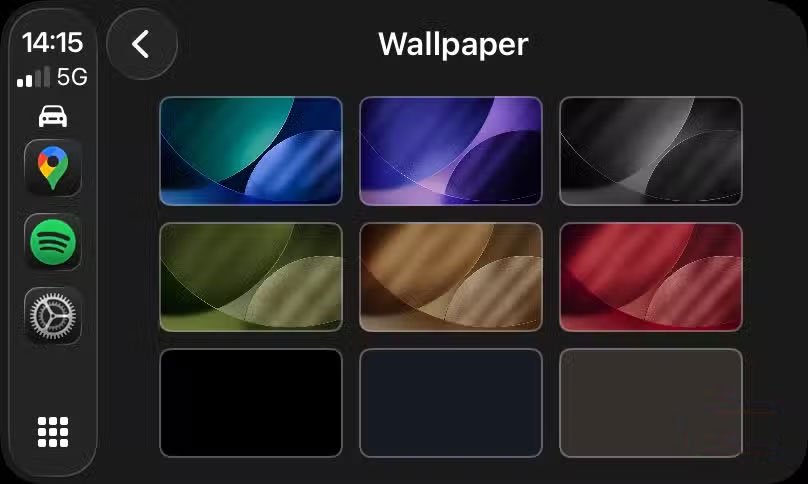
Customize Icons Lets you choose between regular, dark icons and clear, cryptic Liquid Glass icons. Use Wallpaper To change CarPlay's background—unfortunately, this option is limited to a handful of generic wallpapers and doesn't support custom images.
FAQ
What should you know about the options in this guide?
In practical terms, carPlay is great right out of the box, and there aren't as many options to toggle as there are on iOS today. But aside from installing apps to make CarPlay more fun, there are a few ways to improve CarPlay that you should check.
Which option is the best choice?
The best choice depends on your priorities, compatibility, budget, and the specific features discussed in the comparison.
What should you compare before deciding?
Compare core features, limitations, ease of use, compatibility, and long-term value before making a decision.
Related Articles
 How to Fix Apple Carplay Not Working Error6 minutes read
 Here Are All the New Features Coming to Apple CarPlay on iOS 18: Explained7 minutes read
 Apple CarPlay 2 Project Continues to Be Delayed, Is There Anything4 minutes read
 How to Enable 'Do Not Disturb While Driving' Mode in Apple3 minutes read
 How to Set up Carplay to Connect iPhone to Car5 minutes read
 Apple CarPlay Will Soon Support Streaming Video from iPhone to Car3 minutes read
Reader Comments 0
Sign in with email or Google to join the discussion.