Table of Contents
Explore 3 ways to turn network discovery on or off in Windows, including the key concepts, practical examples, important considerations, and useful guidance.
Turn Network Discovery on or off via Settings
Step 1
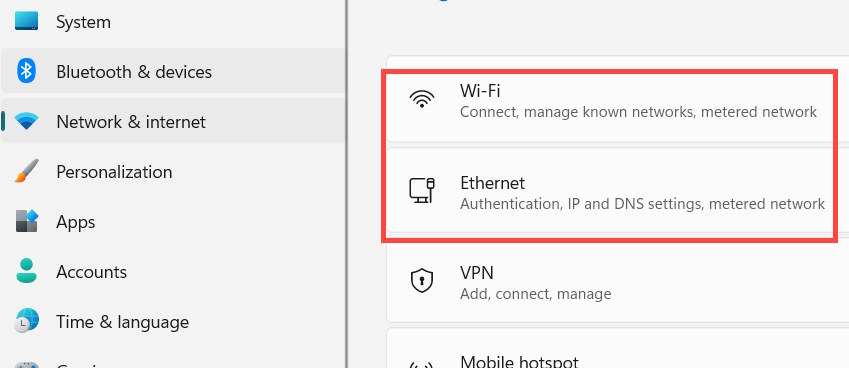
Open Settings on your computer, then click on Network & internet . On the right, select Ethernet or Wi-Fi , depending on your connection.
Step 2
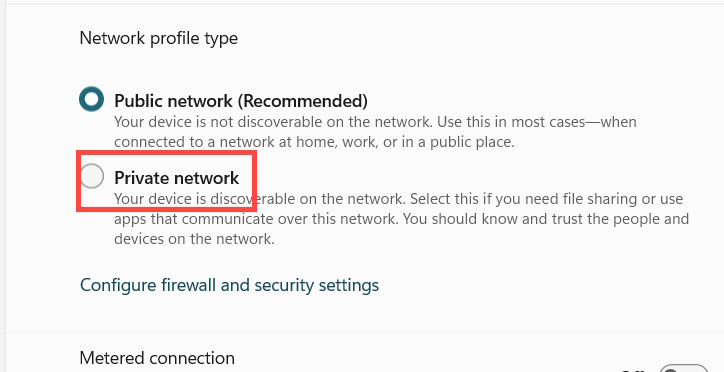
Click on the name of the network your computer is connected to . Under Network profile type, select Private to enable Network Discovery for trusted networks such as your home or work network.
If you want to turn off Network Discovery , click Public network (Recommended) .
Use the Control Panel to turn Network Discovery on or off
Step 1
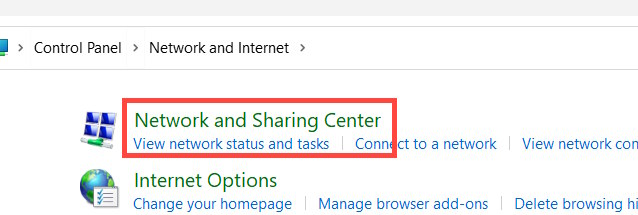
Open the Control Panel on your computer and select Network and Internet > Network and Sharing Center .
Step 2
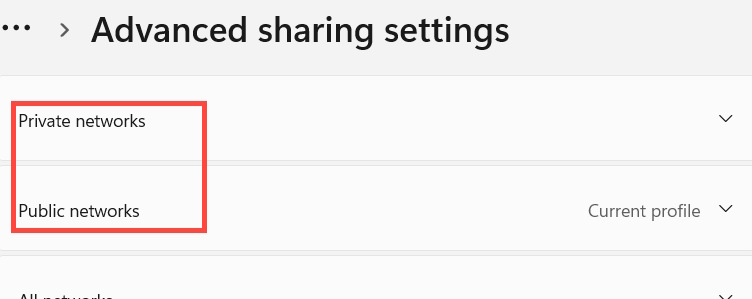
On the new interface, users select the "Change advanced sharing settings" option .
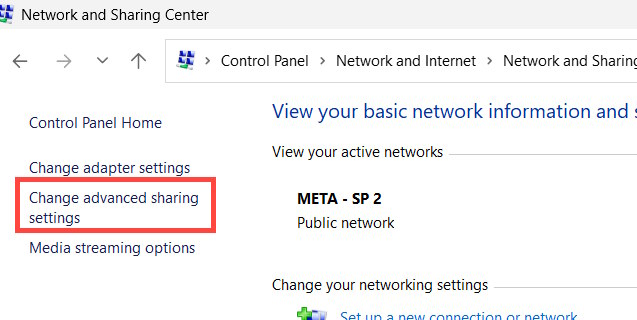
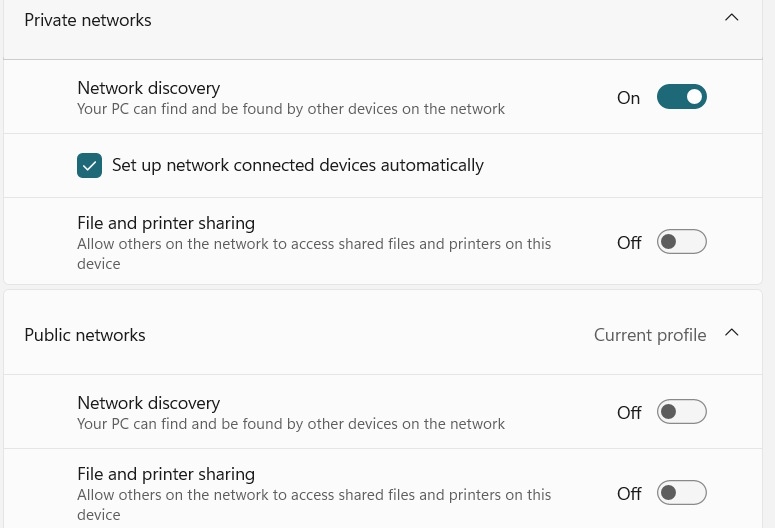
On this interface, you can expand your current network configuration to Private or Public .
Step 3
Here you can turn Network Discovery on or off as you wish.
Use Command Prompt to turn Network Discovery on or off
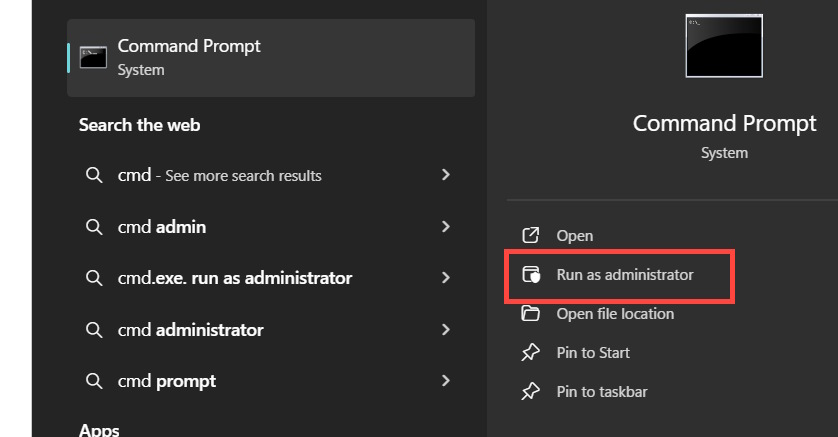
First, type cmd into the search bar and then run it as administrator to open Command Prompt.
To enable Network Discovery , enter the following command and press Enter.
netsh advfirewall firewall set rule group="Network Discovery" new enable=Yes
To turn off Network Discovery , enter the command below.
netsh advfirewall firewall set rule group="Network Discovery" new enable=No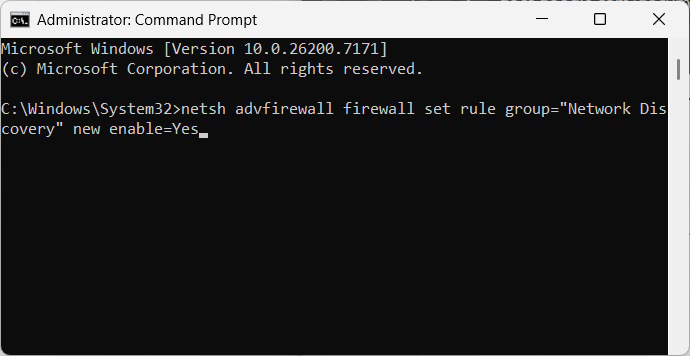
Final Thoughts
Understanding 3 ways to turn network discovery on or off in windows makes it easier to evaluate the information and apply the most relevant recommendations. Focus on the key points above and verify details that may change over time.
FAQ
What is 3 ways to turn network discovery on or off in windows?
Explore 3 ways to turn network discovery on or off in Windows, including the key concepts, practical examples, important considerations, and useful guidance.
What key points does this article cover?
The article focuses on Turn Network Discovery on or off via Settings, Step 1, Step 2, with practical explanations and examples.
How can you use this information in practice?
Use the explanations to compare options, verify important details, and make a more informed decision. Apply the recommendations that best match your goals and situation.
Related Articles
 3 Ways to Enable or Disable Network Discovery on Windows 7/8/106 minutes read
 How to Fix Network Discovery Is Turned Off Error on Windows7 minutes read
 Steps to Fix Network Discovery Not Working in Windows 109 minutes read
 How to Turn Off Folder Type Discovery Windows 11: Step-by-Step Guide4 minutes read
 How to Fix the Error That Cannot Access Another Machine in4 minutes read
 Ways to Turn Off Proxy Settings in Windows 105 minutes read
Reader Comments 0
Sign in with email or Google to join the discussion.