Table of Contents
Expensive Bluetooth headphones can sound thin, muffled, or mono on Windows when an application activates their microphone. On a Bluetooth Classic connection, Windows must switch from the high-quality stereo A2DP profile to the Hands-Free Profile (HFP) for simultaneous playback and microphone capture. HFP is designed for calls, so its playback quality is much lower.
The price of the headphones is not the cause. The connection profile, supported codecs, PC radio, drivers, active applications, and Windows audio settings determine what reaches the headphones.
Why the microphone changes Bluetooth Classic audio
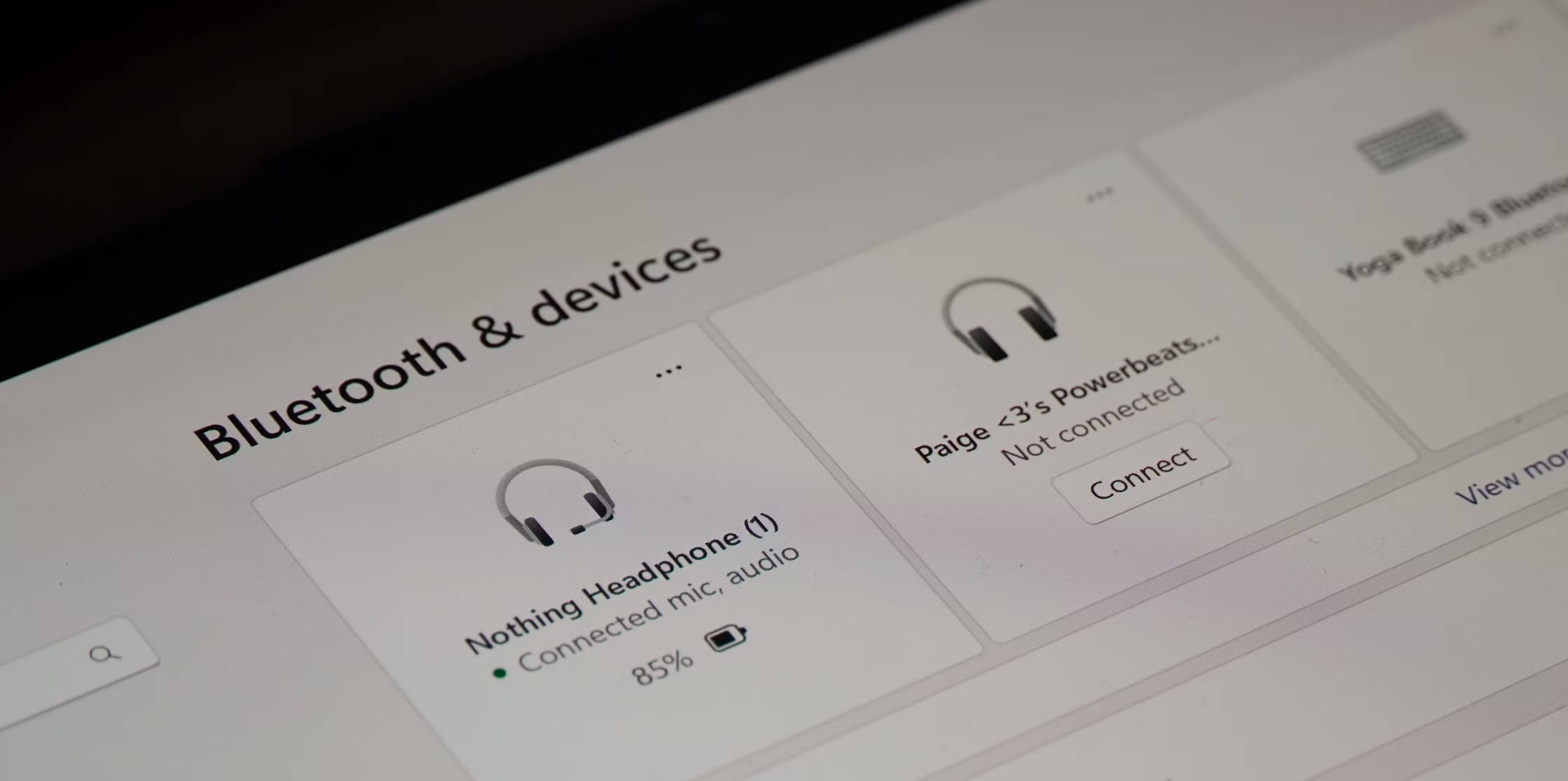
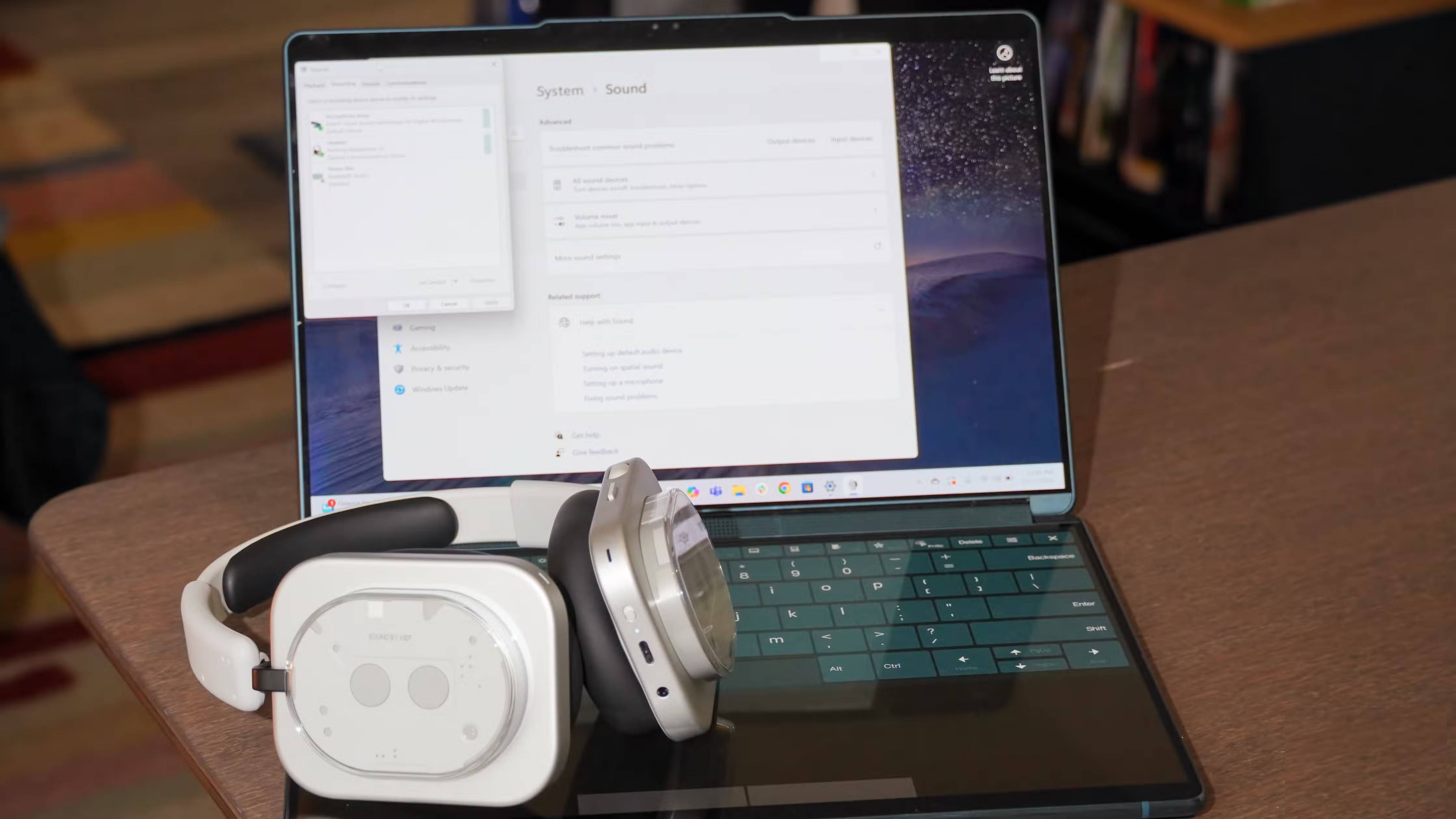
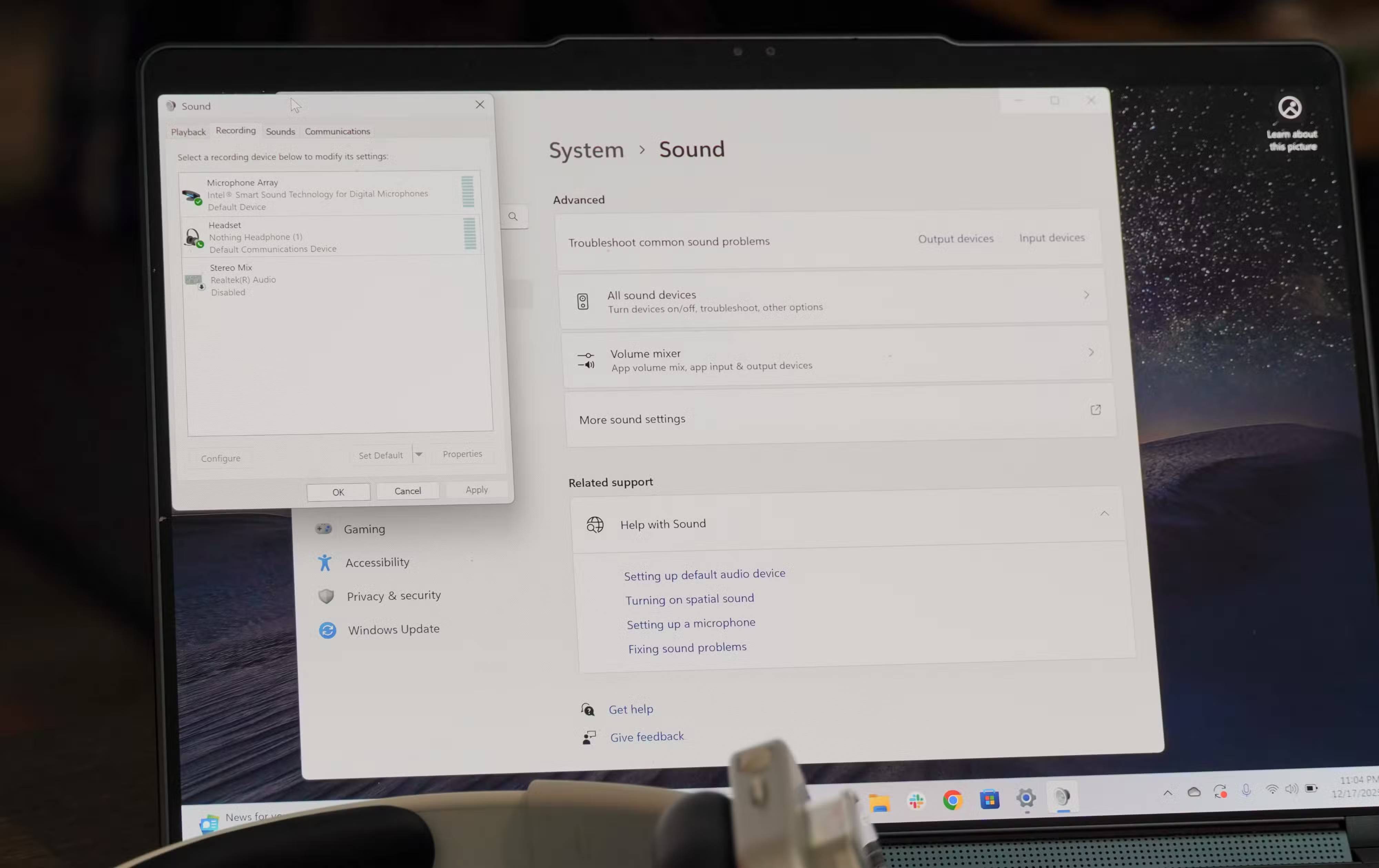
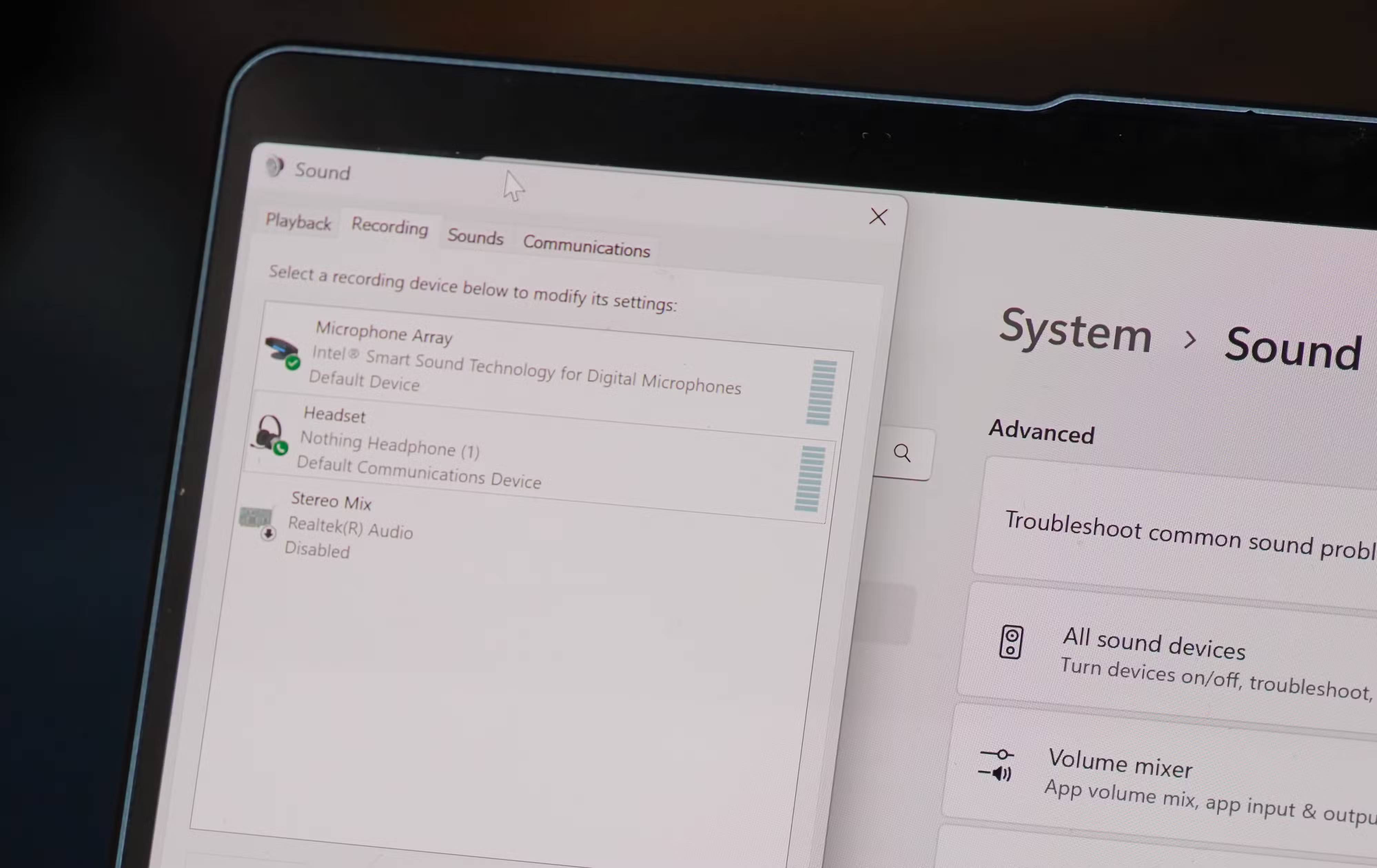
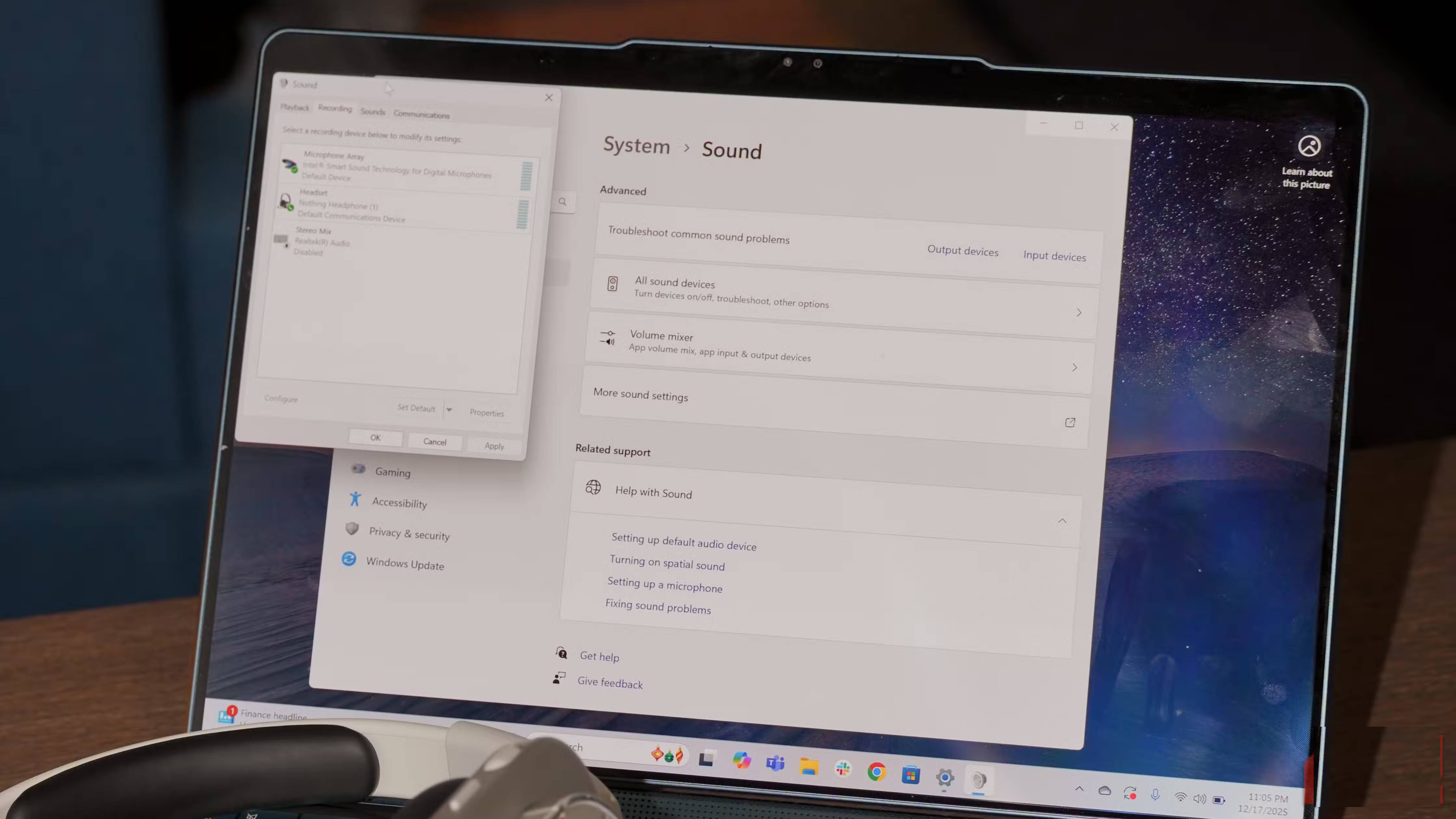
Bluetooth Classic normally uses two different profiles:
| Profile | Purpose | Result on Windows |
|---|---|---|
| A2DP | Media playback from the PC to the headphones | Higher-quality stereo output; no headset microphone capture |
| HFP | Calls with headphone playback and microphone together | Mono narrowband or wideband speech audio on a Classic connection |
Windows 11 presents compatible A2DP and HFP functions as a unified headset endpoint and chooses the profile automatically. When an app opens the headphone microphone—or opens an audio stream classified for communications—Windows can move to HFP. When the call or capture stream closes, it should return to A2DP.
Current Microsoft documentation lists HFP playback/capture at 8kHz narrowband or 16kHz wideband for Bluetooth Classic. That is why music can resemble telephone audio while the microphone is active. The full profile behavior is documented in Microsoft's Bluetooth Classic Audio reference.
Confirm that HFP is the cause
- Close meeting, chat, game, recording, browser, and voice-assistant applications.
- Play a familiar stereo track and note the sound.
- Open Settings > System > Sound and test the headphone microphone, or start the app that usually causes the problem.
- If the sound immediately becomes mono and narrow, then returns after the microphone stream closes, the profile switch is the likely cause.
Do not assume every poor-sound problem is HFP. A low-bitrate source, the wrong output device, an EQ preset, spatial processing, weak radio signal, a driver fault, or damaged headphones can sound bad without the microphone being active.
Best fix: use a separate microphone
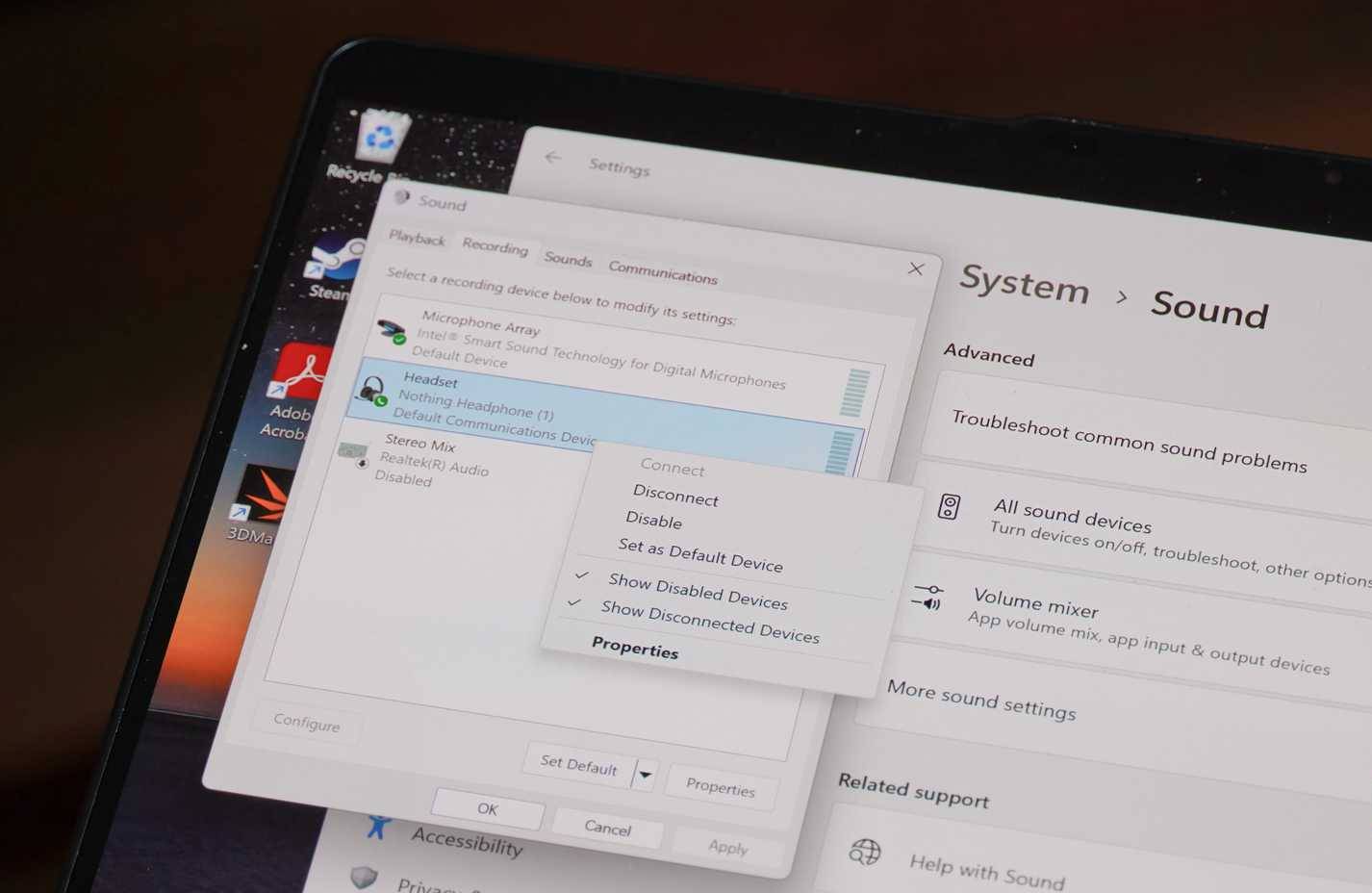
If high-quality stereo playback matters during a call or game, keep the Bluetooth headphones as the output and select the laptop, webcam, or USB microphone as the input:
- Open Settings > System > Sound.
- Under Output, select the Bluetooth headphones.
- Under Input, select a different microphone.
- Open the meeting or game application's own audio settings and choose the same devices there. App-specific settings can override Windows defaults.
- Leave and rejoin the call, or restart the app, so it closes the old HFP stream.
Test both directions. If the application still opens the headset microphone, remove that input from the app, close background voice tools, or temporarily block microphone permission for the responsible app.
If you never use the headphone microphone
You can disable that input under the headset's input-device properties or in Device Manager, but the exact control varies by driver. This deliberately removes the headset microphone and may also affect call buttons or automatic profile switching. Record the setting so you can reverse it.
Disabling “Hands-Free Telephony” is not a way to keep a high-quality Classic Bluetooth stream and use the same headset microphone simultaneously; it removes the hands-free path that provides microphone capture.
Use a connection designed for simultaneous high-quality audio and voice
For gaming, streaming, or frequent calls, alternatives can be more predictable:
- A USB audio cable when the headphones support USB audio and microphone capture in that mode.
- A wired headset connection with a compatible four-pole plug or USB sound interface.
- A wireless headset with its own 2.4GHz USB adapter rather than ordinary Bluetooth.
- Bluetooth LE Audio on a fully compatible Windows 11 PC and headset.
Check the manual: some headphone USB-C ports charge only, and some wired modes disable the microphone. The general Bluetooth headphone buying guide covers these connection trade-offs.
Check Bluetooth LE Audio support correctly
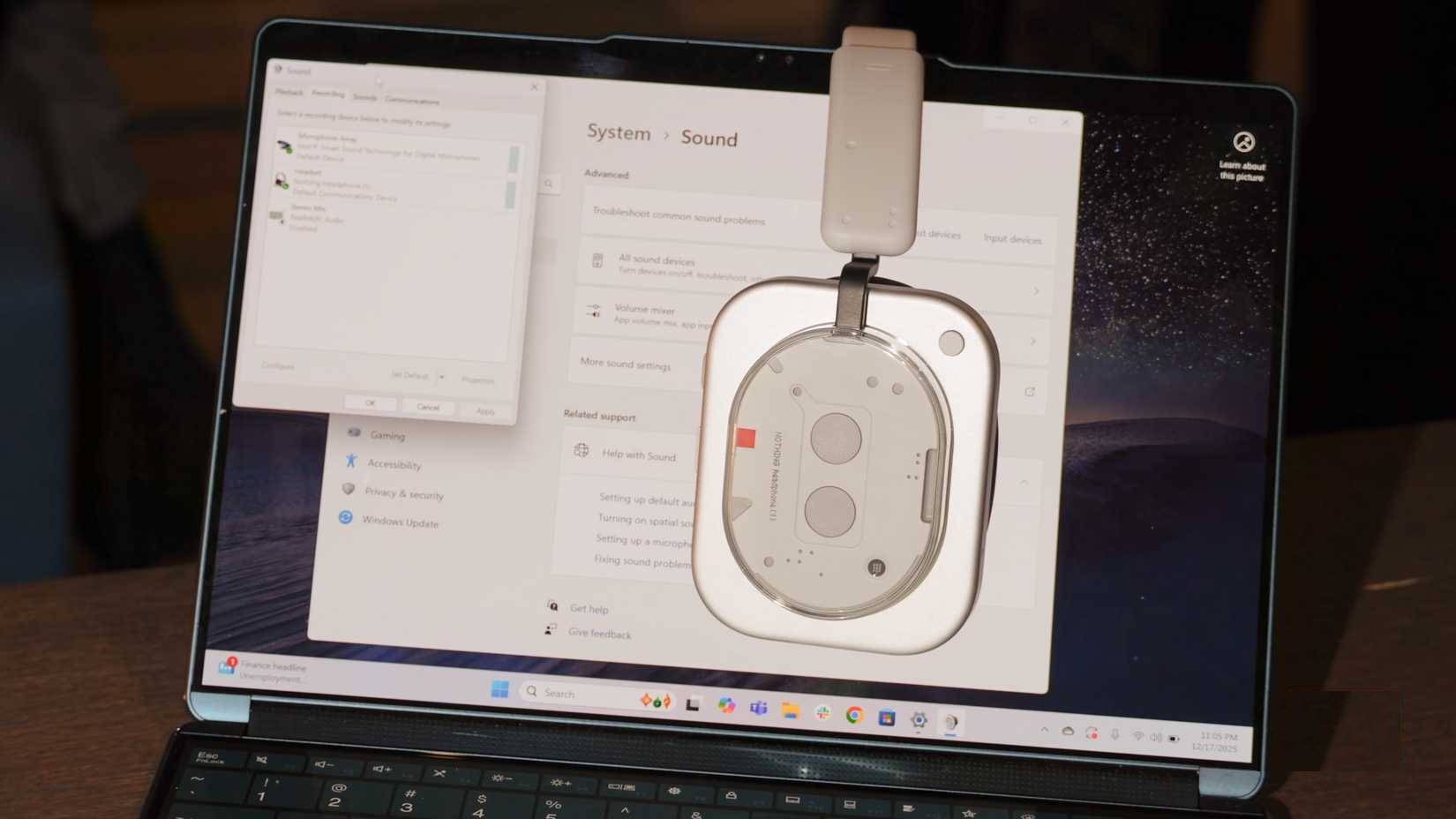
Bluetooth LE Audio can improve the call-and-media experience, but a “Bluetooth 5.x” label is not proof of LE Audio. The headset, the PC's integrated Bluetooth and audio hardware, the operating system, and manufacturer drivers must all support it.
On Windows 11:
- Open Settings > Bluetooth & devices > Devices.
- Look under Device settings for Use LE Audio when available.
- If the switch exists, turn it on and confirm that the headphones themselves advertise Bluetooth LE Audio or TMAP support.
If the switch is absent, the PC does not currently expose LE Audio support. Windows 10 and Windows 11 version 21H2 do not support it. Some newer PCs can gain support through OEM drivers, but a generic USB Bluetooth adapter does not automatically add the required Windows audio integration.
Enable stereo while the LE Audio microphone is active
Windows 11 version 24H2 or later can provide stereo playback while a compatible LE Audio microphone is active on supported factory-integrated hardware with the necessary drivers.
- Connect the LE Audio device.
- Open Settings > System > Sound.
- Select the arrow beside the device under Output.
- Expand Output settings > Format.
- Under Format when microphone is active, select Stereo.
If that field is missing, the complete PC-and-headset path does not support the feature. Microsoft's LE Audio quality guide lists the current requirements.
Understand which Classic Bluetooth codecs Windows uses
For A2DP playback, Windows and the headphones negotiate a codec automatically. Microsoft's current Windows 11 table lists SBC, AAC, aptX Classic, and aptX Adaptive Lossless on select Windows 11 24H2 PCs with compatible Qualcomm radios. Support is hardware- and driver-dependent; Windows does not expose a universal codec picker.
Do not assume that a codec available on an Android phone is available on Windows. In particular, LDAC support advertised by headphones does not mean the standard Windows Bluetooth stack will select LDAC. A newer Bluetooth version number also does not guarantee a particular codec.
If audio sounds bad even when the microphone is not active
- Choose the correct output: select the headphones under Settings > System > Sound rather than a monitor, controller, or hands-free device exposed by an older driver.
- Disable processing temporarily: turn off Audio enhancements and Spatial sound for diagnosis, then add features back one at a time.
- Update safely: install Windows updates, the PC maker's Bluetooth and audio drivers, and official headphone firmware. This Windows 11 Bluetooth troubleshooting guide explains the driver and update checks.
- Remove and pair again: forget the device in Windows, restart both products, and pair from scratch after updates.
- Reduce interference: move close to the PC, avoid placing the radio behind a metal case, and test away from crowded 2.4GHz USB and wireless devices.
- Compare another source: test the same headphones and track on a phone, then test another headset on the PC. This separates a headset fault from a Windows or radio problem.
Quick diagnosis table
| Symptom | Likely direction |
|---|---|
| Music becomes mono only during calls | Bluetooth Classic HFP profile switch |
| Sound stays poor after the call closes | An app still owns the microphone, or the profile did not switch back |
| Dropouts occur at distance | Radio signal, interference, antenna, or driver issue |
| Only one application sounds bad | App device selection, communications mode, or processing |
| Every source sounds distorted | Headphone hardware, fit, EQ, or firmware problem |
| No LE Audio switch appears | Unsupported PC hardware or missing OEM driver support |
The Classic Bluetooth quality drop is expected when the same headset handles both stereo media and microphone capture. The practical fixes are to use a separate microphone, switch to a suitable wired or proprietary wireless path, or use a fully supported LE Audio setup—not to replace premium headphones before identifying the active profile.
Related Articles
 The Difference Between Wireless and True Wireless Headphones8 minutes read
 The Best True Wireless Headphones on the Market - When Convenience25 minutes read
 Where to Buy the Best, Durable Wireless Headphones?5 minutes read
 How to Use Wireless Headphones: Practical Guide9 minutes read
 10 Ways to Improve AirPods Pro Sound Quality: Recommended Choices17 minutes read
 The Experience of Disconnecting Headphone Strings Does Not Reduce5 minutes read
Reader Comments 0
Sign in with email or Google to join the discussion.