Table of Contents
Microsoft’s 13.8-inch Surface Laptop 5G for Business adds built-in cellular data to the Intel-powered Surface Laptop line. It supports a physical nano-SIM and eSIM, so the laptop can get online through a compatible mobile plan when reliable Wi-Fi is unavailable.
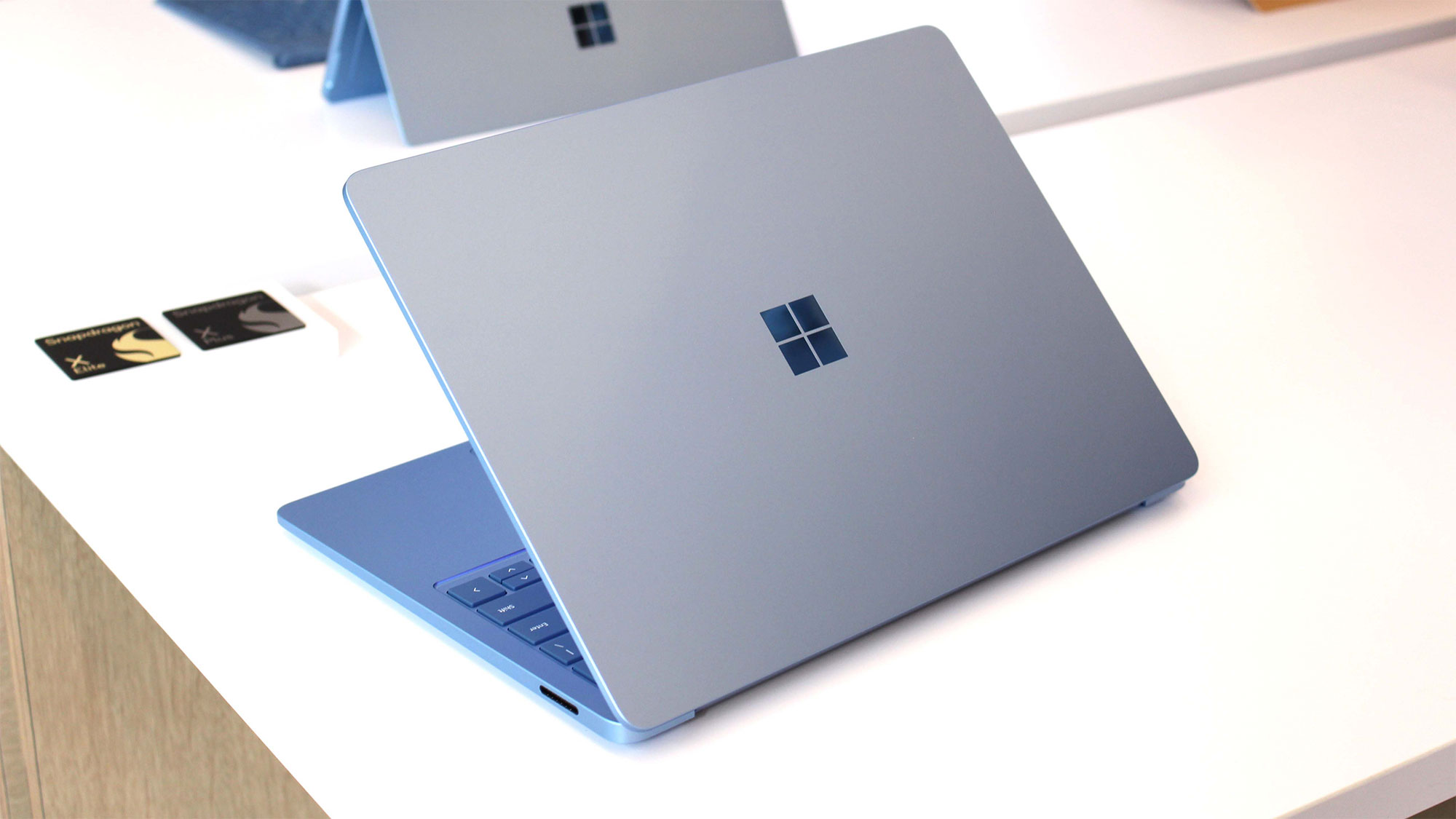
What the 5G model adds
The 5G version has its own cellular modem and antenna system. This lets a worker connect from a site visit or a train without first setting up a phone hotspot. Windows can also share the cellular connection with another device when the mobile plan and device settings allow it.
Check the carrier and plan before choosing a model
- Confirm that the listing names the 5G model. A Wi-Fi-only Surface Laptop cannot use a SIM simply because the chassis looks similar.
- Ask the carrier whether it supports the laptop and the type of SIM you intend to use. Check coverage where you work and whether hotspot use or roaming carries separate restrictions.
- Compare the laptop and data plan cost with the Wi-Fi model and your existing phone hotspot. Built-in cellular is most useful when you need to connect away from Wi-Fi regularly.
Set up a SIM in Windows 11
Open Settings > Network & internet > Cellular after inserting the SIM or obtaining the carrier’s eSIM profile. Follow Microsoft’s model-specific setup guide. Test cellular before traveling and check the active connection before starting a large download on a capped plan.
Related Articles
 Surface Laptop 4 review: The perfect laptop for everyday use
 Microsoft is developing a low-cost Surface computer running Windows 11 SE
 Microsoft again urges users to leave Windows 10 and switch to PCs running Arm chips
 Microsoft: Surface Pro 3 sales exceeded expectations
 Microsoft launched the first ad clip of the Surface Pro 3
 Compare Microsoft Surface 3 and Surface Pro 3
Reader Comments 0
Sign in with email or Google to join the discussion.