What you will learn
- Identify critical personal and work data that needs protection.
- Distinguish backup, synchronization, restore point and archive.
- Create a copy on a separate destination using a supported workflow.
- Perform and document a restore test.
What you need
- A folder containing non-sensitive practice files.
- A separate external drive, trusted network location or approved cloud backup destination.
- Enough destination capacity and permission to store the files.
Choose a backup based on what could go wrong
A second folder on C: can help with accidental editing but does not protect against failure of that physical drive. An external drive protects against internal-drive failure while connected, but it can be affected by theft, damage or malware if left attached. Cloud storage can provide off-site copies and version history, but synchronization can also propagate deletion and requires account recovery and network access.
Microsoft's Windows Backup guidance covers selected folders, settings, credentials and app information through a Microsoft account, depending on the Windows configuration. Confirm exactly which folders are included rather than assuming the entire PC is imaged.
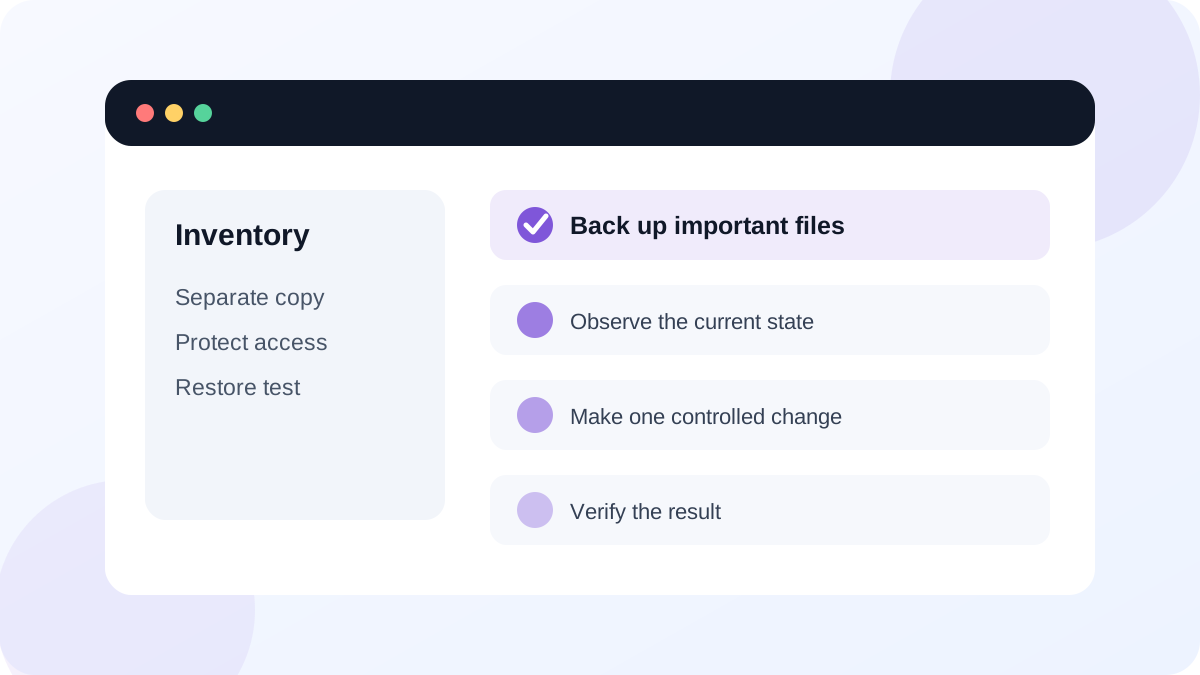
Inventory data before copying it
List documents, photos, project files, email archives, browser data, license records and application-specific libraries that cannot be recreated easily. Include files outside Documents, such as custom project locations or local application databases. Exclude temporary downloads and replaceable installers unless they are difficult to obtain again.
Estimate size and growth. A destination that fits today's files but has no room for versions will fail quickly. Decide who owns the backup account, where recovery codes are stored and how long deleted or changed versions remain available.
- 1
Create a folder named Backup Practice with three sample files.
- 2
Choose a destination on a different physical device or approved cloud service.
- 3
Copy or configure backup for the practice folder.
- 4
Compare file count and total size between source and destination.
- 5
Open one file directly from the backup destination.
- 6
Copy that file into a new Restore Test folder and confirm its content.
Verify more than a green status message
A backup application can report success even when a required folder was never selected or an account lost access. Check the latest completion time, included paths, excluded items, destination free space and any warnings. Then restore a sample to a different location so you do not overwrite the working original.
For encrypted backups, confirm the recovery key or password is available to the authorized owner. For cloud backup, test from a browser or second device where practical. For an external drive, eject it safely and store it away from the computer when not updating the backup.
- The destination is separate from the source physical drive.
- The selected folders match the data inventory.
- At least one file was restored to a new location and opened.
- Recovery credentials and encryption keys are available to the correct person.
- The backup destination has enough capacity for continued versions.
Use backup layers for different recovery needs
Microsoft distinguishes Windows Backup from System Restore. Restore points address system state, while file backup protects data. File Explorer remains useful for manual verification of copied folders.
A practical home or small-office plan can use one working copy, one local backup and one off-site or disconnected copy. Increase frequency for files that change often. Document the process in plain language so another trusted person can restore essential data during an emergency.
Complete a backup and restore drill
Protect a small practice folder and produce evidence that the destination copy is usable.
- 1
Inventory the practice folder and record file count and size.
- 2
Back it up to a separate destination.
- 3
Disconnect or sign out from the source context where practical.
- 4
Restore one file to a new folder.
- 5
Open the restored file and document date, destination and result.
Common mistakes to avoid
- Calling a second folder on the same drive a complete backup.
- Assuming cloud sync automatically preserves every deleted or overwritten version forever.
- Never testing recovery credentials or a restored file.
- Leaving the only external backup connected continuously and beside the PC.
Key takeaways
- A backup must be separate, recoverable and verified.
- Backup, sync and System Restore solve different failure scenarios.
- The data inventory, destination, credentials and restore test must all be documented.
Frequently asked questions
Is OneDrive synchronization a backup?
It can provide off-site copies and version history, but sync behavior can propagate changes and deletions. Review retention, account recovery and offline needs, and keep another copy for critical data.
How often should I back up?
Choose a frequency based on how much work you can afford to recreate. Frequently changing business or creative files need more frequent protection than a static photo archive.
Sources and further reading
- Back up and restore with Windows BackupMicrosoft Support
- System RestoreMicrosoft Support
Ready to continue?
Mark the lesson complete so your Learning Path progress stays current on this device.