What you will learn
- Write a precise symptom statement without assuming the cause.
- Separate observation, impact and hypothesis.
- Collect timestamps, error text, frequency and scope.
- Decide whether the next step is a safe test, data collection or escalation.
What you need
- A repeatable or recently observed computer problem.
- A place to take notes.
- Permission to inspect the affected device without making destructive changes.
Describe what you observe—not what you think caused it
Start with visible behavior: an application closes, the screen freezes, Wi-Fi disconnects, a file will not open, or the PC restarts. Avoid beginning with a diagnosis such as “the RAM is bad” unless a test has already demonstrated that result.
Microsoft troubleshooting guidance for Windows freezes begins by asking which computer is affected, what operation was happening, how often the issue occurs and how many computers are affected. Those questions establish scope before repair.
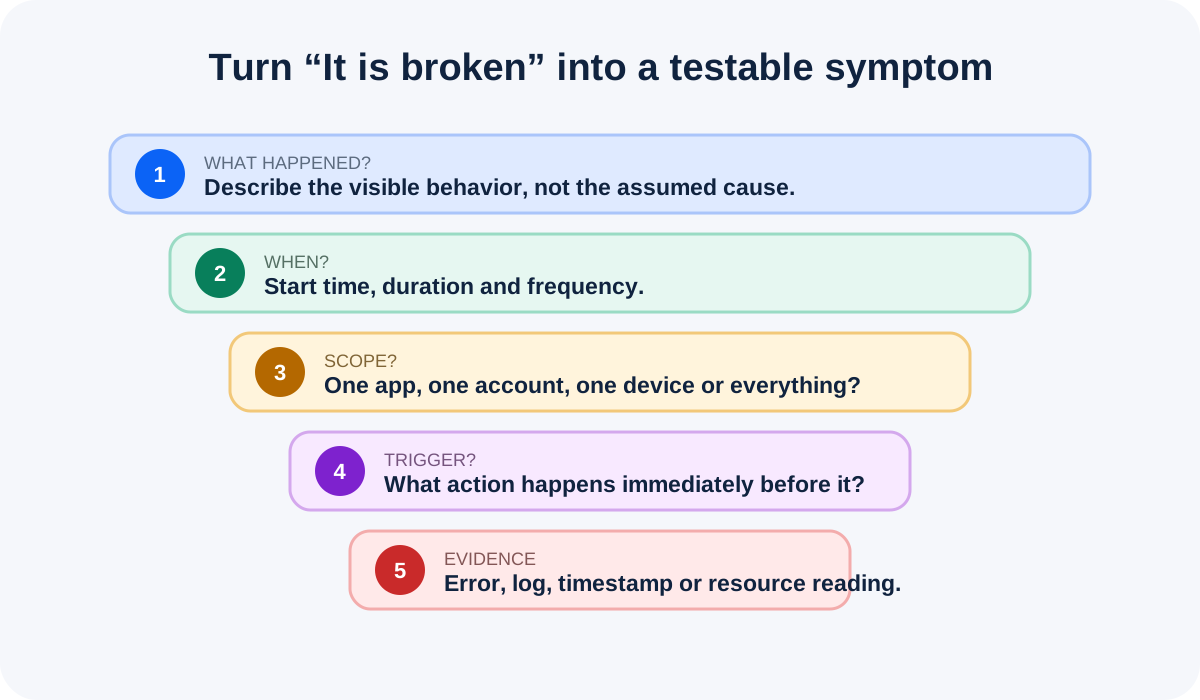
Capture five fields for every symptom
Use the same five fields each time so that another person can reproduce your reasoning.
- 1
What happened? Record the exact behavior and full error message. Do not paraphrase an error code.
- 2
When did it happen? Record the date, local time, startup state and whether the PC had just resumed from sleep.
- 3
What triggered it? Note the click, app, device, file, website or network action immediately before the symptom.
- 4
How broad is it? State whether it affects one app, one user, one device, several devices or the whole network.
- 5
How often does it happen? Record every time, intermittently, after several hours, or only under a specific load.
Record a baseline before changing anything
A troubleshooting system should detect or test one potential root cause at a time and use the same condition to verify whether the issue is resolved.
Your baseline can be a screenshot, error text, Task Manager reading, ping result, temperature, free storage value or a short screen recording. The evidence only needs to be detailed enough to compare before and after.
- 1
Reproduce the problem once if doing so is safe.
- 2
Capture the exact time and error text.
- 3
Record one relevant measurement, such as CPU, memory, disk, signal strength or available storage.
- 4
List recent changes: updates, new software, new hardware, account changes or network changes.
- 5
Stop if reproducing the problem risks data loss, overheating, electrical damage or account lockout.
Turn the symptom into one testable hypothesis
A hypothesis connects the evidence to a possible cause and predicts a result. For example: “If the startup application is causing the delay, disabling only that application should reduce sign-in time while the rest of the system stays unchanged.”
Do not test several hypotheses at once. If you update drivers, remove software, reset settings and replace hardware together, you will not know which action changed the result.
- The hypothesis predicts a measurable result.
- The test changes only one important variable.
- You have a reversal step before making the change.
- The test is safer than a reset, reinstall or hardware replacement.
Know when to stop and escalate
Escalate immediately for burning smells, swollen batteries, liquid damage, repeated storage read errors, suspected account compromise or any next step that could destroy the only copy of important data.
When escalating, provide the symptom statement, timestamps, screenshots, recent changes and tests already completed. This prevents the next person from repeating random steps.
Write a one-paragraph diagnostic brief
Use a real low-risk problem or a recent issue you remember.
- 1
Write the exact observed symptom in one sentence.
- 2
Add when it started, frequency and scope.
- 3
Add the trigger or action immediately before it happens.
- 4
Add one piece of evidence and one recent change.
- 5
Finish with one safe hypothesis and the result that would support or reject it.
Common mistakes to avoid
- Naming a cause before collecting evidence.
- Using vague words such as sometimes, weird or broken without a timestamp or example.
- Changing several variables before retesting.
- Continuing when the next test could cause data loss or hardware damage.
Key takeaways
- A precise symptom statement is the foundation of efficient troubleshooting.
- Record scope, trigger, frequency, timing and evidence.
- Test one hypothesis at a time and define the expected result before acting.
Frequently asked questions
What if the problem cannot be reproduced?
Record when it last occurred, what was running, recent changes and any logs or screenshots. Intermittent behavior is still evidence.
Should I start by reinstalling Windows?
No. Reinstallation is a high-impact step that can hide the original cause and should follow backup and safer diagnosis.
Sources and further reading
- Advanced troubleshooting for Windows freezesMicrosoft Learn
- Writing a Troubleshooting ManifestMicrosoft Learn
Ready to continue?
Mark the lesson complete so your Learning Path progress stays current on this device.