What you will learn
- Capture an exact Windows error message and code.
- Record timestamp, application, action, affected account and recent changes.
- Separate the visible symptom from a root-cause hypothesis.
- Search Microsoft or vendor documentation using the most specific identifiers.
What you need
- A Windows PC or a saved screenshot of a harmless error.
- A notes app or paper diagnostic form.
- Permission to capture screens without exposing personal or confidential data.
Capture the message before it disappears
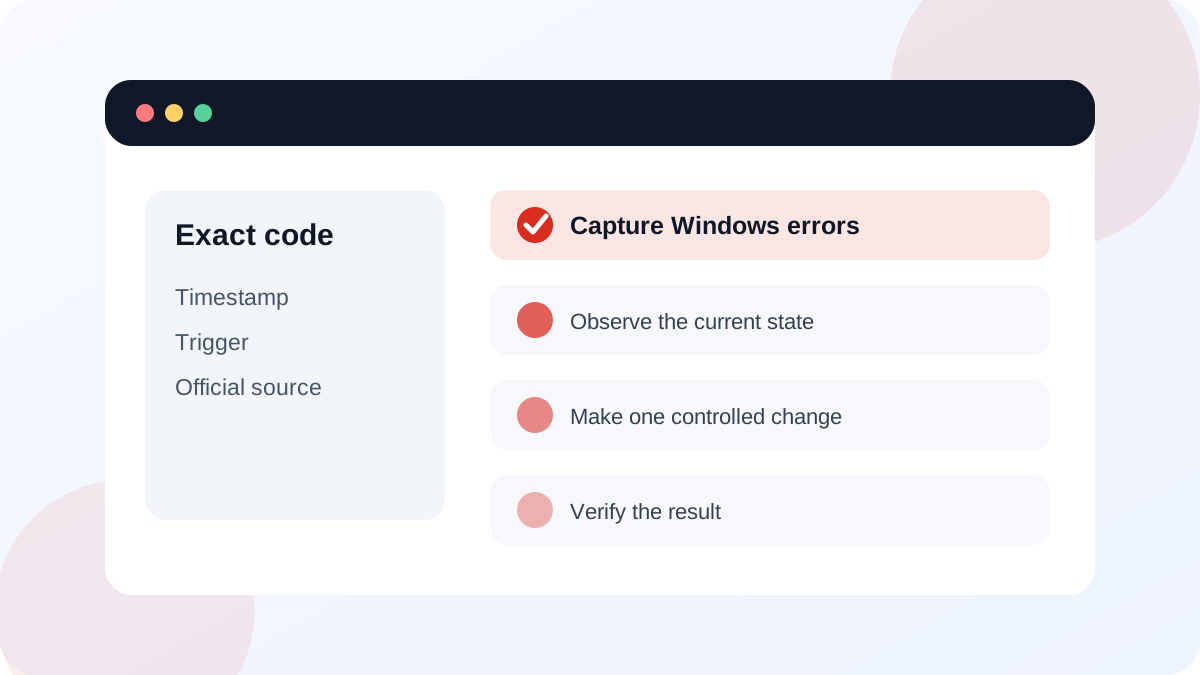
Use the built-in screenshot shortcut Windows + Shift + S, a phone photo when the PC is frozen, or exact manual transcription. Include the dialog title, complete body text, code and button labels. Capture enough surrounding context to identify the application, but crop account names, email addresses, file paths and document content before sharing publicly.
Microsoft's upgrade and installation error guidance organizes many failures by exact codes such as 0xC1900101 or 0x80070070. A missing digit can point to an entirely different condition, so preserve the full code.
Write a one-minute incident record
Record the local date and time, Windows version and build, application or feature, exact action, whether the issue repeats and who or what else is affected. Add recent updates, driver changes, new hardware, storage shortages or account changes. This prevents the first attempted fix from erasing the original state.
Describe the symptom without declaring a cause: 'Saving a 200 MB file to D: produces code X' is evidence; 'the disk is broken' is a hypothesis. Keep those separate until a test supports the cause.
- 1
Capture the entire dialog or screen.
- 2
Transcribe the exact error code and message into notes.
- 3
Record date, time, Windows build, application and action.
- 4
Write whether the problem is repeatable and which users or devices are affected.
- 5
List the last relevant change before the first occurrence.
- 6
Preserve logs, failed file names or update identifiers without publishing sensitive data.
Search the identifier in an official context
Search the exact code in quotation marks together with the Windows feature or application name. Prefer Microsoft Support, Microsoft Learn and the software or hardware publisher. Check that the article applies to your Windows version and that its date or lifecycle status is still relevant.
Microsoft's Windows Update troubleshooting page emphasizes checking update history and the precise failure state. The same principle applies elsewhere: locate evidence that matches the actual component before running repair commands.
- The exact message and full code are preserved.
- The record includes a timestamp and triggering action.
- Personal information is removed from anything shared publicly.
- The first proposed fix comes from official guidance for the same component and Windows context.
Know when not to continue experimenting
Stop when the error involves encryption recovery, repeated disk read failures, signs of account compromise, business-critical data, overheating, smoke or electrical symptoms. Preserve evidence and avoid repeated restarts or writes to a failing drive. For organization-managed PCs, send the record to the administrator before changing policies or security controls.
When contacting support, provide the concise incident record, not a long sequence of random fixes. Include what has already been tested and the result of each test. This makes escalation faster and reduces repeated destructive steps.
Create a complete error evidence card
Use a saved harmless error or a simulated application mistake to practice capturing evidence without trying to solve it immediately.
- 1
Capture the full message and code.
- 2
Add timestamp, Windows build and triggering action.
- 3
List recent relevant changes and affected scope.
- 4
Search the exact identifier on an official source.
- 5
Write one low-risk next check and one condition that would require escalation.
Common mistakes to avoid
- Paraphrasing the error and losing the exact code.
- Taking a screenshot that exposes customer data, email addresses or recovery keys.
- Declaring a hardware or malware cause before testing it.
- Running several fixes before recording the original failure state.
Key takeaways
- Exact wording, code, time and action make an error searchable and comparable.
- Symptoms and causes must be recorded separately.
- Official, context-matched guidance is safer than generic error-code fix sites.
Frequently asked questions
Should I search the whole error message?
Start with the exact code and distinctive wording plus the application or Windows feature. Remove usernames, file paths and confidential content before using a public search engine.
What if the message has no code?
Capture the title and exact wording, timestamp, component and triggering action. Event Viewer, update history or application logs may provide a more specific identifier later.
Sources and further reading
- Get help with Windows upgrade and installation errorsMicrosoft Support
- Troubleshoot problems updating WindowsMicrosoft Support
Ready to continue?
Mark the lesson complete so your Learning Path progress stays current on this device.