What you will learn
- Capture exact disconnect timestamps and scope.
- Generate and read the Windows wireless network report.
- Separate signal, power, driver, roaming and router patterns.
- Apply reversible changes before network reset or driver removal.
What you need
- A Windows 10 or Windows 11 device with recurring Wi-Fi drops.
- Administrator permission to generate the wireless report.
Define the disconnect pattern
Microsoft's Wi-Fi troubleshooting guidance separates one-device problems from network-wide problems and includes signal, band, power saving and driver checks.
Record whether the Wi-Fi icon disconnects, shows No Internet, or remains connected while only one application fails. Those are different symptoms. Note sleep/resume, room changes, Bluetooth use, VPN state and heavy transfers.
Compare another device at the same time. If every client drops together, the access point, mesh backhaul, router power or provider link deserves attention before the Windows adapter.
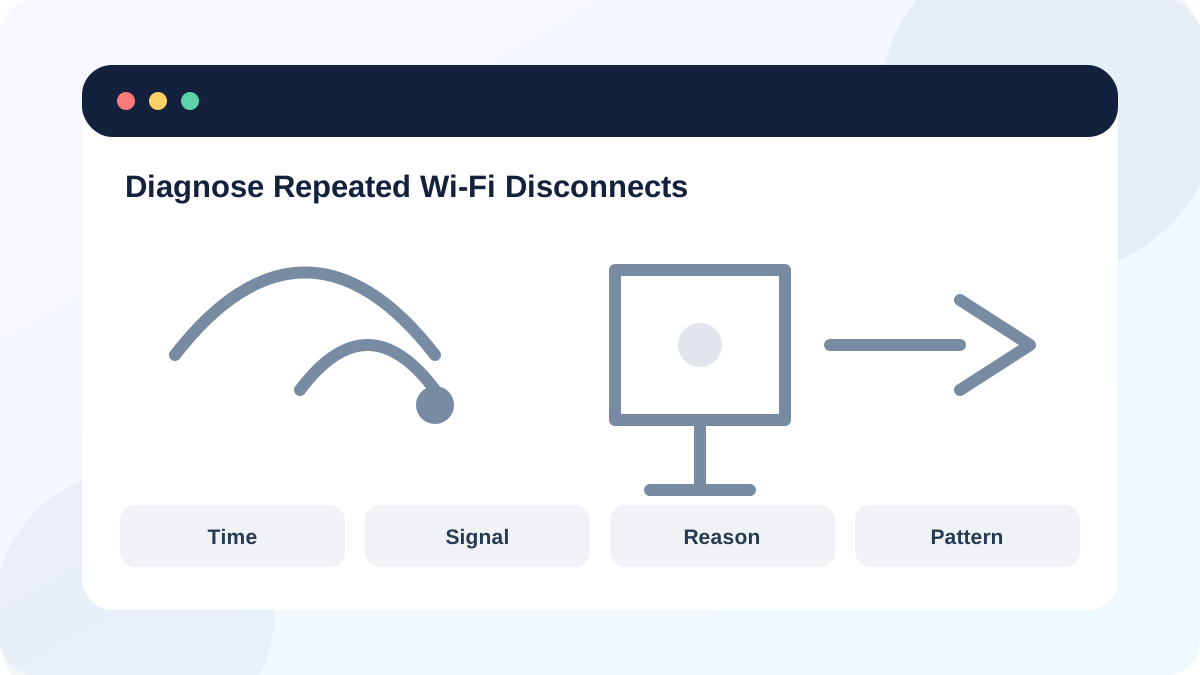
Generate the wireless network report
Microsoft states that netsh wlan show wlanreport creates an HTML report containing Wi-Fi events from the previous three days, grouped into connection sessions, plus adapter information.
The report can include network names and adapter details. Store it locally and redact SSIDs, profile names and identifiers before sharing publicly.
- 1
Open Command Prompt as administrator.
- 2
Run netsh wlan show wlanreport.
- 3
Open the generated HTML file from the path shown.
- 4
Find the session matching the recorded disconnect time.
- 5
Record disconnect reason, duration, adapter and any repeated pattern.
Isolate signal, power and roaming
Repeat the workload near the access point and at the normal location. A location-dependent pattern suggests radio conditions. A resume-dependent pattern suggests adapter power management or driver behavior. A drop while moving between mesh nodes may indicate roaming or backhaul instability.
Check the adapter driver version against the computer manufacturer's support page before uninstalling anything. Generic driver removal can leave the device offline, so download a known-good package first if that step becomes necessary.
- 1
Record signal and radio type with netsh wlan show interfaces.
- 2
Repeat the test close to the access point.
- 3
Compare with Ethernet during the same workload.
- 4
Check Windows Update and the PC manufacturer's network driver page.
- 5
Change one power or band setting only if the pattern supports it.
Use resets in increasing order of impact
Start with reconnecting or forgetting only the affected Wi-Fi profile. Restart the access point only when multiple clients or its logs support that action. Network reset is a later step because it removes adapters and can require VPN or virtual-network reconfiguration.
If the report shows hardware or driver errors, repeated adapter disappearance, overheating or physical damage, stop software experimentation and seek hardware support.
- Disconnect times and reason patterns are recorded.
- Another device or Ethernet comparison was performed.
- A known-good driver and rollback route exist before removal.
Build a disconnect timeline
Capture three events or perform a controlled sleep/resume test.
- 1
Record time, location, workload and power state.
- 2
Generate the wireless report.
- 3
Match the event to a report session.
- 4
Compare near-router and normal-location behavior.
- 5
Write one reversible test and its expected result.
Common mistakes to avoid
- Calling No Internet the same as Wi-Fi disassociation.
- Generating the report without a timestamp.
- Uninstalling the adapter driver without an offline installer.
- Using network reset before profile, signal and scope tests.
Key takeaways
- Intermittent faults require timelines.
- The wireless report preserves recent session evidence.
- Use scope and pattern before high-impact resets.
Frequently asked questions
Why does Wi-Fi drop after sleep?
Power management, driver state, authentication or roaming can fail during resume. Correlate the event with the wireless report before changing settings.
Will network reset delete my files?
It does not erase personal files, but it reinstalls network adapters and can remove VPN or virtual-switch configuration.
Sources and further reading
- Fix Wi-Fi connection issues in WindowsMicrosoft Support
- Analyze the wireless network reportMicrosoft Support
- netsh wlanMicrosoft Learn
Ready to continue?
Mark the lesson complete so your Learning Path progress stays current on this device.