What you will learn
- Build a driver and update timeline around a crash.
- Use Windows Update, Device Manager and official manufacturer sources in a safe order.
- Roll back or reinstall one driver only when timing and symptoms justify it.
- Verify stability using the original workload.
What you need
- A recorded crash timestamp and recent-change list.
- Administrator permission for driver changes.
- A restore point or verified backup before firmware or critical driver work.
Build the change timeline before touching a driver
Open Settings > Windows Update > Update history and record quality, driver and definition updates installed near the first crash. In Device Manager, open the relevant device's Properties > Driver and record provider, date and version. Also check the application or hardware vendor's release notes when the problem is tied to a specific device.
A driver date is not a quality score. Some stable manufacturer packages use older dates, and Windows may select a compatible package rather than the numerically newest file. The strongest evidence is a symptom that starts after one change and improves when that change is safely reversed.
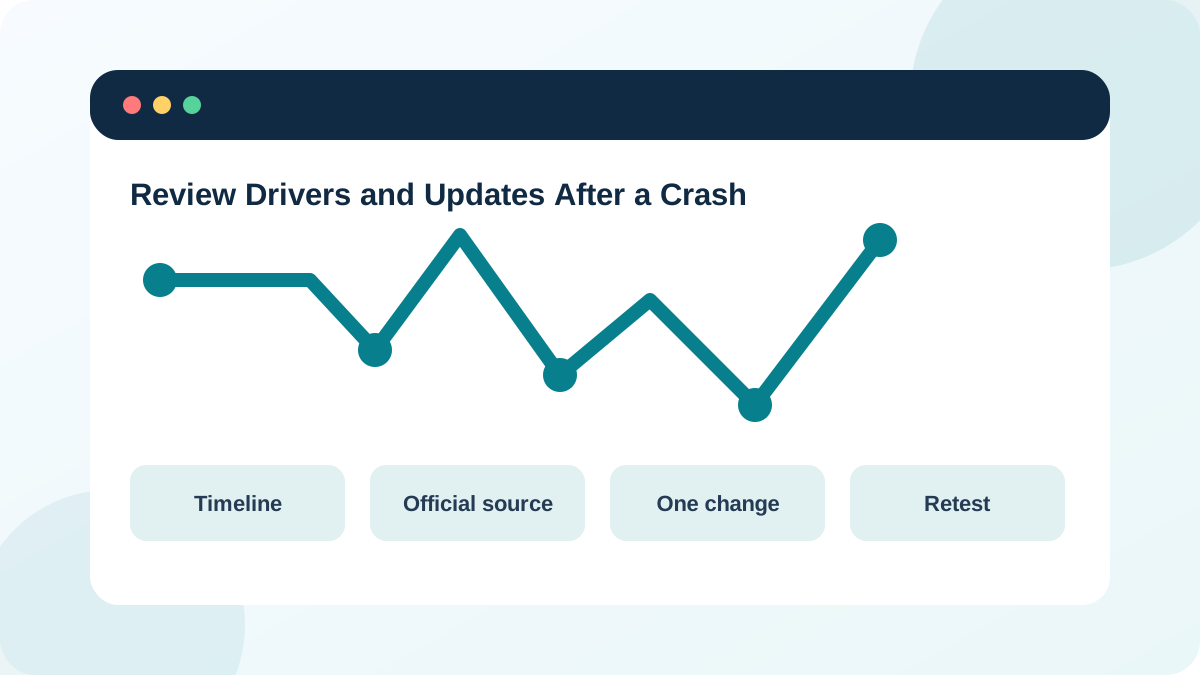
Use a trusted driver source order
Microsoft states that most driver updates arrive through Windows Update. If Windows Update cannot provide a suitable driver, use the device manufacturer's official site. Microsoft explicitly warns against downloading drivers from other websites.
Avoid generic driver-updater programs that scan the system and replace many packages at once. They weaken rollback evidence and can install mismatched drivers. For laptops and prebuilt PCs, the computer manufacturer's validated package may be preferable to a generic component driver, especially for power, chipset, graphics switching and firmware.
- 1
Install pending supported Windows quality updates only after protecting data.
- 2
Check Optional updates for a driver specifically related to the symptom.
- 3
Record the current driver provider, version and date before changing it.
- 4
Download manually only from Microsoft or the device/computer manufacturer.
- 5
Verify the exact model and Windows version before installation.
- 6
Keep the previous installer or rollback path when practical.
Roll back one recent driver when the evidence supports it
Device Manager includes a Roll Back Driver option when Windows retains the previous package. Microsoft support guidance uses rollback when a device worked before a recent driver update, rather than as a general performance tweak.
Create a restore point, close active work and roll back only the device linked to the symptom. Restart, repeat the original workload and record whether the crash returns. If Roll Back is unavailable, use the manufacturer's supported reinstall instructions; do not delete driver-store files manually.
- 1
Open Device Manager and locate the device connected to the symptom.
- 2
Open Properties > Driver and capture the current details.
- 3
Select Roll Back Driver only if the issue began after that update.
- 4
Choose an accurate reason and restart Windows.
- 5
Repeat the same workload at least twice.
- 6
Restore or update again if the rollback does not improve the symptom.
Treat Windows updates as testable changes, not permanent suspects
Microsoft provides update history and supported uninstall paths, including Windows Recovery Environment when Windows cannot start. Uninstalling an update should be tied to a recent problem and followed by verification; security implications also matter.
Before uninstalling, check Microsoft's release-health information for known issues and mitigations. Do not permanently block all updates. If one update is removed for testing, document it and plan how the device will return to a supported security state.
- The first-crash date is compared with driver and update installation dates.
- Only one relevant package changed during a test.
- The original workload was repeated after restart.
- The final state remains supported and update protection is not disabled indefinitely.
Escalate firmware and chipset work when model-specific guidance is unclear
BIOS/UEFI and firmware updates can correct stability issues but carry higher risk than ordinary driver changes. Use the exact device model, power requirements and vendor instructions. Never interrupt firmware installation or use a package intended for a similar model.
On managed systems, contact IT. For crashes involving storage, encryption or boot, confirm the BitLocker recovery key before firmware changes.
Create a driver-change timeline
Connect a real stability symptom to update and driver evidence without changing the system yet.
- 1
Record the first known crash date.
- 2
Review Windows Update history around that date.
- 3
Record one relevant device driver provider, date and version.
- 4
Find the official support page for the exact device model.
- 5
Write whether rollback is available and how it would be reversed.
- 6
Define the workload used to verify stability.
Common mistakes to avoid
- Using an unofficial driver download site.
- Replacing many drivers before testing one hypothesis.
- Assuming the newest version number is always best for an OEM laptop.
- Uninstalling security updates indefinitely without a supported plan.
Key takeaways
- Timing links a driver or update to a symptom.
- Use Windows Update and official manufacturer sources.
- One change plus repeated verification preserves evidence.
Frequently asked questions
Should I update a driver that is working normally?
Not solely because another site reports a newer number. Update for supported fixes, compatibility, security or a relevant problem, using official sources.
What if Roll Back Driver is disabled?
Windows may not retain the previous package. Use the device manufacturer's supported installer or recovery instructions and create a restore point first.
Sources and further reading
- Update drivers through Device Manager in WindowsMicrosoft Support
- Automatically get recommended and updated hardware driversMicrosoft Support
- How to uninstall a Windows UpdateMicrosoft Support
Ready to continue?
Mark the lesson complete so your Learning Path progress stays current on this device.