What you will learn
- Build a one-device versus all-devices test matrix.
- Separate application, device, Wi-Fi and network-wide scope.
- Use another device without exposing its private data.
- Choose the next owner of the problem based on evidence.
What you need
- The affected device.
- A second trusted device or Ethernet connection when available.
Use comparisons that change one variable
Microsoft recommends trying the same network on another device; if the second device connects, the source is likely specific to the first device.
The comparison must use the same SSID, location and time window. A phone using mobile data or a laptop connected to a guest network is not a valid control. Verify the network name and disable cellular fallback for the test.
Add a local-versus-internet distinction. If both devices can reach the router but only one application fails, the Wi-Fi network may be healthy.
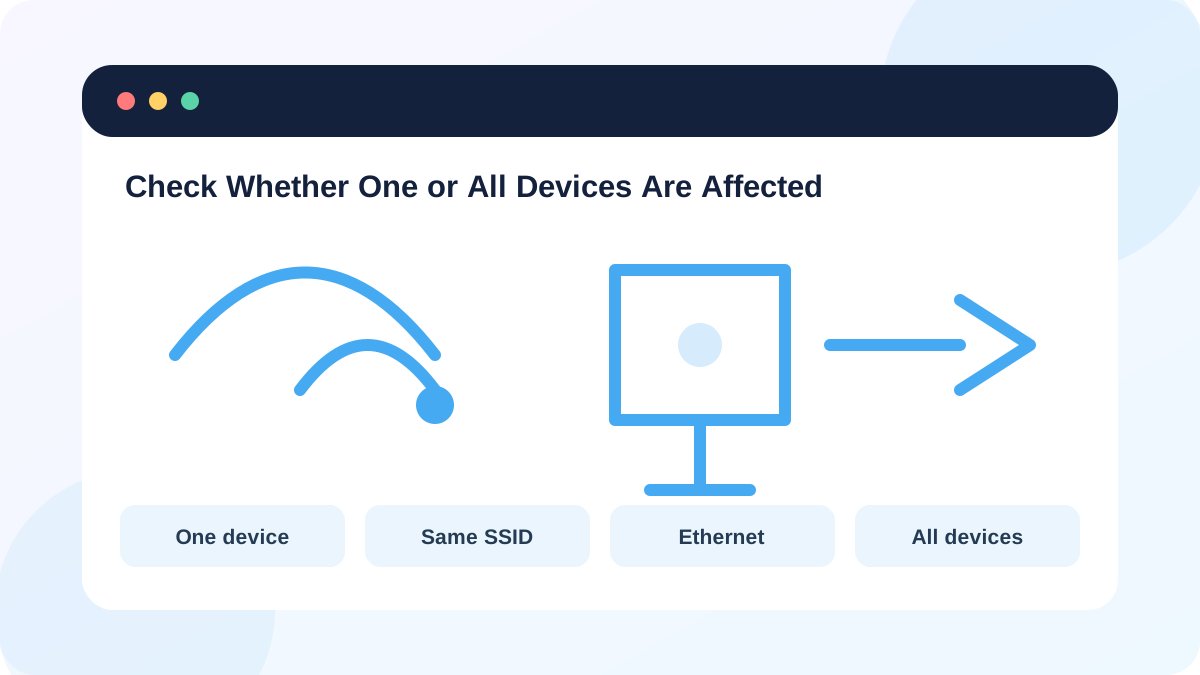
Run a four-cell test matrix
Test the affected device and a control device on the same Wi-Fi. If possible, test the affected device by Ethernet or near another access point. Record gateway, external IP and DNS results for each cell.
Do not forget that per-device parental controls, MAC-based policies and randomized hardware addresses can produce different treatment on the same network.
- 1
Confirm both devices use the same SSID and band where possible.
- 2
Disable cellular fallback on the control phone temporarily.
- 3
Test the gateway from both devices.
- 4
Test an external IP and a domain from both devices.
- 5
Test the affected computer by Ethernet or a phone hotspot only as a clearly labeled comparison.
Interpret the pattern
If only one device fails across Wi-Fi and Ethernet, focus on the device, VPN, firewall, proxy, TCP/IP settings or application. If only Wi-Fi fails on that device, focus on its wireless profile, adapter, driver, power management and band compatibility. If every device fails on Wi-Fi but Ethernet works, focus on the access point or radio settings. If both access methods fail for everyone, move upstream.
A phone hotspot test does not prove the home ISP is bad; it proves the affected device can use another network path. Keep conclusions limited to what the test changes.
- The control device used the same SSID.
- Cellular and VPN fallback were accounted for.
- Local gateway, IP connectivity and DNS were tested separately.
Apply the smallest scope-appropriate action
For one device, forget and reconnect to the Wi-Fi profile only after saving any enterprise configuration. For all devices, inspect access-point and WAN status before restarting equipment. Announce a router restart because it disconnects everyone.
Avoid network reset on the first device test. Microsoft treats network reset as a later step because it removes and reinstalls adapters and can disrupt VPN and virtual networking software.
- 1
Write a scope statement: one device, Wi-Fi clients, or all clients.
- 2
Choose one action that matches that scope.
- 3
Record the original profile or setting before changing it.
- 4
Retest the same matrix after the action.
- 5
Escalate with the matrix rather than a vague 'Wi-Fi is broken' report.
Build a device-scope matrix
Use two devices and two targets to isolate a real or simulated issue.
- 1
Record SSID, band and location for both devices.
- 2
Test gateway reachability on each.
- 3
Test one external IP and one domain.
- 4
Add an Ethernet or hotspot comparison if safe.
- 5
Write the narrowest conclusion supported by the matrix.
Common mistakes to avoid
- Using mobile data as if it were the same Wi-Fi network.
- Resetting the router for one-device failure.
- Ignoring VPN, proxy or parental-control differences.
- Changing several device settings before retesting.
Key takeaways
- Scope determines the correct troubleshooting owner.
- A valid control changes only one important variable.
- One-device and all-device failures require different actions.
Frequently asked questions
What if I have no second device?
Use Ethernet, another access point, a temporary hotspot or the router's own status page as clearly labeled comparisons.
Why does my phone work while the laptop fails?
The laptop may have a profile, adapter, driver, VPN, proxy or policy issue even though the shared network is healthy.
Sources and further reading
- Fix Wi-Fi connection issues in WindowsMicrosoft Support
- Essential Network Settings and Tasks in WindowsMicrosoft Support
Ready to continue?
Mark the lesson complete so your Learning Path progress stays current on this device.