What you will learn
- Separate administrator and Wi-Fi credentials.
- Disable unnecessary internet-facing administration.
- Verify firmware update and recovery options.
- Document changes without exposing credentials.
What you need
- Authorized local access to the router.
- The official router manual and a secure password manager.
Understand the administrator boundary
The FTC explains that the administrator password controls router settings and that compromise can undo other network security measures.
Apple recommends enabling automatic firmware updates where available because updates improve stability, performance and security.
The administration interface may be a local web page, a vendor app or an ISP portal. Verify the official access method and domain. Do not follow a search advertisement or third-party 'router login' site that asks for credentials.
Prepare a recovery route
Before changing credentials, confirm the physical reset procedure, configuration-backup option and ISP ownership. Save the current configuration when the vendor supports it, and protect the backup because it may contain network secrets.
Use Ethernet or keep a trusted local management device connected. Avoid changes during calls, uploads or security-system activity.
- 1
Confirm the exact router model and support page.
- 2
Record the local administration address and current firmware version.
- 3
Export a configuration backup if supported.
- 4
Generate a unique administrator password in a password manager.
- 5
Confirm who can authorize a factory reset if recovery fails.
Apply the essential controls
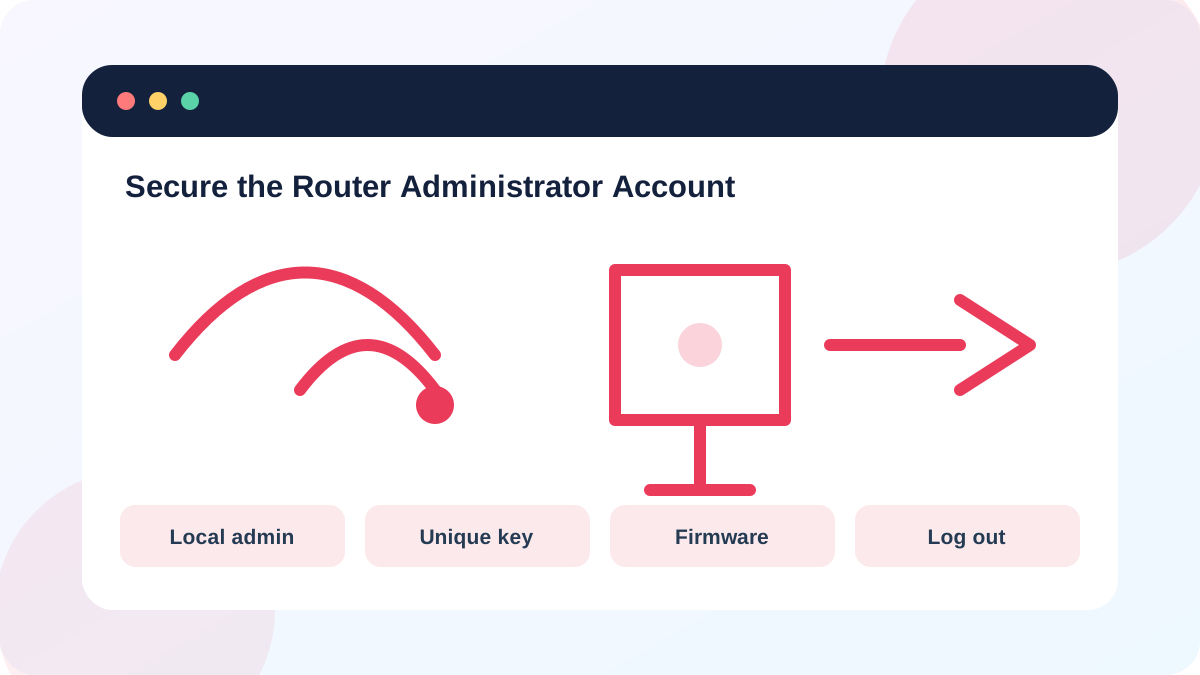
Change default administrator credentials, turn off internet-facing remote management, review WPS and UPnP requirements, and enable automatic firmware updates when supported. Do not disable the router firewall or expose the admin interface through port forwarding.
If the router uses cloud administration, enable multi-factor authentication when the vendor offers it and review account recovery email and phone details.
- 1
Change the administrator username if the device permits it.
- 2
Set a unique administrator password unrelated to the Wi-Fi key.
- 3
Disable remote administration from the WAN.
- 4
Enable automatic firmware updates or document a monthly check.
- 5
Review connected administrator accounts and remove unknown access.
Verify and log out
Log out, then sign back in locally with the new credential. Confirm that the Wi-Fi password cannot authenticate to administration. Check the WAN-facing status to ensure remote management remains off.
If the vendor no longer supplies security updates or only supports WEP/WPA-era controls, replacement is safer than compensating with obscure settings.
- Administrator and Wi-Fi passwords are different.
- WAN remote management is disabled.
- Firmware is current or automatic updates are enabled.
- A documented recovery route exists.
Complete a router administration review
Audit management access without changing the production network unnecessarily.
- 1
Find the official support page and firmware status.
- 2
Confirm local administrator access.
- 3
Verify remote management is disabled.
- 4
Review account recovery and MFA options.
- 5
Log out and store the credential securely.
Common mistakes to avoid
- Using the Wi-Fi password as the admin password.
- Entering credentials into an unofficial router-login website.
- Opening remote management to solve a local access problem.
- Factory-resetting without ISP and configuration recovery information.
Key takeaways
- Router administration is a privileged account.
- Keep management local and firmware current.
- Prepare recovery before changing credentials.
Frequently asked questions
Is the router admin password the same as the Wi-Fi password?
It should not be. One controls the router; the other lets devices join the wireless network.
Should I enable remote management for support?
Only for a documented vendor-supported need, for the shortest possible time, with strong authentication. Local management is safer for normal home use.
Sources and further reading
- How To Secure Your Home Wi-Fi NetworkFederal Trade Commission
- Recommended settings for Wi-Fi routers and access pointsApple Support
Ready to continue?
Mark the lesson complete so your Learning Path progress stays current on this device.