What you will learn
- Verify the network name and captive portal independently.
- Reduce local sharing and automatic reconnection.
- Understand what HTTPS and VPNs do and do not prove.
- Choose cellular or a trusted hotspot for high-risk tasks.
What you need
- An updated phone or computer.
- Cellular data or another fallback for sensitive actions when possible.
Verify before joining
FTC guidance for public Wi-Fi emphasizes using secure websites and understanding that encryption protects information in transit.
Chrome explains that a secure connection keeps traffic private but users must still check the site name because a secure phishing site can exist.
Ask staff or signage for the exact network name. Attackers can create a similar SSID. A captive portal asking for excessive identity, payment or software installation should end the session; use cellular instead.
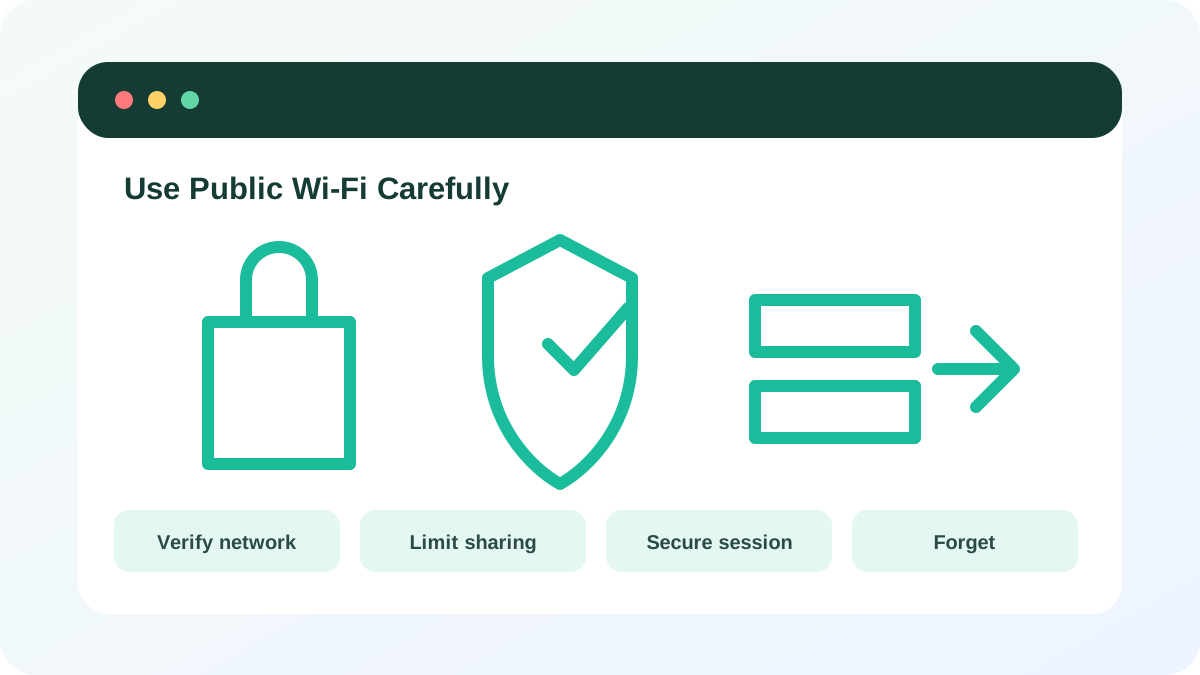
Prepare the device for an untrusted network
Install updates before travel. Set the network profile to Public where the operating system offers it, disable file/printer sharing and avoid automatic connection to open networks. Keep the firewall enabled. Turn off local discovery features you do not need, such as nearby sharing or automatic media sharing.
- 1
Confirm operating system and browser updates.
- 2
Verify the exact SSID.
- 3
Choose the Public network profile.
- 4
Disable file and printer sharing.
- 5
Disable automatic connection to open networks.
- 6
Keep firewall and Safe Browsing protection enabled.
Limit sensitive activity
Use official apps or typed/bookmarked sites. Avoid financial transfers, payroll, password-manager recovery and changes to primary email when a trusted cellular connection is available. MFA reduces account risk, but a fake site can still capture manually typed passwords and codes. A VPN protects the path to its provider; choose it based on trust and policy, not as a magic safety switch.
- 1
Open services through known apps or addresses.
- 2
Check the full domain before entering credentials.
- 3
Use MFA and reject unexpected prompts.
- 4
Prefer cellular for high-value account changes.
- 5
Do not install certificates, profiles or “security apps” requested by the hotspot.
End the session cleanly
Sign out of sensitive services, disconnect, forget the network and turn off auto-join. Review downloads and security notifications. If you entered a password into a site later found suspicious, use a known-clean trusted connection to change it, revoke sessions and review MFA.
- 1
Close sensitive tabs and sign out where appropriate.
- 2
Disconnect from Wi-Fi.
- 3
Forget the network profile.
- 4
Restore sharing only on a trusted network if needed.
- 5
Review account activity after any suspicious event.
- The SSID was verified independently.
- Sharing and auto-connect were limited.
- High-risk actions used a more trusted connection.
Create a travel Wi-Fi checklist
Prepare a reusable checklist before the next trip.
- 1
Update phone and laptop.
- 2
Record how to set Public network mode.
- 3
Record how to disable sharing and auto-join.
- 4
Choose which actions will use cellular only.
- 5
Review VPN and organizational policy.
- 6
Practice forgetting a test network.
Common mistakes to avoid
- Joining the strongest signal without verifying the SSID.
- Assuming a VPN makes fake sites safe.
- Installing a certificate or app from a captive portal.
- Leaving auto-connect and file sharing enabled.
Key takeaways
- Verify the network and the destination separately.
- HTTPS and VPNs protect connections, not identity by themselves.
- Cellular is often the simplest safer choice for high-risk actions.
Frequently asked questions
Is public Wi-Fi safe for ordinary browsing?
With an updated device, HTTPS, correct domains and sharing disabled, many routine activities are reasonably protected. Use stronger alternatives for high-impact account actions.
Do I always need a VPN?
A trusted VPN can protect traffic between your device and the VPN provider, especially for organizational access, but it does not fix phishing, unsafe downloads or a compromised device.
Sources and further reading
- How to safely use public Wi-Fi networksFederal Trade Commission
- Check if a site connection is secureGoogle Chrome Help
- Choose your Safe Browsing protection levelGoogle Chrome Help
Ready to continue?
Mark the lesson complete so your Learning Path progress stays current on this device.