What you will learn
- Create a ZIP archive from selected files and folders.
- Extract an archive into a separate destination before editing.
- Inspect extensions and scan suspicious archives before opening content.
- Verify that the archive contains the complete intended handoff.
What you need
- A Windows PC.
- A sample folder containing several non-sensitive files.
Compression, packaging and security are different properties
Windows can create compressed folders from the context menu and extract them with Extract All.
Windows Security provides virus and threat protection and scan options for files and locations.
Compression can reduce size for some data and package a hierarchy into one file. It does not prove who created the archive or whether its contents are safe. Photos and videos may compress very little because those formats are already compressed.
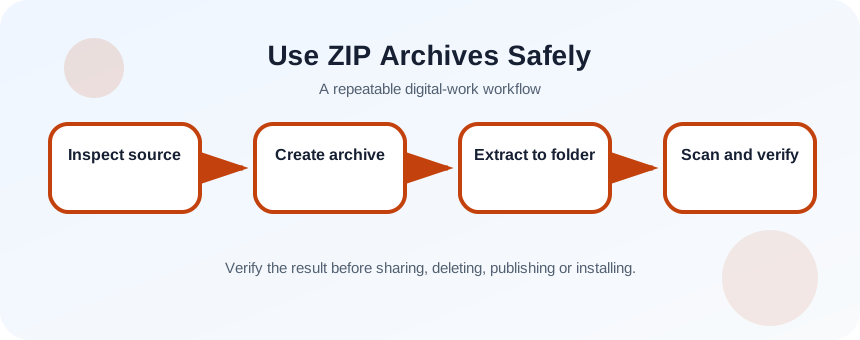
Prepare a clean source folder
Before zipping, remove temporary files, old drafts and secrets that should not be shared. Open the final source folder and count the expected files. If the recipient needs the directory structure, zip the parent folder rather than selecting unrelated files from several locations.
- 1
Create a clean handoff folder.
- 2
Copy only the intended files into it.
- 3
Show file extensions.
- 4
Remove installers or scripts unless they are required.
- 5
Open key documents to confirm they are not corrupted.
- 6
Record the expected file count and folder names.
Create and extract without working inside the archive
Right-click the prepared folder, choose the compression option available in Windows, and give the archive a meaningful name. To test it, extract it into a new temporary folder. Editing a file while viewing it inside a ZIP can create temporary copies or prevent changes from being saved where you expect.
- 1
Right-click the prepared folder.
- 2
Choose Compress to ZIP file or Send to > Compressed (zipped) folder.
- 3
Rename the ZIP with project and date context.
- 4
Check the archive size.
- 5
Create an empty test-extraction folder.
- 6
Use Extract All and choose that folder.
- 7
Compare the extracted structure with the source.
Inspect received archives before opening files
Save the archive rather than running anything from the browser preview. Verify the sender, filename and expected purpose. Scan the ZIP or extracted folder with Windows Security when risk is elevated. After extraction, inspect extensions. A file named invoice.pdf.exe is an executable, not a PDF, even if its icon is misleading.
Password-protected archives can block some automated scanning. A password sent in a separate channel may protect confidentiality during transfer, but it still does not establish trust. Verify the sender and purpose before extracting.
- 1
Save the archive to a known folder.
- 2
Check the sender through a separate message or call.
- 3
Scan the file with Windows Security.
- 4
Extract to a new folder.
- 5
Inspect extensions before opening any executable or script.
Verify completeness and cleanup
Open representative extracted files, compare the count with the source or manifest, and confirm that nested folders were preserved. Keep the original ZIP until the recipient confirms success, then follow your retention policy. Do not treat the archive as the only long-term copy.
- The extracted folder matches the intended source structure.
- No unexpected executable, shortcut or script is present.
- The archive is not the only copy of important data.
Build and test a project archive
Create a small archive and validate it as if you were the recipient.
- 1
Prepare a folder with five files and one subfolder.
- 2
Record the expected contents.
- 3
Create the ZIP.
- 4
Extract it into a different location.
- 5
Compare structure and file count.
- 6
Scan and open two extracted files.
Common mistakes to avoid
- Editing a document directly inside the archive.
- Assuming a password-protected ZIP is automatically safe.
- Including hidden credentials or temporary files.
- Keeping the ZIP as the only backup.
Key takeaways
- ZIP files package data but do not prove trust.
- Extract to a separate folder before editing.
- Verify sender, extensions, structure and security status.
Frequently asked questions
Why did the ZIP barely reduce the file size?
Formats such as JPEG, MP4 and many PDFs are already compressed, so another compression layer may provide little benefit.
Can I scan a ZIP without extracting it?
Security tools may inspect many archives, but encrypted or unusual formats can limit inspection. Extract only after verifying the source and use an isolated folder.
Sources and further reading
- Zip and unzip filesMicrosoft Support
- Virus and threat protection in the Windows Security appMicrosoft Support
Ready to continue?
Mark the lesson complete so your Learning Path progress stays current on this device.