What you will learn
- Explain which browser data belongs to a profile.
- Separate work, personal and testing contexts.
- Choose sync categories according to privacy and organizational rules.
- Review signed-in devices before removing or migrating a profile.
What you need
- A browser that supports multiple profiles.
- Access to the accounts you intend to separate.
A profile is a data boundary, not just a color theme
Chrome profiles keep bookmarks, history, passwords and other settings separate; removing a profile erases its local profile data from that computer.
Signed-in Chrome users can save selected information such as bookmarks, passwords, settings, open tabs and history in their Google Account.
The profile boundary is useful only when the window identity is obvious and you consistently use the correct profile. It does not replace the operating-system user account on a shared or managed computer.
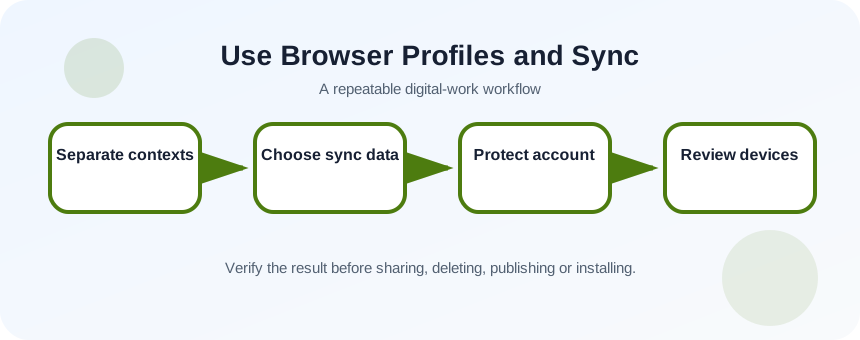
Define the contexts that must not mix
List the accounts, extensions and browsing data used for work, personal life and testing. A company-managed account may have policies that control sync and extensions. Do not copy managed data into a personal profile merely for convenience. Choose a name, color and avatar that make the current context visible at a glance.
- 1
List the browser contexts you use.
- 2
Identify managed accounts and policies.
- 3
Decide which bookmarks or passwords must remain separate.
- 4
Export critical bookmarks before migration.
- 5
Close sensitive tabs.
- 6
Create a recovery method for the sync account.
Create and configure one profile at a time
Create the profile, sign in only if sync is appropriate, then review the categories that will be stored in the account. Install only the extensions required for that context. Open one trusted site and confirm the expected account is signed in before importing more data.
- 1
Open the profile menu.
- 2
Choose Add or Create profile.
- 3
Assign a clear name and color.
- 4
Sign in only with the intended account.
- 5
Review sync settings and disable unwanted categories.
- 6
Install approved extensions.
- 7
Test one account and bookmark before migrating further.
Control sync and shared-device risk
Sync is convenient for a device you control, but a shared computer needs additional protection. Browser profiles do not prevent another local user from opening an unlocked session. Use separate operating-system accounts, screen locking and device encryption where appropriate. Sign out and remove profile data from public or borrowed machines.
Review the account’s device list after replacing a computer, and remove sessions you no longer recognize. If work data is regulated, follow the organization’s approved browser and password-storage policy rather than choosing personal sync settings.
- 1
Open the sync settings page.
- 2
List enabled data categories.
- 3
Disable categories that should stay local.
- 4
Review account security and signed-in devices.
- 5
Lock the operating-system session and test profile separation.
Test identity before high-impact actions
Before uploading, purchasing, publishing or changing account settings, check the profile name and the account avatar inside the service. The correct profile should open the correct bookmarks, extensions and sessions without manual account switching. If several accounts remain signed in within one profile, the boundary is not strong enough for sensitive work.
- Work and personal services open in visibly different profile windows.
- Only approved data categories are synchronized.
- Old or unrecognized devices are removed from the account.
Create a clean work profile
Build and test a separate browser context without moving sensitive data blindly.
- 1
Export current bookmarks.
- 2
Create a profile named Work Test.
- 3
Choose a distinct color.
- 4
Sign in with an appropriate account or keep it local.
- 5
Enable only necessary sync categories.
- 6
Open three work sites and verify the active account.
Common mistakes to avoid
- Treating profiles as security boundaries on an unlocked shared computer.
- Removing a profile before exporting local bookmarks.
- Syncing work data to a personal account.
- Using the same visual identity for every profile.
Key takeaways
- Profiles separate browser data and sessions.
- Sync is optional and should follow data policy.
- Verify profile and service identity before consequential actions.
Frequently asked questions
Can I use two accounts in one browser profile?
Yes, but service-level account switching can cause mistakes. Separate profiles are clearer when identities, extensions or data policies differ.
Does deleting a browser profile delete the online account?
Normally no, but it can remove local profile data from the computer. Synced data remains subject to the account and sync settings.
Sources and further reading
- Manage Chrome with multiple profilesGoogle Chrome Help
- Get your bookmarks, passwords and more on all your devicesGoogle Chrome Help
Ready to continue?
Mark the lesson complete so your Learning Path progress stays current on this device.