What you will learn
- Evaluate whether a site permission is necessary for the current task.
- Use one-time or limited permission where available.
- Choose and verify a download destination.
- Respond safely to blocked or unexpected downloads.
What you need
- A desktop browser with access to site settings.
- A trusted site that can request a harmless permission such as notifications or microphone access.
Permissions are capabilities, not routine pop-ups
Chrome lets users allow, deny or grant one-time access to capabilities such as camera, location and microphone.
Chrome blocks downloads it identifies as dangerous and advises users to take warnings seriously rather than bypassing them on request from a site.
Ask what feature will fail if you deny access. A video meeting needs a microphone while you are in the call; a news page rarely needs permanent microphone access. Notification permission can create lasting interruption even after the original visit.
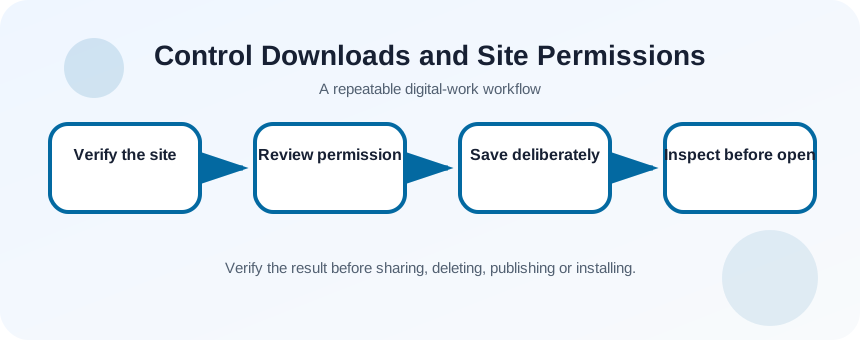
Verify the site and expected file
Check the domain in the address bar, use a bookmark or official navigation path, and confirm what file or capability the site is supposed to provide. Unexpected prompts deserve more scrutiny. If someone sent a link, verify through a separate channel when the file is sensitive or executable.
- 1
Read the full domain name.
- 2
Confirm the page arrived through an expected workflow.
- 3
Identify the exact capability requested.
- 4
Decide whether one-time access is sufficient.
- 5
Choose a known download folder.
- 6
Make sure file extensions are visible in File Explorer.
Handle permission and download prompts deliberately
Chrome documents the Downloads page and allows users to change download behavior and locations.
When a site requests access, select the narrowest option. For downloads, note the expected filename and extension before clicking. If the browser blocks a file, stop and investigate the source rather than repeatedly attempting alternate download buttons.
- 1
Open site information beside the address bar.
- 2
Review current permissions.
- 3
Grant one-time access when the task is temporary.
- 4
Start the expected download once.
- 5
Open the browser Downloads list.
- 6
Use Show in folder to locate the saved file.
- 7
Scan and inspect the extension before opening.
Clean up access after the task
Remove camera, microphone, location or notification permissions that no longer serve a purpose. A site can function differently after permissions are reset, so make the change site by site rather than clearing everything during an important work session. Review browser extensions separately because extension permissions can cover many sites.
Keep the Downloads folder as an inbox, not a permanent archive. Move verified files into the correct project folder, rename them with context and delete failed or duplicate installers. This reduces the chance of running an old installer later.
- 1
Return to the site settings panel.
- 2
Reset permissions that are no longer needed.
- 3
Move the verified download to its project folder.
- 4
Delete duplicate and partial downloads.
- 5
Review installed browser extensions with broad access.
Confirm both access and file state
The site should work with no more permission than necessary. The downloaded file should have the expected publisher, type and destination. If a file appears without an action you initiated, do not open it. Record the source page and checksum when software distribution requires stronger verification.
- No site retains unnecessary camera, microphone, location or notification access.
- The downloaded file has the expected name, extension and source.
- No security warning was bypassed without independent verification.
Audit one download workflow
Download a safe document and review every permission and storage decision.
- 1
Choose an official site and a known PDF.
- 2
Check site permissions before downloading.
- 3
Download the file to a known folder.
- 4
Inspect it in the Downloads list and File Explorer.
- 5
Move it into a named project folder.
- 6
Reset any permission granted only for the exercise.
Common mistakes to avoid
- Clicking Allow before reading the requested capability.
- Ignoring a dangerous-download warning because a message said the file was safe.
- Opening files directly from the browser without locating them.
- Leaving permanent notification permission after a one-time task.
Key takeaways
- Permission decisions should follow the task, not the prompt.
- A browser warning is evidence to investigate.
- Downloads need a known source, location and extension.
Frequently asked questions
Why does a site keep asking for permission?
You may have chosen one-time access, cleared site data, used private browsing or blocked the permission. Decide whether the feature genuinely needs ongoing access.
Is a PDF always safe to open?
No file type is automatically safe. Use trusted sources, current software and security scanning, especially for unexpected attachments.
Sources and further reading
- Change site settings permissionsGoogle Chrome Help
- Google Chrome blocks some downloadsGoogle Chrome Help
- Download a fileGoogle Chrome Help
Ready to continue?
Mark the lesson complete so your Learning Path progress stays current on this device.