What you will learn
- Distinguish official stores and vendor sites from download aggregators.
- Review publisher, signature and browser warnings.
- Recognize cracked, bundled and fake-update risks.
- Remove software that cannot be maintained safely.
What you need
- Administrator approval if required.
- The official product name and vendor organization.
Find the source without trusting the advertisement
Microsoft Defender SmartScreen and reputation-based protection evaluate sites, downloads, publishers and potentially unwanted applications to reduce malicious or unwanted software risk.
Chrome blocks downloads it identifies as dangerous and advises users to take warnings seriously rather than following attacker instructions to bypass them.
Prefer the operating-system store or the vendor domain reached through a known bookmark, product documentation or verified organization page. Search results can help locate a vendor, but sponsored labels and copied domains require careful review.
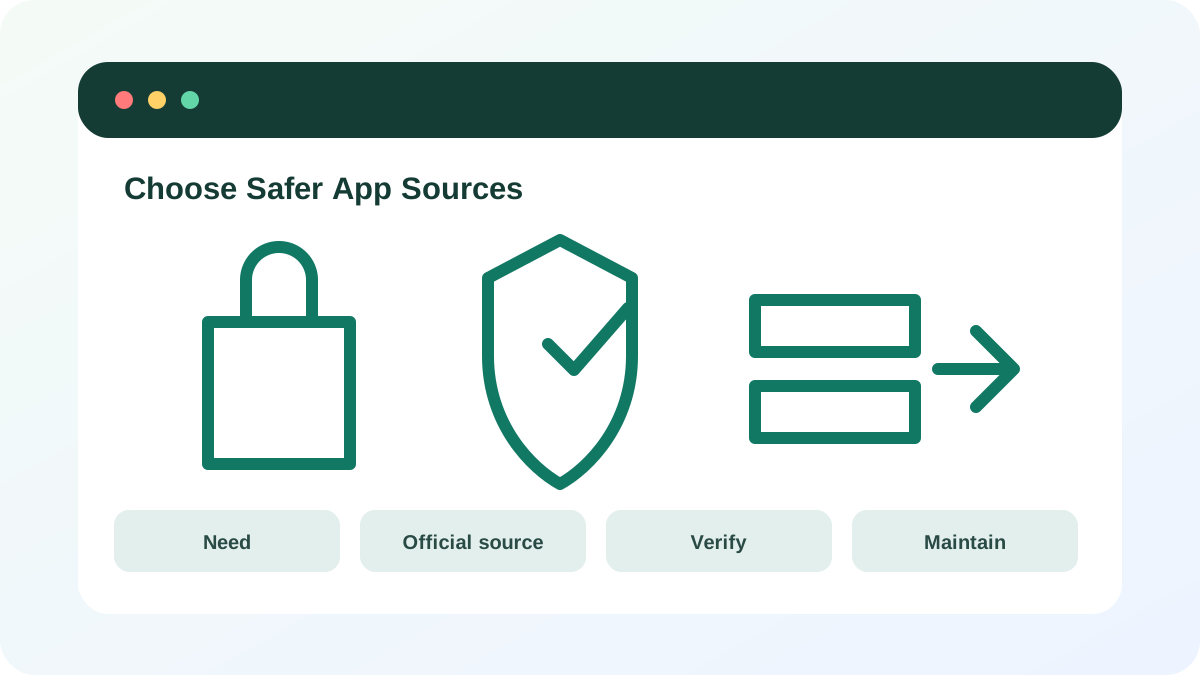
Verify before execution
Check the exact file name, extension, publisher and digital-signature information where the platform provides it. A valid signature shows the file was signed by that publisher and was not modified after signing; it does not automatically prove the software is appropriate or trustworthy. Compare cryptographic hashes only when the vendor publishes them through a separate trusted page.
- 1
Confirm the vendor’s official domain.
- 2
Prefer the official store when available.
- 3
Read the download filename and extension.
- 4
Review browser and SmartScreen warnings.
- 5
Inspect publisher or signature details.
- 6
Cancel when the publisher is unknown or the path cannot be verified.
Install with minimum exposure
Choose custom or advanced installation when it reveals optional components. Decline browser extensions, search changes, “system optimizers” and additional products you did not request. Do not disable antivirus or SmartScreen because an installer tells you to. Cracked software removes the normal trust and update chain and should not be installed.
- 1
Create a restore or backup path for important work.
- 2
Close unrelated applications.
- 3
Read every installer screen.
- 4
Decline bundled offers.
- 5
Keep the default least-privilege location and settings when appropriate.
- 6
Restart only when the trusted installer requires it.
Maintain or remove the app
After installation, open the About or Update page and confirm the update channel. Remove old installers from Downloads when they are no longer needed. Uninstall software that no longer has a supported version, that installs unexpected services or that cannot be traced to a legitimate publisher.
- 1
Confirm the installed publisher and version.
- 2
Enable automatic updates.
- 3
Test the intended function.
- 4
Review startup entries and browser extensions added by the app.
- 5
Remove unused or unsupported software.
- The installer came from an official traceable source.
- No security warning was bypassed.
- The product has a working update path.
Audit one installed application
Trace an existing app back to its publisher and support channel.
- 1
Record the installed version and publisher.
- 2
Locate the official product page independently.
- 3
Confirm the current supported release.
- 4
Review the app update setting.
- 5
Check for unexpected extensions or startup entries.
- 6
Remove it if no safe maintenance path exists.
Common mistakes to avoid
- Clicking a sponsored download without checking the domain.
- Disabling security controls to run an installer.
- Accepting every bundled offer.
- Keeping unsupported apps because they still launch.
Key takeaways
- Software trust begins with source and publisher.
- Warnings are evidence, not obstacles.
- A safe app needs an ongoing update path.
Frequently asked questions
Are all apps in an official store safe?
Stores reduce risk through review and signing, but no catalog is perfect. Check publisher, permissions, reviews, support and whether the app is necessary.
Does a digital signature guarantee the app is harmless?
No. It verifies signer identity and file integrity, not suitability or perfect security. Use it as one part of the trust decision.
Sources and further reading
- App and browser control in Windows SecurityMicrosoft Support
- Google Chrome blocks some downloadsGoogle Chrome Help
Ready to continue?
Mark the lesson complete so your Learning Path progress stays current on this device.