What you will learn
- Match link scope to the intended audience.
- Choose view, edit or review access based on the task.
- Apply expiry or download restrictions where available.
- Audit and remove access after handoff.
What you need
- A non-sensitive test file in OneDrive or SharePoint.
- A second account or trusted colleague for testing recipient access.
Permission should follow the recipient’s task
OneDrive and SharePoint let file owners manage sharing links and permissions, including changing or stopping access.
The Manage Access view shows who has direct access and which links grant access.
A reviewer may need comments but not full edit rights. A vendor may need one folder but not the parent project. “Anyone with the link” reduces identity control and can spread beyond the original recipient. Begin with named people and view access unless the workflow requires more.
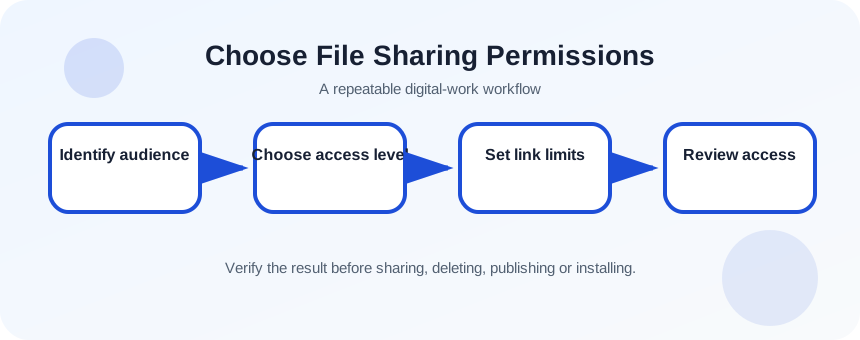
Define audience, action and duration
Write down who needs access, what they must do and when access should end. Remove unrelated content from the shared folder. If the recipient needs one file, do not share a broad parent folder. Confirm organizational rules for external sharing.
- 1
Identify every intended recipient.
- 2
State view, comment, upload or edit needs.
- 3
Choose the narrowest folder or file.
- 4
Remove hidden or unrelated content.
- 5
Set an end date for temporary work.
- 6
Confirm whether downloads are acceptable.
Create and test the link
Open Share, choose the link settings before copying, and specify named recipients where possible. Add a short message describing the file and expected action. Test with a second account or private window so you see the recipient experience rather than the owner view.
- 1
Open the file sharing dialog.
- 2
Choose Specific people or the approved scope.
- 3
Select view or edit access.
- 4
Set expiry or password if the service and policy support it.
- 5
Send the link with purpose and deadline.
- 6
Open it as a recipient.
- 7
Confirm no neighboring files are exposed.
Review access during and after collaboration
Use Manage Access to identify direct grants and link-based access. Deleting an email message does not revoke the link. If the audience or permission changes, create a new restricted link and remove the old one. Record external access for sensitive projects.
Ownership matters. Files shared with you remain under the owner’s account, and access can disappear if that account changes. Move final organizational records into an approved team location rather than relying on a personal share.
- 1
Open Manage Access.
- 2
List named users and active links.
- 3
Remove duplicate or overly broad links.
- 4
Change edit access to view when work is complete.
- 5
Move final records into the correct team-owned location.
Confirm least privilege and lifecycle
At completion, the recipient should retain only the access required by the ongoing relationship. Temporary contractors and expired links should be removed. The authoritative file location and owner should be clear. If access cannot be explained from the project record, the sharing model is too informal.
- Only intended people or approved audiences can open the item.
- Recipients have no more capability than required.
- Temporary access is removed or has a defined expiry.
Share a test document with least privilege
Create, test and revoke a controlled sharing link.
- 1
Create a non-sensitive test file.
- 2
Share it with one named recipient as view-only.
- 3
Test the link from another account.
- 4
Change permission to edit and observe the difference.
- 5
Return it to view-only.
- 6
Remove the link and confirm access stops.
Common mistakes to avoid
- Copying a default “anyone” link without reading settings.
- Sharing a parent folder when one file is enough.
- Assuming deleting the message revokes access.
- Leaving edit permission after approval.
Key takeaways
- Sharing has audience, capability and duration dimensions.
- Test the recipient view.
- Review and revoke access when the work changes.
Frequently asked questions
Can a view-only recipient still download the file?
Often yes unless the service, file type and policy support download blocking. Treat view access as read access, not guaranteed no-copy protection.
What happens if I move a shared file?
Behavior depends on the service and destination. Test critical links after moving files and review permissions in the new location.
Sources and further reading
- Manage sharing and permissions in OneDrive and SharePointMicrosoft Support
- See who a file is shared with in OneDrive or SharePointMicrosoft Support
Ready to continue?
Mark the lesson complete so your Learning Path progress stays current on this device.