What you will learn
- Recognize common signs of version and sync conflict.
- Preserve candidate copies before comparing them.
- Use cloud version history to review or restore changes.
- Prevent recurrence with ownership and collaboration rules.
What you need
- A test document stored in OneDrive or SharePoint.
- Access to version history or two harmless document copies.
A timestamp does not prove completeness
OneDrive version history can restore an earlier version of a stored file.
Microsoft 365 version history allows users to view changes and restore a selected version for files stored in OneDrive or SharePoint.
One copy may contain the newest paragraph while another contains an older but important table. A conflict is resolved by understanding changes, not by selecting one filename mechanically. Preserve copies until the merged result is verified.
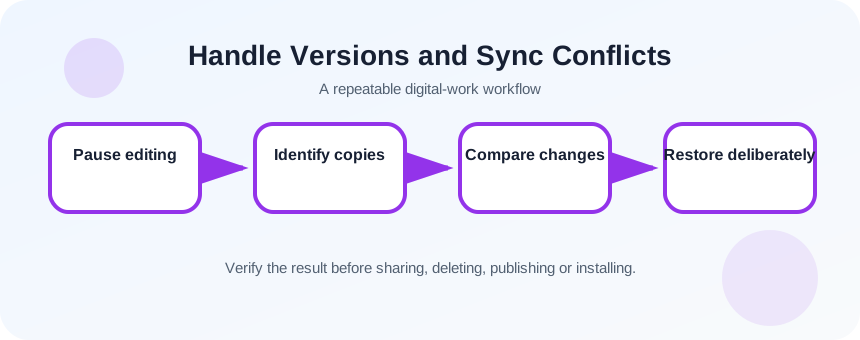
Stop the conflict from expanding
Ask collaborators to stop editing temporarily. Wait for sync indicators to settle and capture the filenames, paths, modified times and owners. Copy candidates into a temporary investigation folder without changing the originals. Do not rename or overwrite the cloud source before reviewing history.
- 1
Notify active editors to pause.
- 2
Record the authoritative folder.
- 3
Capture sync status and error messages.
- 4
List all conflicting filenames.
- 5
Copy candidates into a temporary folder.
- 6
Open version history before making changes.
Compare content and merge intentionally
Start with the cloud version history, then compare local conflict copies. Identify sections changed by each author. Use Word Compare, tracked changes or a manual checklist when available. Create a new merged copy with a clear temporary name rather than overwriting either source.
- 1
Open version history and note relevant timestamps.
- 2
Restore only to a copy or download a candidate when possible.
- 3
Compare headings, tables and comments.
- 4
List unique changes from each copy.
- 5
Create a merged working document.
- 6
Ask the relevant authors to verify their sections.
- 7
Replace the authoritative copy only after approval.
Fix the workflow that created the conflict
Conflicts often come from emailing attachments, editing offline on multiple devices, using local copies and later dragging them into the shared folder, or storing a collaborative file in a personal location. Choose one shared authoritative location and send links rather than attachments.
If offline work is necessary, assign ownership for the offline period and agree how changes will be merged. Review sync health before switching devices. Very large files, unsupported characters and permission changes can also interrupt synchronization.
- 1
Name the authoritative cloud location.
- 2
Replace attachment-based editing with links.
- 3
Assign one owner for offline edits.
- 4
Review sync warnings before closing a device.
- 5
Document how final approval changes the file status.
Verify the final file and history
Open the merged file from a second device or browser session, confirm the expected changes and verify that version history continues. Archive conflict copies with a short resolution note until the project retention period allows deletion. The final filename should identify status without erasing audit context.
- All unique approved changes are present.
- Collaborators agree on one authoritative location.
- The final file opens and synchronizes from another session.
Resolve a controlled two-copy conflict
Create two harmless edits and merge them without losing either change.
- 1
Make two copies of a test document.
- 2
Add a unique sentence to each.
- 3
Preserve both candidates.
- 4
Compare and list differences.
- 5
Create a merged copy.
- 6
Verify both sentences and record the authoritative location.
Common mistakes to avoid
- Choosing the newest timestamp without content comparison.
- Deleting conflict copies immediately.
- Continuing simultaneous editing during resolution.
- Returning to emailed attachments after the merge.
Key takeaways
- Preserve first, compare second, replace last.
- Version history helps but does not replace content review.
- A single authoritative location prevents many conflicts.
Frequently asked questions
Why did OneDrive create a file with my computer name?
That often indicates a sync conflict or duplicate upload. Preserve it and compare contents before deletion.
Can I restore version history without losing the current version?
Many services retain the current state in history, but download or copy important candidates first and confirm the specific product behavior.
Sources and further reading
- Restore a previous version of a file stored in OneDriveMicrosoft Support
- View previous versions of Office filesMicrosoft Support
Ready to continue?
Mark the lesson complete so your Learning Path progress stays current on this device.