What you will learn
- Design a shallow folder hierarchy around work categories and life-cycle stages.
- Choose names that sort predictably and remain understandable to another person.
- Separate working files, source material, deliverables and archives.
- Migrate files without breaking shortcuts or deleting the only copy.
What you need
- Access to File Explorer on Windows.
- A small sample folder containing at least ten files from one project.
Organize by decisions, not by file type alone
File Explorer is the built-in Windows workspace for finding, opening, organizing and managing local and cloud files.
Windows Search can locate files from the taskbar or within a chosen File Explorer location, but search works best when names and locations provide useful context.
A folder named Documents does not explain whether a file is a contract, a draft, a template or a finished report. Start with the way you make decisions: client or project, then stage of work. Keep the number of top-level choices small enough that you can choose one without hesitation.
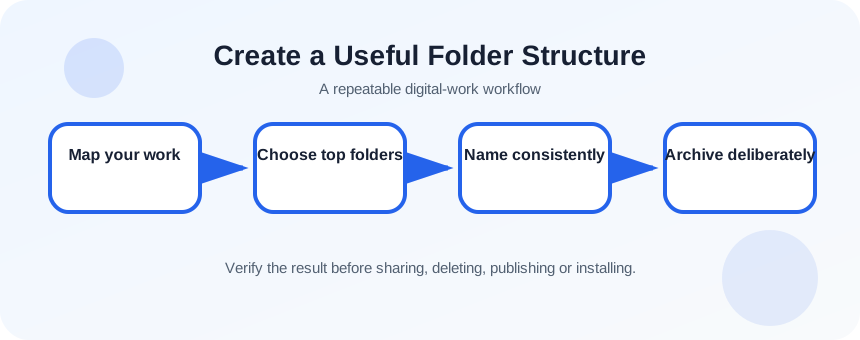
Map the work before creating folders
Write down the recurring categories in one area of your work. For a client project, these might be 01_Admin, 02_Source, 03_Working, 04_Review and 05_Final. Numbers are optional, but they can preserve a deliberate order. Avoid creating a folder for a category that has no real files yet.
- 1
Choose one project as the pilot.
- 2
List the file groups you actually use.
- 3
Mark which files are inputs, working copies, approvals and final deliverables.
- 4
Identify records that must be retained after the project ends.
- 5
Choose no more than six top-level folders.
- 6
Create the structure in a new empty pilot folder rather than moving everything immediately.
Move files in controlled batches
Migration is where good structures fail. Moving hundreds of files at once hides duplicates and makes rollback difficult. Move one category, verify it, then continue. Keep a temporary migration log that records old and new locations for important files. If cloud sync is active, wait for each batch to finish syncing before the next large move.
- 1
Copy the pilot files to a temporary backup location.
- 2
Move only source material first.
- 3
Open two moved files to confirm permissions and links still work.
- 4
Move working documents and keep version suffixes temporarily.
- 5
Move final deliverables only after identifying the approved version.
- 6
Update shortcuts or pinned locations.
- 7
Delete empty old folders only after the backup and new structure are verified.
Use names that carry context
A filename should help when it appears outside its folder. Include the project or subject, the document purpose and a date or version only when those values matter. Prefer ISO-style dates such as 2026-07-26 when chronological sorting is useful. Avoid characters that may cause problems across services, and avoid adding “final” repeatedly.
For collaborative work, define one convention for drafts and approvals. For example: project-report-draft-v03.docx, then project-report-approved-2026-07-26.pdf. The approved file is a different state, not merely another informal copy.
- 1
Create a one-line naming rule for the pilot.
- 2
Rename five files using the rule.
- 3
Sort by name and confirm the order is useful.
- 4
Search for the project name and verify all expected files appear.
Test retrieval, not visual neatness
A folder system succeeds when you can retrieve a file under time pressure. Ask another person—or your future self—to find a source document, the current working file and the approved deliverable using only the folder and file names. If the person must open many files to understand them, revise the names or stage folders.
- You can identify the current deliverable without opening several files.
- Completed projects can be archived without mixing them with active work.
- A search by project and document purpose returns the expected files.
Rebuild one project folder
Design and test a clean structure using a small real project.
- 1
Back up the sample folder.
- 2
Create five stage-based subfolders.
- 3
Write a naming rule.
- 4
Move files in two controlled batches.
- 5
Verify links, cloud sync and file opening.
- 6
Ask someone to locate three named items.
Common mistakes to avoid
- Creating a deep tree with one file in each folder.
- Using broad folders such as Misc or Other as permanent destinations.
- Moving the only copy during a large cleanup.
- Using inconsistent dates and repeated final-final filenames.
Key takeaways
- A small stage-based structure reduces filing decisions.
- Names should make sense even when files leave their folders.
- Test the system with retrieval tasks before migrating everything.
Frequently asked questions
How many folder levels are too many?
There is no fixed number, but if common files require repeated drilling through single-purpose folders, combine levels. Two or three meaningful levels are often enough.
Should I organize by year or project?
Use the dimension you usually know when searching. Projects can contain year-based archives, while recurring administrative records may work better with year first.
Sources and further reading
- File Explorer in WindowsMicrosoft Support
- Find your files and apps in WindowsMicrosoft Support
Ready to continue?
Mark the lesson complete so your Learning Path progress stays current on this device.