What you will learn
- Choose an appropriate search scope before entering a query.
- Use name, date, type and size clues to narrow results.
- Sort results without changing file contents.
- Verify a file by path, properties and preview before acting on it.
What you need
- A Windows PC with File Explorer.
- A folder containing files with different names, dates and types.
Scope determines what search can find
Microsoft documents two common entry points: Windows Search from the taskbar and File Explorer search within a selected location.
Microsoft Search and File Explorer can narrow results using properties such as date modified, kind and size.
Taskbar search is useful when you do not know the location. File Explorer is better when you know the drive, project or folder and want precise control. The search box normally searches the current folder and its descendants, so starting from the wrong location can create either too many results or none.
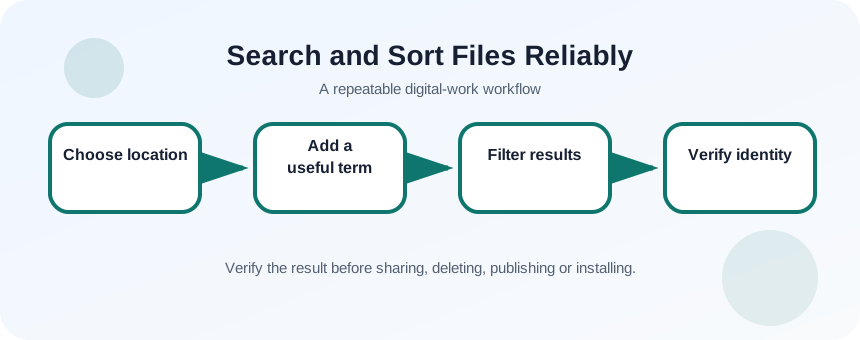
Collect clues before searching
Write down what you know: a word from the filename, file type, approximate date, person or project, and likely storage location. Distinctive words are more valuable than common terms such as report or image. If the file arrived by email or download, note the date and likely default folder.
- 1
Identify one distinctive word.
- 2
Estimate the date range.
- 3
Choose the likely folder or drive.
- 4
Note the expected extension such as .docx or .pdf.
- 5
Decide whether cloud-synced folders must be included.
- 6
Close unrelated searches so you can compare results clearly.
Narrow results one dimension at a time
Begin with the distinctive term. If results are still broad, sort by Date modified or Type instead of adding several uncertain words. Inspect the path column or file properties because two files with the same name can be in different locations. Use preview only for trusted files; do not open an unexpected executable just to identify it.
- 1
Open File Explorer and select the likely parent folder.
- 2
Enter the distinctive term.
- 3
Wait for search to finish before judging the result set.
- 4
Sort by Date modified.
- 5
Filter mentally or with search controls by file type.
- 6
Select a result and inspect its full path.
- 7
Open Properties or Preview to confirm size, dates and content.
Resolve duplicates and misleading dates
Date modified can change when a file is edited, copied or processed by another application. Date created often refers to when that copy arrived on the current device, not when the original document was authored. Use the file contents, folder context and version history together when the distinction matters.
If several files are almost identical, do not delete them based only on size or name. Open the trusted document formats, compare revision markers, and identify the approved copy. For synced files, version history may be safer than keeping multiple unmanaged duplicates.
- 1
Group results by name or type.
- 2
Compare full paths.
- 3
Check modified dates and file sizes.
- 4
Open only trusted document formats and compare key content.
Confirm the result before editing or sending
The final check should answer: is this the correct project, correct revision and correct location? A file found in Downloads may be an old attachment, while the active version lives in a project folder. When sending a result, use the file path or version history to prove which copy you selected.
- The selected file is in the expected project or owner location.
- Its content and revision match the intended task.
- You can explain why other similar results are not the correct file.
Recover a deliberately hidden file
Use scope, search and sorting to locate one known file among distractors.
- 1
Create or choose five files with similar names.
- 2
Place them in two subfolders.
- 3
Change one file so its modified date is newest.
- 4
Search from the parent folder.
- 5
Sort and inspect paths.
- 6
Record the clues that identified the correct file.
Common mistakes to avoid
- Searching the entire PC when the likely folder is known.
- Adding many uncertain keywords and excluding the correct result.
- Assuming the newest file is automatically the approved version.
- Opening unknown executable files to identify them.
Key takeaways
- Search scope is as important as the query.
- Sorting and file properties help distinguish similar results.
- Verify path and content before editing, sharing or deleting.
Frequently asked questions
Why does File Explorer search take a long time?
Large unindexed locations, external drives and network folders can be slower. Start in a narrower folder and allow the current search to finish.
Why can I find a file online but not in File Explorer?
It may be cloud-only, stored in a different account, or not synchronized to the device. Check the cloud service website and signed-in account.
Sources and further reading
- Find your files and apps in WindowsMicrosoft Support
- Find what you need with Microsoft SearchMicrosoft Support
Ready to continue?
Mark the lesson complete so your Learning Path progress stays current on this device.