Table of Contents
This guide covers laptop running ivy bridge chip cheap by Samsung with practical context and easy-to-follow details. Use it to understand the subject and apply the information confidently.
The Series 3 has a compact design, the duracase shell with two gray and black colors feels quite solid. The company also uses thin-edging technology with 10 mm, making it look more compact, despite keeping the screen size wide. In addition, the material of the case also has anti-fingerprint effect, limiting scratches and holding hands more firmly.
Series 3 is in the mainstream laptop, which uses a third-generation Core i3 / i5 processor. This is one of the cheapest Intel chip laptops. The company also uses 1TB hard drive, integrated NVIDIA graphics card, RAM memory can be upgraded to 8 GB.
Samsung 300E uses high-resolution anti-glare LED screen that allows good outdoor viewing. The keyboard is island-like, fully equipped with the right number keys and the touchpad moved to the left, giving a wide space when used. 300E's Fast Start mode gives the device a quick boot time, recovering from the Sleep state takes only 3 seconds, and from Hibernate it only takes about 7 seconds.
This product is about to be sold in Vietnam with prices from 9. 3 to 15 million, depending on configuration.
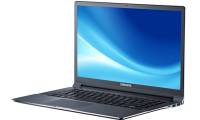
Here is the actual image of Samsung's Series 3 E300:
 Good price and strong configuration, Series 3 300E laptops are suitable for working and entertaining users.
Machine with neat design.
Wide screen LED anti-glare, wide viewing angle.
Slim Bezel technology with slim border design is only about 10 mm.
The island-style keyboard with the left-to-left touchpad helps users not get tired of their hands during long-term operation.
Fast Start mode makes it quick to start up in just 3 seconds from the 'Sleep' state.
The touchpad is wide and left to the left.
Full number keys on the right.
Look from the left.
It supports VGA, HDMI, USB ports.
FAQ
What should I check before following these steps?
Confirm device and software compatibility, save important data, and make sure you have the required permissions, files, and account access.
Why might the process not work?
Common causes include outdated software, missing permissions, incompatible hardware, an unstable connection, or completing a step in the wrong order.
Can I undo the changes if necessary?
That depends on the tool or setting. Use built-in restore options when available, keep a backup, and record the original configuration first.
Related Articles
 Panasonic Launches a Laptop 'Hole' Running Ivy Bridge Chip in Japan3 minutes read
 Samsung Series 9 Configuration Running Ivy Bridge Chip3 minutes read
 6 Most Awaited Ivy Bridge Laptops in 20126 minutes read
 Cheap Touch Laptop Lenovo IdeaPad S2103 minutes read
 Samsung Added More Series 5 Laptops Using AMD Trinity Chips3 minutes read
 Samsung Launched a Laptop Using 45nm Chip3 minutes read
Reader Comments 0
Sign in with email or Google to join the discussion.