Table of Contents
Start by checking your TV’s privacy settings for Automatic Content Recognition (ACR) or Viewing Data. Turning that feature off can limit TV-level viewing tracking. Streaming apps, voice assistants, and connected devices may still have separate data settings.
What viewing recognition can detect
ACR identifies content shown on the TV. Depending on the model and settings, that can include what is displayed from an HDMI device as well as built-in sources. The TV can report viewing data over its internet connection. The FTC’s Vizio case describes one historical example.
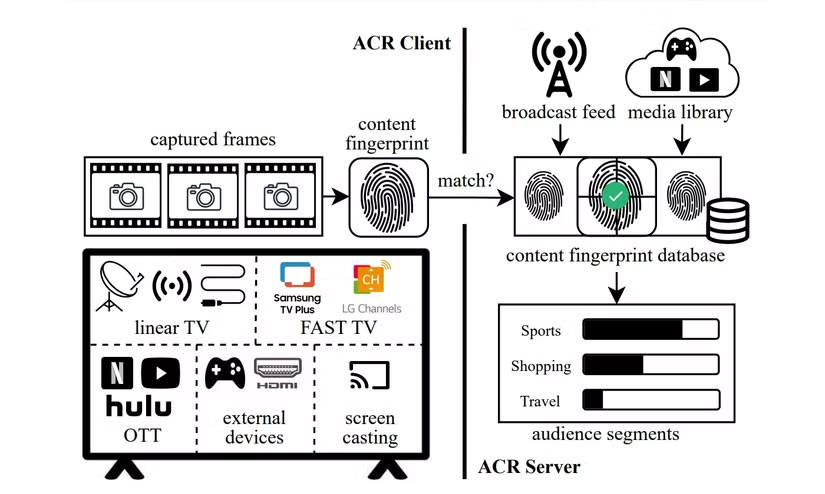
Review privacy settings on the TV and in its apps
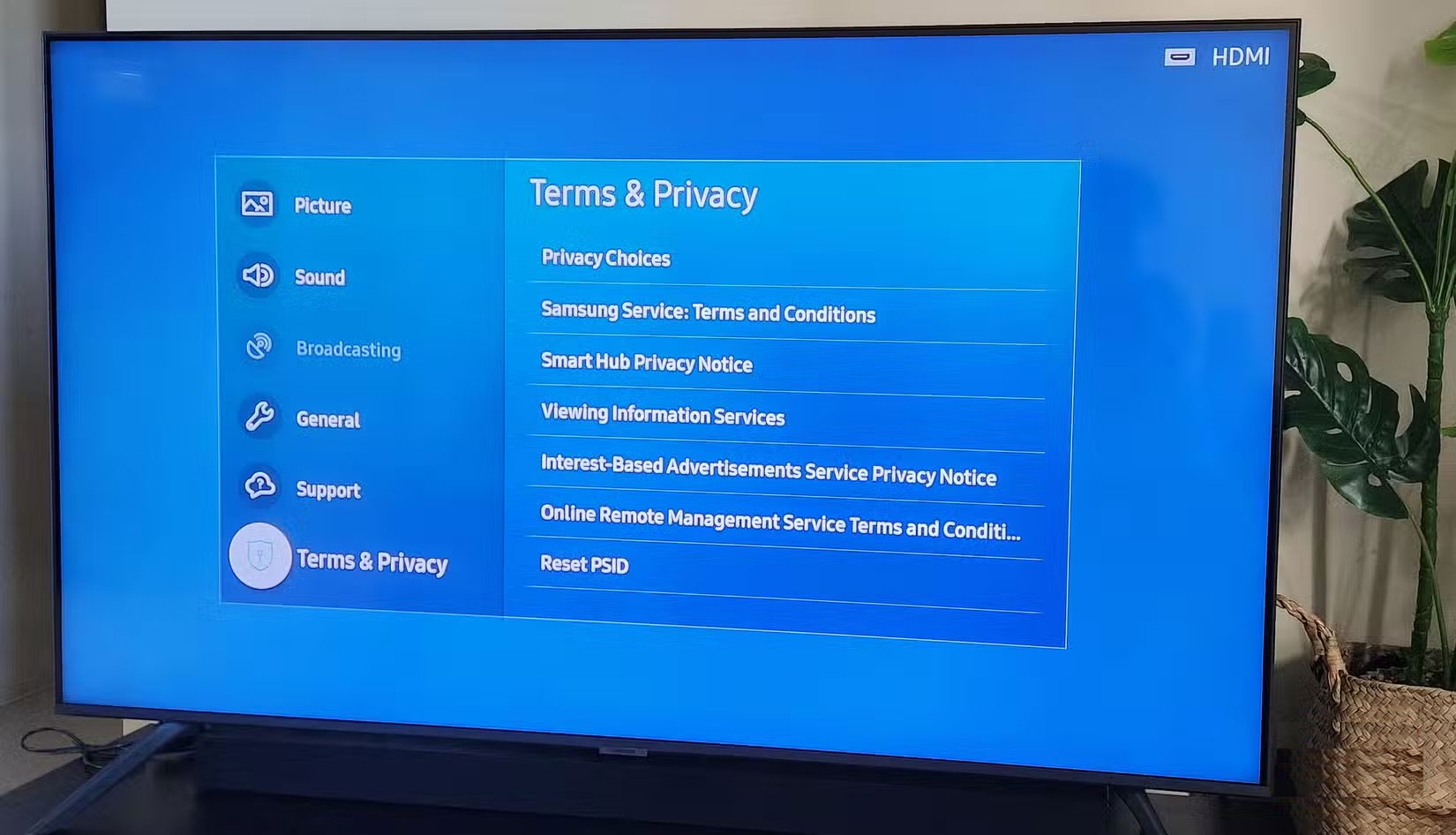
- Open Settings and look for Privacy, Terms and Privacy, or Viewing Data. Check the manual for your exact model if the labels differ.
- Turn off viewing recognition and review ad personalization separately. These settings control different uses of data.
- Check voice wake-up and voice history if your model supports voice control. If you do not use the assistant, disable it in the TV’s settings.
- Review watch history and privacy controls inside each streaming account. A TV setting does not change what you previously shared with an app.
Decide whether the TV needs to be online
If you use only HDMI sources, you can disconnect the TV from the network after checking how the manufacturer supplies firmware updates. Built-in streaming and network features will stop working. A separate streaming device still has its own data settings. See other smart TV settings to review.





Reader Comments 0
Sign in with email or Google to join the discussion.