Table of Contents
This guide covers hp's 2009 winter laptop collection with practical context and easy-to-follow details. Use it to understand the subject and apply the information confidently.
Among the world's upcoming Windows 7 products, three laptops have never been announced, such as the Pavilion dv3 TouchSmart with a 13. 3-inch touchscreen . There is also a thin 11. 6-inch Pavilion dm1 equipped with CULV power-saving chip and Pavilion dv8 with 18. 4-inch screen using Core i7 chip.
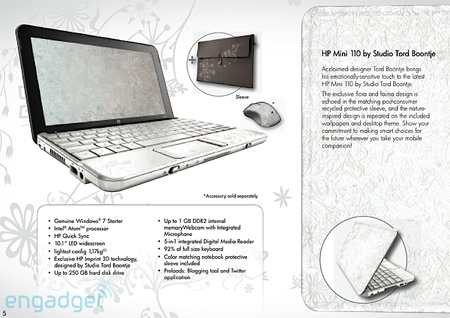 Netbook HP Mini 110 uses Windows 7 Starter, Atom chip, 250 GB hard drive, 1 GB RAM, 5 in 1 card reader, 92% standard size keyboard.
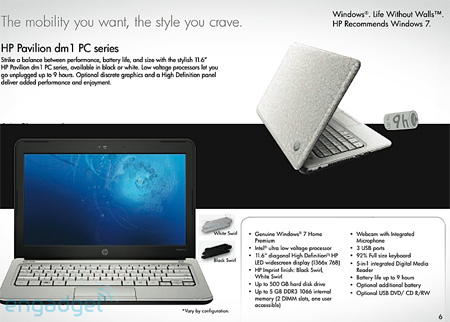 Pavilion dm1 11. 6 inch screen with hard drive up to 500 GB, 5 GB DDR3 RAM, 9-hour battery life and Windows 7 Home Premium operating system.
 Entertainment laptop HP Pavilion dv6 (15. 6 inch, 500 GB hard drive, 4 GB RAM, Use Intel or AMD chips).
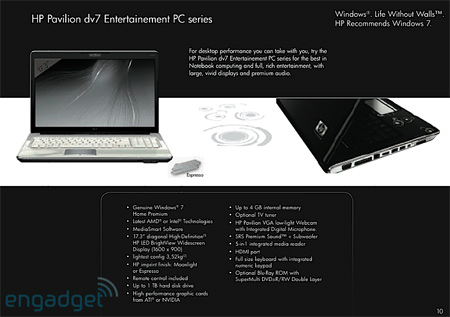 HP Pavilion dv7 (17. 3 inches, 1 terabyte hard drive).
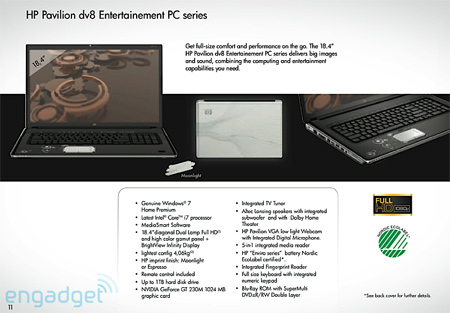 HP Pavilion dv8 has an 18. 4-inch screen, Core i7 1. 6 GHz chip, 4 GB RAM (Can be upgraded to 8 GB), 1 GB GeForce GT230 graphics, 640 GB hard drive, Blu-Ray drive and Altec Lansings speaker.
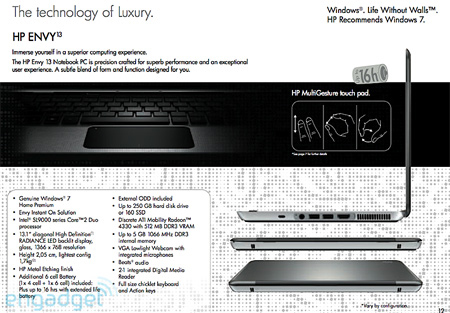 HP Envy 13.
 HP Envy 15.
 Series of notebooks use HP TouchSmart tap screen technology.
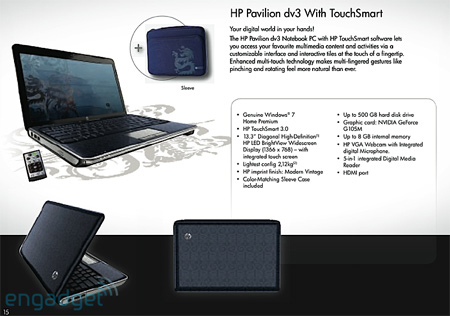 Including a Pavilion dv3 version with TouchSmart technology.
FAQ
What should I check before following these steps?
Confirm device and software compatibility, save important data, and make sure you have the required permissions, files, and account access.
Why might the process not work?
Common causes include outdated software, missing permissions, incompatible hardware, an unstable connection, or completing a step in the wrong order.
Can I undo the changes if necessary?
That depends on the tool or setting. Use built-in restore options when available, keep a backup, and record the original configuration first.
Related Articles
 Winter Statuses for Those Who Are Alone11 minutes read
 Interesting Facts About Winter Solstice4 minutes read
 Good Status Sentences and Meanings for Winter: Warm Winter Stt4 minutes read
 Should Doors Be Left Open in Winter?5 minutes read
 Some Diseases Are Common in Winter and Prevented: Winter Disease6 minutes read
 32 Marvelous Scenes Like Fairy Tales Can Only Appear in the Cold Winter5 minutes read
Reader Comments 0
Sign in with email or Google to join the discussion.