Table of Contents
Learning how to use start11 to completely overhaul Windows 11 doesn't have to be complicated. This updated guide presents a clear workflow, practical checks, and troubleshooting advice you can use while completing the process.
Key Takeaways
- Review get started with start11.
- Explore customize the start menu.
- Learn how to change start button.
Get Started with Start11
The Windows 11 customization tool, Start11, offers a free trial and then charges a one-time fee of $9.99. There is a multi-device plan if you want to use it on multiple devices. The best part is that the free trial lasts for 1 month, so you can try it out and decide if it's worth the money based on the features you like.
We recommend starting with the free trial. To do so, open the Stardock website, download Start11, and run the setup. Once installed, activate the trial and you can start customizing Windows.
Customize the Start Menu
The Start menu in Windows 11 has been completely redesigned. In Windows 10, it was left-aligned, had pinned apps and recent files, and included live tiles. The new design is now centered and does away with the live tiles. Many people liked the old look better, so they went back to the Windows 10 style.
Follow these steps: This helps you customize the Start menu using Start11.
- Open the Start Menu tab in the left sidebar.
- Select Windows 10 style from the right pane.
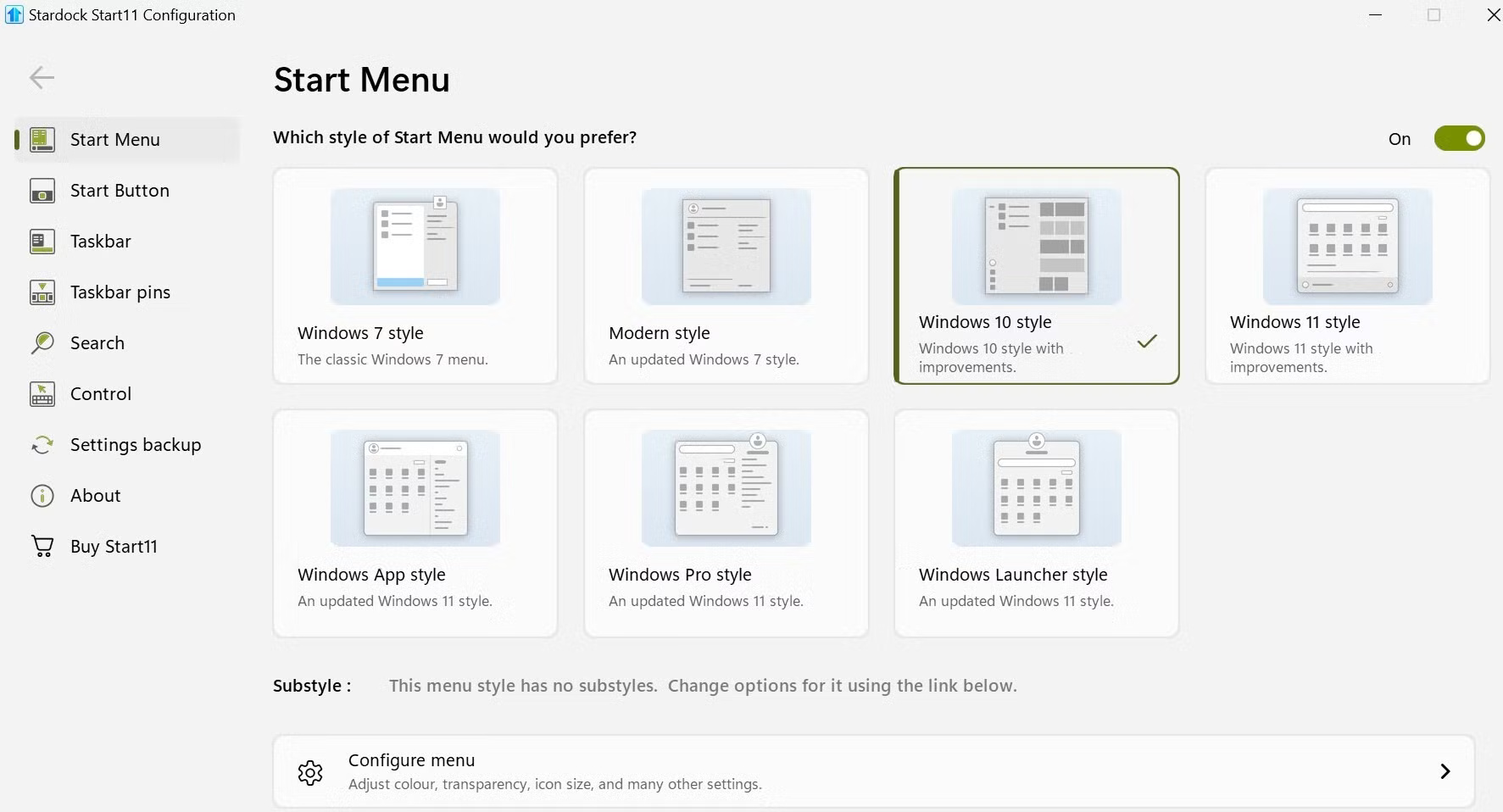
Now, click the Start button to see the changes in real time. You can also explore other Start menu styles and use them if you want. By clicking Configure menu at the bottom, you can also customize the look by adjusting the color, transparency, icon size, and other settings.
Change Start Button
Start11 also allows you to customize the Start button, a feature that isn't available by default on Windows. You can choose from the icons in the app or upload your own icon by clicking the Pick image button. The app will automatically resize the icon to match your version of Windows, and you can even download images from an online gallery.
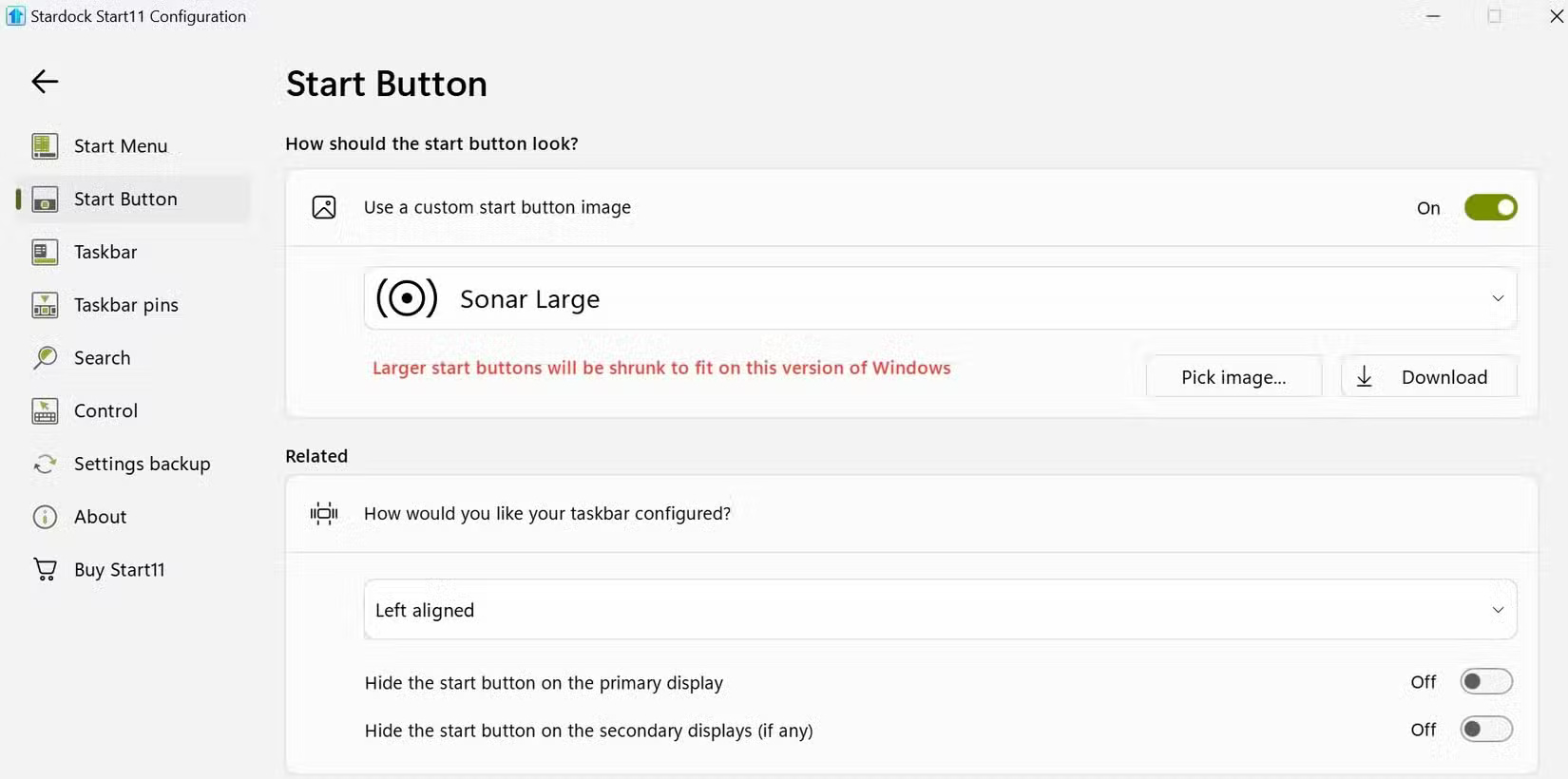
You can also adjust the taskbar alignment via the Related settings found here. You can do so now if you didn't change the default position of this button when you set up Start11. Open the drop-down menu and select your preferred taskbar position.
Tweak the Windows Taskbar
Start11 offers a wide range of customization options to tweak your Windows taskbar. You can reposition and resize the taskbar, change its color, adjust its transparency, display seconds on the taskbar clock, and even apply custom textures for a unique look. You can also add rounded corners to the taskbar and adjust the settings related to this feature for further customization.
The app also offers automatic customization. Turn on the toggle next to Let Start11 enhance the taskbar and click Configure enhanced taskbar to access additional settings. This helps you enable this feature.
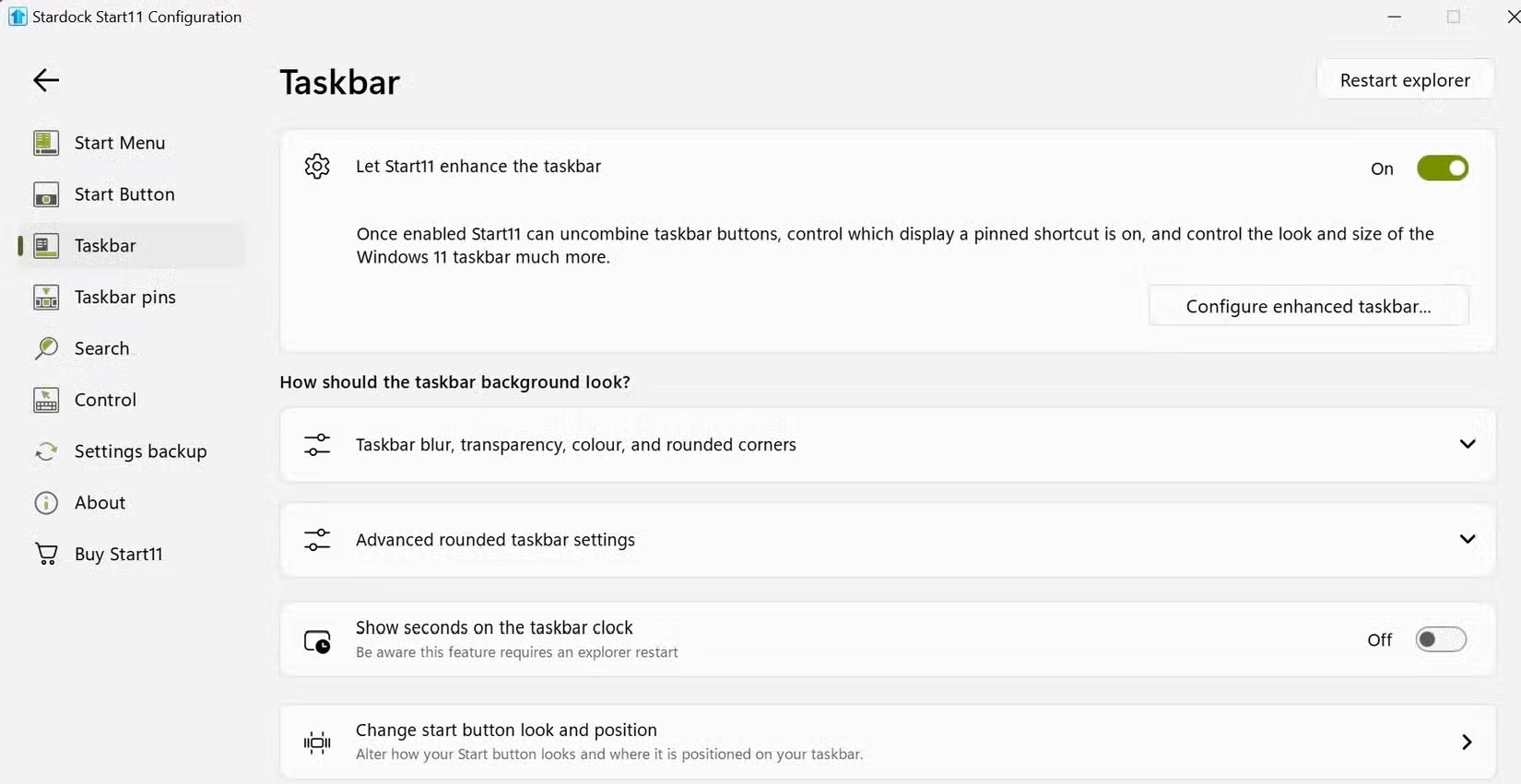
Here you can adjust the appearance of the taskbar buttons, manage how they combine, and more. You'll have to restart Windows Explorer for the changes to take effect.
Pin Documents and Folders to the Taskbar
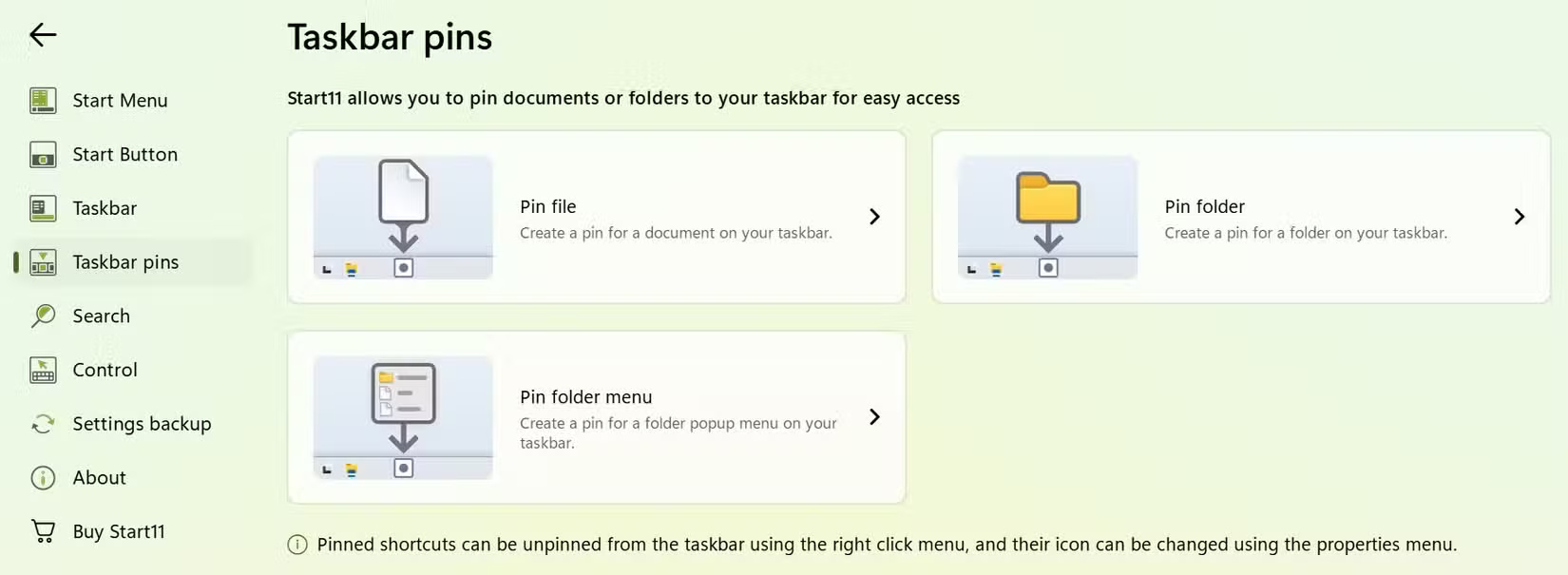
The most useful feature in Start11 is the ability to pin documents and folders to the taskbar. Start11 makes the process much simpler while Windows offers alternatives for this. You can pin individual documents, entire folders, or even a folder pop-up menu that provides quick access to subfolders.
This feature allows you to open important files and folders with just one click. Here's how you can use it:
- Open the Taskbar pins tab from the left sidebar.
- Click Pin file, select the document and the document will be pinned.
- Click Pin folder and select the desired folder. This helps you pin a folder.
- Click Pin folder menu and select a main folder with subfolders. This helps you create a folder pop-up menu.
Customize Control Settings
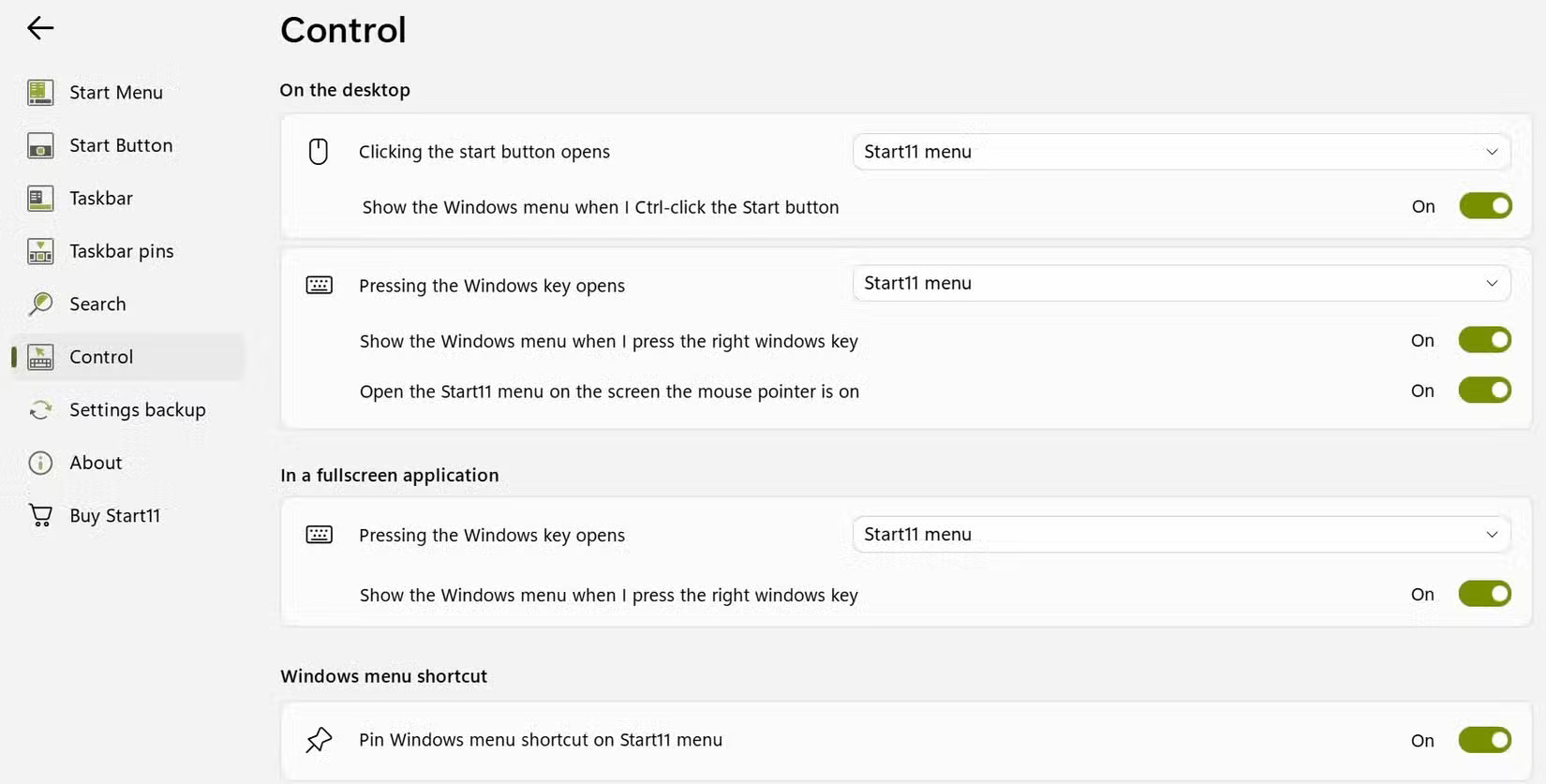
Start11 also includes a number of control settings that let you customize how the Start button and Windows key behave. For instance, you can choose what happens when you click the Start button or press the Windows key. Additionally, you can configure the Windows menu to appear when you hold down Ctrl and click the Start button or press the right Windows key.
There are also separate options to control what happens when you press the Windows key while in a full-screen app, and whether the Windows menu appears when you press the right Windows key.
Follow the steps below to adjust these settings:
- Open the Start11 application.
- Navigate to the Control tab in the left sidebar.
- Under On the desktop, customize the controls when you're on the desktop.
- Under In a fullscreen application, modify the controls for full-screen applications.
Change Windows Search to Start11
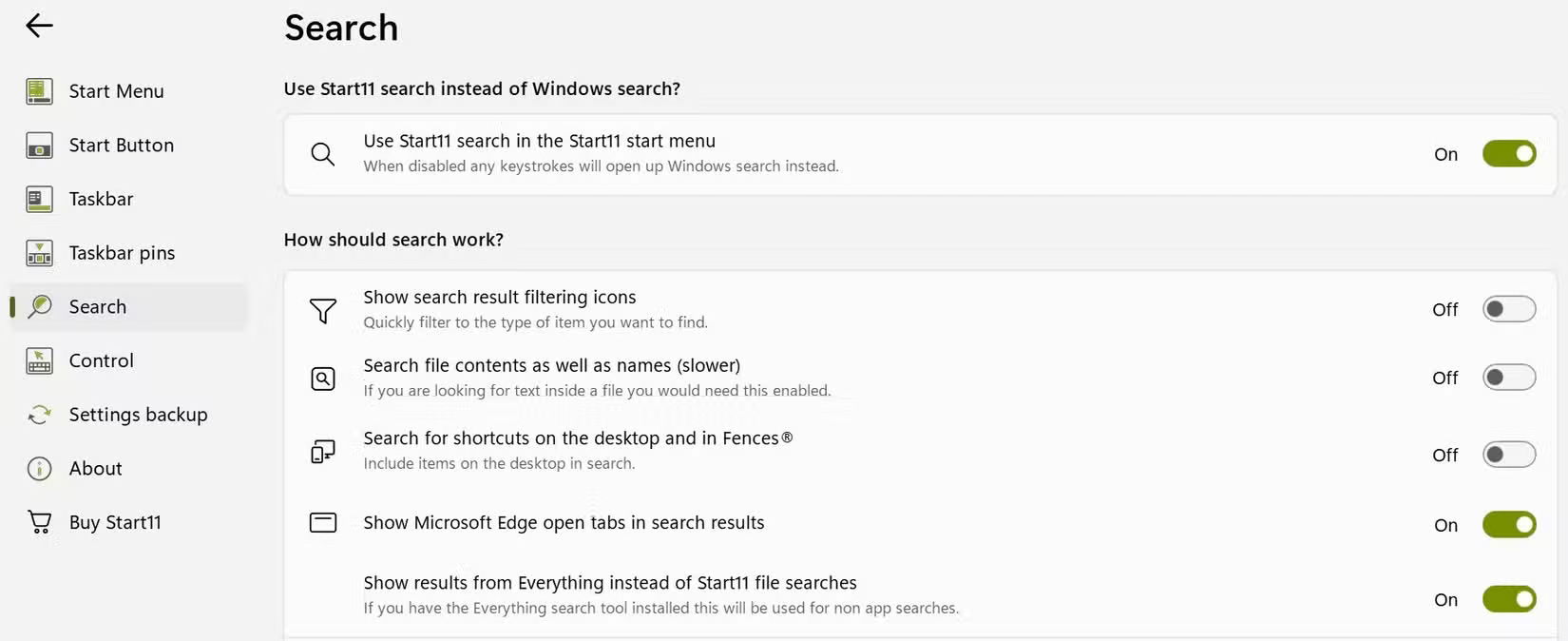
Start11 also allows you to replace the default Windows Search with your own search feature. This feature comes with additional features that are not available in the original Windows Search. It allows you to filter results by item type, search for text in files, and even show open Microsoft Edge tabs in search results.
Open the Search tab on the left and turn on the toggle next to Use Start11 search in the Start11 start menu. This helps you apply these changes. From there, you can enable or disable any features you want to use or ignore. For instance, you can enable the option to search for content along with the file name to find specific text in a document.
Click the Clear Search History button to clear it and you're good to go if you want to keep your search history private.
Create a Backup of Start11 Settings
You should back up your settings by exporting them to a file and saving them locally after configuring the Start11 application. This allows you to restore your preferences if you reset your settings or reinstall Windows. This feature is also useful if you have set up Start11 on one computer and want to replicate the same configuration on another device.
Here's how you can backup your Start11 settings:
- Navigate to the Backup Settings tab on the left.
- Click Backup settings to a file and choose a location to save.
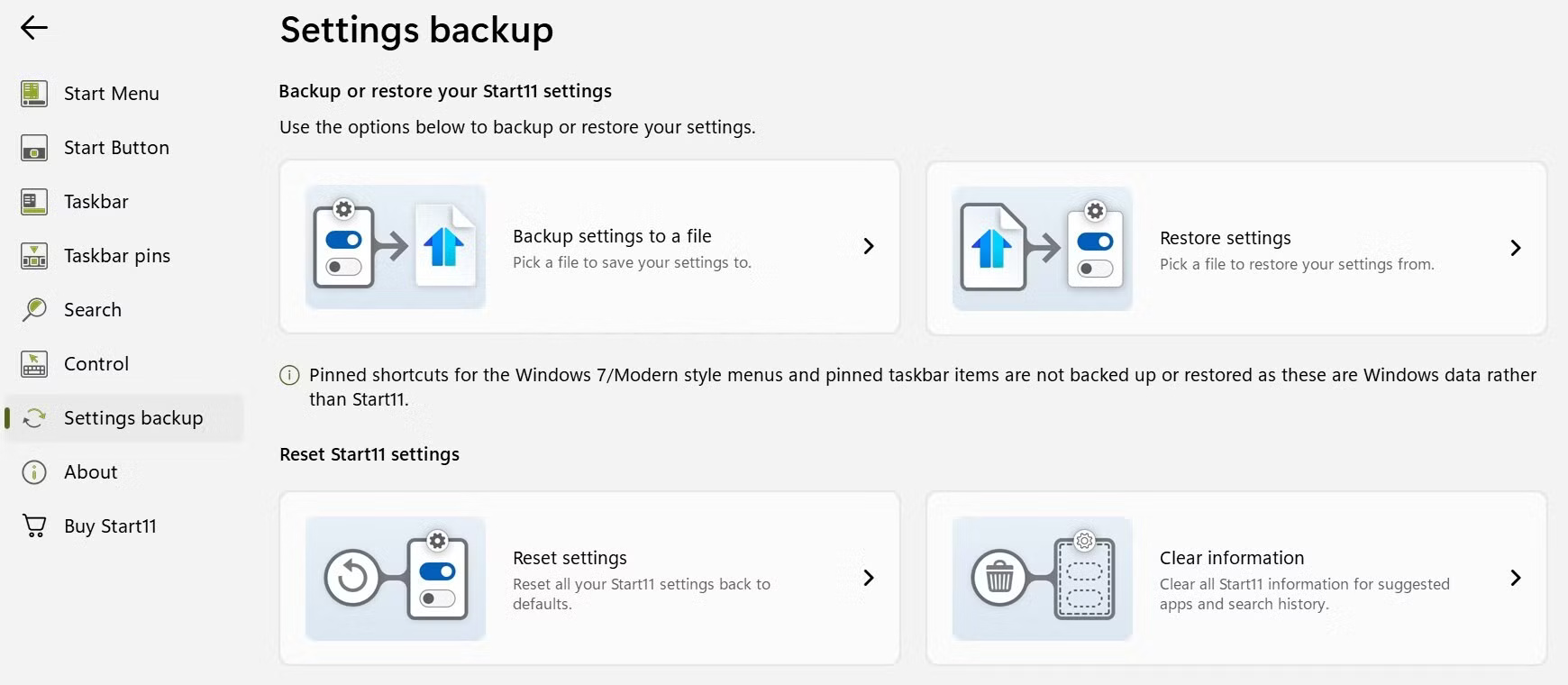
Click Restore settings, select the backup file, and your Start11 settings will be restored without having to reconfigure everything from scratch. This helps you restore your settings later. Click Reset settings to return to the default configuration if you want to undo all the changes.
That's how Start11 helps you customize your Windows 11 interface! Try the trial version and if you find it useful, you can pay a one-time fee to continue using Start 11.
Final Thoughts
The most reliable way to handle use start11 to completely overhaul Windows 11 is to follow the process in order, verify each important setting, and test the result before moving on. Use the guidance above as a practical reference, then adjust the details for your device, software version, or specific goal.
FAQ
What should I check before I use start11 to completely overhaul Windows 11?
Use the latest available software, confirm that your device meets the requirements, and make sure you have the necessary permissions, account access, or backup before changing anything.
Why might I be unable to use start11 to completely overhaul Windows 11?
Common causes include outdated software, missing permissions, incompatible settings, incomplete setup steps, or a temporary network problem. Recheck the process from the beginning and restart the app or device if needed.
Is it safe to use start11 to completely overhaul Windows 11?
It is generally safe when you use official tools, review every permission, and back up important data before making system-level or account-level changes.
Related Articles
 11 Useful Windows Apps That Don't Come Pre - Installed7 minutes read
 Essential Mods That Make Windows 11 More Useful7 minutes read
 YouTube Is Updating Its New Web Interface, Users Are 'Going Crazy' Explained4 minutes read
 Steam Opens New Start Menu ''mod'' for Sale for Windows 114 minutes read
 How to Turn Off Windows Defender Completely on Windows 104 minutes read
 How to Uninstall the Driver Completely on Windows4 minutes read
Reader Comments 0
Sign in with email or Google to join the discussion.