Table of Contents
This updated guide examines How to Secretly Chat in Fileroom.io and organizes the essential facts, background, and practical takeaways in clear American English.
Thus users can connect to many people in the same office. In addition, FileRoom.io also supports sharing files to an object in the chat room with up to 2GB. All chat history is completely confidential so you can safely use. The following article will guide you how to read private chats on FileRoom.io.
- 5 fast and free web applications for transferring large files
- How to use Safer.chat to create a secure chat room
- How to create a secret chat room with Xifrem
- How to chat privately with zhoo.app
Guide private chat on FileRoom.io
Step 1:
We access the link below to go to the homepage of FileRoom.io to get our own chat room. Your name will be set by FileRoom.io and we cannot change it unless we reload the page
https://fileroom.io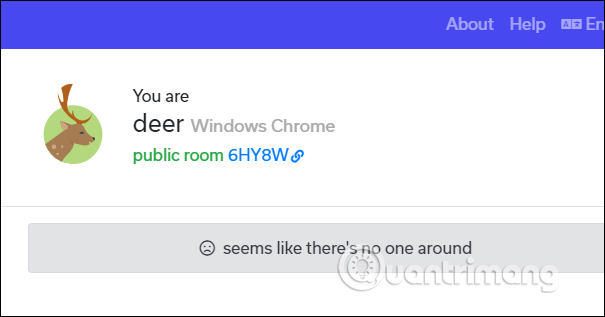
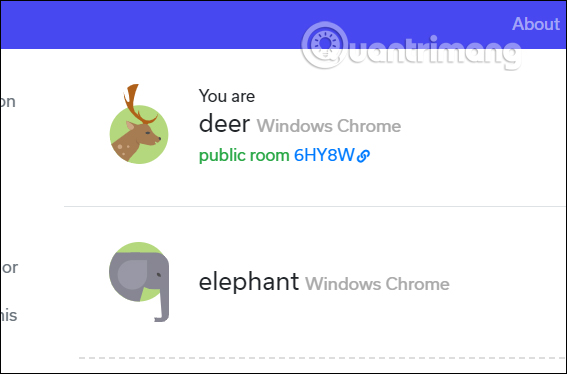
We'll copy the chat room address in the address bar and send it to the person you want to chat with. When they access the chat room also receives their representative name.
Now you will see the member name joining your chat room via the sent link.
Step 2:
The right side shows the chat frame for you to message with members of the chat room. When members send messages will be displayed in a separate chat frame for everyone to see.

Step 3:
To share files to everyone , we click on the Send to all section to select the mode to send, then display the folder on the computer to select the files you want to send.
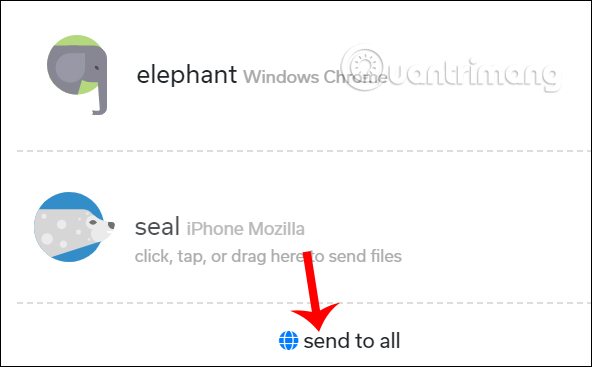
Shortly thereafter the process of downloading files and sending files to all members of the chat room is conducted.
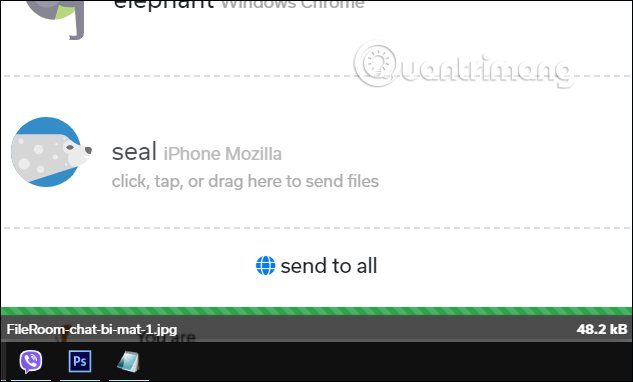
Members of the group will have the option to download or refuse to receive files. When sending multiple files, the file is automatically compressed into a.zip file.
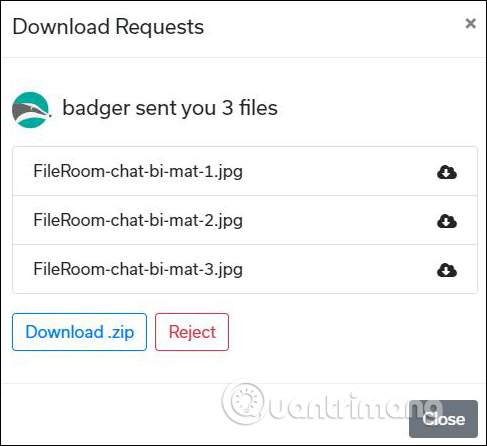
In case the user wants to share a file to a member of the chat group, simply click on the person's name and also display the folder to select the file to share.
Finally, if you no longer want to join the chat room, just close the tab.
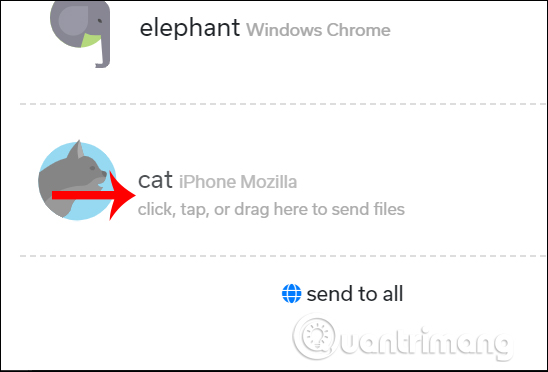
In general, FileRoom.io offers a fast way to message and chat on many different devices, without the need for an account or a platform. Sending files through FileRoom.io is not limited in format so the exchange is also more convenient for team members.
I wish you successful implementation!
FAQ
What is How to Secretly Chat in Fileroom.io about?
It provides a structured overview of FileRoom.io, explains the main context, and highlights practical takeaways for readers.
Why does this topic matter?
Understanding the main concepts helps readers evaluate the issue, avoid common mistakes, and make better-informed decisions.
How should readers use this information?
Use the guidance as a practical starting point, confirm details that may have changed, and follow current product, safety, or security recommendations.
Related Articles
 How to Secretly Track Someone by Phone Number8 minutes read
 How to Turn Off Chat on Gmail: How to Turn Off Chat Gmail4 minutes read
 How to Use Multiple Chat Applications on the Same Window: Franz7 minutes read
 How to Secretly Record with iPhone7 minutes read
 How to Use Safer.chat to Create a Secure Chat Room3 minutes read
 Chat with 5 Unique Chat Robots for Android8 minutes read
Reader Comments 0
Sign in with email or Google to join the discussion.