Table of Contents
This practical guide explains how to get started and set up Samsung galaxy watch. Follow the steps in order, review the requirements first, and use the troubleshooting notes when a setting or option does not work as expected.
If you're looking for a manual for your Galaxy Watch, you can find it by entering your model number on the Samsung Support page.
Connect to Android or Samsung phone
Here's how to pair your Galaxy Watch with your Android phone:
- Download the Galaxy Wearable app from the Google Play Store.
- Open the Galaxy Wearable app on your phone, tap Start the Journey , then select Galaxy Watch.
- Your phone will start searching for your Galaxy Watch. Once found, you'll see the passcode displayed on both your Galaxy Watch and your smartphone. Tap OK on both devices.
- The app will pair your Galaxy Watch with your smartphone. Once complete, you'll be able to see the How to Use feature. (Make sure you agree to the terms and conditions when they appear.)
Connect to iPhone
How to pair Galaxy Watch with iOS phone as follows:
- Download the Galaxy Wearable app from the iOS App Store.
- Open the Galaxy Wearable app on your phone. Tap Start the Journey and select Galaxy Watch. Once you find your Galaxy Watch, tap Connect . When prompted, tap Pair .
- If your Galaxy Watch isn't showing up on your phone, check that Bluetooth is turned on on your Galaxy Watch and that it isn't connected to any other phones.
- Review and tap Agree with the options, then tap Done . The Galaxy Watch is now connected to the Galaxy Wearable app on your phone.
- Now you're done. You can follow the instructions on your Galaxy Watch or tap Skip.
Connect to Wi-Fi network
PLEASE NOTE : If your Galaxy Watch is connected to your phone via Bluetooth, Wi-Fi will automatically turn off.
You can manually connect to a Wi-Fi network using the steps below.
1. From the home screen, press the Home key.
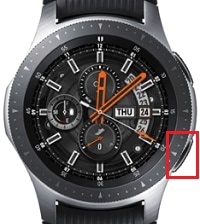
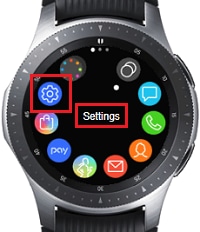
2. Tap Settings.
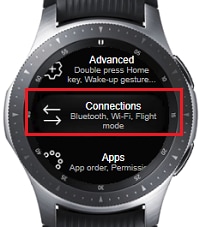
3. Click Connections.
4. Tap Wi-Fi.
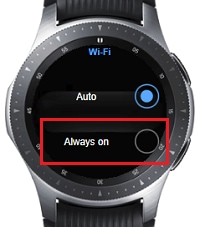
To manually connect to a Wi-Fi network, Wi-Fi must be set to Always on .
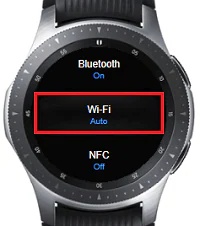
To manually connect to a Wi-Fi network using your watch, Wi-Fi must be set to Always on .
5. Tap Wi-Fi again if Auto or Always off is displayed. If Always on is displayed, go to step 8.
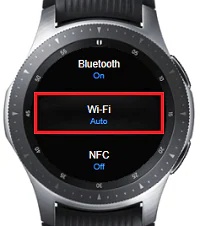
6. Tap Always on.
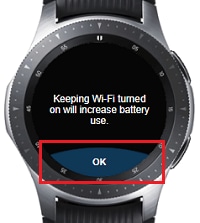
7. Click OK.
8. Tap Wi-Fi networks.
9. Tap the Wi-Fi network you want to connect to.
10. If prompted, enter the Wi-Fi password or tap Connect.
Connect Bluetooth headset
PLEASE NOTE : Galaxy Watch can only connect to Bluetooth headphones and needs to be set to discoverable mode before continuing.
To connect Bluetooth headphones, you need:
1. From the home screen, press the Home key.
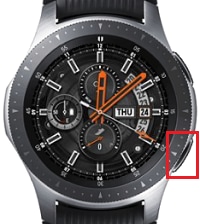
2. Tap Settings.
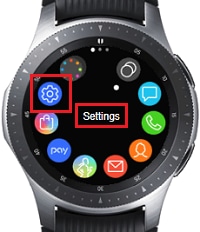
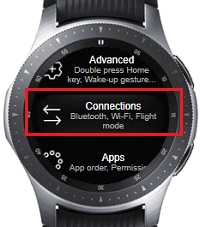
3. Click Connections.
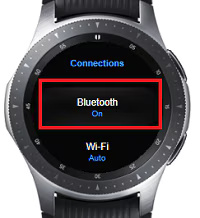
4. Tap Bluetooth.
5. Press BT Headset.
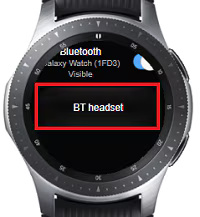
6. Your Galaxy Watch will scan for nearby Bluetooth devices.
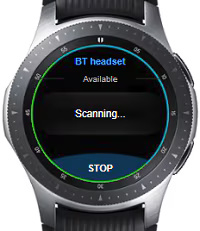
7. Tap the device you want to connect to.
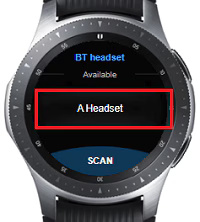
Add application
To add apps to your Galaxy Watch, you need to:
1. From the home screen, press the Home key.
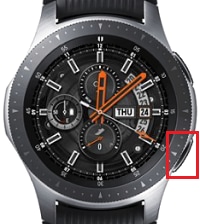
2. Tap the Galaxy Apps icon.
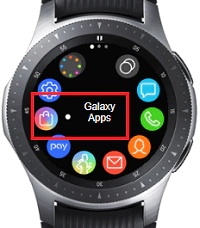
3. Click Search.
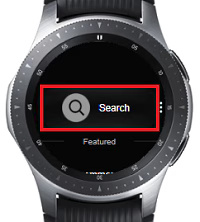
4. Enter the name of the app you want to download, then tap the search button on the keyboard
PLEASE NOTE : This example selects Spotify.
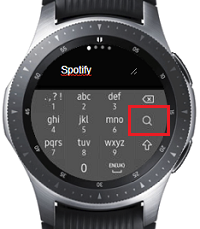
5. Tap the app you want to download from the search results list.
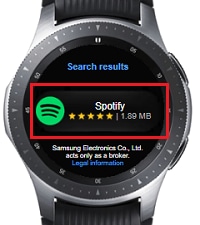
6. Click Install .
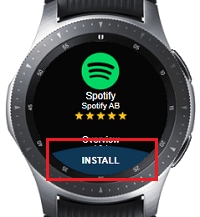
7. Some apps will ask for permissions from your watch. Read the terms carefully and if you want to continue, tap the check mark.

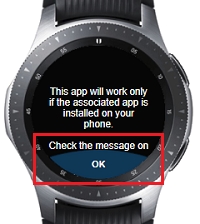
8. Some apps require you to install a related app on the connected device. Make sure you have installed this app on your phone before continuing, then tap OK .
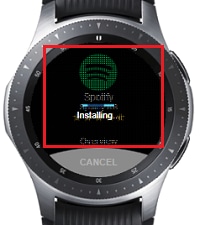
9. The app will be downloaded and installed on your watch.
Uninstall the application
To uninstall the app, you need to:
1. From the home screen, press the Home key.
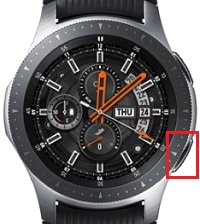
2. Press and hold the app you want to uninstall.
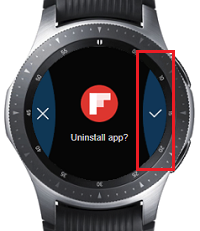
3. Tap the uninstall icon above the app you want to uninstall.
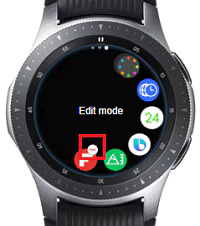
4. Tap the check mark icon to confirm uninstalling the app.
Email Setup
NOTE : You will need to use the Galaxy Wearable app to set up an Email account on your Galaxy Watch.
To set up an Email account on your Galaxy Watch, you need to:
1. From the home screen, select Apps or swipe up to access apps.
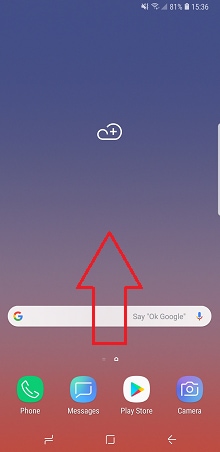
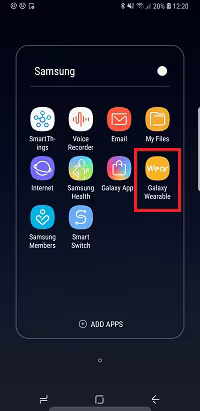
2. Open the Samsung Wearable app on your phone.
You can find this app in the Samsung folder if it was installed. If you don't find it in the Samsung folder, you may need to tap more apps before continuing. Otherwise, you can download it from the Play Store or Galaxy Apps.
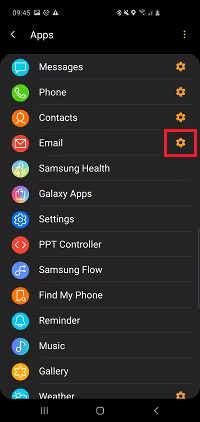
3. Tap Apps .
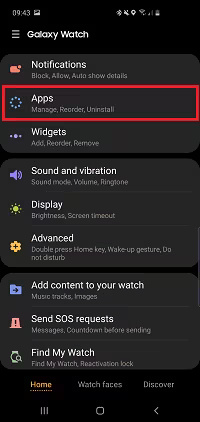
4. Click the Email settings gear icon.
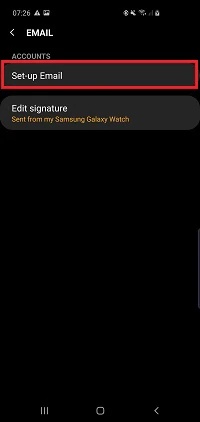
5. Click Set-up Email.
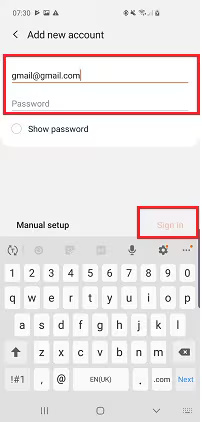
6. Enter your email address and password, then click Sign in.
Depending on your device, you may be automatically redirected to your email provider's login page.
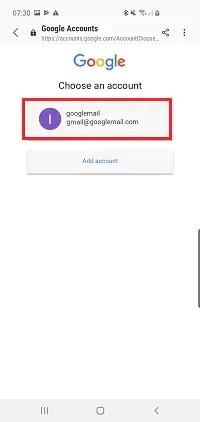
7. select the email account you want to use
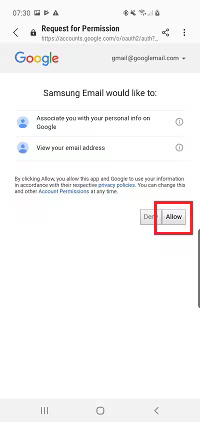
8. Click Allow to accept email permissions
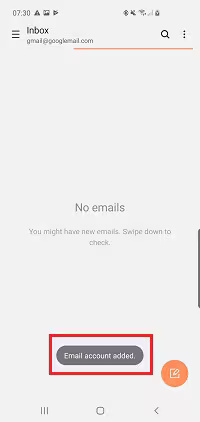
9. Your email account will be added.
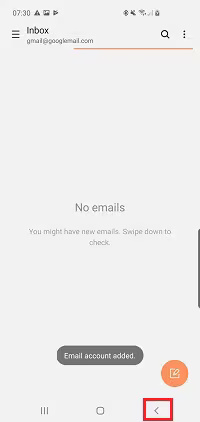
10. Press the back button on your device.
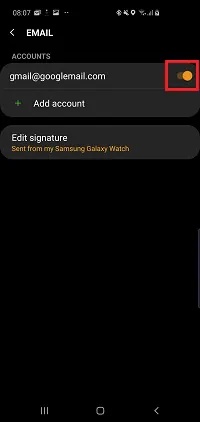
11. Use the toggle next to your email account to turn it on or off.
Adjust screen brightness
To adjust screen brightness, you need to:
1. From the home screen, press the Home key.
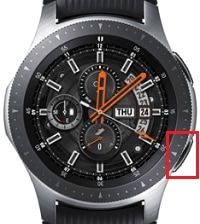
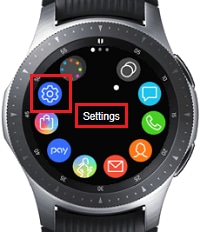
2. Click Settings .
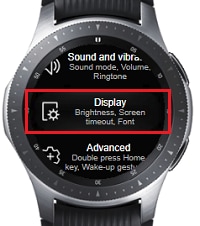
3. Press Display.
4. Tap Brightness.
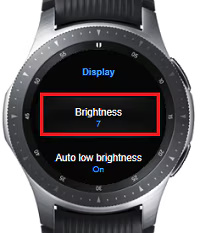
5. Adjust the brightness by rotating the bezel.
Set date and time
NOTE : If your watch is connected to a mobile device, the date and time will be set automatically. You can only set the date and time manually if you are using the watch without connecting to a mobile device.
To set the date and time manually, you need:
1. From the home screen, press the Home key.
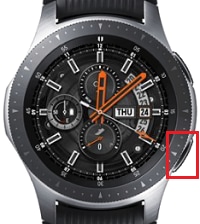
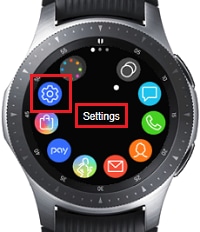
2. Tap Settings.
3. Click General.
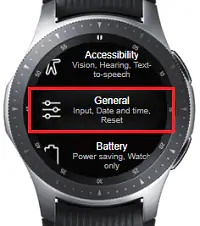
4. Click Date and time.
5. Click Set date.
6. Adjust the date by tapping the day, month, and year, then rotating the bezel. When finished, tap Done.
7. Press Set time.
8. Adjust the time by tapping the hour and minute values, then rotating the bezel. When finished, tap Done.
Install and setup Spotify
Follow the steps below to install Spotify on your Galaxy Watch:
1. To install Spotify, rotate the bezel on your Galaxy Watch until you reach Galaxy Apps, then select Apps .
2. Select Entertainment , then tap Spotify
3. Click Install and accept the permission request by clicking the check mark.
4. Once Spotify is installed on your Galaxy Watch, make sure it's also installed on your smartphone (go to the Google Play Store or App Store and follow the instructions) and you're good to go.
If you experience unusual issues on your Samsung mobile phone, tablet, or wearable, you can submit an error report or ask a question in the Samsung Members app.
FAQ
What should you know about connect to Android or Samsung phone?
Here's how to pair your Galaxy Watch with your Android phone:
What should you know about connect to iPhone?
How to pair Galaxy Watch with iOS phone as follows:
What should you know about connect to Wi-Fi network?
PLEASE NOTE: If your Galaxy Watch is connected to your phone via Bluetooth, Wi-Fi will automatically turn off.
What should you know about connect Bluetooth headset?
PLEASE NOTE: Galaxy Watch can only connect to Bluetooth headphones and needs to be set to discoverable mode before continuing.
Related Articles
 6 Best Features of Samsung Galaxy Watch 66 minutes read
 11 Best Samsung Galaxy Watch Apps9 minutes read
 Best Apps for Samsung Galaxy Watch4 minutes read
 Samsung Announces Galaxy Watch FE: Samsung's New Budget-Friendly4 minutes read
 12 Best Samsung Galaxy Watch Apps8 minutes read
 Is Samsung Galaxy Watch Waterproof: Key Facts7 minutes read
Reader Comments 0
Sign in with email or Google to join the discussion.