Table of Contents
This updated guide explains how to Get Espn3 through clear steps, practical examples, and important checks that help prevent common errors.
Part 1 of 2:
Accessing ESPN3
-
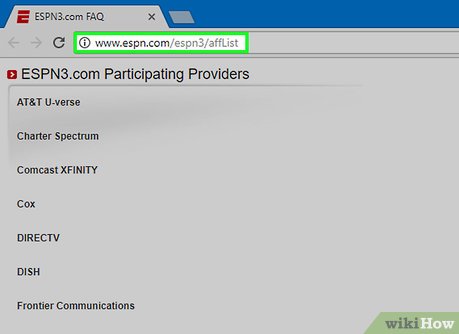 Subscribe to a participating Internet or TV service provider. You'll have to have one of these plans to access ESPN3. Check the list of providers at http://www. espn. com/espn3/affList. This list also pops up when you attempt to watch a video at WatchESPN. For more details, contact service providers in your area or visit their websites.[1]XResearch source
- Providers package ESPN3 with some services, such as TV channel bundles that include ESPN.
- For example, services including AT&T, Spectrum, and DirectTV are some common service providers that offer ESPN3.
-
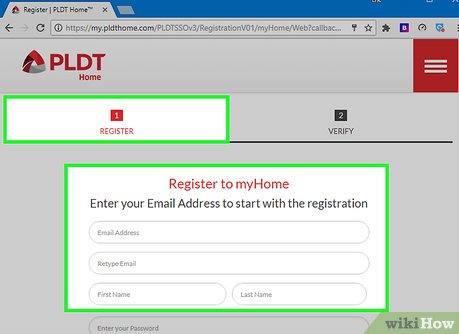 Set up an online account on your provider's website. Find a 'My Account' or 'Sign In' option on the front page of your provider's website. If your provider didn't set up an account for you, you'll have to do it manually. Enter a username, your account number, and password to set up your provider account credentials.
- This username and password is what you'll use to login to ESPN3.
-
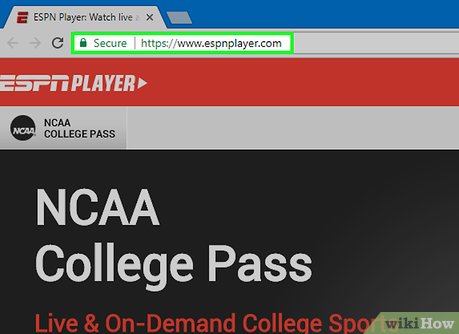 Visit the WatchESPN website to watch videos. Visit http://www. espn. com/watch/ to access the ESPN3 service. On the front page, you'll see a list of live and upcoming shows you can watch after logging in. There are also plenty of clip shows and highlight videos you can view for free to give the service a test run.[2]XResearch source
 -
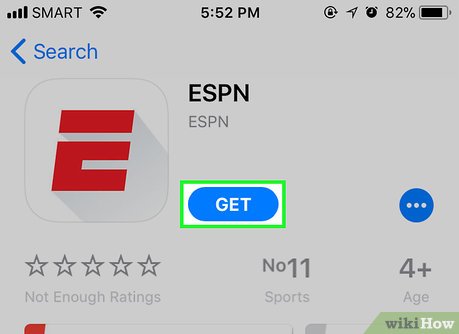 Download the WatchESPN app for mobile devices. The app allows you to stream sporting events on your phone or tablet. Search for WatchESPN in the Apple or Google Play store. You'll still need a qualifying TV or Internet plan to access content, so you won't have any luck getting the app to work unless you subscribe to one.
 -
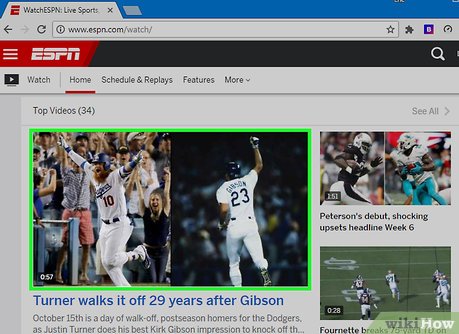 click a WatchESPN video. When you open the website, any live event videos will have key icons next to them. They're still locked and cannot be viewed, but for now pick one of them to bring up the login prompt. On mobile, it should appear when you open the app, but if it doesn't, tap on a video.
 -
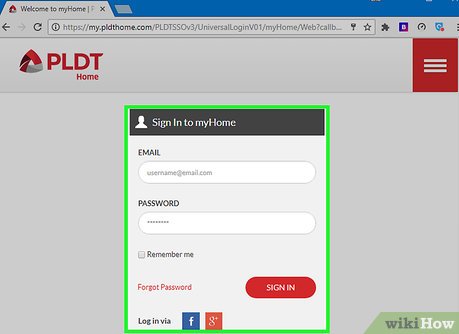 Log into your TV or Internet provider account. Choose your TV or Internet service provider from the list displayed in the on-screen login prompt. Input the username and password from the provider account you registered earlier. Kick back and enjoy the game![3]XResearch source
Part 2 of 2:
Troubleshooting Technical Problems
-
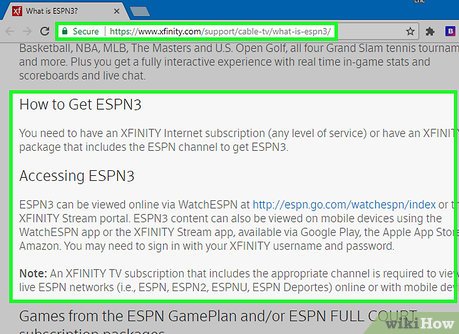 Verify that your TV package includes ESPN3. TV companies offer varying subscription plans, some of which don't include ESPN3. If ESPN3 rejects your provider account, consult the details of your service contract. Visit your provider's website or call them to discuss your options.[4]XResearch source
- Typically you will need a package that includes ESPN to access ESPN3.
-
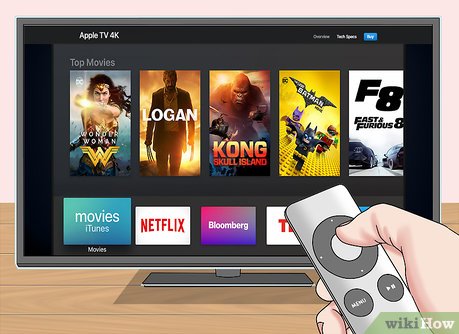 Subscribe to a TV service to operate streaming media devices. ESPN3 is available outside of computers and mobile devices, but you are still required to have a valid TV service. Visit the channel store on your smart TV, streaming device, or video game console to download WatchESPN and log in. You won't be able to log in with an account from an Internet service provider.[5]XResearch source
- Platforms this currently applies to are Apple TV, Roku, Google Chromecast, Amazon Fire, and the Playstation 4.
- ESPN3 cannot currently be purchased as a standalone channel.
-
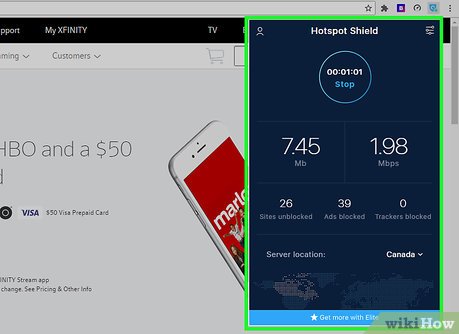 Set up a proxy IP address when you travel outside the US. ESPN3 detects the IP address of your device and blocks you out when you're outside the US. A proxy IP address can get you around this technicality. As long as the IP address is located in the US, ESPN3 will accept your login credentials.[6]XResearch source
- You can do this by installing or enabling a VPN.
-
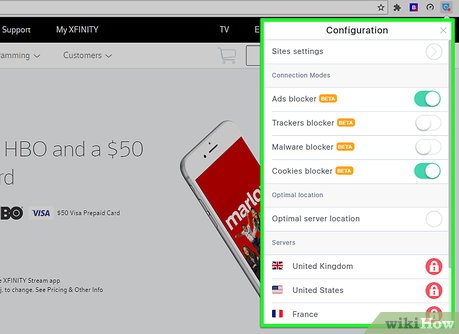 Determine if an event you can't access is blacked out. Nationally televised sporting events in your area cannot be viewed through ESPN3. You'll receive an error message when you attempt to play the video. Watch these events through a television channel.[7]XResearch source
- VPN services and proxy IP addresses can also solve this problem.
-
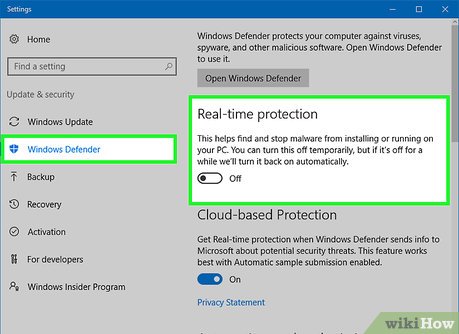 Disable content filters if videos won't play. All you see is a blank screen even after waiting. This is due to a hardware issue. Open your antivirus software and disable it. You may have also enabled a content filter which blocks videos, so open your browser or device settings. Find the 'content filter' setting and make sure it's turned off.[8]XResearch source
- Some desktop browser extensions block videos from starting. Try disabling them in the settings menu.
- One way to test for this problem is to view highlight and interview videos. These are free on the 'Features' tab on WatchESPN, so you won't need to log in.
-
 Contact your service provider to fix error messages. After all that, an error message may still cover over the ESPN3 content. This is a problem with your service or hardware. Get in touch with your TV or Internet provider's customer service department. With any luck, they'll quickly find the problem and figure out a way to fix it.[9]XResearch source
FAQ
What is the easiest way to Get Espn3?
Start with the requirements in this guide, then follow each step in order. Check the result after every major change so problems are easier to identify.
Can beginners follow these instructions?
Yes. The process is organized into practical steps, and you can repeat any step before moving forward.
What should I check if the method does not work?
Confirm your software or device version, permissions, settings, file format, and internet connection when the task depends on online services.
Related Articles
 How to Play Pokémon GO on a Computer6 minutes read
 How to Play Pokémon GO on a Smartphone6 minutes read
 26 Types of Poké Balls Explained: Part 25 minutes read
 How to Earn and Use Stardust in Pokémon GO5 minutes read
 Pokémon GO Eggs: Incubation and Hatching Guide4 minutes read
 26 Types of Poké Balls Explained: Part 18 minutes read
Reader Comments 0
Sign in with email or Google to join the discussion.