Table of Contents
This guide explains how to find antivirus & mobile security spyware using a clear, step-by-step process. It also highlights the settings and checks that can help you avoid common errors.
Google Play Store is becoming less and less secure, when a series of applications are found to be infected with malicious code, trojans and viruses. No matter how carefully you check it before installing it, you can still have a very high rate of virus infection. Currently fake applications, steal information quite a lot on the app store. And if users does not check carefully and accidentally installs those applications, the malicious code will enter the device, or your personal information will be stolen.
How Find Antivirus & Mobile Security Spyware Works
Antivirus & Mobile Security is An antivirus application for Android , supporting users to detect spyware programs and steal personal information. When installed, such malicious applications will be granted access to some sensitive information, affecting you more or less. And Antivirus & Mobile Security will help us find the dangerous programs in Android device.
- Find the lost iPhone, iPad
Step 1:
First of all, we download the Antivirus & Mobile Security application for Android devices according to the link below:
- Download Antivirus & Mobile Security application
Step 2:
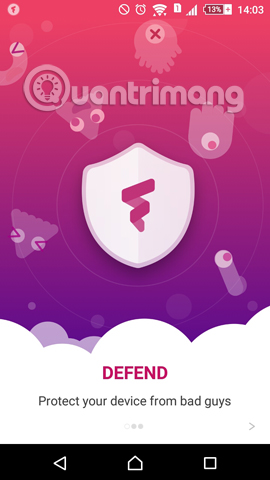
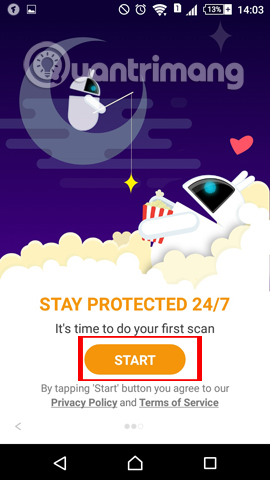
Next, we then install the app on the device. The first interface of the app is to introduce security features. Then, click Start To use Antivirus & Mobile Security.
Step 3:
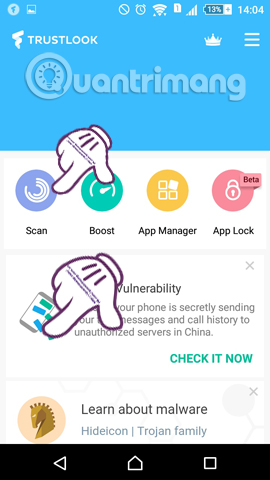
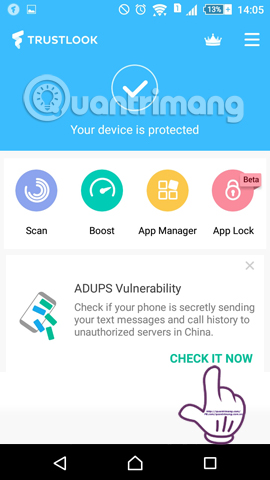
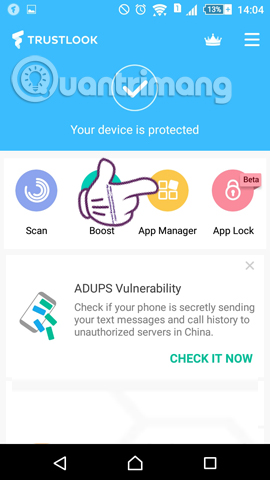
Soon the interface of the program appeared. We will see the program includes: Scan (full system scan), Boost (device acceleration), App Manager (application manager) and App Lock (application lock).
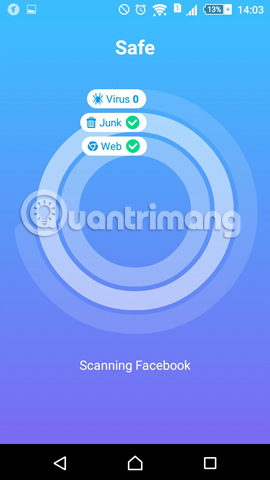
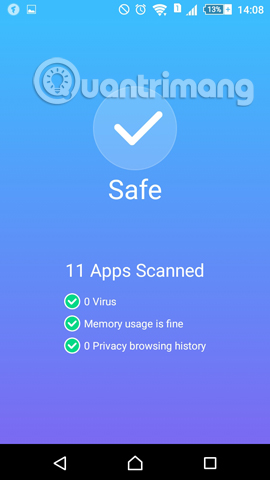
First of all, click Scan To scan the device. This will detect viruses, malicious programs on your computer. Immediately the app will scan the app, the junk file and the browser used. After completing the system check process, the app will notify you about the safety level.
Step 4:
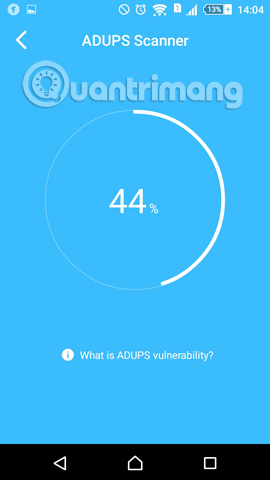
Back to the main interface, we will Check if the device contains spyware Such as Adups Vulnerability or not. This program will collect user information through messages, calls,.
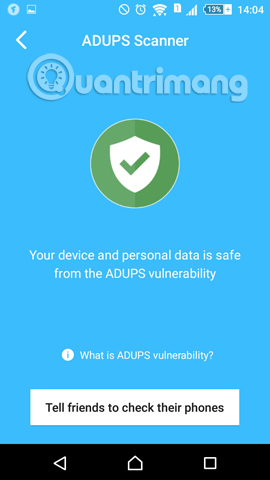
We click Check it now . When the scan is complete, you will receive a notification that the device is safe.
Step 5:
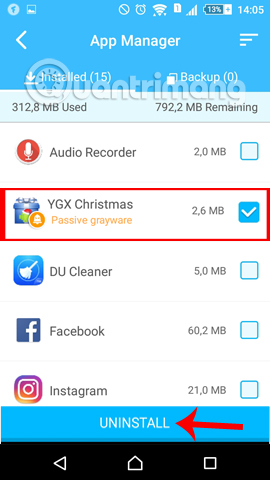
Going back to the interface, we will click the App Manager Section, manage the applications on the device. For Applications that use your personal information for advertising , there will be a notice of Passive grayware . We just need to tick the app and click Uninstall To remove it.
Step 6:
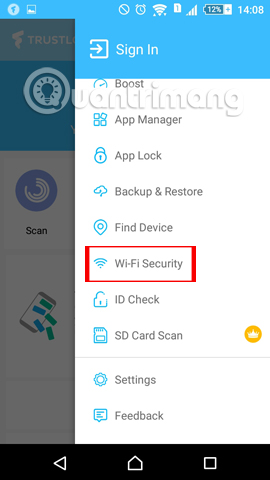
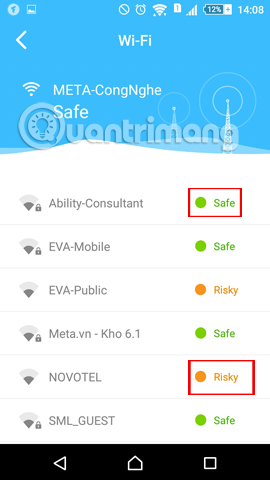
Besides, when you click The 3 dashes icon On the interface, a List of feature options of Antivirus & Mobile Security Appears. For example, I will use the Wi-Fi Security feature To check which network connections are safe for users.
For Secure network connections , we will see A Safe message . For Dangerous Wi-Fi connections,Risky Will be Reported . This will help you avoid connecting to this dangerous Wi-Fi.
So your device has been set up safe mode by Antivirus & Mobile Security application for Android devices already. In addition to checking for spyware applications, stealing dangerous information, the app also helps you scan for viruses, check Wi-Fi connection safety,. Protect your device with applications. Use Antivirus & Mobile Security offline.
Refer to the following articles:
- Prevent advertising notifications on Android
- How to hide important data files and applications in Android devices
- Rescue an Android device that is faulty and "die"
I wish you all success!
FAQ
What should I prepare before I find antivirus & mobile security spyware?
Review the requirements in the guide, confirm that your device or software is compatible, and save important work before changing settings related to find antivirus & mobile security spyware.
Why might find antivirus & mobile security spyware not work as expected?
The most common causes are incompatible versions, missing permissions, incorrect settings, or an interrupted internet connection. Recheck each step and restart the app or device when appropriate.
Can beginners follow these find antivirus & mobile security spyware steps?
Yes. Follow the steps in order, avoid skipping confirmation screens, and compare your interface with the screenshots because labels may differ slightly between versions.
Related Articles
 Antispyware: 14 Most Effective Anti-spyware Software15 minutes read
 How to Removing the Fake Win 7 Anti-spyware 2011 Software4 minutes read
 Top 5 Antivirus Software for iPhone6 minutes read
 The Best Antivirus Programs for Windows 713 minutes read
 9 Best Antivirus Software for Mac12 minutes read
 How to Use Spyhunter to Remove Spyware, Anti-keylogger6 minutes read
Reader Comments 0
Sign in with email or Google to join the discussion.