Table of Contents
Everything You Need to Know About Hardware Security Keys is easier to approach with a clear overview and reliable steps. This guide organizes the essential information, highlights practical details, and explains what to check along the way.
Key Takeaways
- Understand what is a hardware security key.
- Explore how hardware security keys work.
- Understand do all services allow the use of hardware security keys.
What Is a Hardware Security Key?
A hardware security key is a small, highly secure device that serves as an additional 'factor' to a multi-factor authentication (MFA) setup. Similar to a traditional OTP, a hardware security key ensures that bad guys can't access your online accounts even if they have your login information.
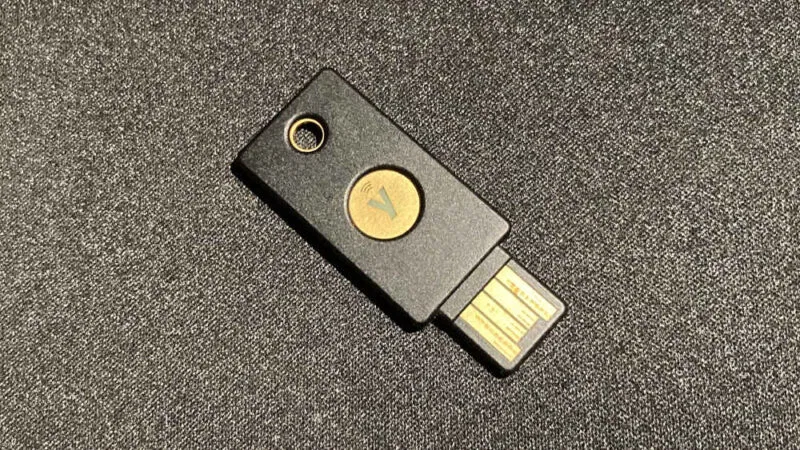
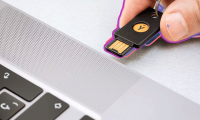
Hardware security keys typically come in the form of NFC- enabled smart cards or USB sticks that you can plug into your PC. Some keys, like the popular Yubikey 5 NFC, offer a combination of USB and NFC, allowing you to use the device on both your computer and your mobile device.
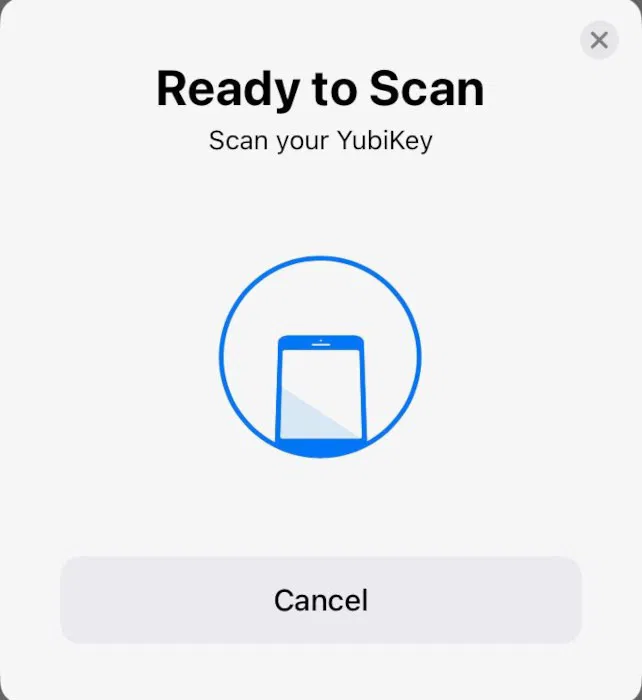
How Hardware Security Keys Work
Essentially, a hardware security key uses public key cryptography to authenticate your login credentials. It generates a pair of cryptographic keys specific to that service when you first configure the key with a compatible website or app. The key stores the private portion of that key pair in its 'security chip,' while the service takes the public portion and stores it on its servers.
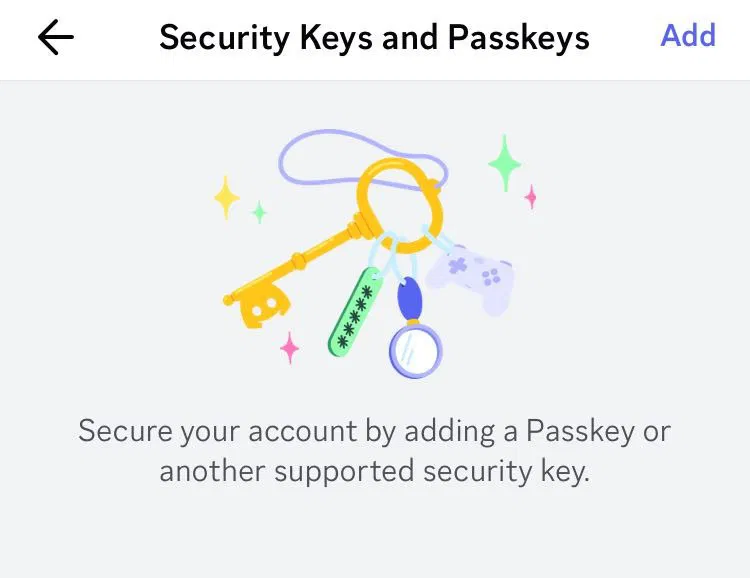
Your website or app will prompt you to plug the key into your device or detect the key via NFC after you successfully log in. The service will send data to your key, which needs to be signed with your private key. The service will then take that data and verify that the data was correctly signed by your private key using its public key.
Do All Services Allow the Use of Hardware Security Keys?
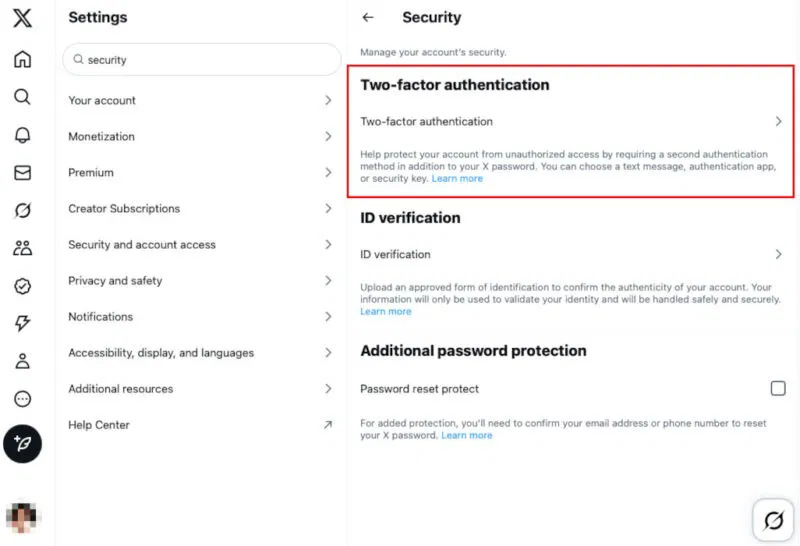
For most major online services, hardware security keys should work. You can expect popular platforms like Google, Amazon, and X to support hardware security keys while support isn't guaranteed outright. For instance, you can add Yubikey support in X by going to the Security and Account Access section of the Account Settings page.
Additionally, support is often on a case-by-case basis. This is because the platform itself is responsible for adding and providing support for hardware security keys. Therefore, you should consider the sites you visit and whether they support this MFA method before making a purchase decision.
Comparing Hardware Security Keys to Other MFA Methods
Hardware Security Keys vs SMS and Email MFA
One benefit of using hardware security keys over traditional SMS and Email MFA is that it is a seamless way to verify your identity. It doesn't rely on OTP codes, meaning no user intervention is required to log in to your account. This not only prevents phishing attacks but also speeds up the login process.
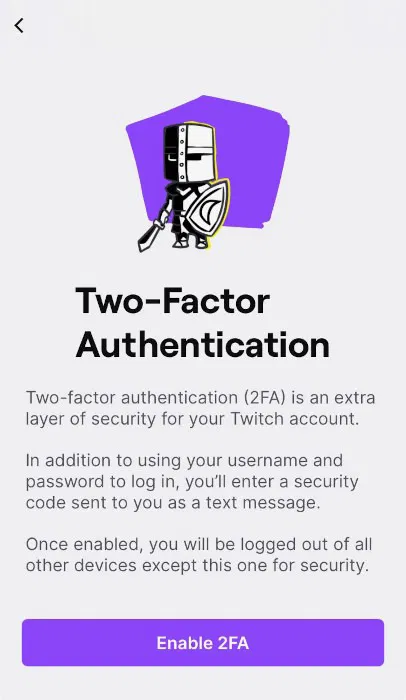
However, this seamless approach comes at a steep price. SMS and Email MFA, on the other hand, leverages devices you already have. Most hardware security keys today cost between $30 and $80, with the cheaper ones only being usable for specific applications. This effectively brings the cost of SMS and Email MFA down to zero, making it a very affordable way to protect your accounts.
Hardware Security Keys vs. Authenticator Apps
Just like SMS and Email MFA, authenticator apps also suffer from the same core issues when compared to hardware security keys. It relies on OTP, which makes it vulnerable to phishing attacks.
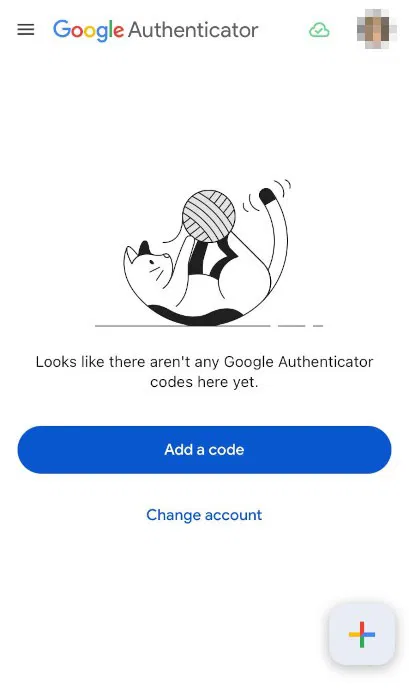
However, most authenticator apps use the RFC 6238 (TOTP) standard, making it one of the most accessible MFA methods available today. In practical terms, there is a good chance that the website you visit has an option to enable TOTP. This is also an advantage over hardware security keys, as not all websites may support their FIDO2 standard.
Hardware Security Keys vs. Biometrics
They differ in a few important ways while hardware security keys and biometric locks offer similar levels of security and convenience. First, biometric locks can only be used on the device where they are stored. Touch ID, for instance, can only allow logins on your iPhone. This severely limits what a biometric lock can do, especially when compared to a hardware security key.
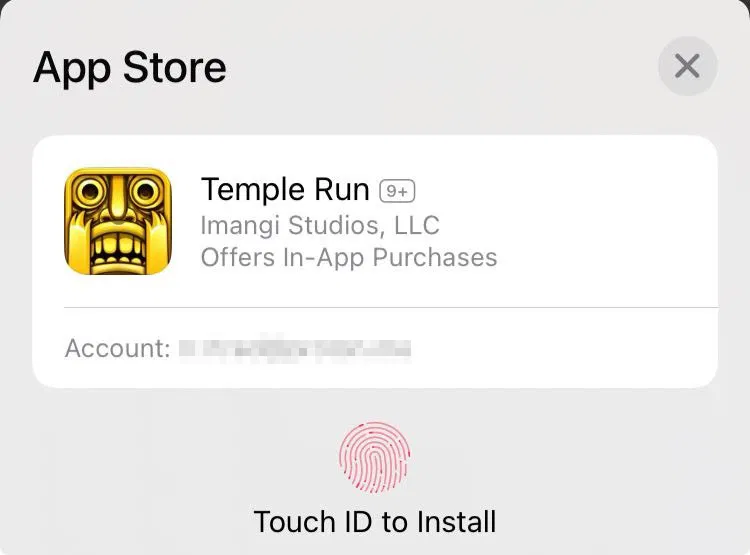
Biometric locks are also often more convenient and easier to use than hardware security locks. Biometric locks don't involve any external devices and take advantage of what you already have. They also don't rely on OTPs, making them resistant to phishing attacks.
What Happens When You Lose Your Hardware Security Key?
One of the strengths of a hardware security key is also its weakness. As a physical object, you can lose the key, which can be a concern if you rely on your hardware security key to log in to important things like online banking.
It's important to remember that most locks have some protection against unauthorized access when this happens. For instance, the Yubikey 5 requires the user to set a PIN and has a mechanism to erase itself after multiple incorrect PIN entries.
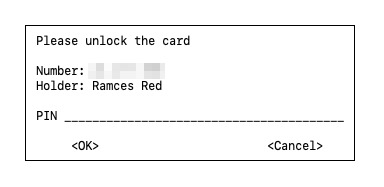
Additionally, hardware security keys don't store sensitive information like your username and password. They also store private keys on a secure chip, making it impossible for bad guys to extract them.
Final Thoughts
The most reliable way to handle everything you need to know about hardware security keys is to follow the process in order, verify each important setting, and test the result before moving on. Use the guidance above as a practical reference, then adjust the details for your device, software version, or specific goal.
FAQ
What should I know first about Everything You Need to Know About Hardware Security Keys?
From phishing to database breaches, protecting yourself online is becoming increasingly difficult these days.
How do I get the best results with Everything You Need to Know About Hardware Security Keys?
Use current software or equipment, follow the steps in order, review the recommended settings, and test one change at a time so you can identify what improves the result.
What should I do if Everything You Need to Know About Hardware Security Keys doesn't work as expected?
Check compatibility, permissions, connectivity, and version-specific settings. Restart the relevant device or app, then repeat the process carefully before trying a more advanced fix.
Related Articles
 What Is Hardware Security Module (HSM)? Why Is It So Important?9 minutes read
 How to Restore iPhone Settings Using Hardware Keys: Clear Instructions8 minutes read
 8 Security Issues to Keep in Mind When Recycling Hardware12 minutes read
 Should I Buy a USB, Bluetooth or NFC Security Key?7 minutes read
 Use Ipad Safely7 minutes read
 The Real Reason Keyboards Have F1 to F12 Keys: Complete Guide9 minutes read
Reader Comments 0
Sign in with email or Google to join the discussion.