Table of Contents
5 Convenient Ways to Use Edge Panel on Samsung Phones brings together practical options worth considering. Below, you'll find clear explanations, useful context, and tips for deciding which choices best match your needs.
Key Takeaways
- Review open your favorite apps right away.
- Explore perform quick actions like speed dialing and adding notes.
- Understand smart select for easy screenshot capture.
5. Open Your Favorite Apps Right Away
You can only add so many shortcuts at once without cluttering up your screen while adding app shortcuts to your home screen is convenient. Plus, you still need to open your home screen to access them.
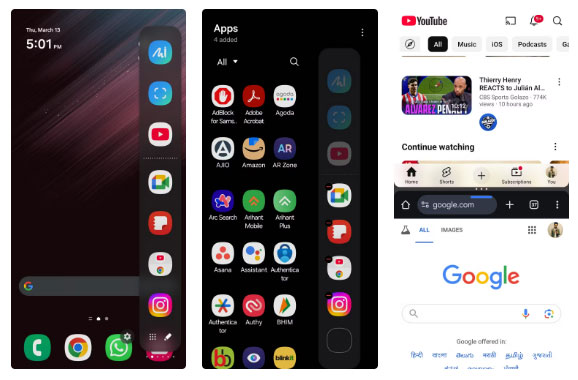
That's why people like to add some of their favorite apps to the Edge Panel. That way, you can access them from almost any screen with just a swipe, whether you're in another app or browsing the Settings menu.
Many people also like to add App Pairs to the Edge Panel, which allows you to open two apps at once in split-screen mode. For instance, App Pair for YouTube and Chrome is great for watching videos while browsing the web.
4. Perform Quick Actions Like Speed Dialing and Adding Notes
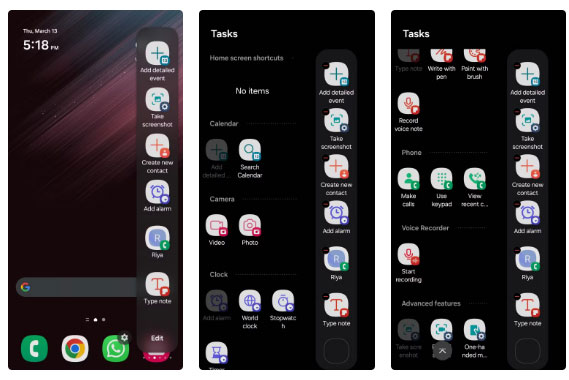
The Edge Panel is also great for quickly accessing shortcuts like adding a calendar event, starting a timer, or creating a voice memo. This allows you to streamline everyday tasks without having to switch between multiple apps.
Set up shortcuts to quickly add notes to the Samsung Notes app. No matter what app you're using, you can swipe open the Edge Panel and tap the "Type note" shortcut to jump straight to Samsung Notes and start writing.
My favorite way to use the Edge Panel, however, is to speed dial your important contacts. Instead of opening the Phone app, you can just swipe open the Edge Panel and tap on a contact's name to call them right away.
3. Smart Select for Easy Screenshot Capture
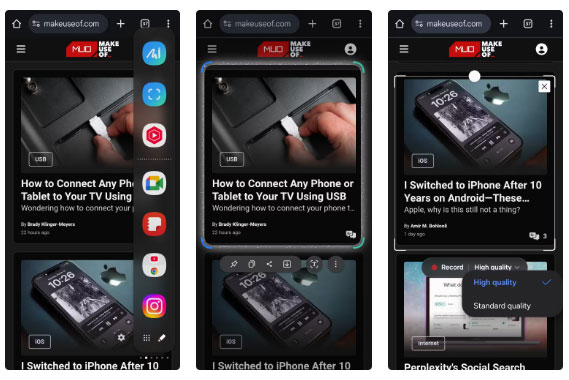
Sometimes you just need to capture and share a specific portion of your screen while Samsung phones offer a variety of ways to take screenshots. The standard method requires you to take a full screenshot, open it in the Gallery app, and then crop it manually.
Use Smart Select in the Edge Panel. This helps you avoid this. It allows you to instantly capture a specific part of the screen without any further editing. Plus, you can paste those screenshots directly from the clipboard into the Edge Panel.
Another great feature of Smart Select is the GIF recorder. This is a handy alternative to the full-screen recorder when you need to capture short clips and quickly share them.
2. Quick Access to Favorite Websites
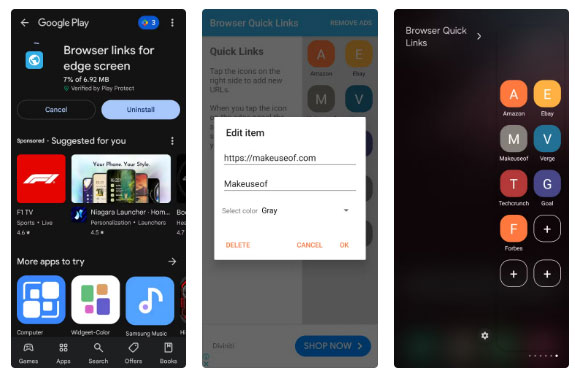
One of my favorite ways to use the Edge Panel on Samsung phones is to quickly access your most visited websites. Since this feature isn't available by default, use the "Browser links for Edge screen" app to enable it.
This feature allows you to add your favorite websites directly to the Edge Panel. So instead of having to search through your browser bookmarks, you can access your frequently used websites instantly with a simple swipe.
- Download Browser links for edge screen (Free, in-app purchases available).
Note: Samsung has discontinued Edge Panel downloads with One UI 7. However, if your phone is running One UI 6 or earlier, you can download it before the update and continue using it without any issues.
1. Doodle and Sketch All the Time
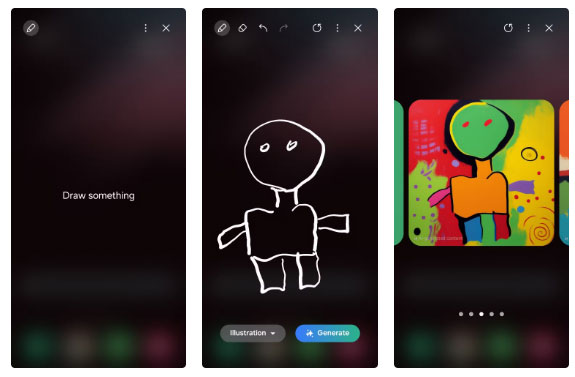
Many people enjoy doodling and sketching in their spare time. With the Edge Panel, you can instantly access the Drawing Assist shortcut and turn your phone into a digital sketchpad.
What makes this feature even more interesting is the Galaxy AI's Sketch-to-Image feature. Once you're done doodling, you can turn your rough sketches into a beautiful watercolor painting, an artistic illustration, a pencil sketch, pop art, or even a 3D cartoon. It's fun to see how the Galaxy AI turns simple sketches into reality.
The Edge Panel isn't one of the most talked about features on Samsung phones, but once you start using it, you'll wonder how you ever got by without it. Hopefully these ideas will inspire you if you haven't tried it yet!
Final Thoughts
The most reliable way to handle convenient ways to use edge panel on samsung phones is to follow the process in order, verify each important setting, and test the result before moving on. Use the guidance above as a practical reference, then adjust the details for your device, software version, or specific goal.
FAQ
What should I know first about Convenient Ways to Use Edge Panel on Samsung Phones?
Most people think the Edge Panel on Samsung phones is just a gimmick, but it's actually useful.
How do I get the best results with Convenient Ways to Use Edge Panel on Samsung Phones?
Use current software or equipment, follow the steps in order, review the recommended settings, and test one change at a time so you can identify what improves the result.
What should I do if Convenient Ways to Use Edge Panel on Samsung Phones doesn't work as expected?
Check compatibility, permissions, connectivity, and version-specific settings. Restart the relevant device or app, then repeat the process carefully before trying a more advanced fix.
Related Articles
 How to Customize the Edge Panel on the Galaxy S203 minutes read
 Feature to Create Interesting Hidden Gifs in Galaxy S83 minutes read
 10 Samsung Galaxy Features All Android Phones Should Learn6 minutes read
 7 Gestures, Fast and Convenient Shortcuts on Samsung Phones8 minutes read
 Instructions for Checking Genuine Samsung Phones6 minutes read
 Samsung Galaxy S25 Edge or iPhone Air Is a Better Choice: Explained10 minutes read
Reader Comments 0
Sign in with email or Google to join the discussion.