Table of Contents
This guide organizes the entries in "18 Professional Surface Pro Keyboard Troubleshooting Solutions" and explains what each option, idea, or example offers. It also highlights practical details that matter when comparing the choices.
Note : The solutions in this article apply to Microsoft Surface Pro models running Windows 10 or Windows 11.
How to troubleshoot Surface Pro physical keyboard

Whether you're using a Surface Type Cover or Touch Cover with your Surface Pro, or a third-party Bluetooth or traditional keyboard, you may encounter some connection issues and errors. Here's how to troubleshoot your Surface Pro's physical keyboard.
- Disconnect and reconnect the Surface Pro keyboard . Just remove the keyboard, wait a few seconds, and then reattach it to use it again.
- Check your keyboard's battery . Wireless keyboards require power, so make sure your keyboard is using the required battery and is fully charged.
Tip : The Surface Type Cover and Touch Cover don't need batteries because they're powered by the Surface Pro itself.
- Dust the Type Cover connectors . Dust can easily accumulate along the underside of your Surface Pro, where the Type Cover and Touch Cover connect. Dust the connectors and remove any visible dirt.
- Type on a flat surface . Sometimes using your Surface Pro on your lap or a blanket can cause the Type Cover to disconnect. Try placing a book or tray underneath it when you're not sitting at a desk.
- Install the latest Windows updates . Whether you're running Windows 10 or Windows 11, installing the latest operating system updates can fix some hardware issues that can cause keyboard disconnections and malfunctions.
- Turn on Bluetooth . If you can't connect a wireless keyboard to your Surface Pro, make sure Bluetooth is turned on and that your keyboard actually supports Bluetooth in the first place.
- Run the Bluetooth troubleshooter . This will allow your computer to attempt to fix the problem, assuming it's related to Bluetooth.
- On Windows 11, go to Settings > System > Troubleshoot > Other troubleshooters , then select Run next to Bluetooth .
- On Windows 10, go to Settings > Update & Security > Troubleshoot > Bluetooth > Run the troubleshooter .
Tip : You should also run the keyboard troubleshooter.
- Update your keyboard driver . This may fix any hardware compatibility issues.
- Test the keyboard on another device . Your keyboard may be broken. Confirm by checking if it works on another computer or tablet.
How to fix Surface Pro touch keyboard
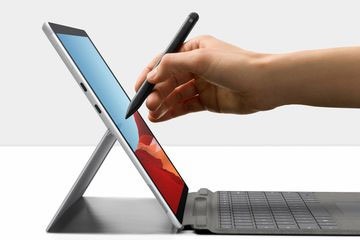
Microsoft's Surface Pro tablets support the on-screen touch keyboard built into Windows. Here are some ways to fix the touch keyboard when it's not working properly.
- Restart Windows . Restarting your Surface Pro can fix some issues, like the touch keyboard not working properly.
- Switch to Windows 10 Tablet Mode . The Surface Pro touch keyboard is designed for Windows 10 Tablet Mode and often doesn't work when in Desktop Mode.
Note : Windows 11 does not have Tablet Mode. The touch keyboard is designed to work at any time while using the operating system.
- Remove the keyboard . Your Surface Pro will prioritize the physical keyboard over the touch keyboard. Removing the keyboard will usually activate the touch keyboard and make it appear.
- Change keyboard settings. Go to Settings > Devices > Typing and turn on Show the touch keyboard when not in tablet mode and there's no keyboard attached to use the touch keyboard when in Windows 10 Desktop Mode.
- Don't forget the emoji keyboard . To activate this special keyboard, press Win + Period .
- Install a keyboard language pack . If the language you want isn't available, download it and start using it in minutes.
- Always enable the Windows touch keyboard . This will make the keyboard available in all modes regardless of what hardware is connected.
- On Windows 11, open Settings and go to Accessibility > Keyboard , then turn on On-screen keyboard .
- On Windows 10, open Settings and go to Ease of Access > Keyboard , then turn on Use the On-Screen Keyboard .
Tip : You can also enable this option using the keyboard shortcut Win + Ctrl + O .
- Clean the Surface Pro screen . Dirt buildup can affect touch controls and keyboard typing.
- Run the keyboard troubleshooter . This will scan Windows and try to fix keyboard-related problems. To do this, go to Settings > Update & Security > Troubleshoot > Keyboard > Run the troubleshooter .
FAQ
How to troubleshoot Surface Pro physical keyboard?
Whether you're using a Surface Type Cover or Touch Cover with your Surface Pro, or a third-party Bluetooth or traditional keyboard, you may encounter some connection issues and errors. Here's how to troubleshoot your Surface Pro's physical keyboard.
How to fix Surface Pro touch keyboard?
Microsoft's Surface Pro tablets support the on-screen touch keyboard built into Windows. Here are some ways to fix the touch keyboard when it's not working properly.
What does this guide cover?
This guide explains 18 professional surface pro keyboard troubleshooting solutions, including the main steps, important details, and practical considerations.
Related Articles
 4 Ways to Fix Laptop Keyboard Errors Should Try Before You Buy a New5 minutes read
 Compare Microsoft Surface 3 and Surface Pro 35 minutes read
 Surface Laptop 4 Review: the Perfect Laptop for Everyday Use8 minutes read
 Experience the Microsoft Surface Studio All-in-one, Rival of the IMac7 minutes read
 Surface Pro 3 Receives New Updates, Improves Drivers for the Surface Pen3 minutes read
 How to Fix Stuck Keyboard Buttons: Clear Instructions6 minutes read
Reader Comments 0
Sign in with email or Google to join the discussion.