Table of Contents
This guide covers the msi wind u135 runs on batteries for just over 5 hours with practical context and easy-to-follow details. Use it to understand the subject and apply the information confidently.
 MSI Wind U135 costs 330 USD, 50 USD cheaper than the Eee PC 1005PE. Photo: Engadget.
MSI's new netbook uses Atom Pine Trail N450 1. 6 GHz processor, 10 inch screen, 1, 024 x 600 pixel resolution, 1 GB RAM, 250 GB HDD, runs Windows 7 Starter. According to Netbooked , the Wind U135 will cost $ 330, $ 50 cheaper than the Eee PC 1005PE, which also runs the Atom Pine Trail platform.
With a 6-cell battery, Laptopmag 's test results show that the Wind U135's battery life is 5 hours 35 minutes, less than 10 hours of continuous Wi-Fi surfing by rival Asus Eee PC 1005PE.
Some Wind U135 images next to Eee PC 1005PE.

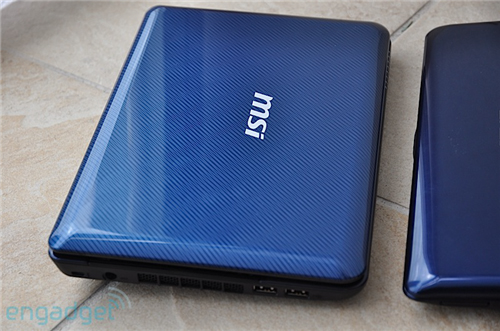
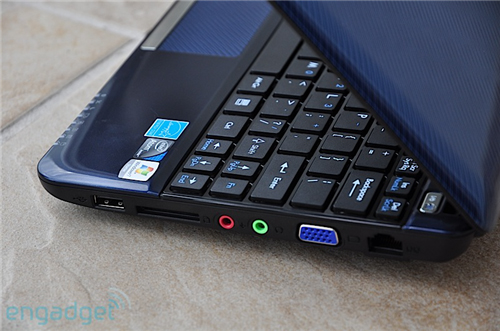
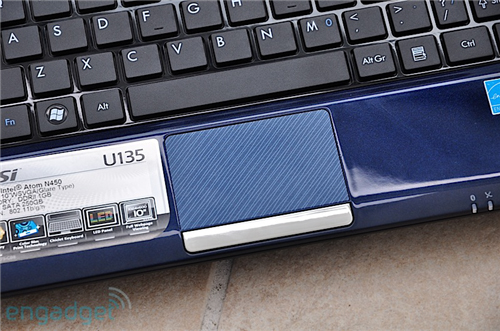
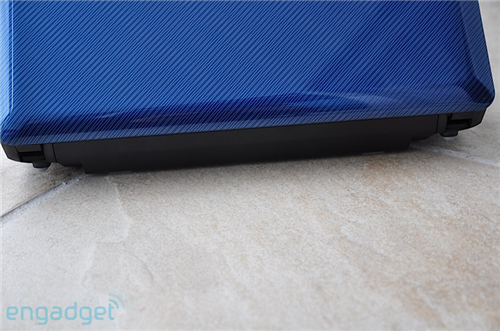
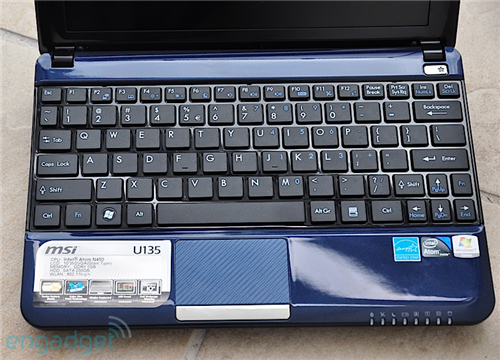
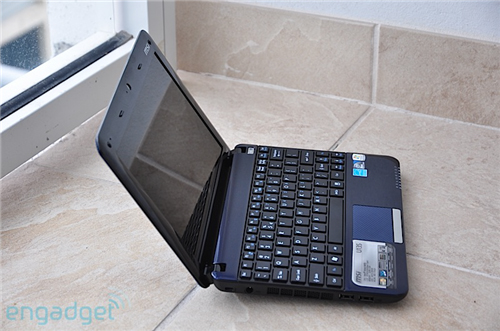
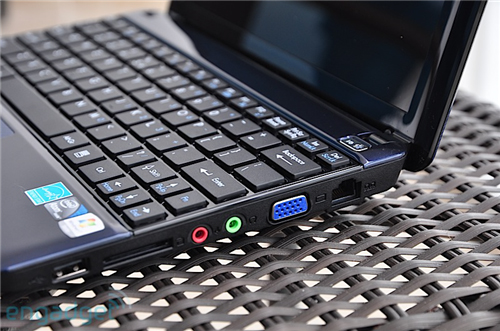
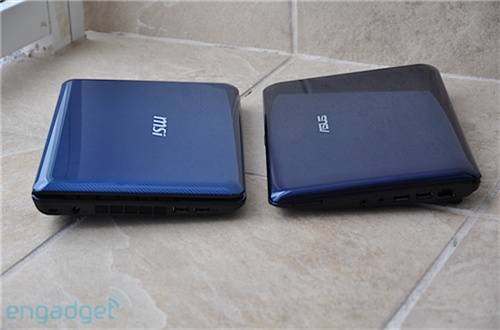
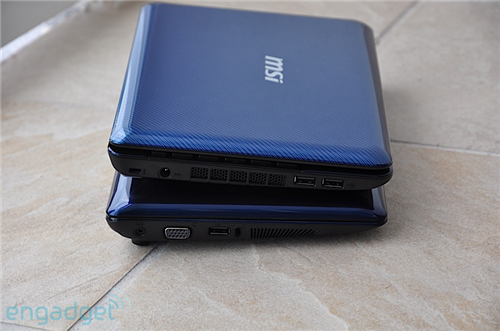 "Dab" designed with the Eee PC 1005PE.
FAQ
What should I check before following these steps?
Confirm device and software compatibility, save important data, and make sure you have the required permissions, files, and account access.
Why might the process not work?
Common causes include outdated software, missing permissions, incompatible hardware, an unstable connection, or completing a step in the wrong order.
Can I undo the changes if necessary?
That depends on the tool or setting. Use built-in restore options when available, keep a backup, and record the original configuration first.
Related Articles
 What Will Happen if the Wind Stops Blowing on Earth7 minutes read
 Becoming a Wind Turbine Technician: Do You Need a Degree?7 minutes read
 Prestigious Address Selling Wind-cutting Fans, Wind-breakers in8 minutes read
 How to Fit Wind Deflectors: Step-by-Step Guide7 minutes read
 Netbook Weighs Only 1kg, MSI's 15 Hour Battery4 minutes read
 How Much Wind Turbines Are Needed to Meet the Power Needs of Our5 minutes read
Reader Comments 0
Sign in with email or Google to join the discussion.