Table of Contents
Say The Word on Beat: Fun Game is a rhythm-speaking app: watch the word cues and say each word in time with the music. It combines the challenge with reaction-video recording, so you can review your timing or save a clip.
Check that you have the intended app
The App Store listing identifies CEM SOFTWARE LTD as the developer and lists iPhone and iPad support. Check the publisher as well as the app name; several similarly named rhythm challenges exist.

If searching on Android, do not assume a matching title is the same CEM product. Confirm the developer, current compatibility, price, and any purchases on the store page before installing. Availability can differ by region.
How the challenge works
The developer describes a split-screen layout with the camera view taking roughly two-thirds of the screen and the music video taking the rest. Watch the visual cues, read the words in the boxes, and speak on the beat while your reaction is recorded.
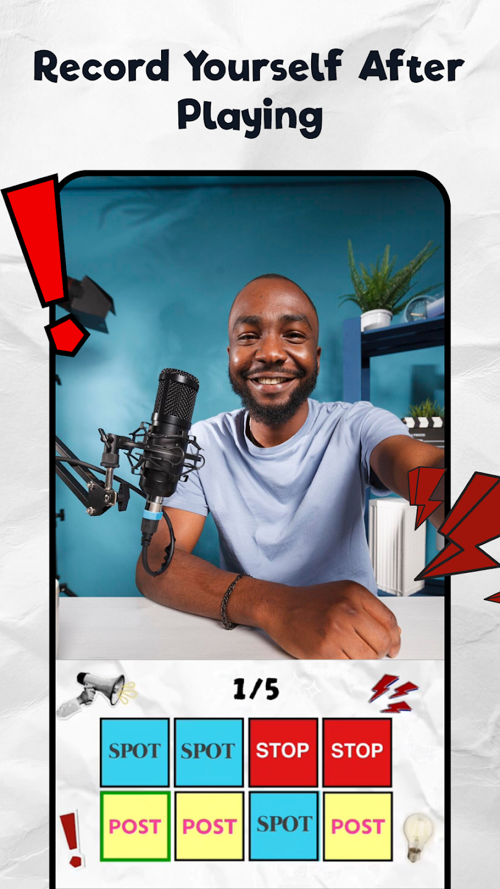
The listed difficulty modes are Easy, Hard, and Impossible. Start with Easy to learn the timing. Move up when you can follow the cues consistently rather than trying to speak as fast as possible.
Play and record your first attempt
- Choose an available challenge and a suitable difficulty.
- Review the camera and microphone prompts. These permissions support the recording features; approve them only when you want to use those features.
- Place the phone where you can see the cues and keep your face in frame.
- Listen to the rhythm, then say each displayed word at the indicated moment.
- Review the clip and use the app's available save or download control.
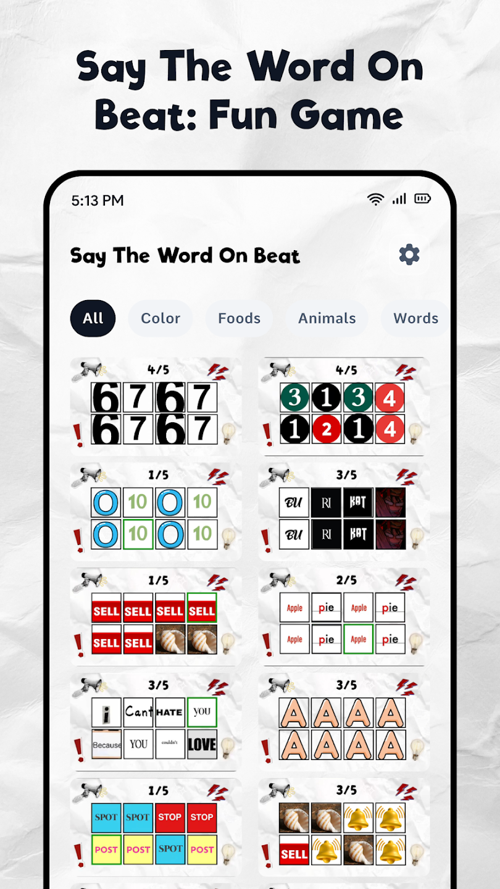
Try the same short challenge several times. Listen for whether you are consistently early or late, and adjust the next attempt. Clear, steady speech is more useful than rushing through every word. Check the saved clip for sound and picture quality before posting it.
Manage recording and sharing
The developer lists camera filters and video saving among the features. The exact controls can change with app updates, so use the options shown in your installed version rather than expecting a particular sharing button or upload service.

Before sharing, check the background for private information and make sure anyone else in the recording agrees to appear. Saving a clip to your device does not mean it has been posted to a social platform.
Our iPhone camera-permission guide explains how to review access. For a broader approach, see how to review app permissions. A publisher's privacy statement is a policy claim, not independent proof that an app is risk-free.
Related Articles
 How to play Say the Word on Beat: Timing, setup, and practice tips
 Answer game 2 Image 1 word: Guess the word, Track the song
 The most professional beat splitter and how to use it
 How to Make a Basic Beat in Fruity Loops
 How to play Strands, NYT's newest addictive word game
 Latest Au Beat Code 11/19/2024 and how to enter the code
Reader Comments 0
Sign in with email or Google to join the discussion.