Table of Contents
This guide covers new experience with lenovo's touch technology with practical context and easy-to-follow details. Use it to understand the subject and apply the information confidently.
Using advanced capacitive tap technology, these tap screens are very sensitive to even the slightest finger touches. Lenovo also optimizes firmware software to support inaccurate finger touches on the screen, such as when closing a window or query to the Start menu, making operation easier for users. Tablet line. To eliminate leaving fingerprints on the screen, an anti-fingerprint coating will help prevent blurring and keep the screen clean. Multi-tap tap screens also extend battery life by up to 9 hours when used continuously for the ThinkPad X200 Tablet2. With the new ThinkPad X200 Tablet models that support the upcoming Microsoft Windows 7 operating system, mobile users can enjoy significant improvements in the ability to predict words and script recognition at Many different languages, as well as features to enter formulas for math or technical equations. Mr. Nguyen Van Thien, Director of Lenovo Vietnam, in charge of commercial business, said that now is the time of multi-tap screen on computers. "With the multi-tap touchscreen appearing more and more on the many devices we are using every day, along with continuous technological improvements like the integration of tap features in the operating system. Windows 7 is coming soon, nothing is more appropriate than bringing tap technology to mobile laptops, "Thien said. Bring simplicity
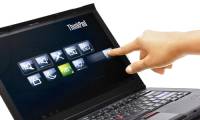
Tap screen is designed to interact with the computer in an intuitive and natural way, however, usually users need to switch between tap screen operation with pressing the mouse / keyboard buttons. Lenovo has designed SimpleTap, a tool in ThinkVantage technology, that enables users to seamlessly use tap screen by enabling them to manipulate features commonly found on hardware (keyboard, mouse). An easier way with just touching the screen. For tablet users, this means that they will be able to work longer with the tablet mode on the go, save time and work more efficiently. To use SimpleTap, you simply tap twice at any point on the screen to launch this app. A menu of color and transparent function boxes appears clearly and easily visible on the working task environment, like a classic 15-box puzzle game, allowing users to choose features such as: turn on / off the wireless, ThinkLight and microphone lights, view the camera, mute sound mode, adjust the sound or brightness of the screen, lock the screen, and switch the computer to "sleep" mode. To exit SimpleTap, you just need to tap anywhere on the screen to close this menu, and continue your work. With such a fast query interface, SimpleTap allows users to enter, perform a function and exit very quickly. Designed to be customizable, users can create their own customized function boxes to enhance their performance. For example, a professional salesperson can create function boxes to access the sales presentation program with just one finger tap. Similarly, a health care person can create a function box to get a patient's medical information right away. Or an individual user can quickly access his favorite websites. Users can also arrange function boxes by their own by dragging / dropping, grouping them together, or setting up "relax" mode when using, then the function boxes can bounce around. Screen. Don't be afraid of outdoor lighting
FAQ
What should I check before following these steps?
Confirm device and software compatibility, save important data, and make sure you have the required permissions, files, and account access.
Why might the process not work?
Common causes include outdated software, missing permissions, incompatible hardware, an unstable connection, or completing a step in the wrong order.
Can I undo the changes if necessary?
That depends on the tool or setting. Use built-in restore options when available, keep a backup, and record the original configuration first.
Related Articles
 Experience 3D Touch on iPhone 6S Applications7 minutes read
 Fujfilm Will Help Make Computers Touch Cheaper4 minutes read
 Display Technology of the Year: Multitouch (1)16 minutes read
 Time of Multi-touch7 minutes read
 Top Touch Laptops6 minutes read
 Useful Shortcuts on iPhone with 3D Touch Without Your Knowledge7 minutes read
Reader Comments 0
Sign in with email or Google to join the discussion.