What you will learn
- Find processor, installed RAM, Windows system type, storage capacity and graphics information without third-party software.
- Distinguish a model name, a measured capacity and an available-space figure.
- Create a short specification record suitable for software checks or technical support.
- Avoid sharing serial numbers, device IDs and product keys unnecessarily.
What you need
- A Windows 10 or Windows 11 PC.
- Access to Settings, Task Manager and File Explorer.
- About 15 minutes and a place to save notes.
Know which Windows screen answers which question
Microsoft identifies Settings > System > About as the main place to see the processor, installed RAM, device name and system type. That screen is ideal for a quick compatibility check, but it does not show every storage or graphics detail.
Use the smallest tool that answers the question. File Explorer shows drive capacity and free space, Task Manager shows the active CPU, memory, disk and GPU, and System Information provides a deeper inventory. Combining those views is more reliable than copying a single marketing label from a sticker or online listing.
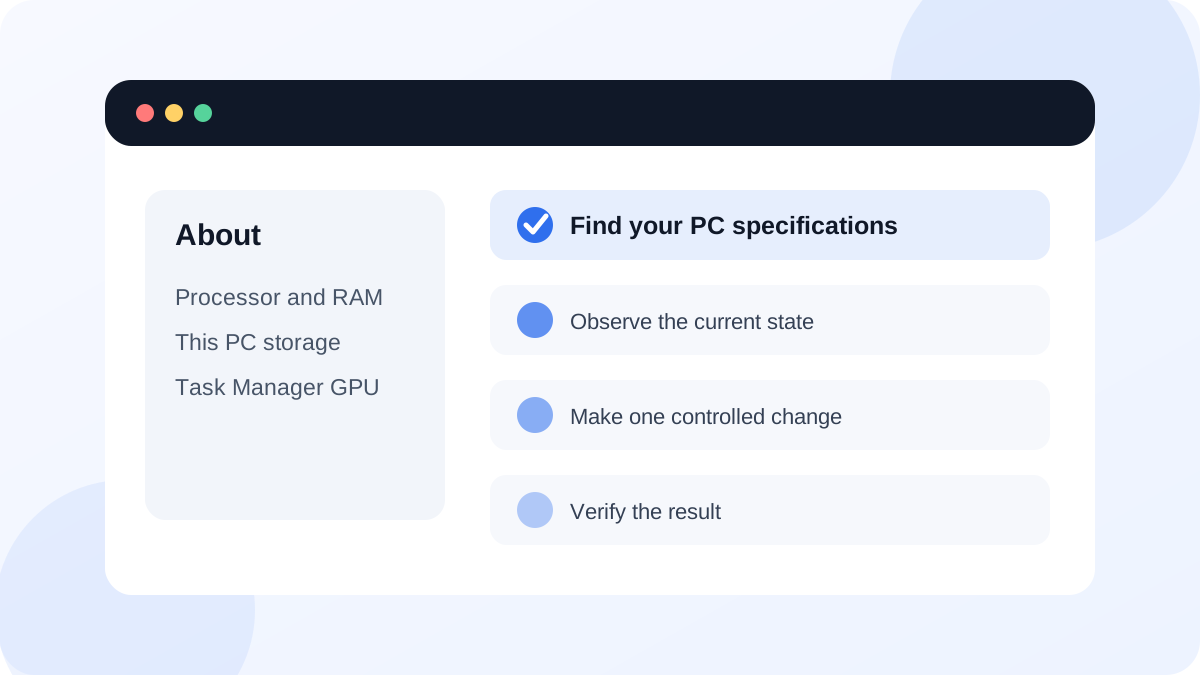
Start with Settings > System > About
Press Windows + I, open System and select About. Under Device specifications, record the processor name and installed RAM. Under System type, note whether the operating system and processor are 64-bit or 32-bit. Under Windows specifications, you can also confirm the edition and build, which are covered in the previous lesson.
Installed RAM is the physical memory Windows recognizes, not the free memory available at this moment. A small portion may be marked hardware reserved, so a computer sold with 16 GB can display slightly less usable memory. Do not interpret that difference as a fault without checking the hardware documentation.
- 1
Press Windows + I and open System > About.
- 2
Write down the processor model exactly as displayed.
- 3
Record Installed RAM and System type.
- 4
Do not copy Device ID or Product ID into a public message.
- 5
Use the Copy button only when the destination is trusted, then remove fields that are not needed.
Check storage and graphics separately
Open File Explorer and select This PC. Each drive tile shows total capacity and available space. Capacity tells you how large the logical volume is; free space tells you what can be used now. These numbers are different from the manufacturer's advertised drive size because Windows displays capacity using a different calculation and because recovery partitions may not appear as normal drives.
Open Task Manager with Ctrl + Shift + Esc, choose Performance and select GPU. Record the GPU name and dedicated GPU memory when present. A laptop can show more than one GPU because it may use integrated graphics for efficiency and a discrete GPU for demanding work. System Information is another built-in inventory tool when you need the PC model, BIOS mode or motherboard-related details.
- Processor, installed RAM and system type came from the About page.
- Storage notes include both total capacity and current free space.
- The GPU name was copied from Task Manager rather than guessed from a product family.
- No product key, serial number or device ID appears in the shared summary.
Interpret specifications in context
A model number alone does not prove performance. Two processors from the same family can have different generations, power limits and core counts. Likewise, a drive described simply as SSD may use SATA or NVMe and may be nearly full. When checking software requirements, compare every required item—Windows version, architecture, processor, memory, graphics capability and free storage—not only the most visible number.
Microsoft's Windows system configuration guidance lists System Information, Task Manager, Settings and other built-in consoles as complementary tools. Use that principle when one screen does not provide enough detail.
Create a reusable PC specification card
Build a concise record you can use before installing demanding software or asking for support.
- 1
Open About and record processor, RAM and system type.
- 2
Open This PC and record the system drive's total and free space.
- 3
Open Task Manager > Performance and record the GPU name.
- 4
Add the Windows edition, version and build from the previous lesson.
- 5
Save the record locally and review it for identifiers that should not be shared.
Common mistakes to avoid
- Treating currently available memory as the amount of installed RAM.
- Reporting only the drive size while ignoring very low free space.
- Assuming a product sticker describes the hardware currently installed.
- Posting a full About-page screenshot that exposes unnecessary identifiers.
Key takeaways
- Different Windows screens report different parts of the hardware picture.
- Specifications must be compared with the exact requirements of the task or application.
- A short, privacy-conscious specification card is more useful than an unfiltered screenshot.
Frequently asked questions
Why does a 512 GB drive show less capacity in Windows?
Manufacturers and Windows use different units, and hidden recovery or system partitions can use part of the physical drive. This normally does not mean capacity is missing.
Can Task Manager tell me the exact power supply or motherboard model?
Not reliably. Use System Information, the manufacturer's documentation or a physical inspection by a qualified person when those details are required.
Sources and further reading
- Find information about your Windows deviceMicrosoft Support
- System configuration tools in WindowsMicrosoft Support
Ready to continue?
Mark the lesson complete so your Learning Path progress stays current on this device.